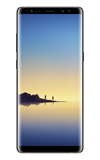
- ADD A CONTACT: Swipe up or down from the center of the home screen to access the Apps tray.
Note: When in Easy mode no 'Groups' tab will display and you can't send business cards, merge accounts or link contacts.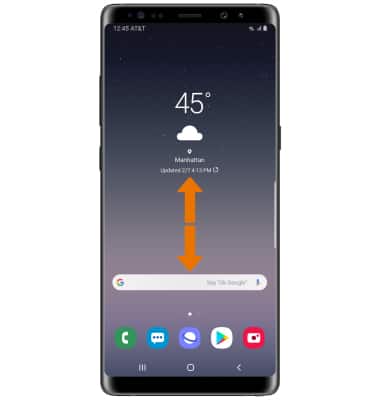
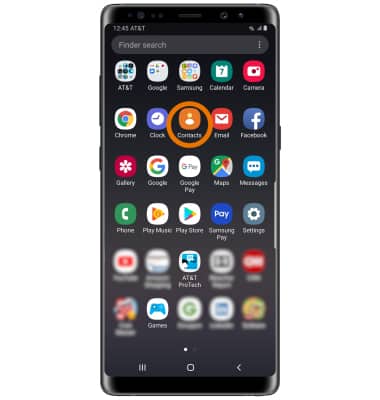
- Select the Contacts app.
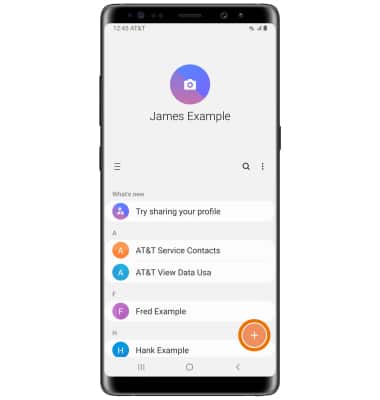
- Select the Add icon.
- Select the desired location to store the new contact information, then select Select.
Note: Phone was chosen for this tutorial.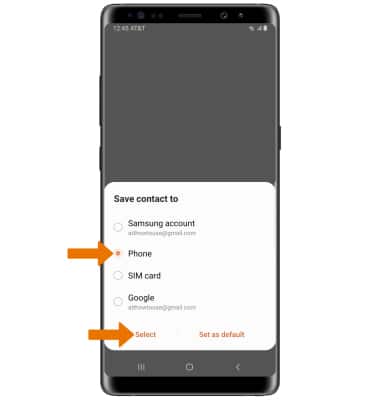
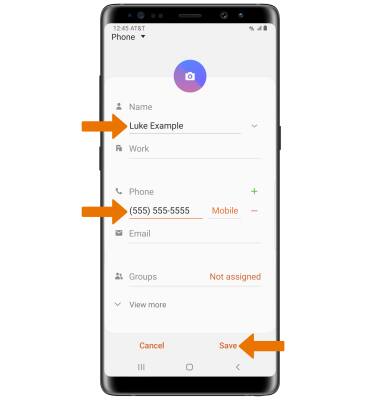
- Enter the desired contact information, then select Save.
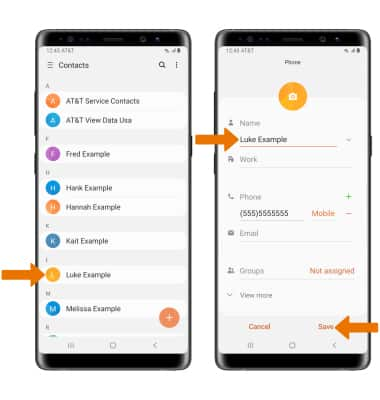
- EDIT A CONTACT: Select the desired contact > Edit > edit the contact information as desired > select Save.
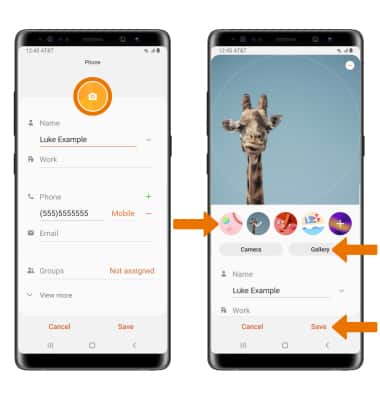
- ADD PICTURE TO A CONTACT: Select the Camera icon > Gallery > desired image > Save.
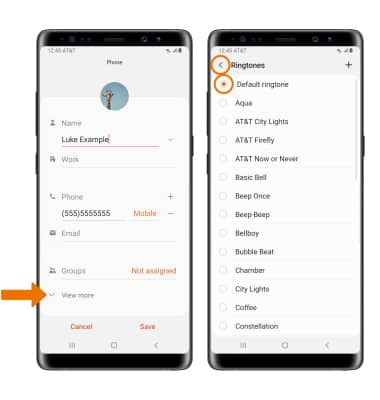
- ADD RINGTONE TO A CONTACT: From the desired contact's Edit screen, select View more > scroll to and select Ringtone > desired ringtone > Back icon.
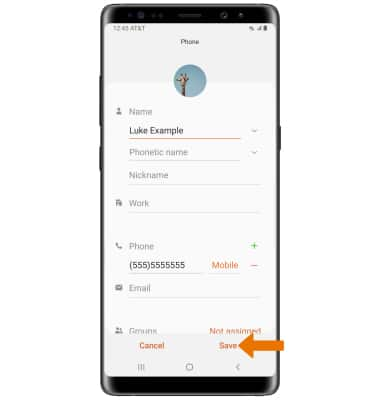
- Select Save to save your edits.
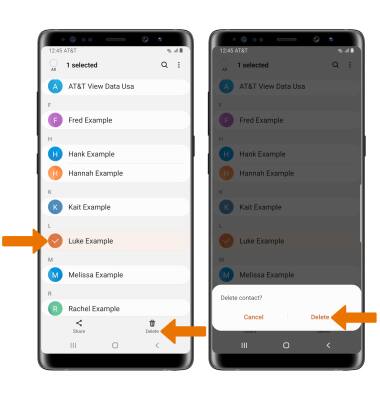
DELETE A CONTACT: From the Contacts screen, select and hold the desired contact. Select Delete, then select Delete again to confirm.
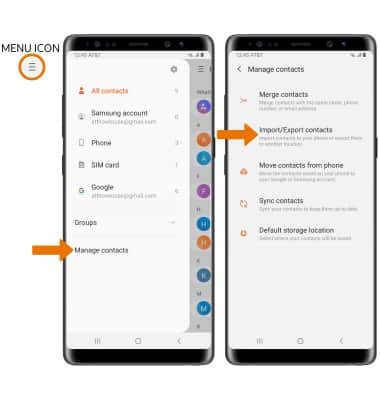
- BACKUP CONTACTS: Select the Menu icon > Manage contacts > Import/Export contacts > follow the prompts.
Contacts
Samsung Galaxy Note8 (N950U)
Contacts
Add, view, delete, and customize contacts by adding a picture or ringtone.
Contacts
Add, view, delete, and customize contacts by adding a picture or ringtone.

Contacts
1:46
INSTRUCTIONS & INFO