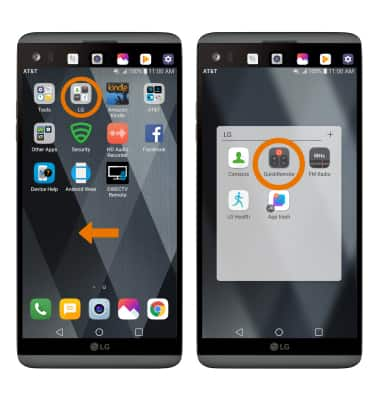
- ACCESS QUICKREMOTE: Swipe to the second home screen, then select the LG folder. Select QuickRemote.
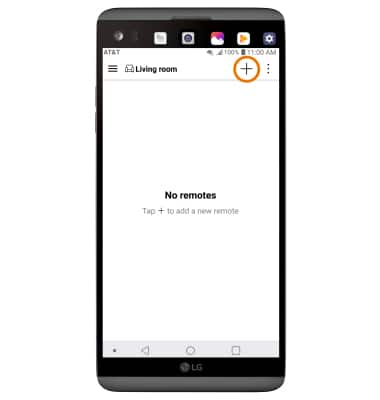
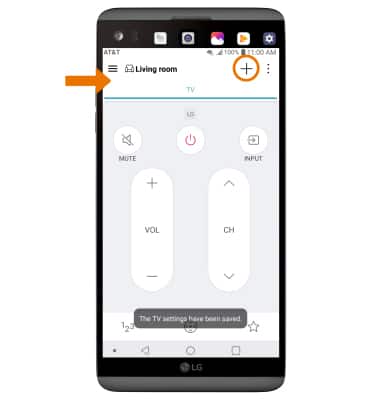
- ADD A REMOTE: Select the Add icon.
- Select the desired device, then select the desired Manufacturer.
Note: For this tutorial, TV was selected.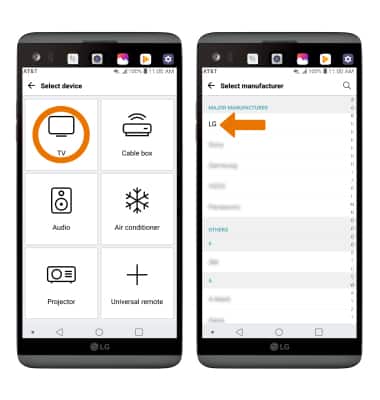
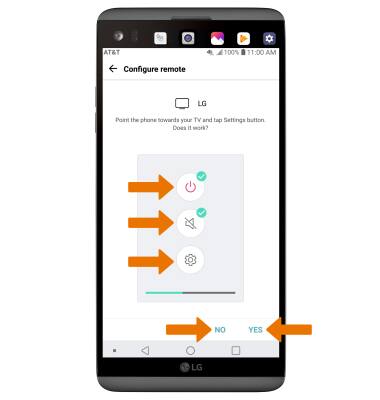
- Follow the on-screen prompts to set up the Power, Mute, and Settings buttons. Select YES or NO to confirm each button's functionality.
Note: On screen prompts will be different depending on the device you are connecting to.
- Your QuickRemote is now set up. To add other remotes to this device, select the Add icon then follow the prompts.
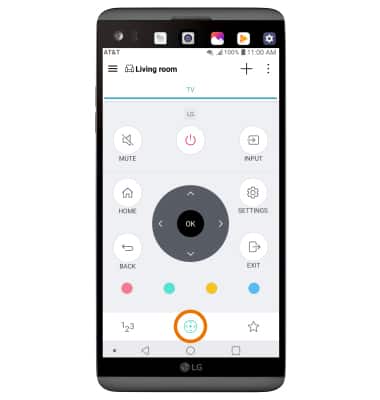
- ACCESS MORE FEATURES ON REMOTE: Select the Direction pad icon.
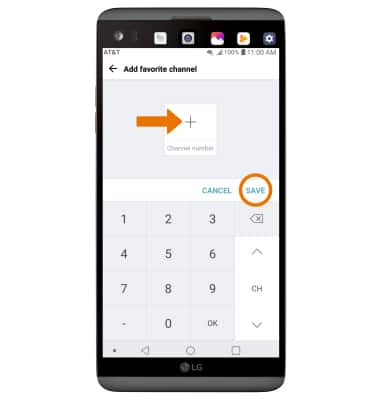
- ADD A CHANNEL TO FAVORITES: Select the Favorites icon, then select the Add icon under Favorite channel.
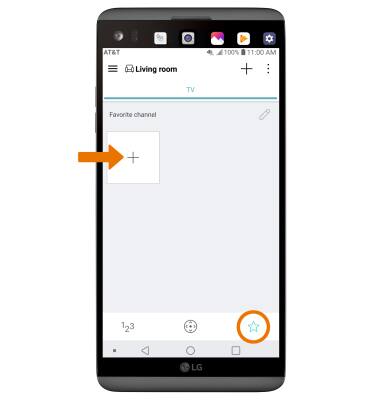
- Enter desired channel number, then select SAVE.
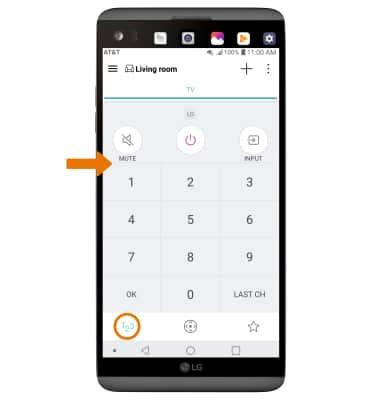
- ENTER CHANNEL NUMBER MANUALLY: Select the 123 icon and enter desired numbers.
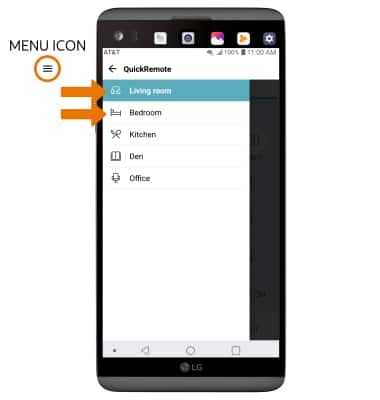
- SWITCH BETWEEN SAVED REMOTES: Select the Menu icon, then select desired remote.
- DELETE A REMOTE: Select the Menu icon, then select Delete.
Note: You will be prompted to select DELETE to confirm.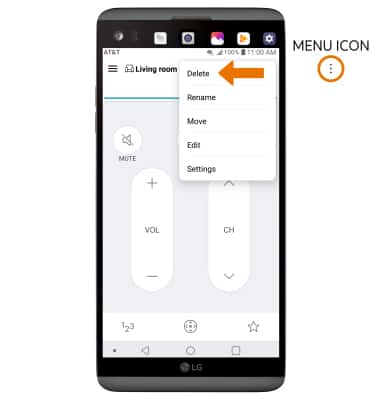
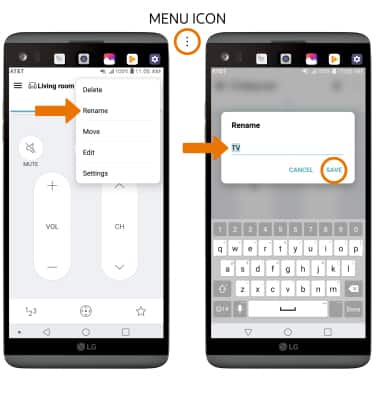
- RENAME A REMOTE: Select the Menu icon, then select Rename. Enter desired name, then select SAVE.
QuickRemote
LG V20 (H910)
QuickRemote
Turn your phone into a Universal Remote for your home TV, set-top box, audio system, DVD/Blu-ray player and more.
INSTRUCTIONS & INFO