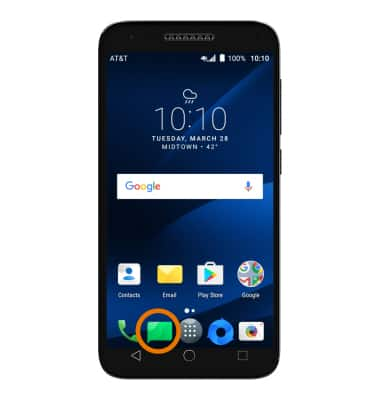
- ACCESS MESSAGING: Select the Messaging app.
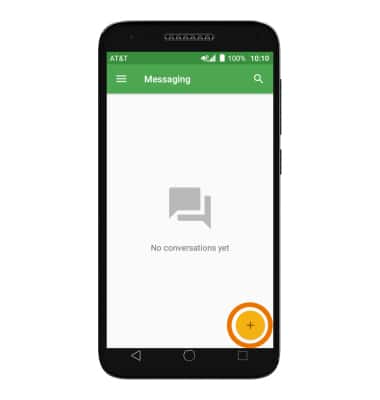
- COMPOSE A MESSAGE: From the Messaging inbox, select the Add icon.
- Enter the desired contact, then enter the desired message.
Note: To add additional recipients and create a Group Message, select the Contacts icon, select the desired contacts, then select DONE. To remove recipients, select the backspace icon to delete desired contacts.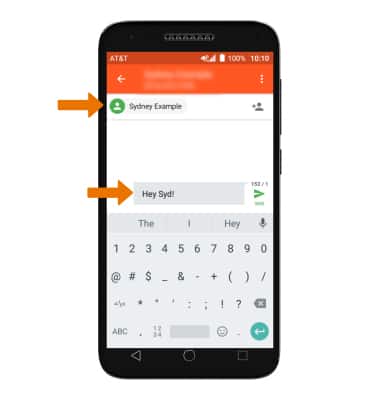
- READ A NEW MESSAGE: When a new message is received, the New message icon will appear in the Notification bar.
Note: Select the messages app and then select the desired thread.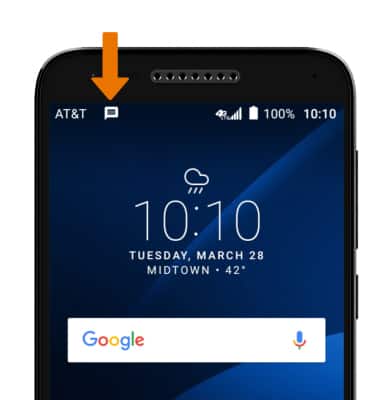
- REPLY TO A MESSAGE: Select the desired message thread, enter the desired response then select the Send icon.
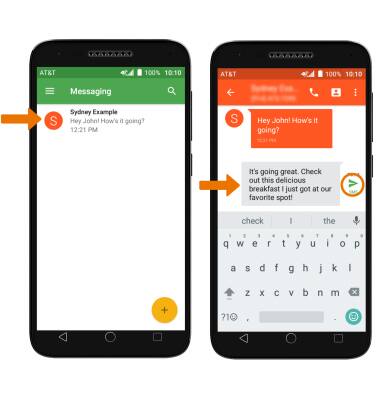
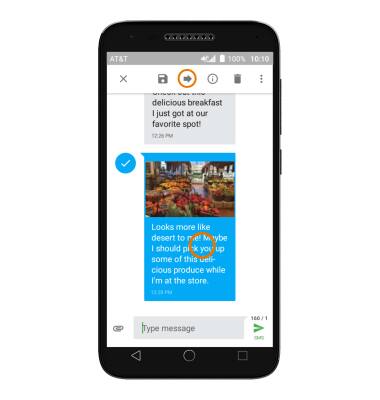
- FORWARD A MESSAGE: Select and hold the desired message, then select the Forward icon.
- ADD AN ATTACHMENT: Select the Attach icon then follow the on-screen prompts to navigate to the desired file. When finished, select the Send icon.
Note: To complete this action, enter the desired contact then select the Send icon.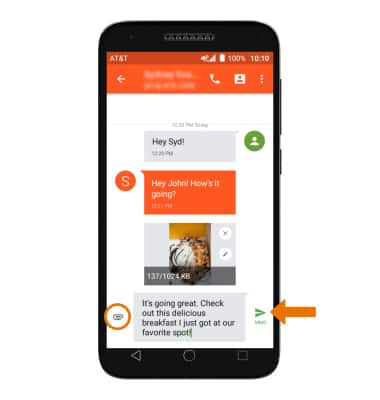
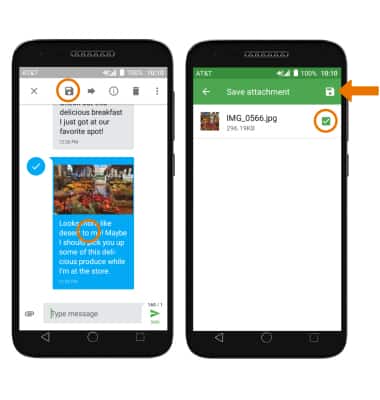
- SAVE AN ATTACHMENT: Select and hold the desired attachment, then select the Save icon. Check the attachment, and then select save.
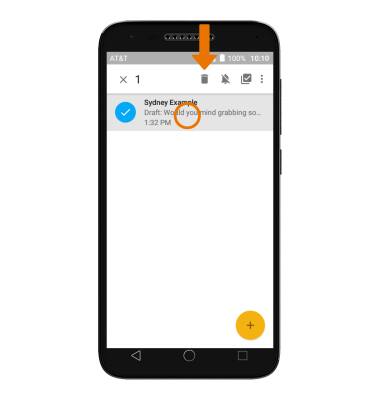
- DELETE A MESSAGE OR MESSAGE THREAD: Select and hold the desired message, then select the Delete icon.
Send & Receive Messages
Alcatel IdealXCITE / CAMEOX (5044R)
Send & Receive Messages
Create and respond to text (SMS) or picture (MMS) messages, add, save, and view received attachments, respond to messages, and delete a message.
Text Messaging
Create and respond to text (SMS) or picture (MMS) messages, add, save, and view received attachments and more.
Text Messaging
3:19
INSTRUCTIONS & INFO