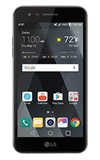
- CHANGE WALLPAPER: Select and hold an empty space on the home screen > Wallpapers > navigate to the desired wallpaper > SET WALLPAPER.
Note: Live wallpapers can increase battery consumption.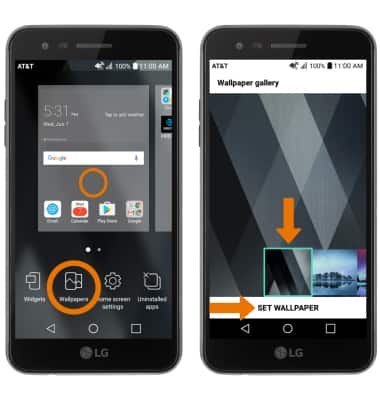
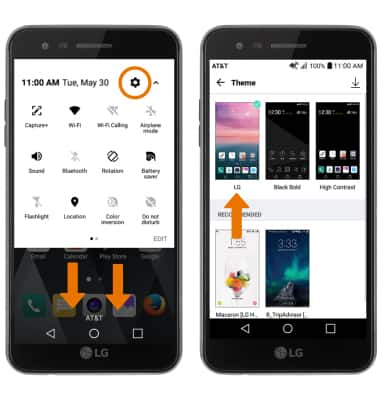
- CHANGE THE DEVICE THEME: Swipe down from the Notification bar with two fingers, then select the Settings icon > Display tab > Theme > desired Theme.
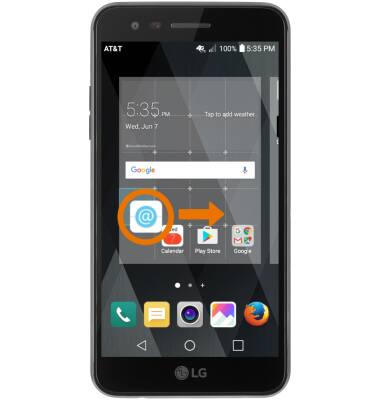
- ADD AN APP TO THE HOME SCREEN: Select, hold, and drag the desired app to the desired location on the home screen.
- ADD A WIDGET: Select and hold an empty space on the home screen > Widgets > select and hold the desired widget > drag to the desired location.
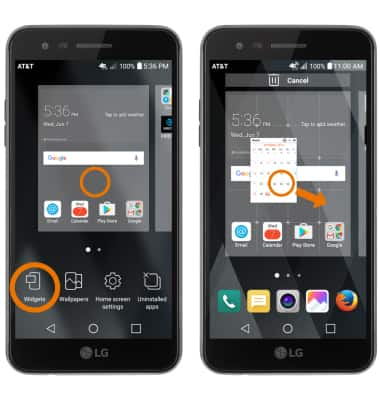
- SET PRIMARY HOME SCREEN PANEL: Select and hold an empty space on the home screen > select and drag the desired panel all the way to the left.
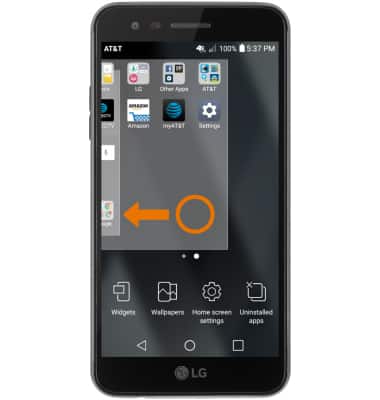
- ADD/REMOVE HOME SCREEN PANEL: Select and drag a desired app to the right of the screen to add a new home screen panel.
Note: To remove a home screen panel, select and drag all apps and widgets onto another panel, or delete/disable them.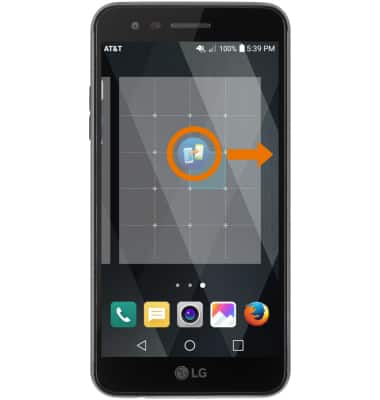
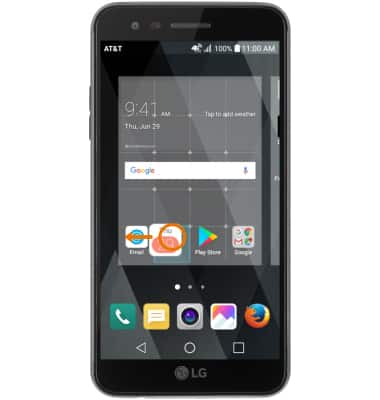
- ADD A FOLDER: Select and drag a desired app on top of another desired app. This will automatically create a new folder.
- TURN EASYHOME ON/OFF: From the Settings screen, select the Display tab > Home screen > Select Home > EasyHome.
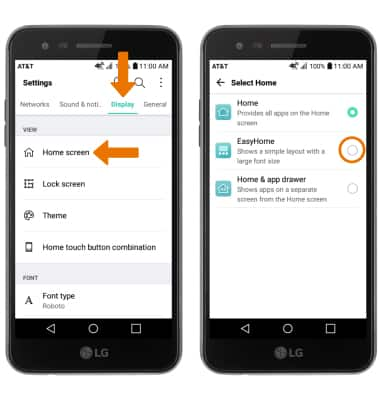
- To switch back to the standard home screen from the home screen, from the Settings screen select Display > Home screen > Select Home > select the desired home screen layout.
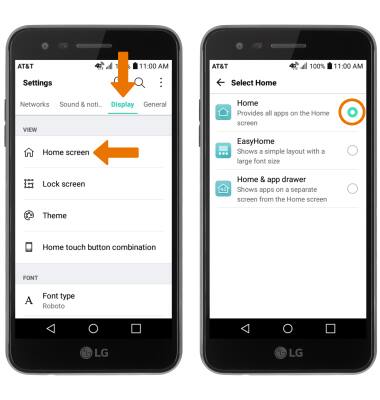
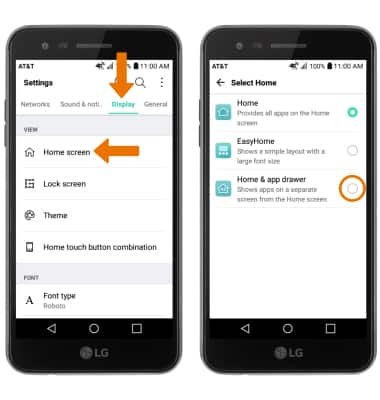
- ENABLE THE APPS TRAY: From the Settings screen, select Display > Home screen > Select Home > Home & app drawer.
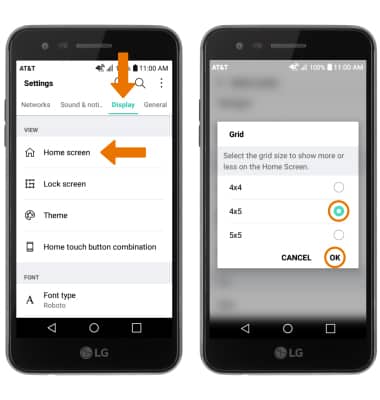
- CHANGE GRID SIZE OF HOME SCREEN ICONS: From the Settings screen, select the Display tab > Home screen > Grid > desired size preference > OK.
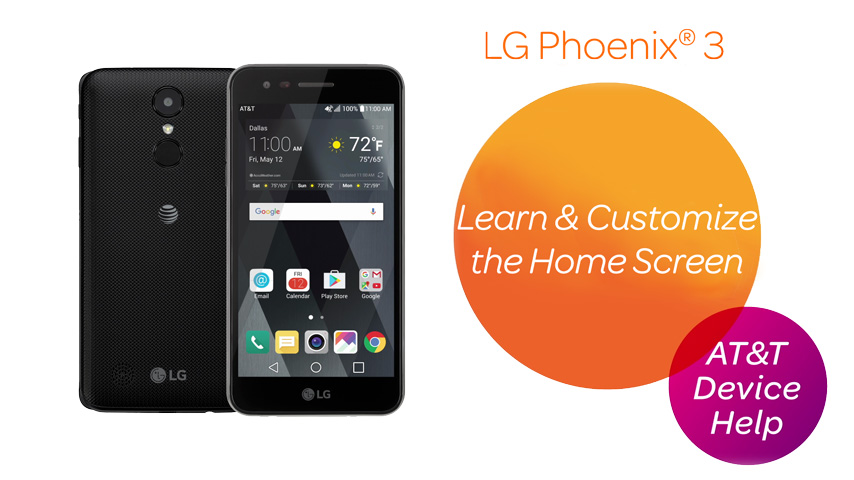
Learn & Customize the Home Screen
LG Phoenix 3 (M150)
Learn & Customize the Home Screen
Add shortcuts and widgets, access the notification panel, changing wallpaper, and more.
Learn & Customize the Home Screen
Add shortcuts and widgets, access the notification panel, changing wallpaper, and more.
Learn & Customize the Home Screen
5:11
INSTRUCTIONS & INFO