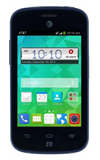
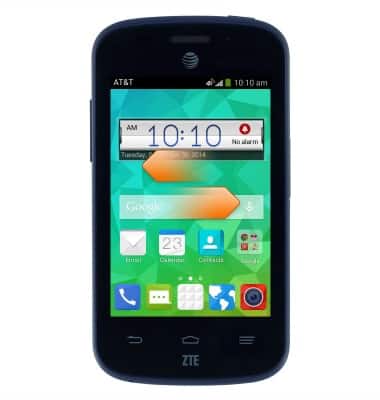
- Swipe left or right to access additional pages of the home screen.
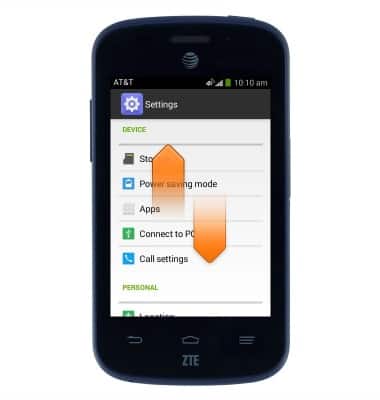
- Scroll up or down to access additional information on a screen.
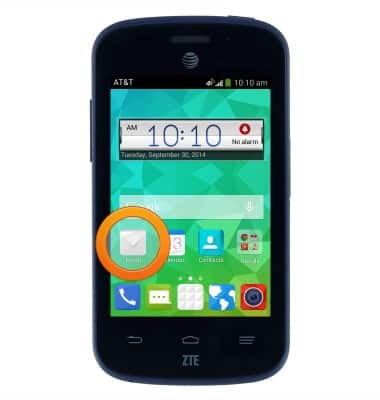
- Tap an icon to make a selection or launch an application.
- Drag down from the Notifications bar to access the Notifications menu.
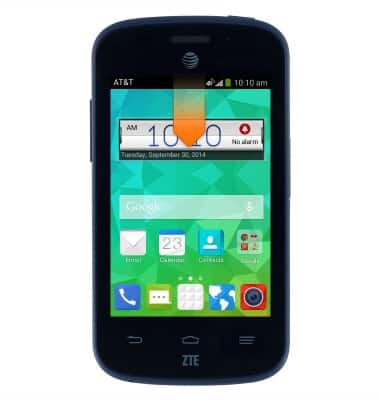
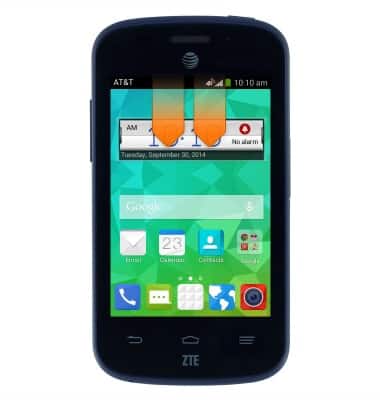
- Drag down from the Notifications bar with two fingers to access the Home screen Menu.
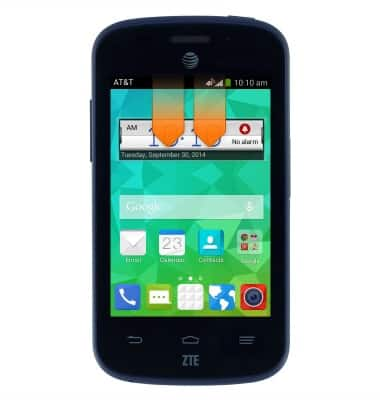
- Touch and hold an empty area of the home screen to access the Customization menu.
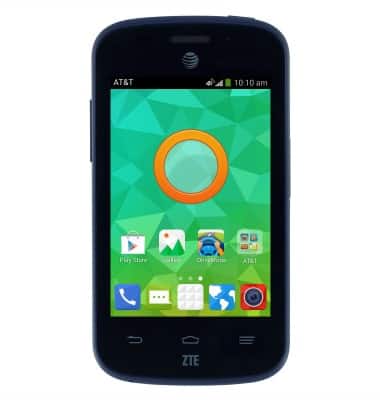
- To add a blank page to the home screen, tap the New page icon.
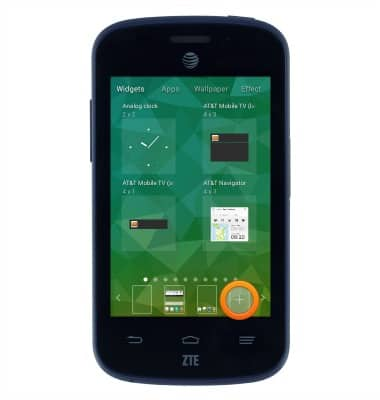
- To add a widget to the home screen, tap Widgets.
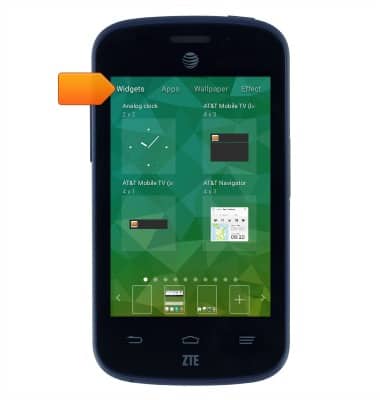
- Swipe to, then touch and hold the desired widget.
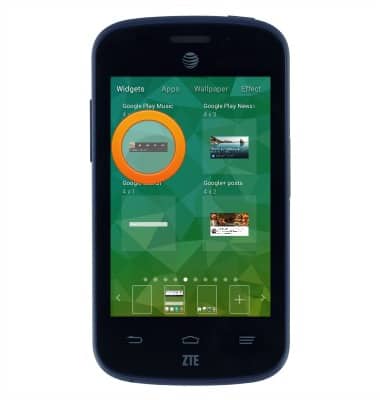
- Drag the widget to the desired home screen page.
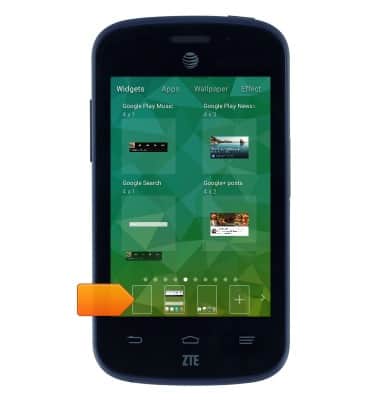
- Release the widget to place it on the home screen.
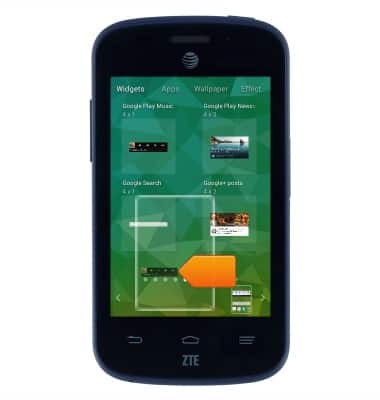
- Tap the desired to home screen to jump to it.
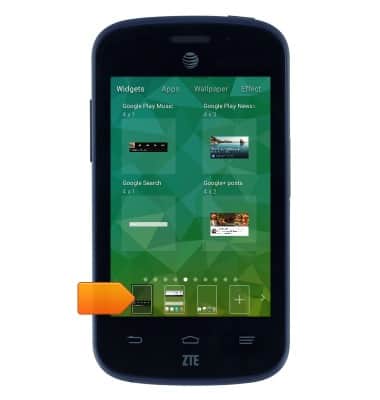
- To add an app to the home screen, tap the Apps icon.
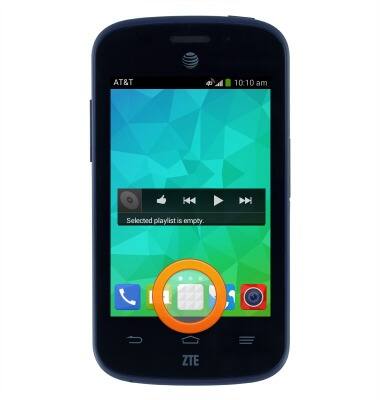
- Touch and hold the desired app icon.
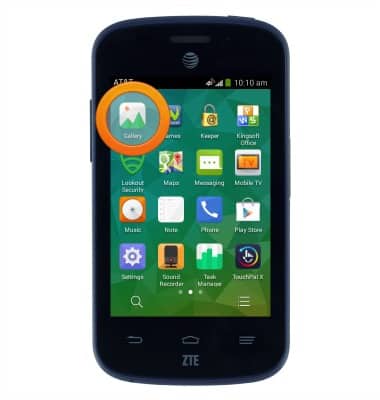
- Drag the app icon to the desired home screen page.
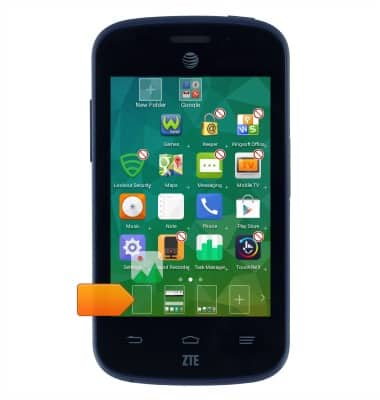
- Release the app to place it on the home screen.
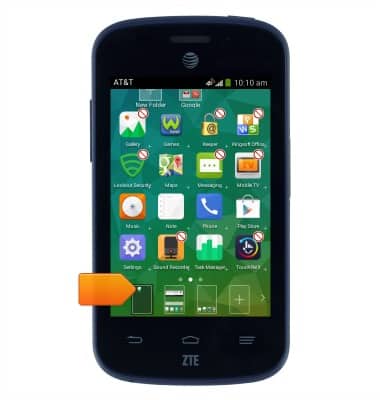
- To move an app, touch and hold the desired icon.
Note: The following process applies to widgets, as well.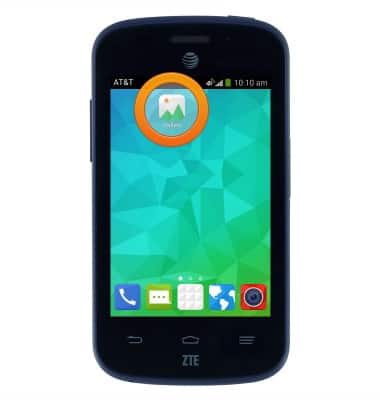
- Drag the app to the desired position, then release to place it.
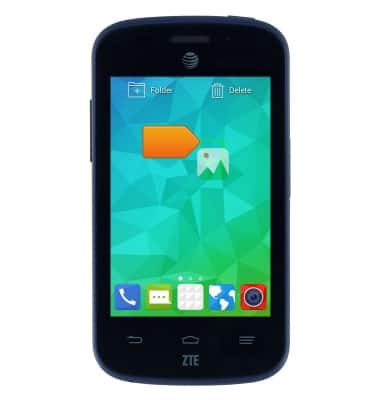
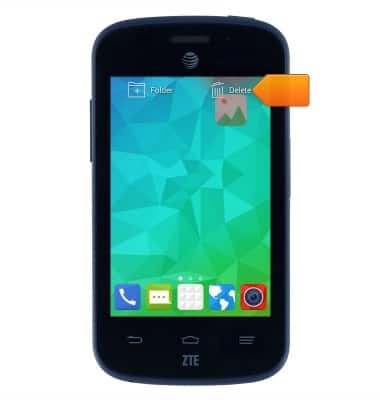
- To remove an app from the home screen, touch and hold the desired icon.
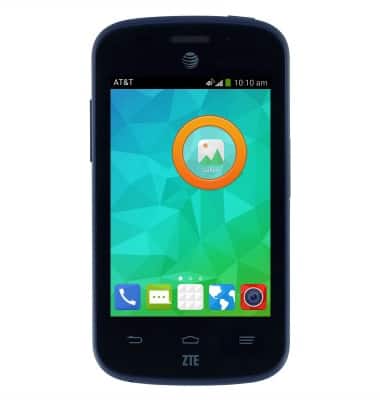
- Drag the app to Delete, then release to remove it from the home screen.
- To change the brightness, drag down from the Notifications bar with two fingers to reveal the menu.
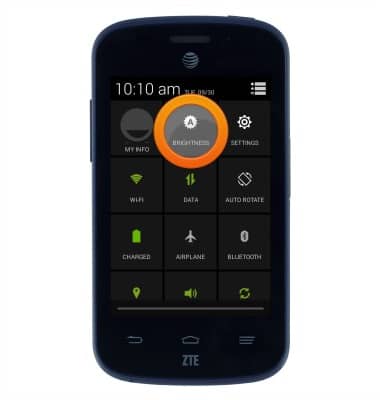
- Tap and hold BRIGHTNESS.
- Drag the Brightness slider left or right to set the brightness.
Note: Tap AUTO to toggle automatic brightness on/off.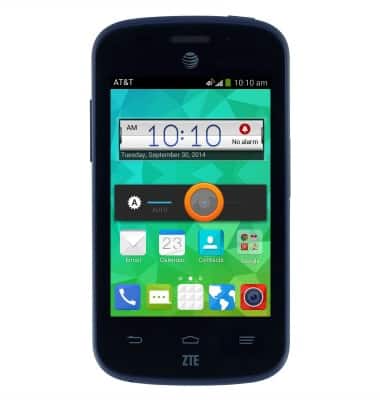
Learn & customize the home screen
AT&T Z667
Learn & customize the home screen
Add shortcuts and widgets, access the notification panel, changing wallpaper, and more.
Use the home screen
This video explains how to navigate and customize the home screen on your device.
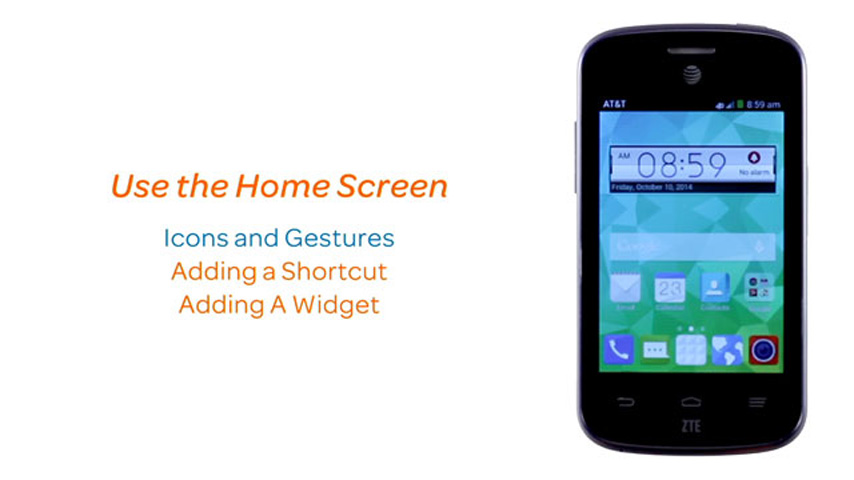
Use the home screen
2:16
INSTRUCTIONS & INFO