
- From the home screen, tap Calendar.

- To change the calendar view, tap the View field.
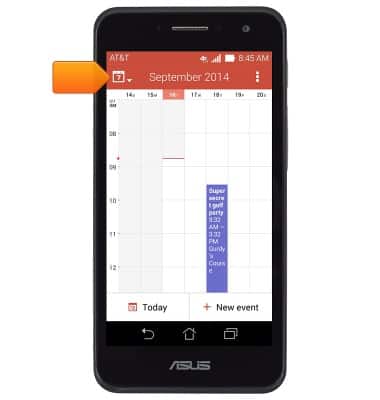
- Tap the desired option.
Note: For this demonstration, tap 'Day'.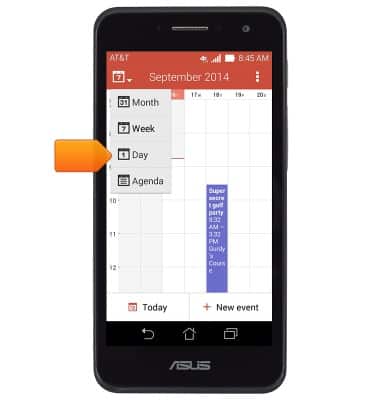
- To add an event, tap New event.
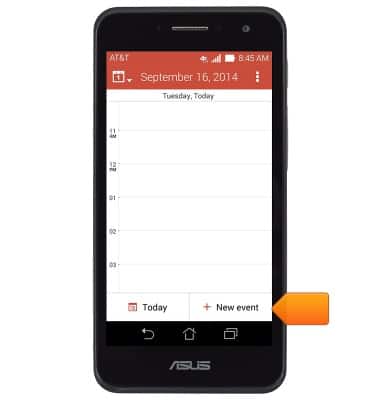
- Tap the Event name field.
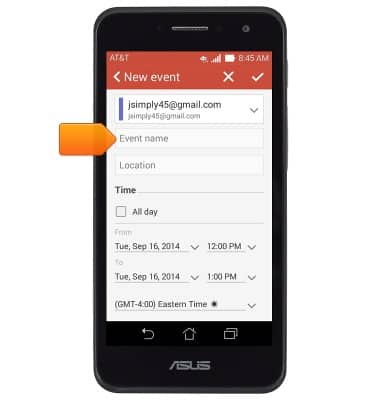
- Enter the desired event name, then tap the To Date field.
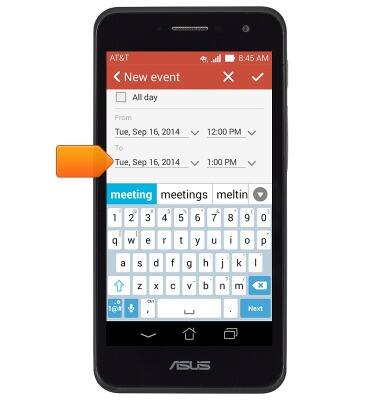
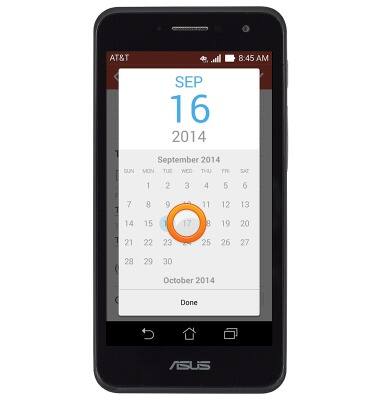
- Tap the desired date.
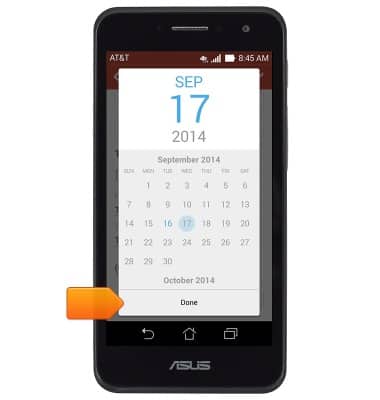
- Tap Done.
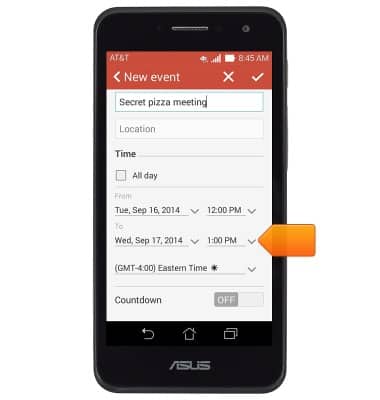
- Tap the To Time field.
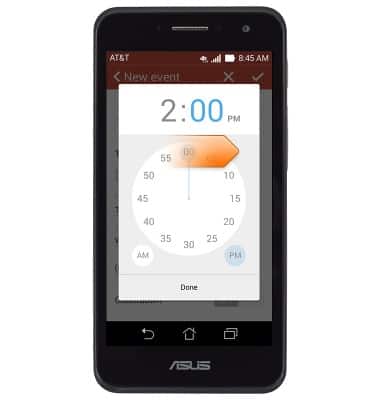
- Touch and drag the Hour icon to the desired hour.

- Touch and drag the Minute icon to the desired time.
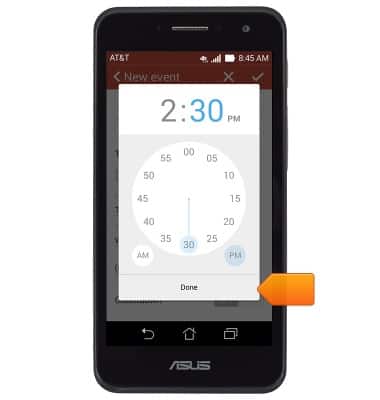
- Tap Done.
- Add any additional event information, then tap the Save icon.

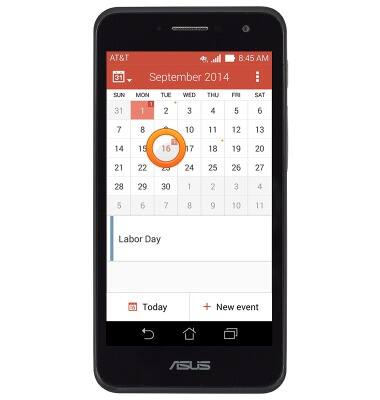
- To edit an event, tap the desired event date.
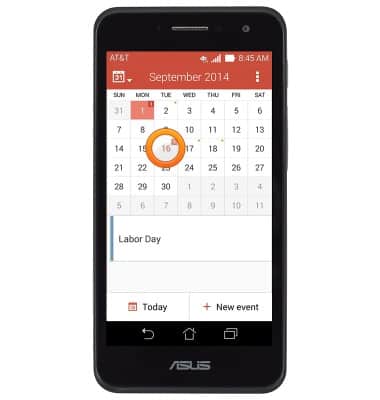
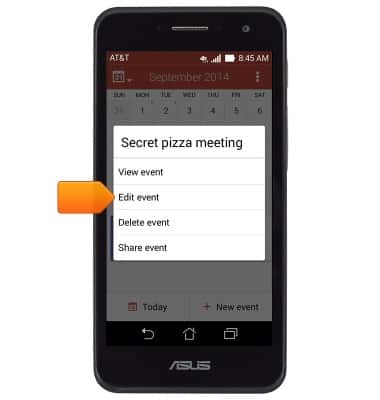
- Scroll to, then touch and hold the desired event.
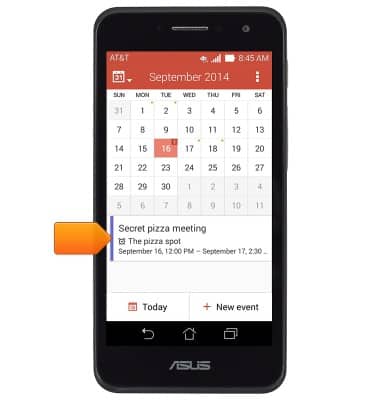
- Tap Edit event.
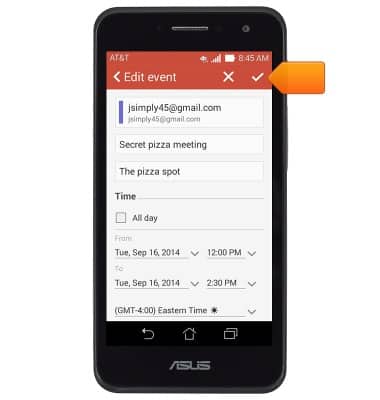
- Edit the event as desired, then tap the Save icon.
- To delete an event, tap the desired event date.
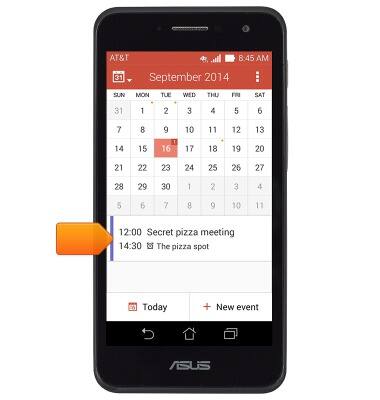
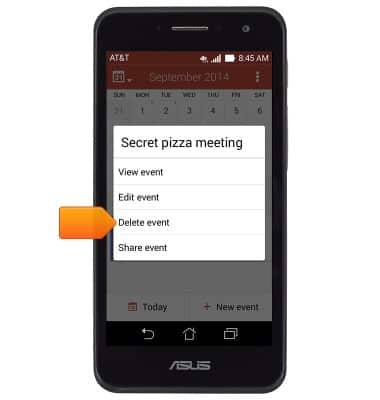
- Scroll to, then touch and hold the desired event.
- Tap the Delete icon.
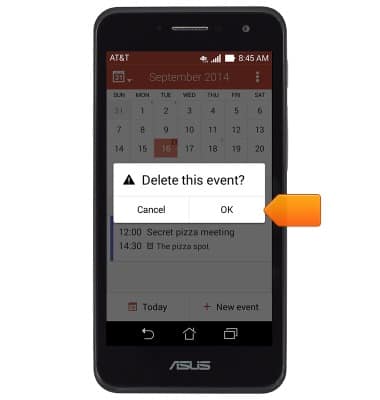
- Tap OK.
- If an event is upcoming, the Event icon will display in the Notifications bar.

Calendar
ASUS PadFone X mini (T00S)
Calendar
Learn how to access the calendar and manage events.
INSTRUCTIONS & INFO