
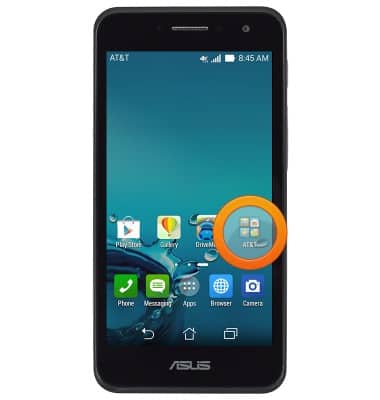
- To determine what apps and features are using the most battery power, from the home screen, swipe to, then tap AT&T.
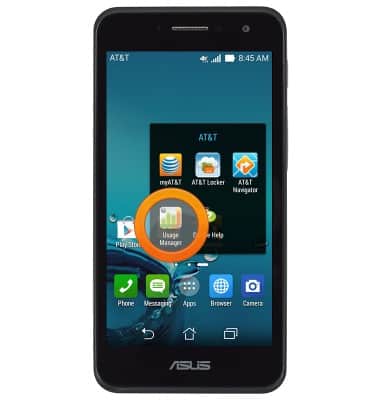
- Tap Usage Manager.
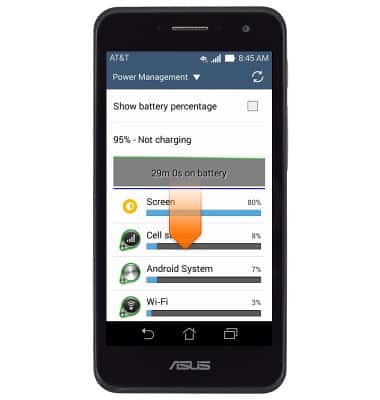
- Scroll down to view a list of apps and processes that are using battery power.
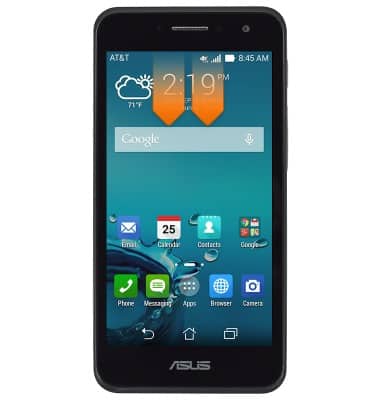
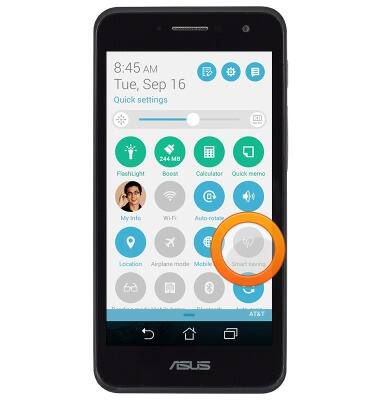
- To access power saver mode, from the home screen, swipe down from the Notifications bar with two fingers.
- If disabled, tap Smart saving to enable.
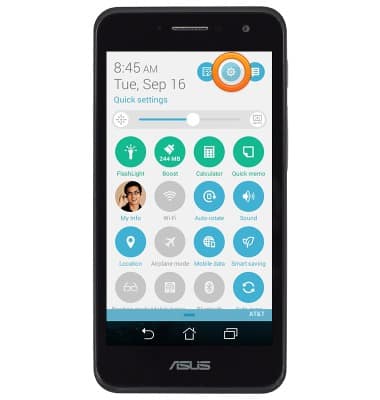
- Tap the Settings icon.
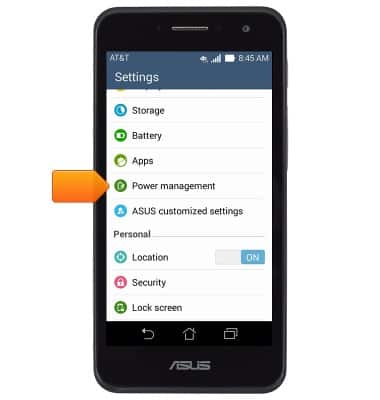
- Scroll to, then tap Power management.
- Tap Power Saver.
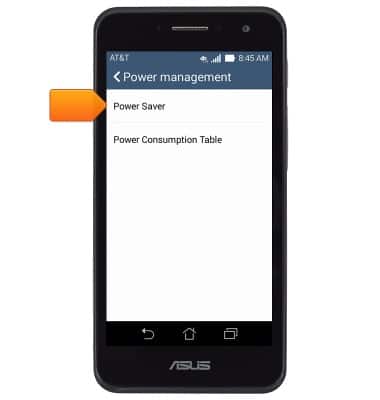
- Tap the desired power saving mode.
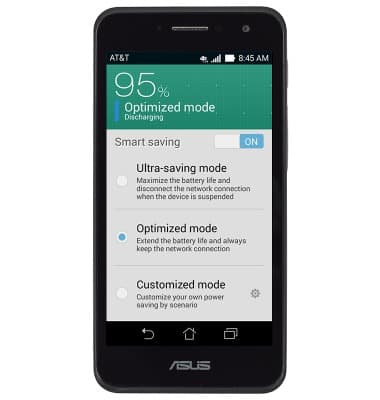
- To enable and disable specific power saving features, tap Customized mode.
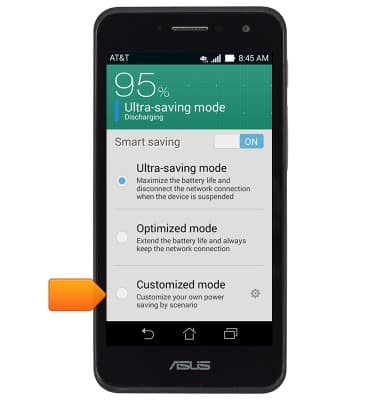
- Tap the Settings icon.
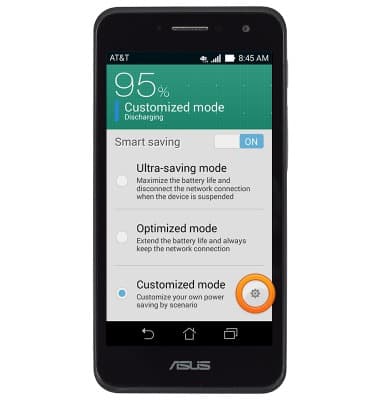
- Adjust the settings as desired.
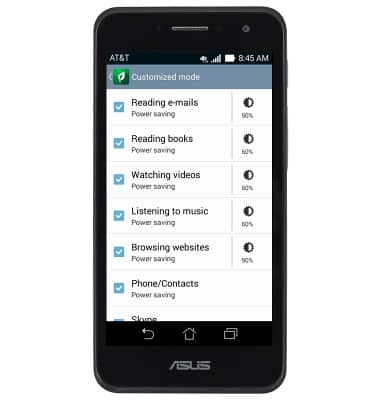
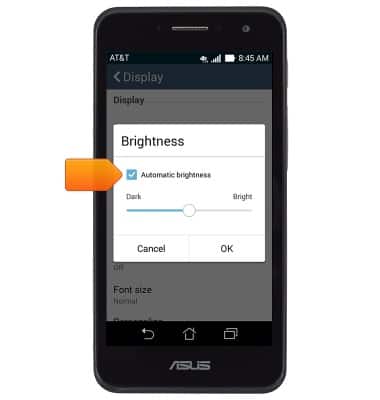
- Turn on Auto-brightness to save battery life.
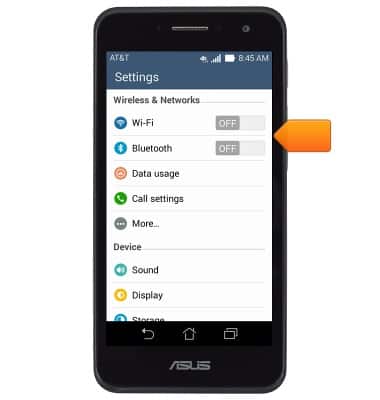
- When not in use, turn off Bluetooth and Wi-Fi.
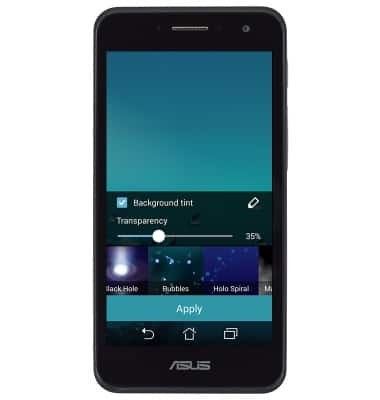
- Avoid using Live wallpapers.
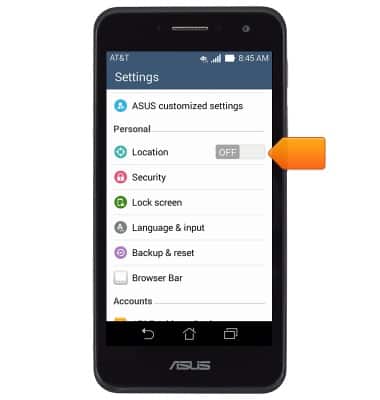
- Turn off Location services when not in use.
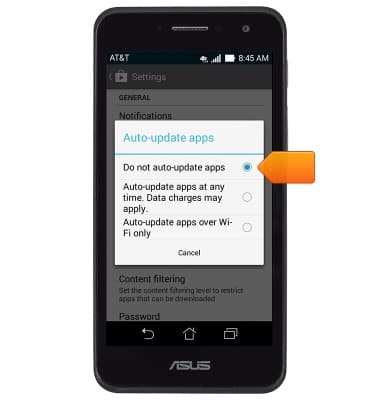
- Turn off auto-update apps.
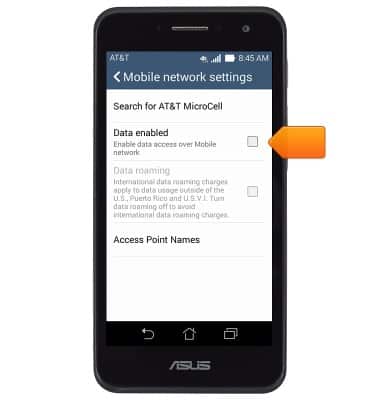
- Turn off mobile data to prevent background applications from consuming battery.
Battery life
ASUS PadFone X mini (T00S)
Battery life
Tips & tricks to extend your battery performance.
INSTRUCTIONS & INFO