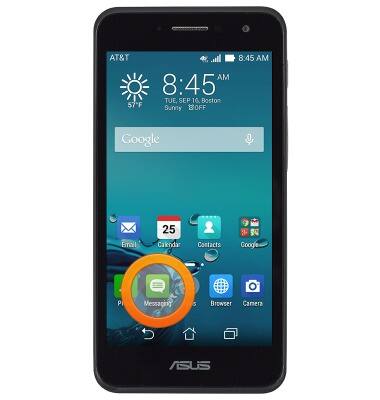
- From the home screen, tap Messaging.
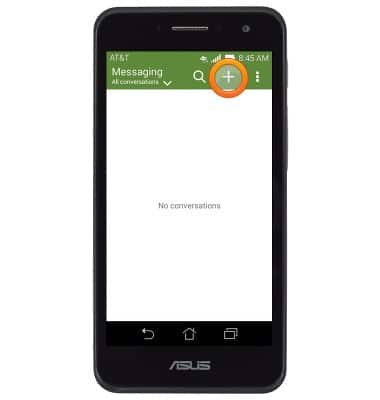
- Tap the Add icon.
- Enter the desired number or contact, then tap the Message field.
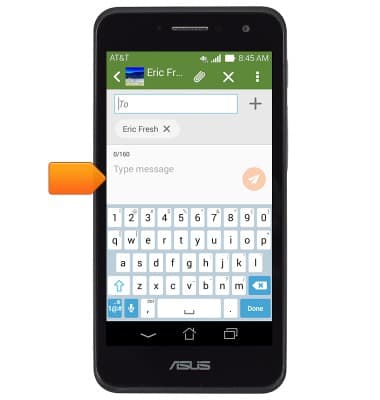
- Enter the desired message. To add an attachment, tap the Attachment icon.
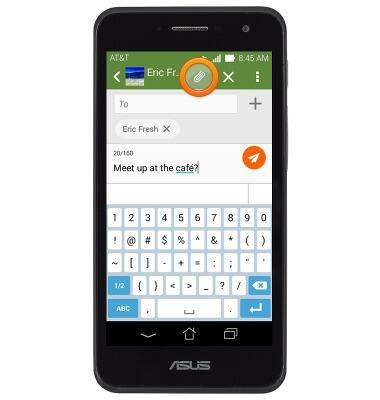
- Tap the desired option.
Note: For this demonstration, tap 'Pictures'.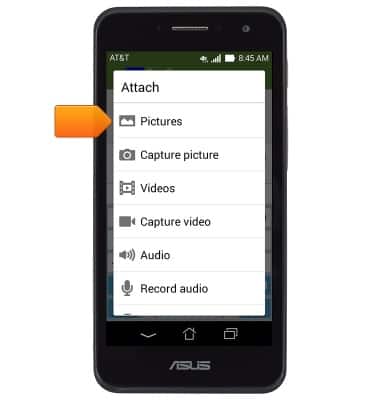
- Tap the desired option.
Note: For this demonstration, tap 'Gallery'.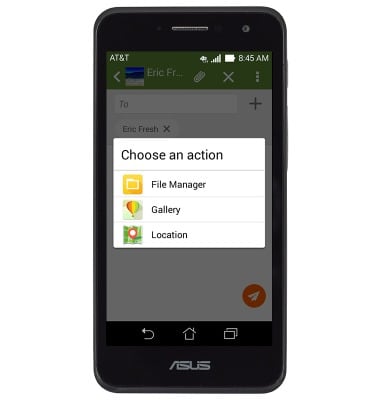
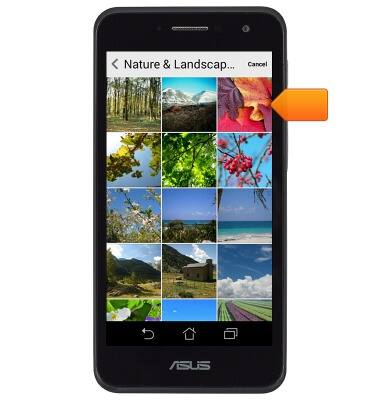
- Tap the desired album.
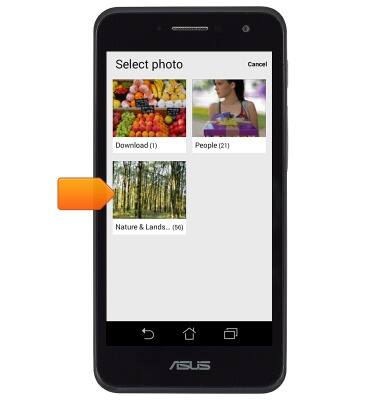
- Tap the desired image.
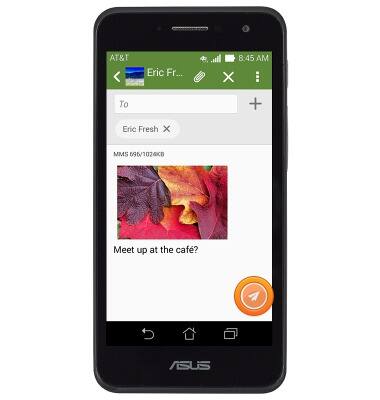
- Tap the Send icon.
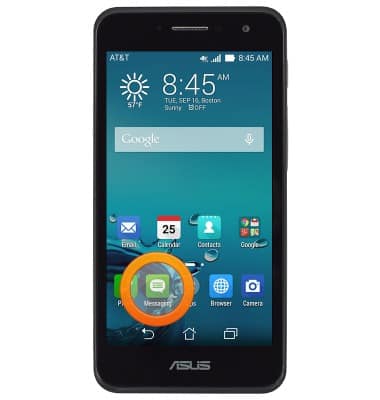
- To view a received message, from the home screen, tap Messaging.
- Tap the desired message.
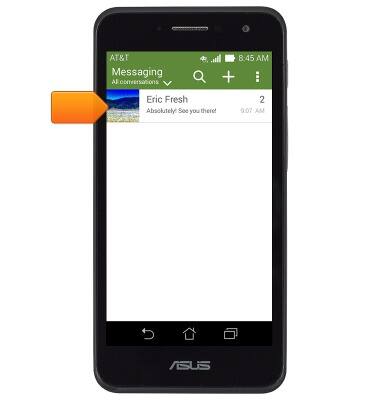
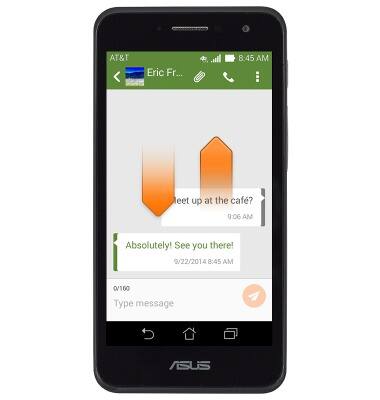
- The message thread will be displayed. Swipe up or down to read the full conversation.
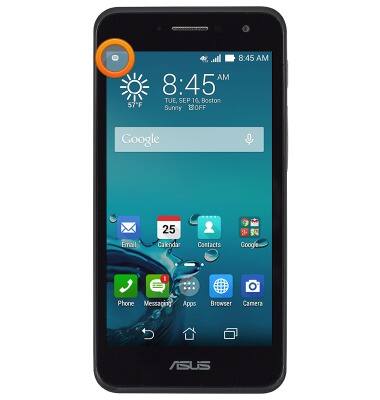
- When a new message is received, the New Message icon will display in the Notifications bar.
Send & receive messages
ASUS PadFone X mini (T00S)
Send & receive messages
How to send, receive, and delete picture (MMS) and text (SMS) messages.
Text Messaging
This video explains the text messaging features of the device.
Text Messaging
1:34
INSTRUCTIONS & INFO