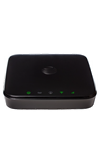
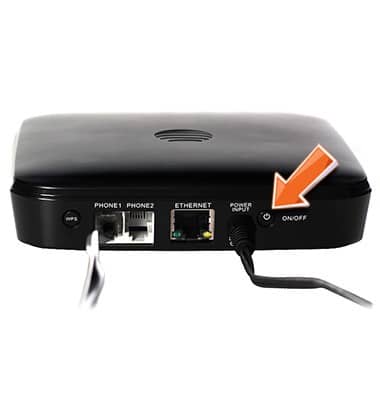
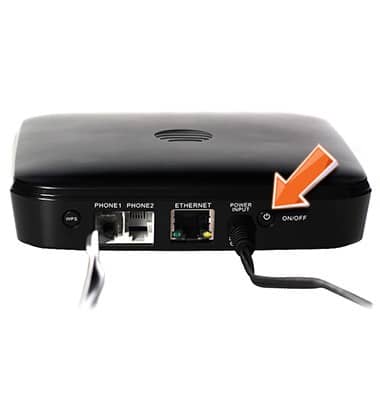
- Make sure your AT&T Home Base is powered on. Press and hold the On/Off button on the back of your device for three (3) seconds, until the Power light stays steady green.
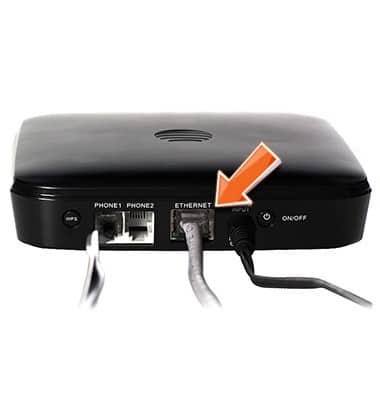
- For Ethernet, make sure that the Ethernet cable is securely inserted into the Ethernet port on the back of the Home Base and your computer (or other device).
- For Wi-Fi: Make sure the Home Base is located in the general area of your Wi-Fi enabled device. Make sure that you are connected to the AT&T Home Base Wi-Fi network (e.g. ATT-HOMEBASE-XXX) and you are using the correct Wi-Fi Password.
Note: Your Wi-Fi password can be found on the bottom of your AT&T Home Base, if you have not changed it.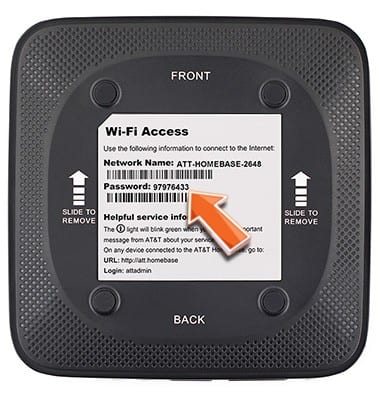
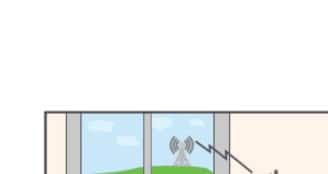
- Move your Home Base to an area with a stronger cellular signal, typically near a window or outside wall.
- Make sure the Wi-Fi light is on. If not, restart your Home Base by pressing and holding the On/Off button for three (3) seconds until all the lights turn off. Then, press and hold the On/off button for three (3) seconds until the Power light stays steady green.
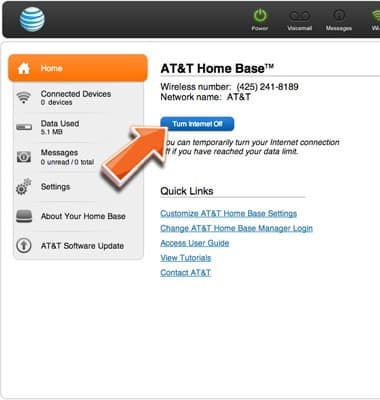
- On the AT&T Home Base Manager http://att.homebase (while connected to your Home Base), make sure the Internet connection button on the Home screen displays Turn Internet Off.
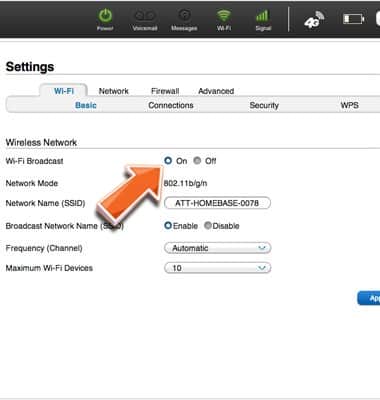
- On the AT&T Home Base Manager http://att.homebase (while connected to your Home Base), go to Settings>Wi-Fi>Basic and make sure the Wi-Fi Broadcast is set to On.
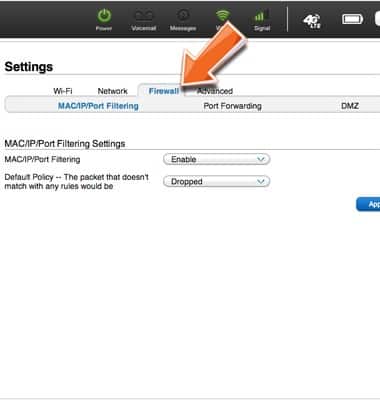
- On the AT&T Home Base Manager (while connected to your Home Base), go to Settings>Firewall>Mac/IP/Port Filtering and check that the IP and MAC Address of your device are not blocked by the firewall.
I can't access the Internet
AT&T Home Base (Z700/Z700A)
I can't access the Internet
Try these troubleshooting methods if your Home Base cannot access the internet.
INSTRUCTIONS & INFO