- From the home screen, tap Menu.

- Swipe to, then tap Tools.
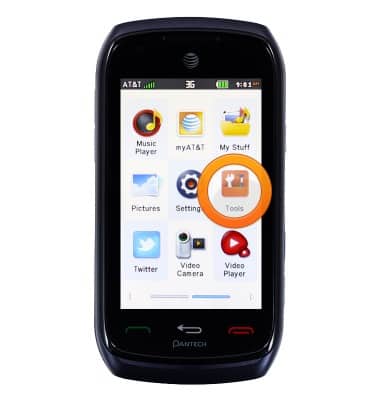
- Tap Calendar.

- Swipe left or right to access a different month.
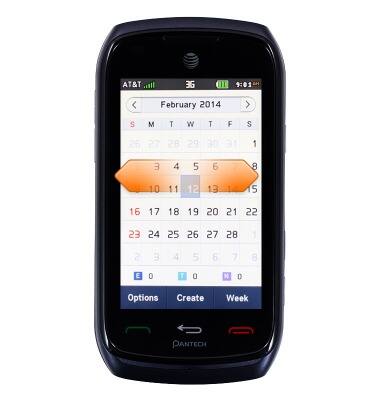
- Tap Week to view the week of the currently selected day.
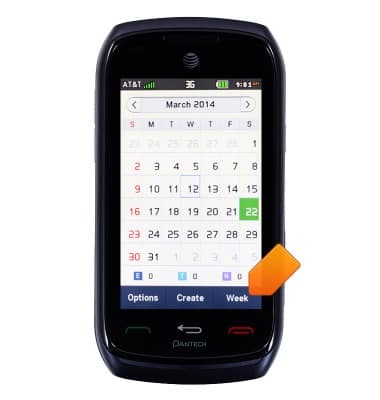
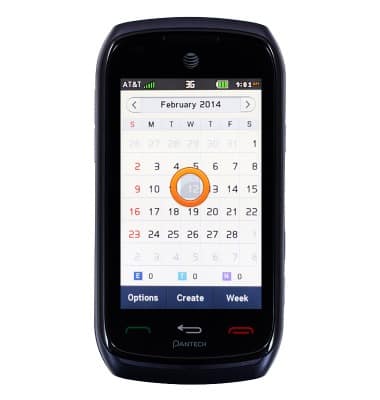
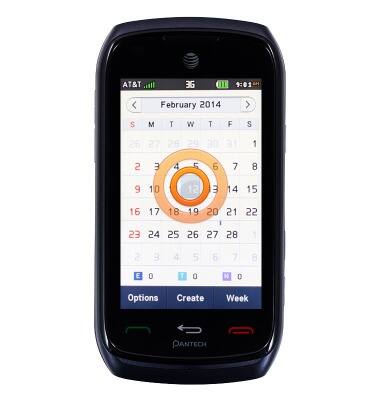
- To create a new event, tap the desired date.
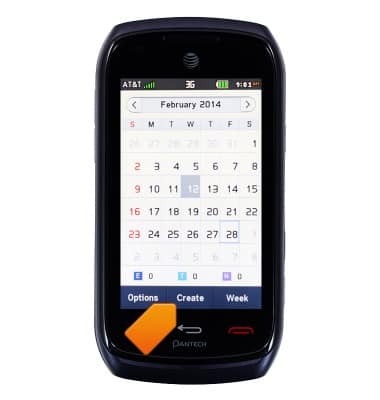
- Tap Create.
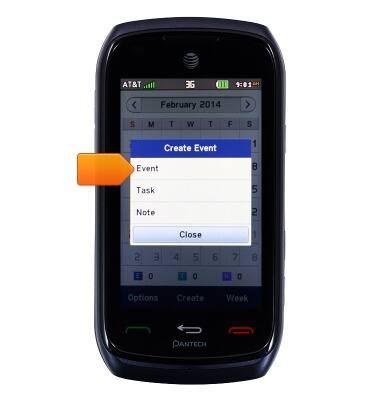
- Tap Event.
- Tap the What field.
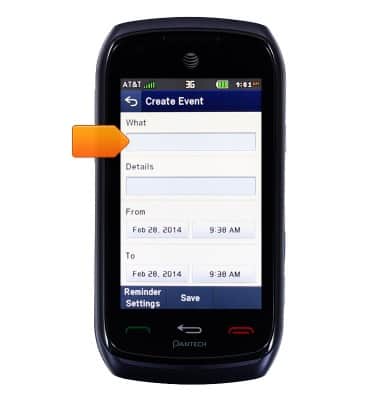
- Enter the desired event name, then tap OK.
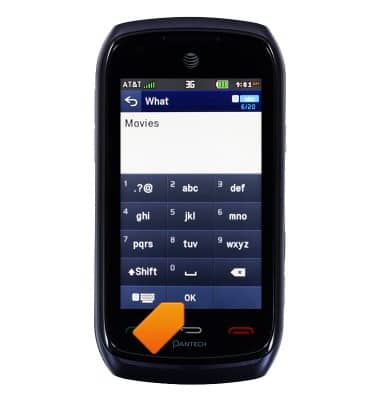
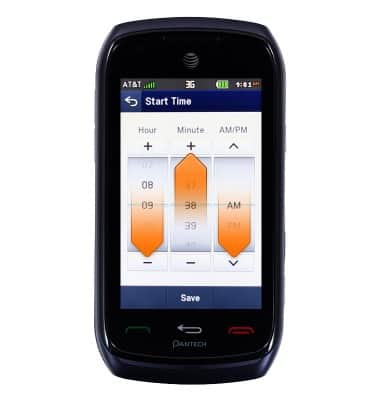
- Tap the From Time field.

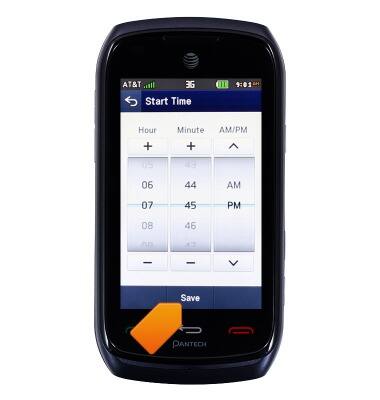
- Drag the Hour, Minute, and AM/PM fields to the desired time.
- Tap Save.
- Tap the To Time field.

- Drag the Hour, Minute, and AM/PM fields to the desired time.
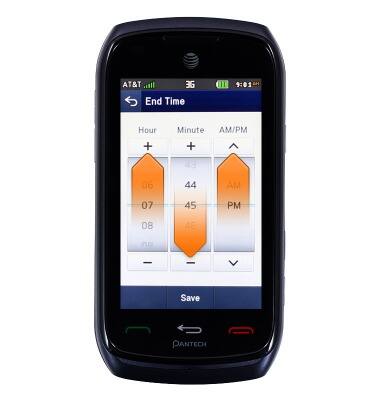
- Tap Save.
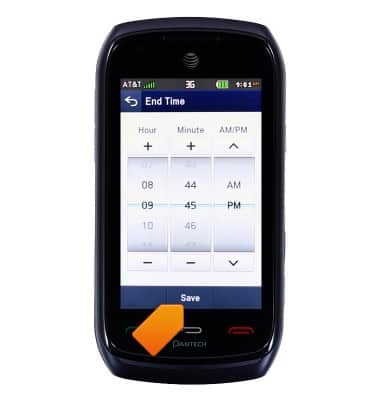
- Adjust any additional settings, then tap Save.
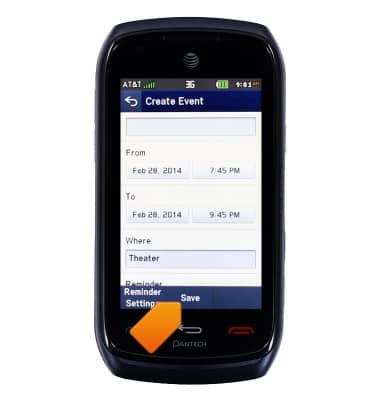
- To edit an event, double-tap the desired date.
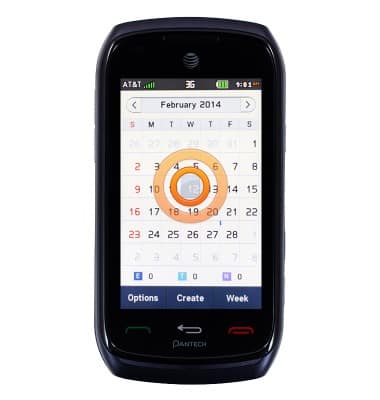
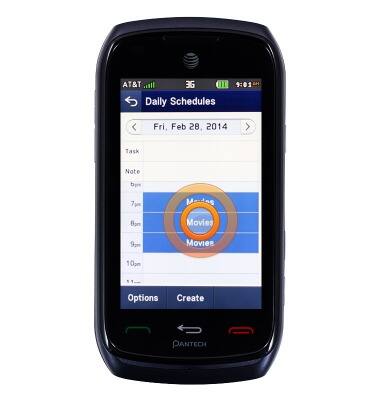
- Scroll to, then double-tap the desired event.
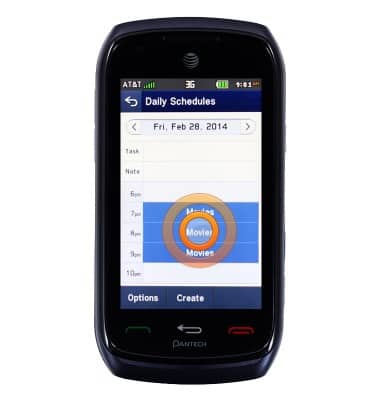
- Tap Edit.
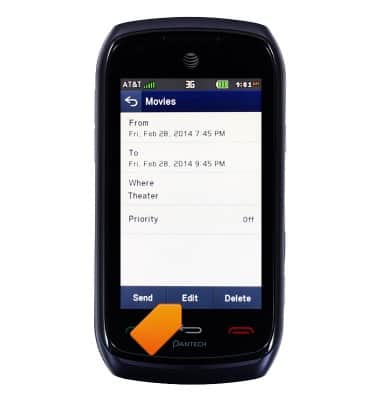
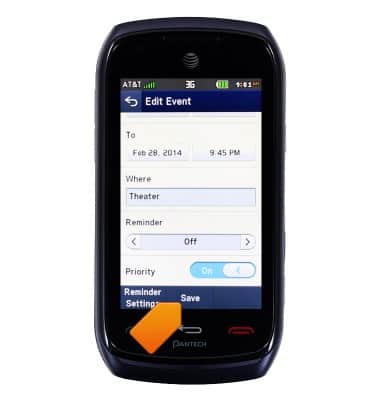
- Make the desired changes, then tap Save.
- To delete an event, double-tap the desired date.
- Scroll to, then double-tap the desired event.
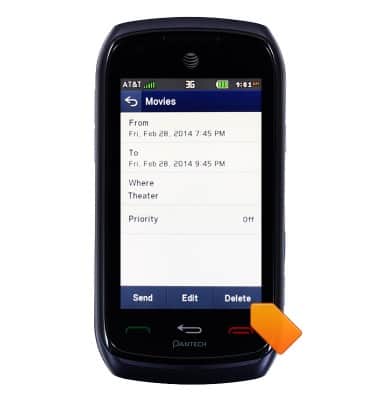
- Tap Delete.
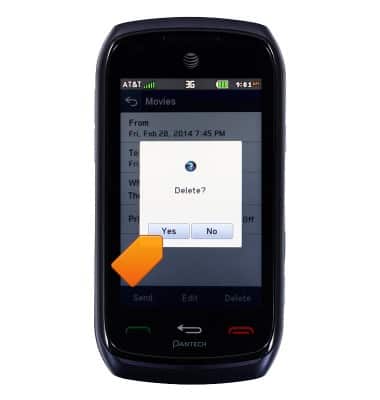
- Tap Yes.
- When an event is approaching, the Event icon will be displayed in the Notification bar.

Calendar
Pantech Vybe (P6070)
Calendar
Learn how to access the calendar and manage events.
INSTRUCTIONS & INFO