In this tutorial, you will learn how to:
• Access sound settings
• Adjust volume
• Enable silent or vibrate mode
• Change notification sound
• Enable or disable keyboard sounds
• Turn Do Not Disturb mode on or off
Access sound settings
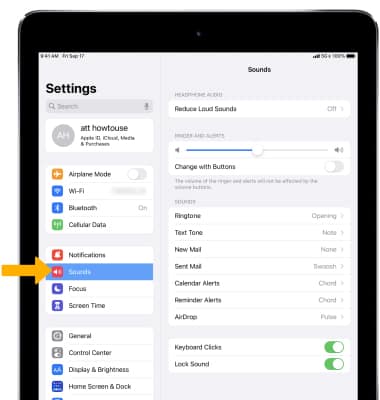
To change sound settings, from the home screen select the  Settings app then select Sounds.
Adjust volume
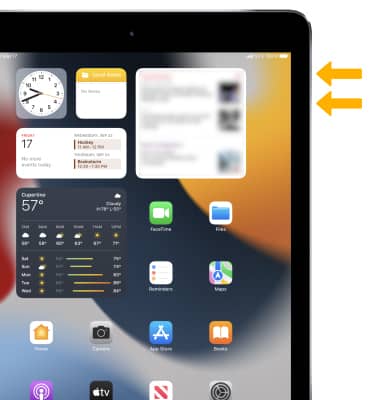
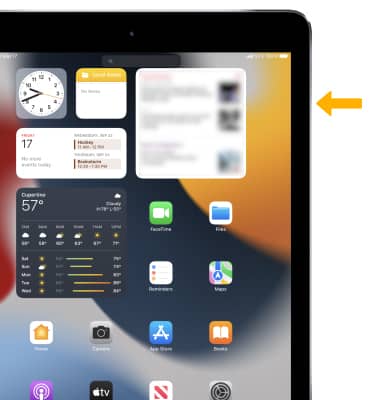
Press the Volume buttons on the right side of the device to adjust media or call volume.
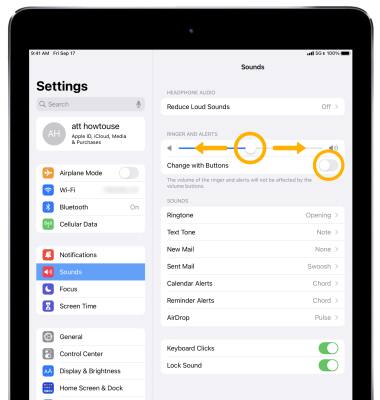
You can also adjust the volume from the Sounds screen. Select and hold the slider then adjust as desired. To enable or disable changing the volume with buttons, select the  Change with Buttons switch.
Enable silent or vibrate mode
To enable silent mode, press the Volume Down button on the right side of your device until the  Silent Mode icon is displayed on the screen.
Note: You will still hear clock alarms, audio playback in your music, podcasts, videos, and games.
Change notification sound
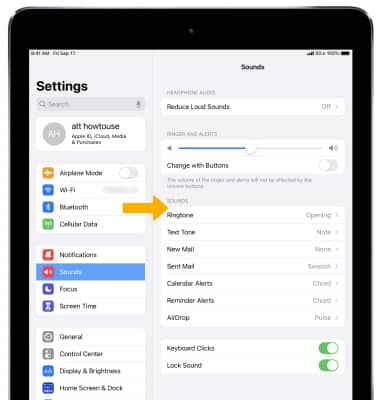
1. From the Sounds screen, select the desired notification.
Note: For steps to assign a ringtone to a contact, view the Contacts tutorial.
2. Select the desired sound. 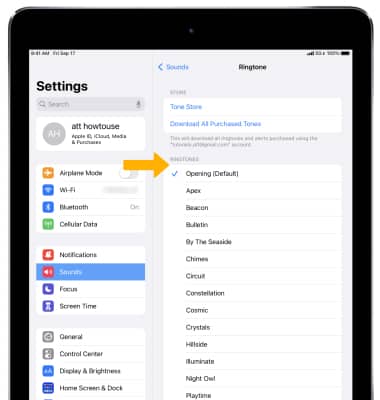
Enable or disable keyboard sounds
From the Sounds screen, select the  Keyboard Clicks switch.
Turn Do Not Disturb mode on or off
1. From the Settings screen, select Focus > Do Not Disturb > select the Do Not Disturb switch to turn Do Not Disturb on or off.
Note: When Do Not Disturb is enabled, calls and notifications will be silenced. To quickly enable Do Not Disturb, swipe down from the top right corner of the screen to access the Control Center, then select the  Do Not Disturb icon. Learn more from Apple support: Use Do Not Disturb on iPhone or iPad.
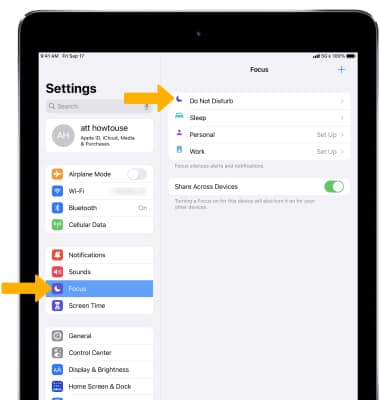
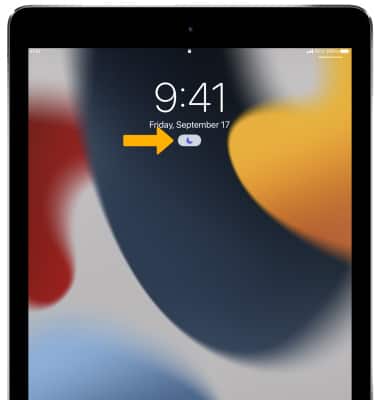
2. When Do Not Disturb is enabled, a Do Not Disturb notification will be displayed on the Lock screen and the Do Not Disturb icon will display in the Status bar.