- To view and play your music, from the home screen, tap Apps.
Note: To add music to your device, you can purchase from Google Play or transfer music files from your computer to the device Music folder.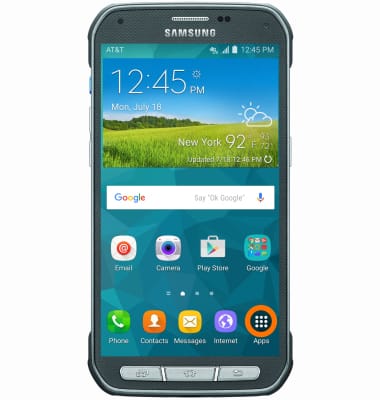
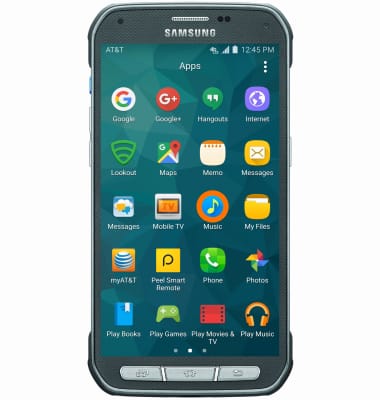
- Swipe to, and then tap Music.
- Use the Tabs at the top of the player to browse your music.
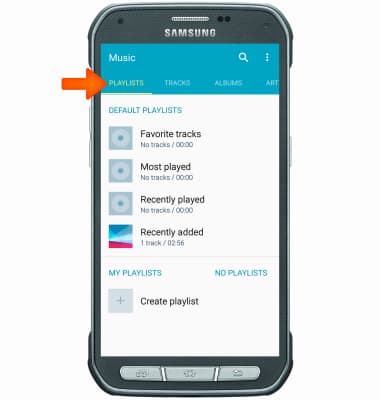
- Tap the Desired option.
Note: For this demonstration, 'Tracks' was selected.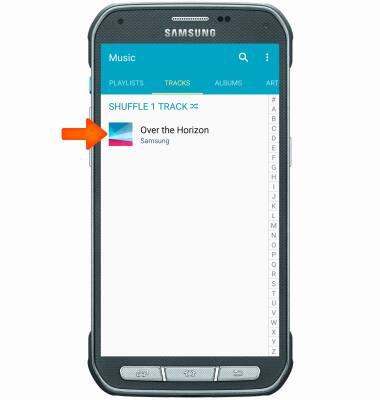
- Tap the Play icon to play desired track.
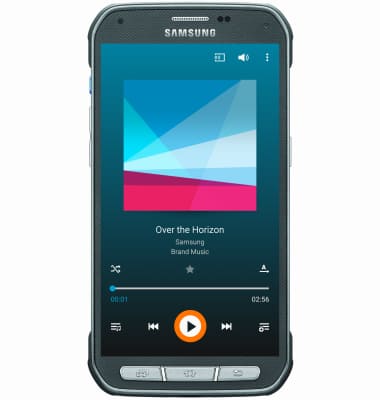
- Tap the Pause icon to pause the music.
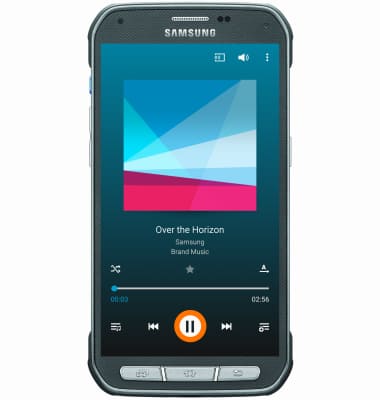
- Tap the Play icon to resume.
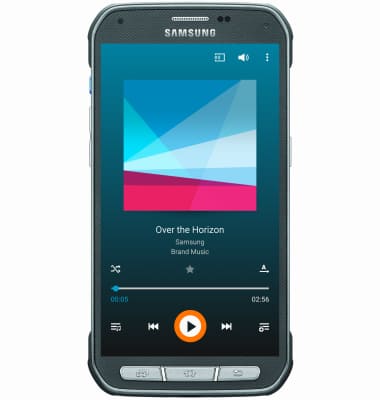
- Tap the Back icon to jump to the beginning of the song.
Note: Tap it again to jump to the previous song. Touch and hold it to scrub backwards through the song.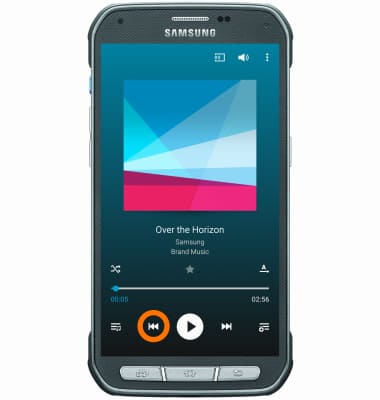
- Tap the Forward icon to jump to the next song.
Note: Touch and hold to scrub forward through the current song.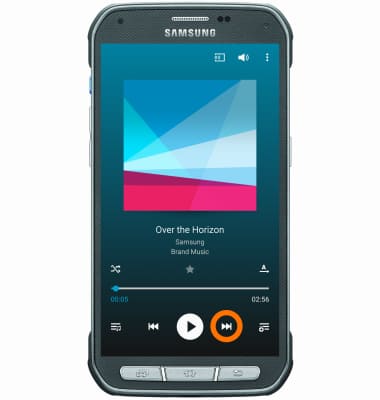
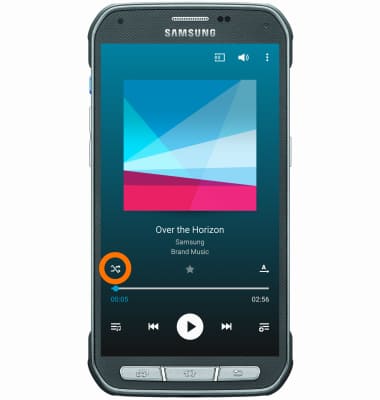
- Tap the Shuffle icon to cycle through shuffle options.
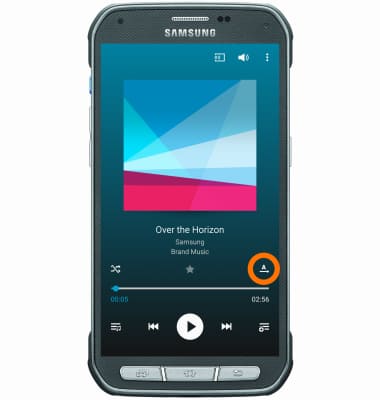
- Tap the Repeat icon to cycle through looping options.
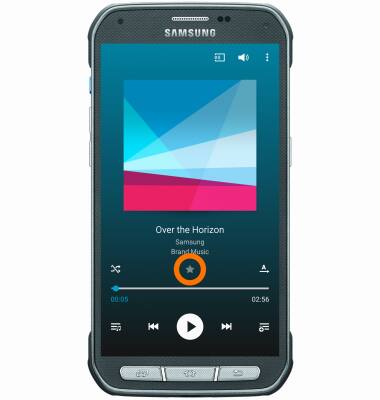
- Tap the Favorite icon to mark the current song as a favorite.
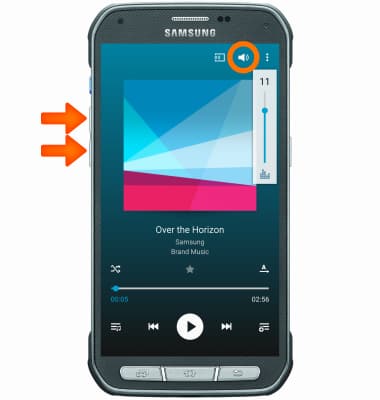
- Tap the Volume icon, or use the volume buttons, to access and adjust the volume controls.
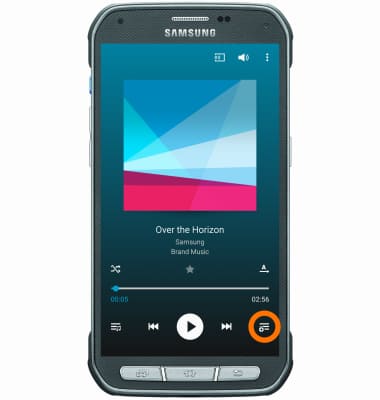
- Tap Queue icon to view the current playlist.
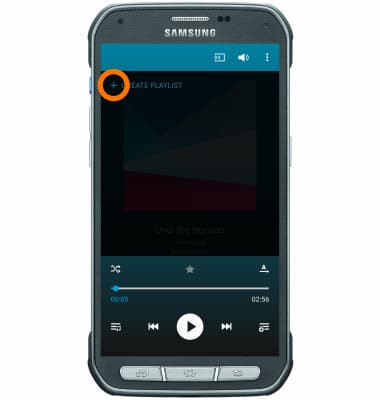
- Tap the Plus icon to add desired songs to the queue.
- When music is playing, the Music player icon will display in the notification bar.
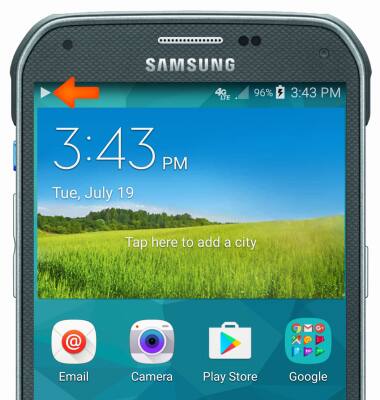
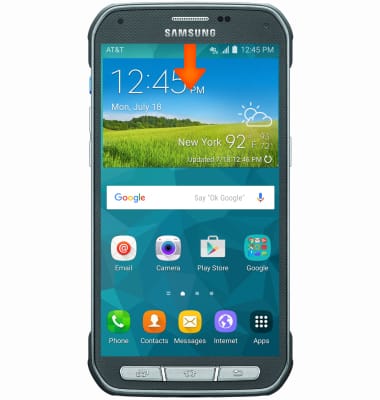
- To get to music player controls while in other apps, swipe down from the top of the screen.
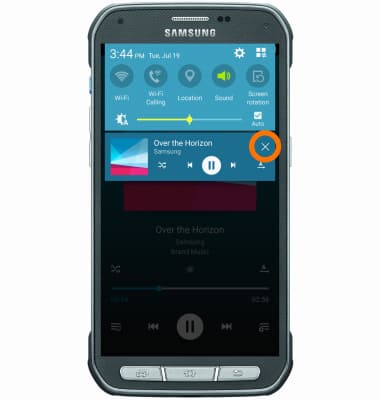
- To exit the music player, from the quick settings menu, tap the X icon.
Play Music
Samsung Galaxy S5 Active (G870A)
Play Music
Play music, turn the music player off.
INSTRUCTIONS & INFO