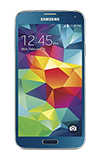
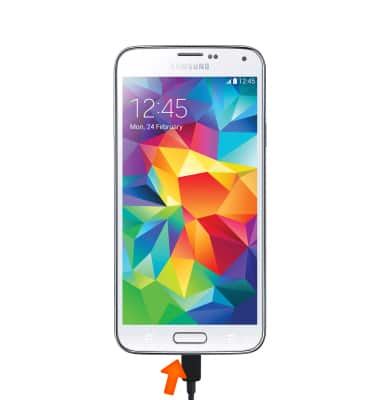
- To transfer media to and from a PC, with the device powered on, insert the microUSB end of the microUSB cable into the port on the bottom of the device.
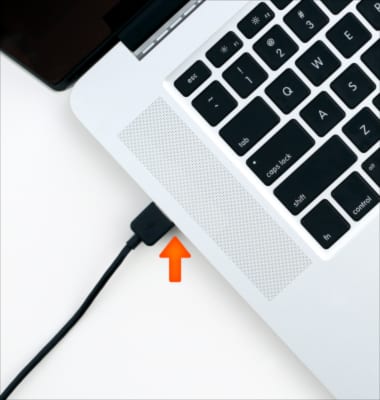
- Insert the USB end of the microUSB cable into an open port on the computer.
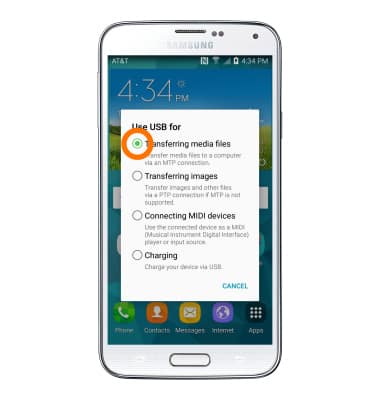
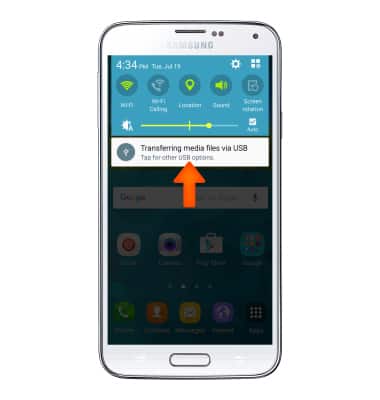
- To place the device into the correct USB mode, swipe down from the top of the screen and tap Transferring media files via USB.
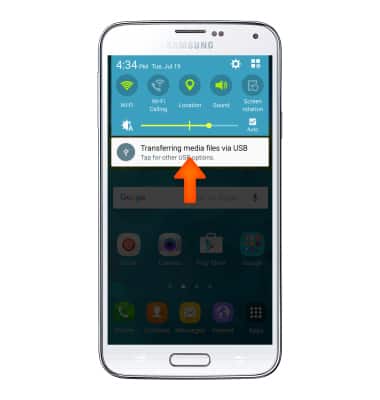
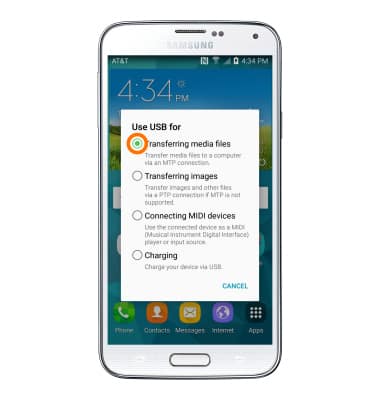
- Then tap Transferring media files or Transferring images.
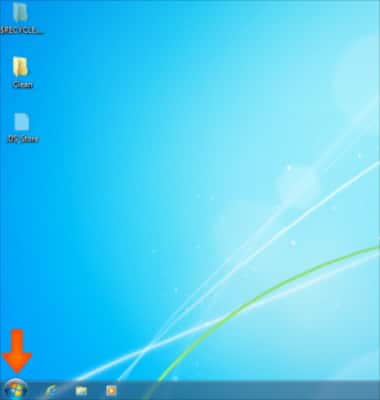
- Tap Start.
- Tap Computer, then open the newly connected Device drive.
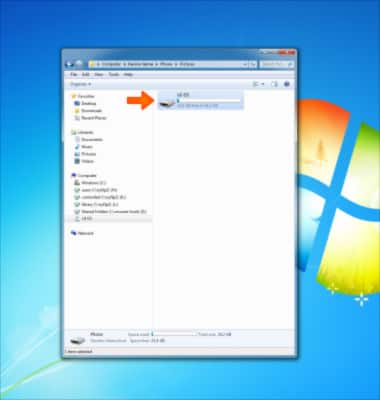
- Open the Desired storage location.
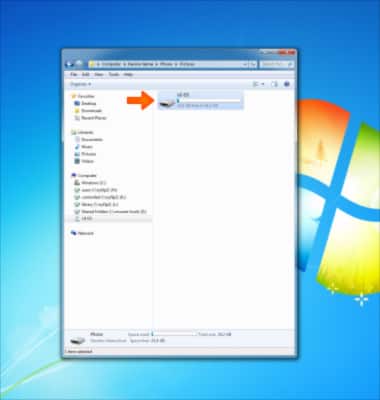
- Navigate to the desired folder.
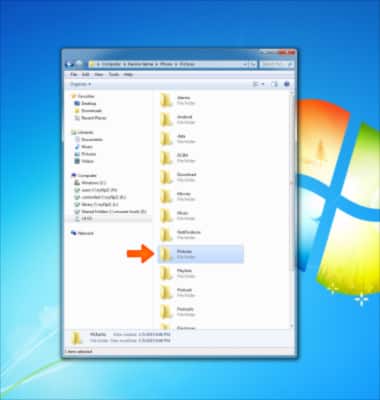
- Drag and drop files to/from the Device drive to transfer.
Note: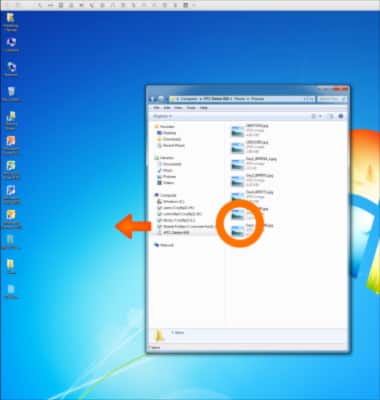
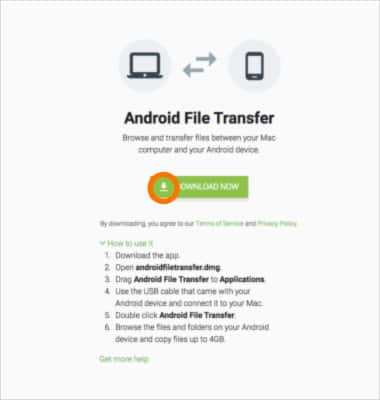
- To transfer media to and from a MAC computer, you need the Android File Transfer App to facilitate the communication between the camera and computer. Download and install the Android File Transfer app.
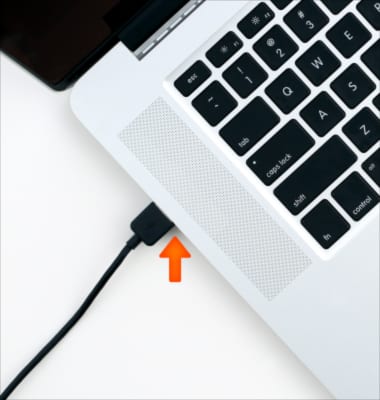
- With the device powered on, insert the MicroUSB end of the MicroUSB cable into the port on the device.
Note: This device supports USB 2.0.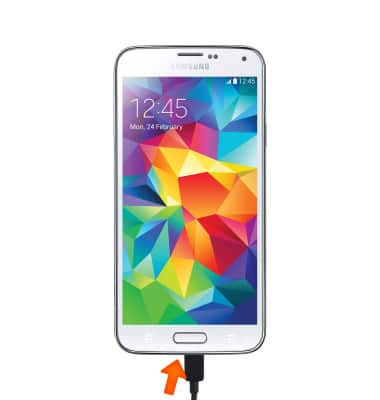
- Insert the USB end of the MicroUSB cable into an open port on the computer.
- To place the device into the correct USB mode, swipe down from the top of the screen and tap Transferring media files via USB
- Then tap Transferring media files or Transferring images.
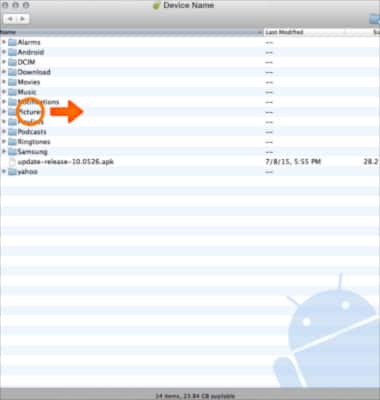
- Once the phone is connected to the computer, the Android File Transfer App will open automatically.
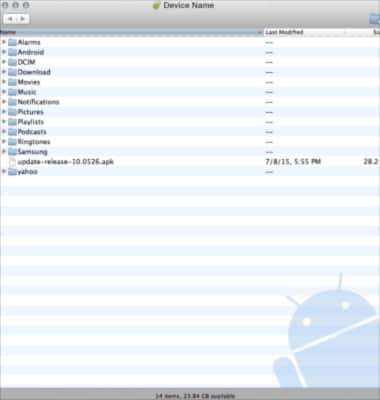
- Drag and drop the Desired file(s) to/from the device to transfer.
Transfer Media To & From a Computer
Samsung Galaxy S5 (G900A)
Transfer Media To & From a Computer
Transfer files to or from your device and a computer.
INSTRUCTIONS & INFO