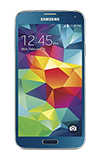
- To access the keyboard, tap on a Text entry field.
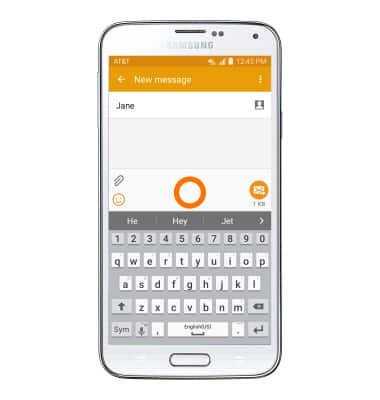
- Tap the Keyboard to type desired message.
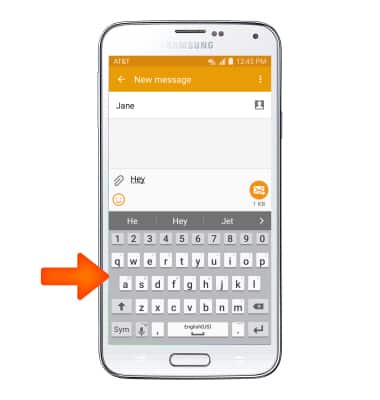
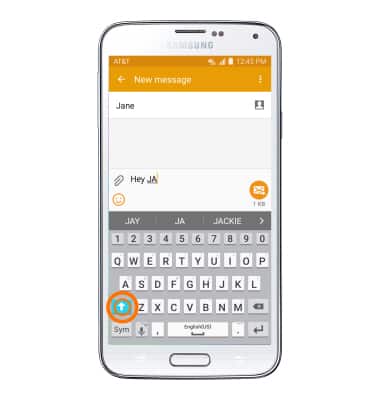
- Tap the Shift key to capitalize the next letter entered.
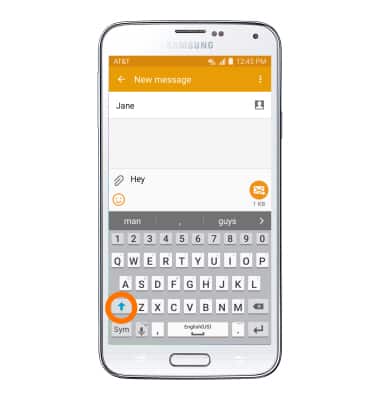
- To enable Caps Lock, touch and hold the Shift key.
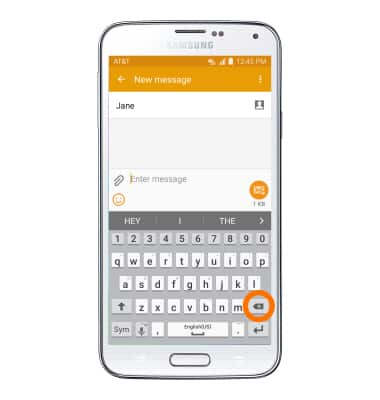
- Tap the Delete key to remove a character. Touch and hold the Delete key to clear the entire text field.
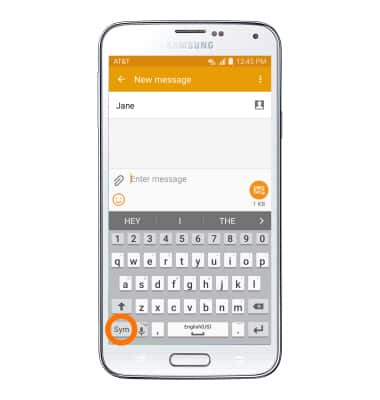
- Tap the Sym key to access symbols and numbers.
- Tap the ‘1/2’ key to view additional symbols.
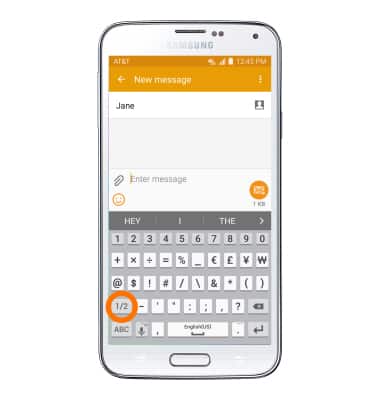
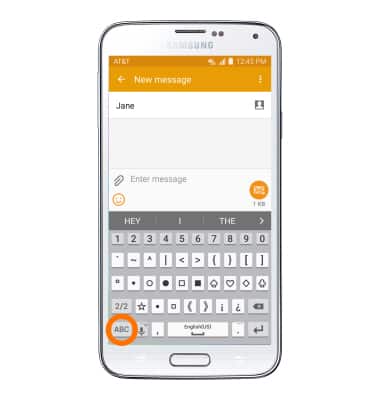
- Tap the 'ABC' key to return to the alphabet.
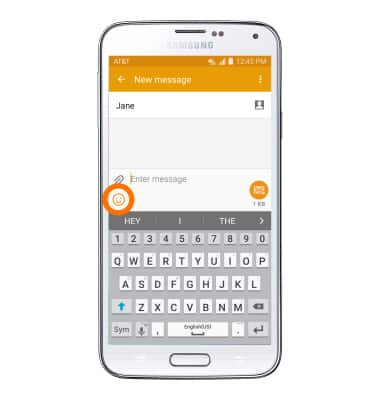
- Tap the Emoticon icon to access emoticons.
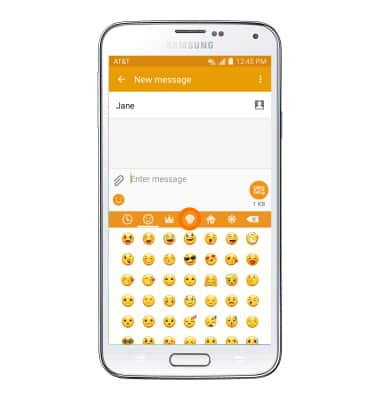
- Tap the Emoticon theme icons to view additional emoticons.
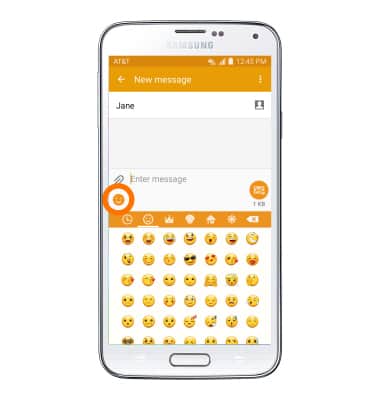
- Tap the Emoticon icon to return to the alphabet.
- Touch and hold the Keyboard options icon to view additional keyboard options.
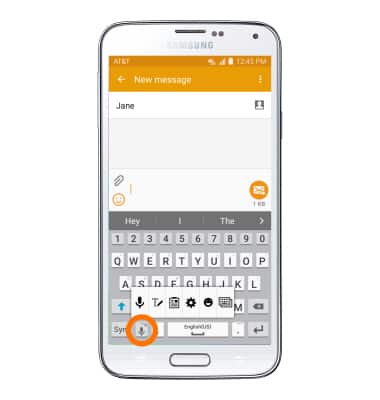
- Tap the Settings icon to edit keyboard settings.
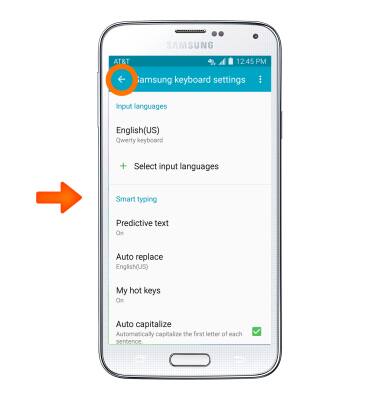
- Select Desired settings and tap the Back key to return to the keyboard.
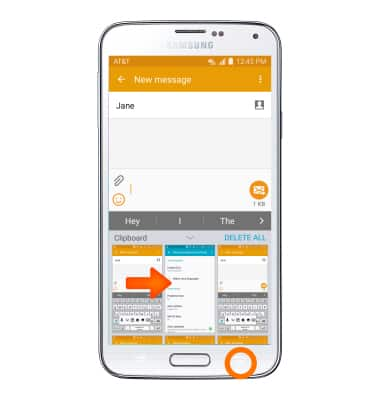
- From the Keyboard options tap the Clipboard icon to insert recently copied text or screenshot images into your message.
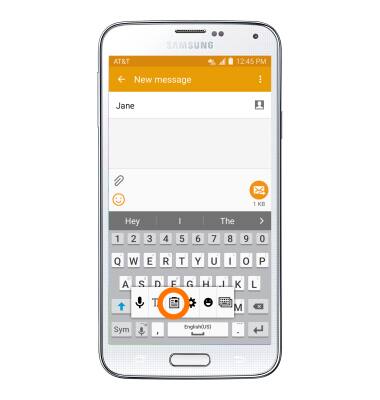
- Tap the Desired text or image to insert into your image from the clipboard, tap the Back key to return to the keyboard.
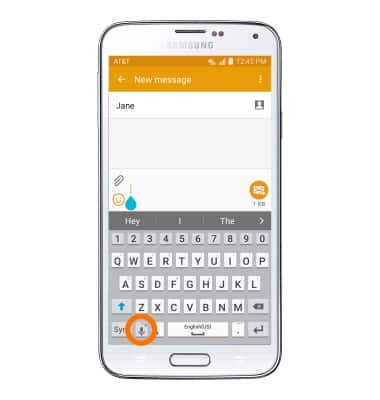
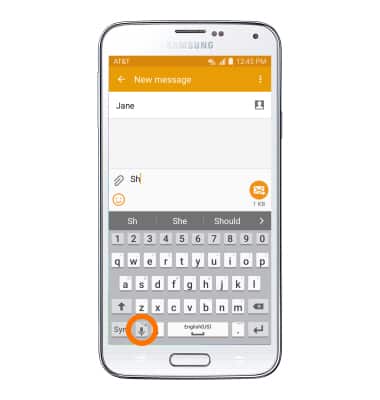
- From the Keyboard options menu, tap the Voice icon to enable speech to text.
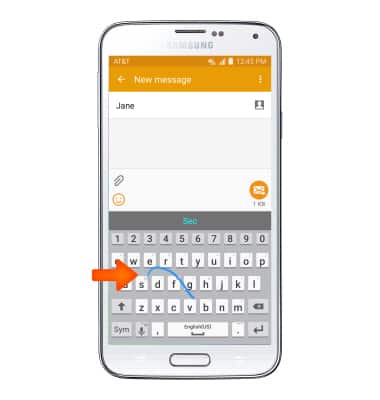
- To use Swype, touch and drag across Each letter of the desired word without removing the finger from the screen.
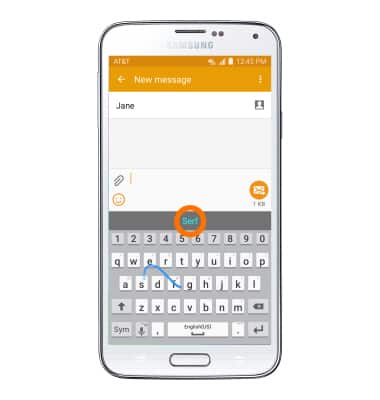
- If the resulting word does not match the desired word, tap the Desired word in the Auto-complete Suggestion bar.
- To copy and paste text, tap and hold the Desired text.
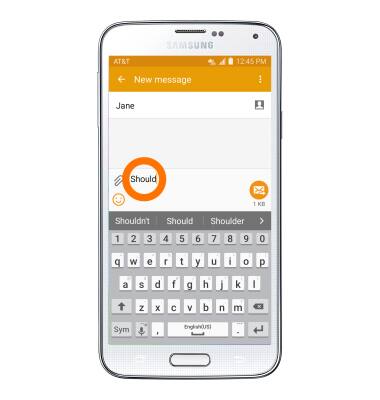
- Touch and drag the Text Selection handles to highlight all the desired text.
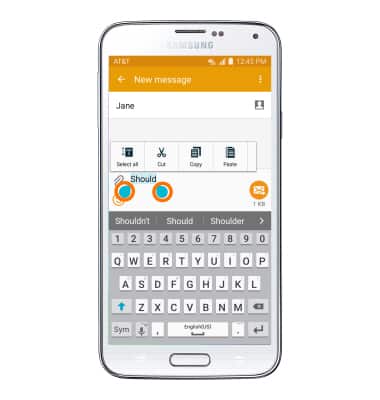
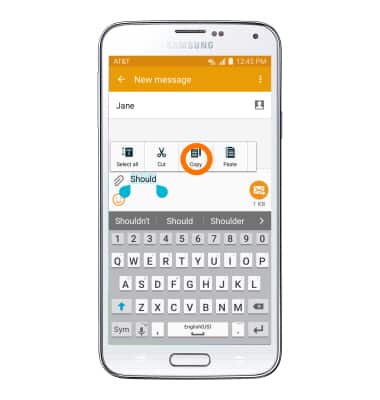
- Tap the Copy icon.
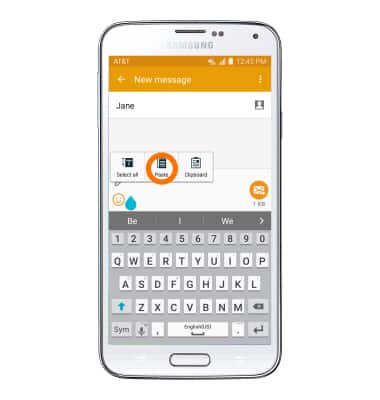
- In the desired pasting location, tap and hold the Desired text field to place the cursor.
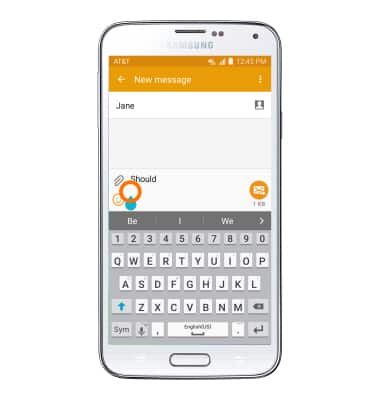
- Tap the Paste icon.
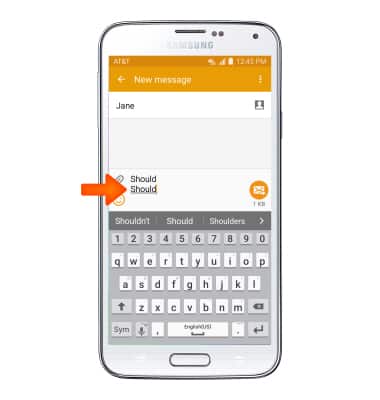
- The copied text is pasted in the Desired location.
Keyboard & Typing
Samsung Galaxy S5 (G900A)
Keyboard & Typing
Cut and paste, use speech-to-text, and access keyboard settings.
INSTRUCTIONS & INFO