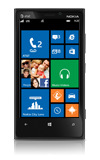
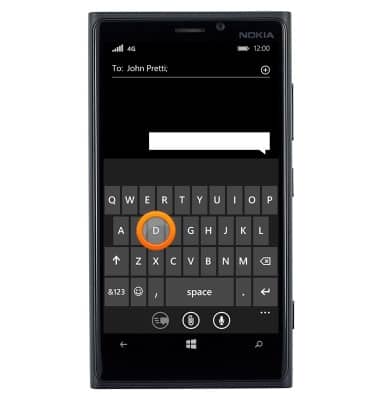
- To enter text, tap the desired characters to enter them in the text field.
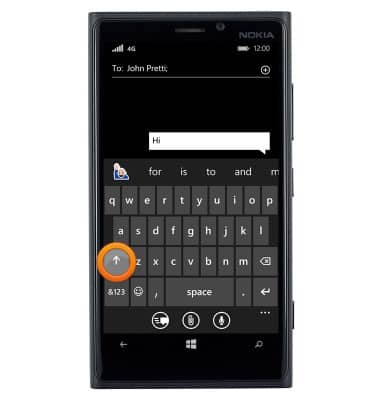
- Tap the Shift icon to capitalize the next letter entered.
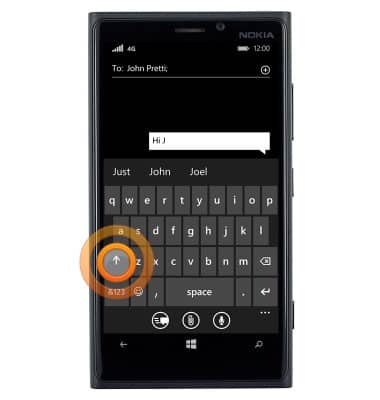
- To enable Caps Lock, double-tap the Shift icon.
- Tap the Delete key to remove a character. Touch and hold the Delete key to clear the text field.
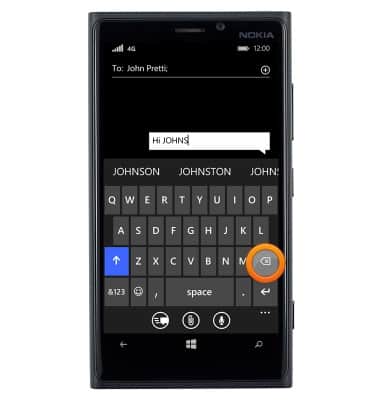
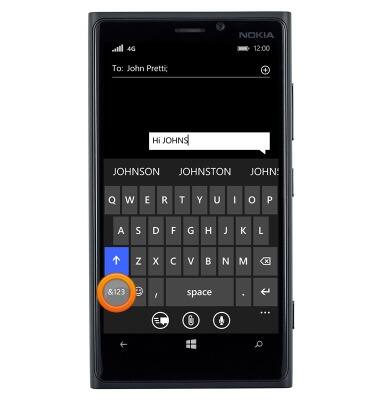
- Tap the '&123' key to access symbols and numbers.
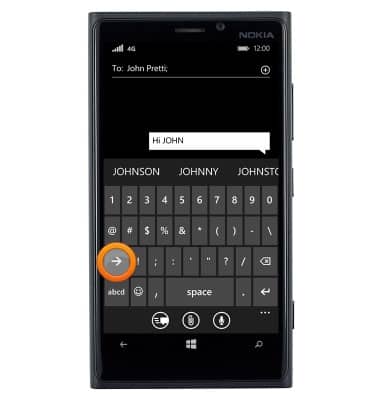
- Tap the Next icon to view additional symbols.
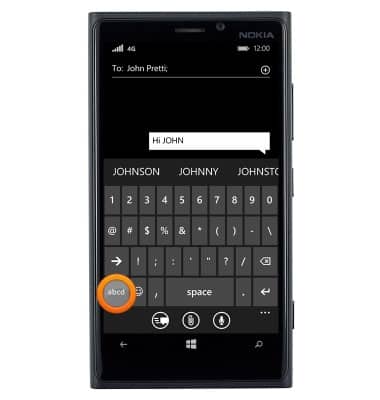
- Tap the 'abcd' key to return to the alphabet.
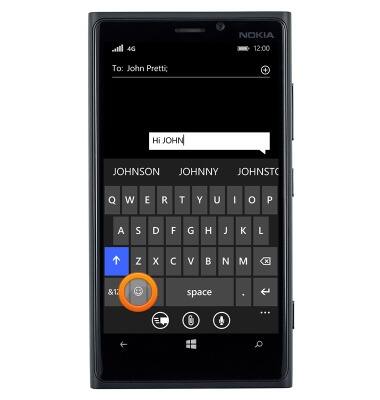
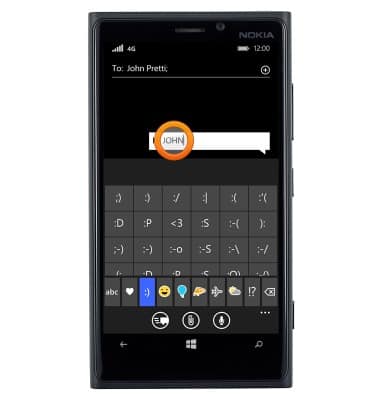
- Tap the Emoticon key to access emoticons.
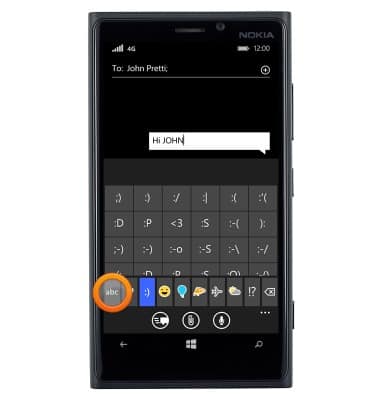
- Tap the 'abc' key to return to the alphabet.
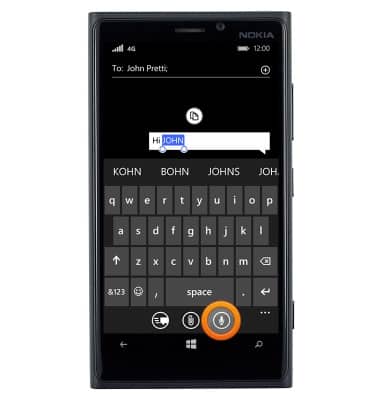
- Tap the Voice icon to enable speech to text.
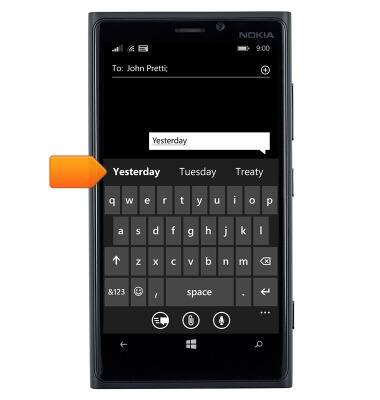
- To use Word Flow, touch and drag across each letter of the desired word without removing the finger from the screen.
Note: For this demonstration, 'Yesterday' was entered.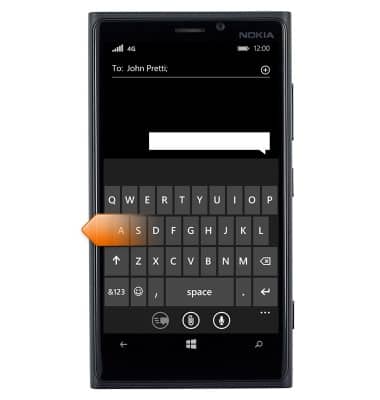
- If the resulting word does not match the desired word, tap the desired word in the Suggestion bar.
- To copy and paste text, tap the desired text.
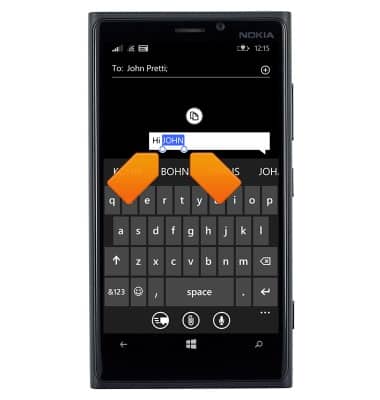
- Touch and drag the Text Selection handles to highlight all the desired text.
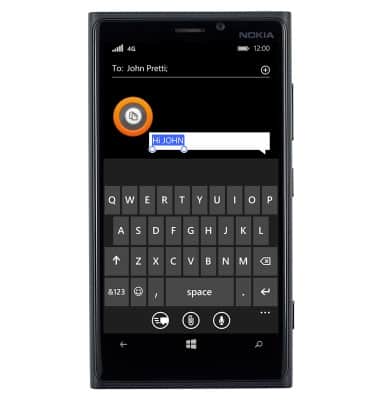
- Tap the Copy icon.
- In the desired pasting location, tap the desired text field to place the cursor.
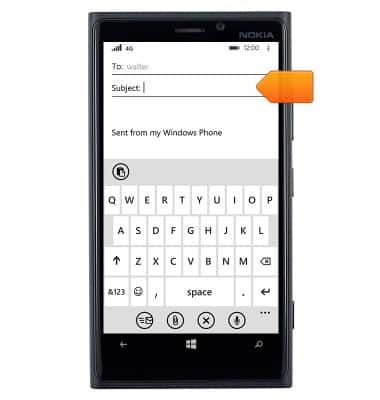
- Tap the Paste icon.
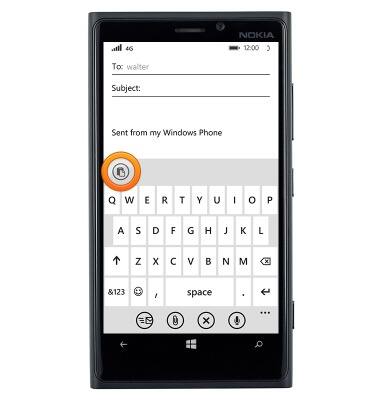
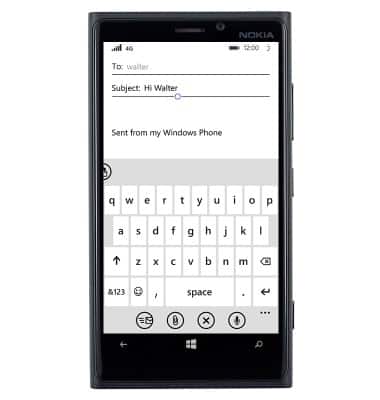
- The copied text is pasted in the desired location.
Keyboard & typing
Nokia Lumia 920
Keyboard & typing
How to use the keyboard, use speech-to-text, access keyboard settings, and more.
INSTRUCTIONS & INFO