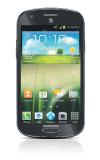
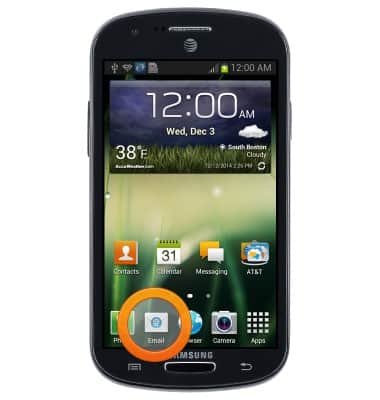
- From the home screen, tap Email.
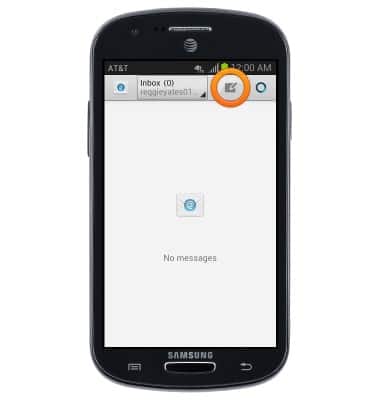
- Tap the Compose icon to compose an email.
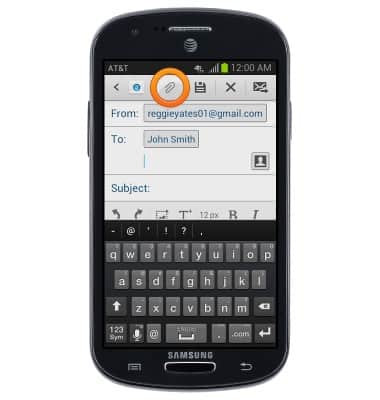
- Enter the recipient email address, subject and message, then tap the Attach icon to add an attachment.
- Tap the desired option.
Note: This tutorial selects Images.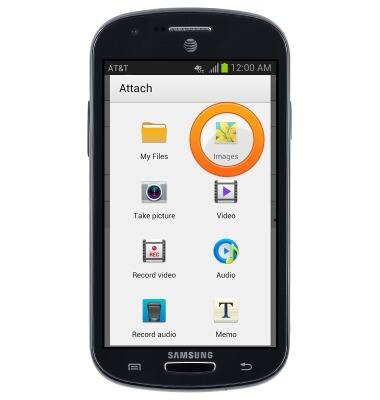
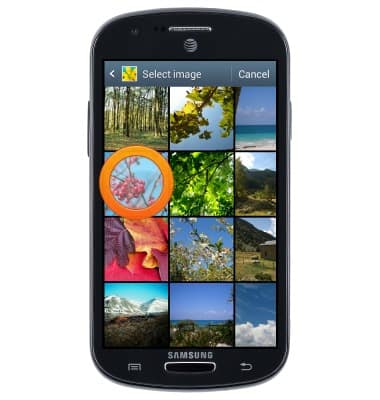
- Tap the desired image.
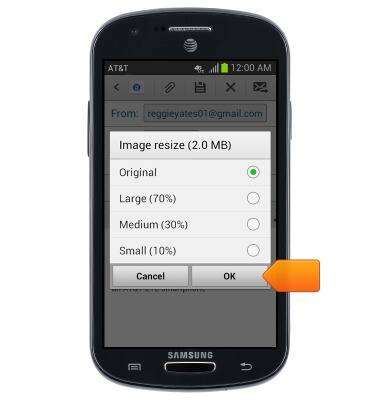
- Tap the desired option, then tap OK.
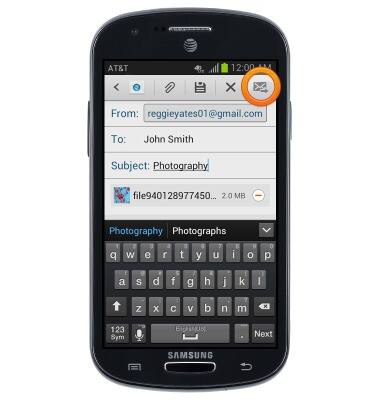
- Tap the Send icon to deliver the email.
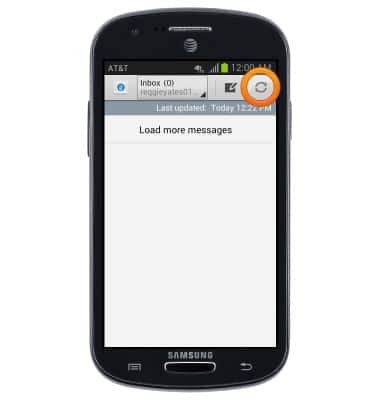
- To refresh your inbox, tap the Refresh icon.
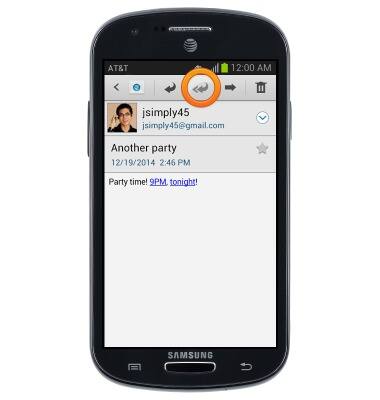
- Tap the Reply all icon to reply to all recipients of the email.
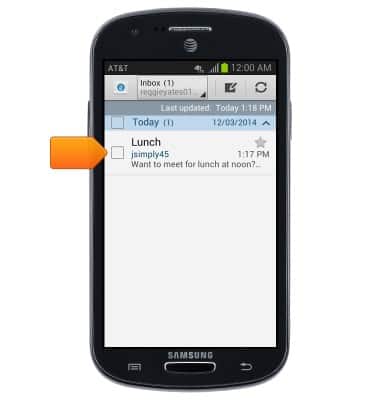
- Tap the desired email to open it.
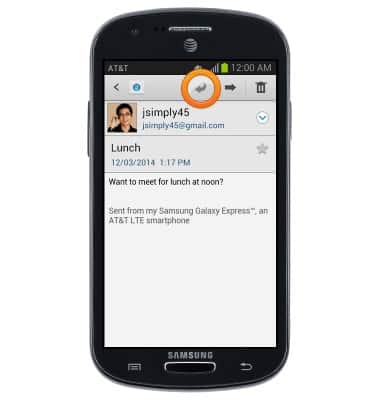
- Tap the Reply icon to reply to the email.
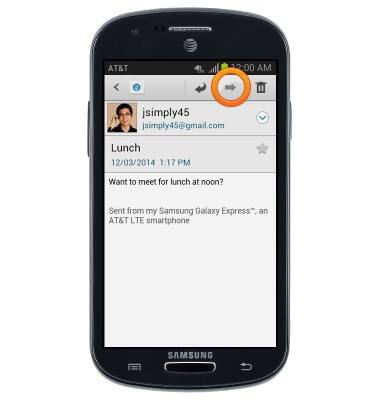
- Tap the Forward Email icon to forward the email.
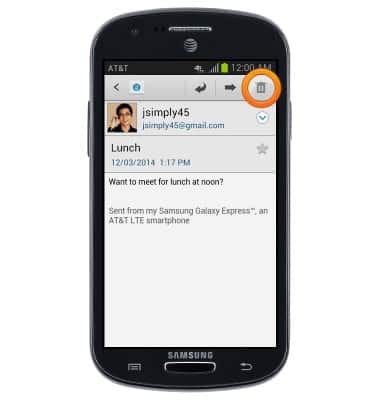
- Tap the Delete icon to delete the email.
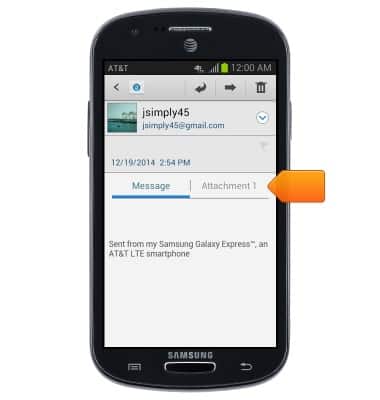
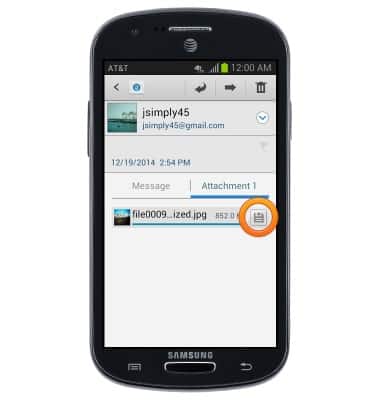
- To view an email attachment, tap Attachment 1.
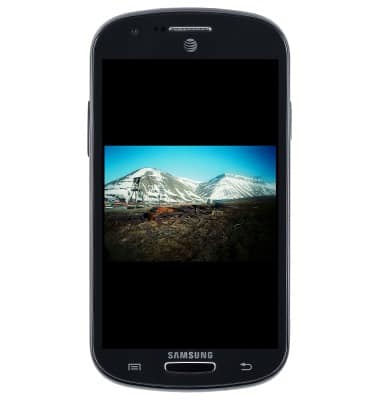
- Tap the attached file.
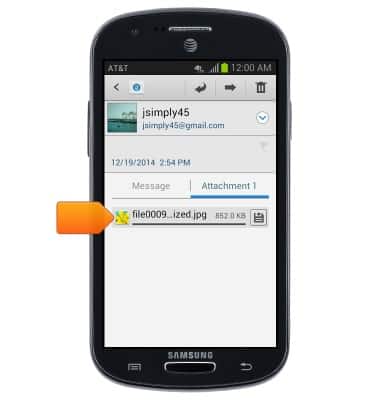
- The file will be displayed.
- To save the attachment to your device, tap the Save icon.
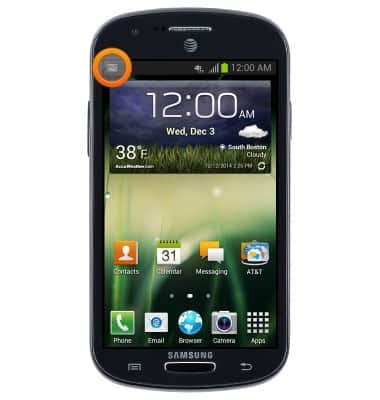
- When a Gmail Email has been received, the Gmail icon will be displayed in the Notifications Bar.
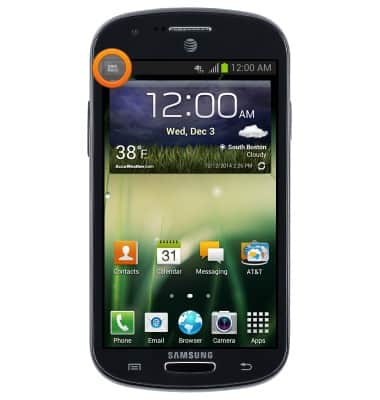
- When a new Email has been received, the Email icon will be displayed in the Notifications Bar.
Send & receive email
Samsung Galaxy Express (I437/I437p) OS 4.0-4.1
Send & receive email
Add and download email attachments, respond to an email and more.
INSTRUCTIONS & INFO