- From the home screen, tap Apps.
Note: The call blocking feature may not affect phone calls made or received via third-party apps installed on your device. Please contact third party app developers for assistance with such applications.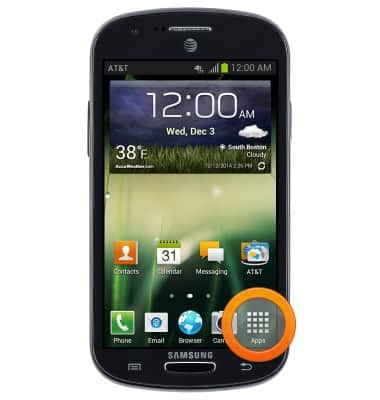
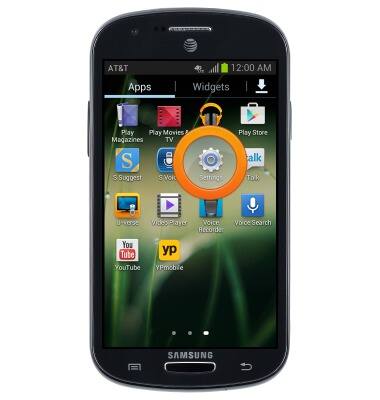
- Swipe to, then tap Settings.
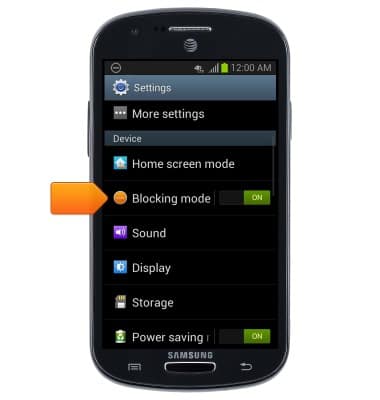
- Scroll to "Device", then tap Blocking mode.
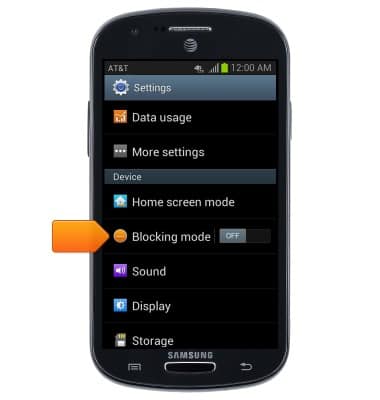
- Tap Blocking mode to enable the blocking.
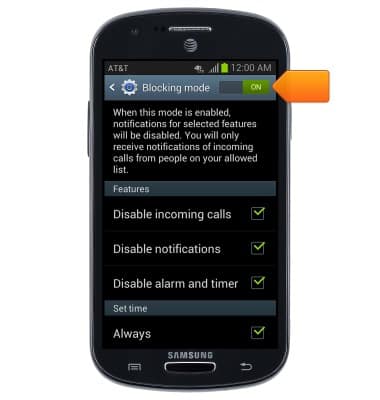
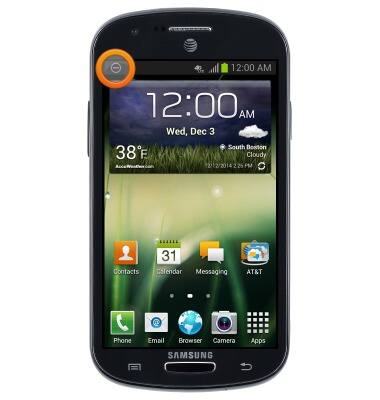
- While blocking mode is active, the Blocking Mode icon will be displayed in the notifications bar.
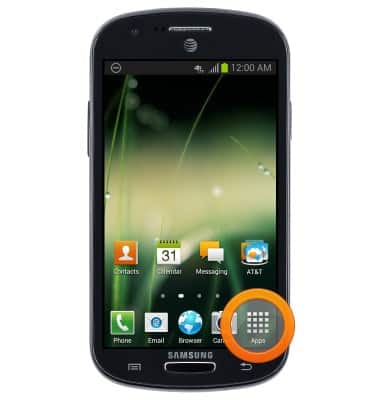
- To configure blocking mode settings, from the home screen, tap Apps.
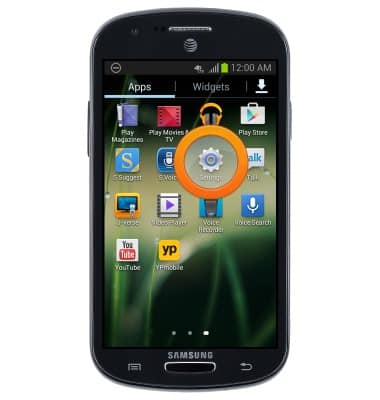
- Tap Settings.
- Scroll to "Device", then tap Blocking mode.
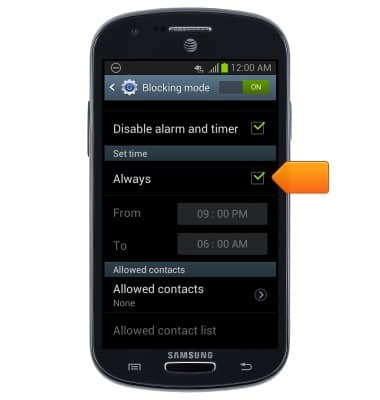
- To set a start and end time for blocking mode, tap the Always checkbox.
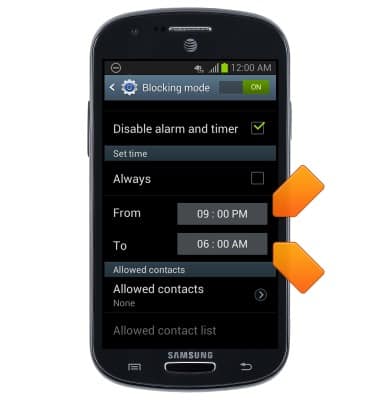
- Tap the From and To fields to set the desired start and end time for blocking mode.
- To set allowed contacts, then tap Allowed contacts.
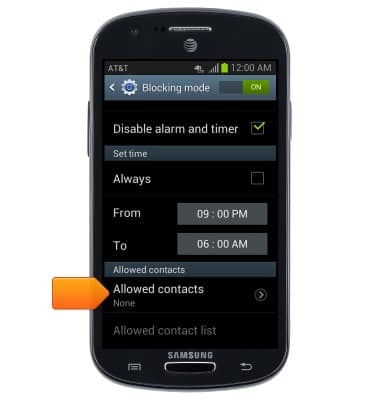
- Tap the desired option, then follow the on-screen prompts to block contacts.
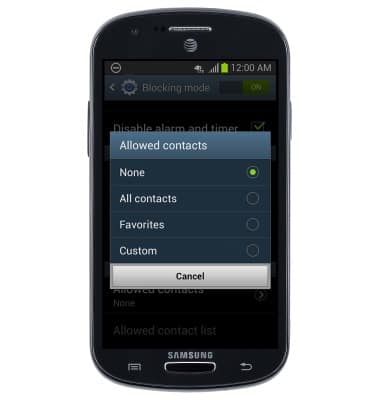
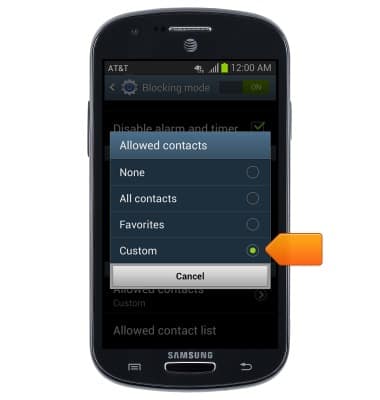
- To add a desired contact to the block list, tap Custom.
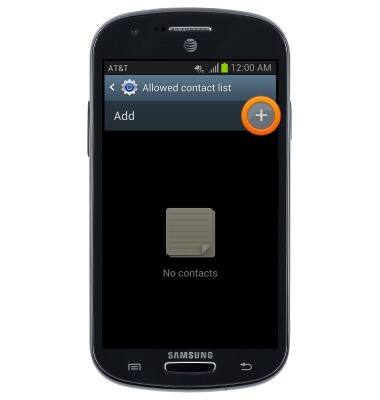
- Tapp the Add icon.
- Select the desired contact.
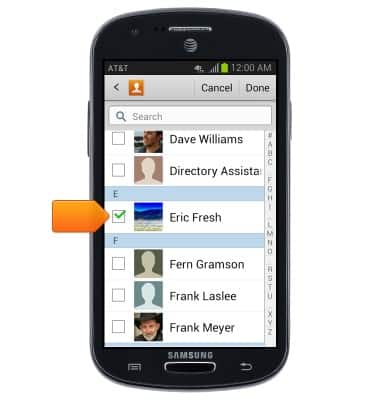
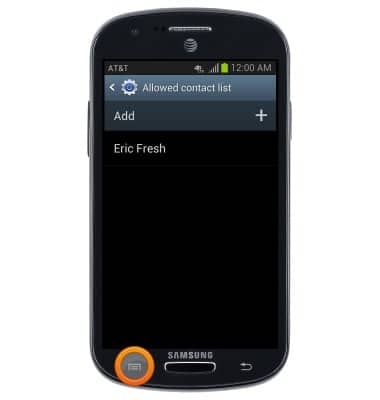
- The desired contact is now on your block list. To remove a contact, tap the Menu key..
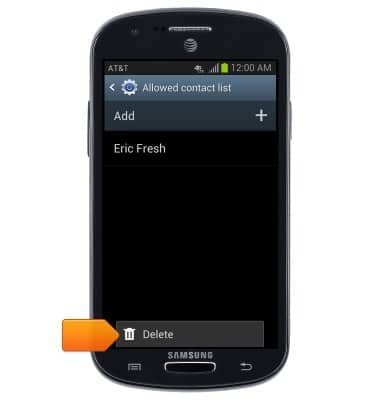
- Tap Delete.
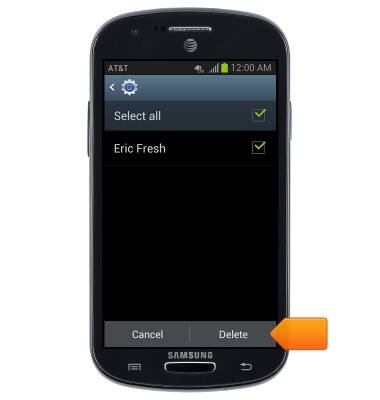
- Select the desired contact, then tap Delete.
Block or Unblock Calls
Samsung Galaxy Express (I437/I437p) OS 4.0-4.1
Block or Unblock Calls
Block or unblock calls from your device.
INSTRUCTIONS & INFO