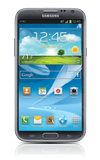
- Swipe to the right or left to access other home screens.
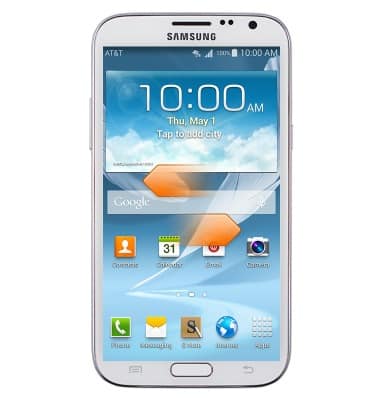
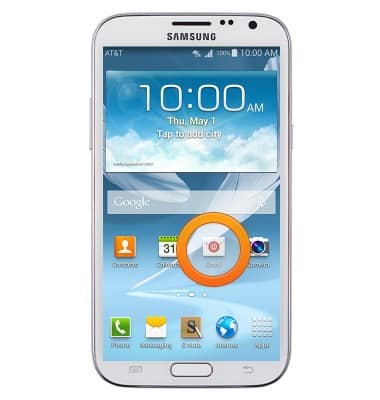
- Tap an app to open it.
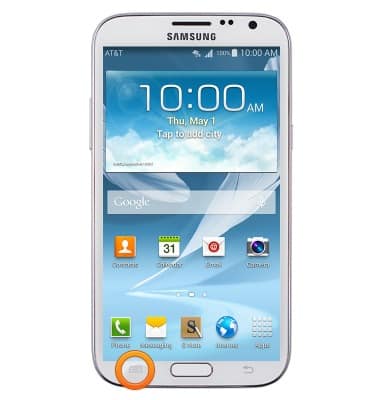
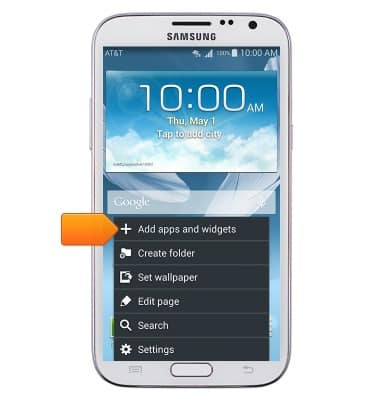
- To add an app or widget to the home screen, press the Menu key.
- Tap Add apps and widgets.
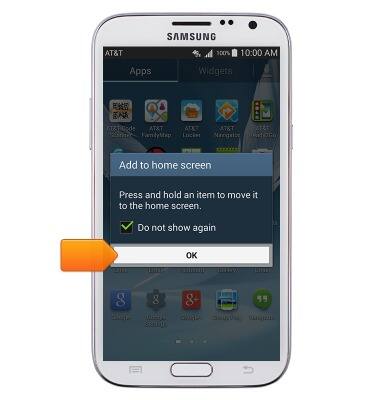
- Tap OK.
- Touch and hold the desired app or widget to place on the home screen.
Note: To place a widget, tap the Widgets tab.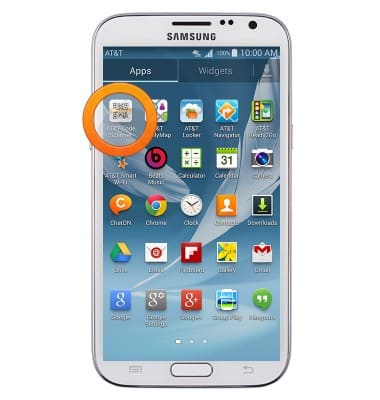
- While still holding, drag the app or widget to the desired location, and release to place it.
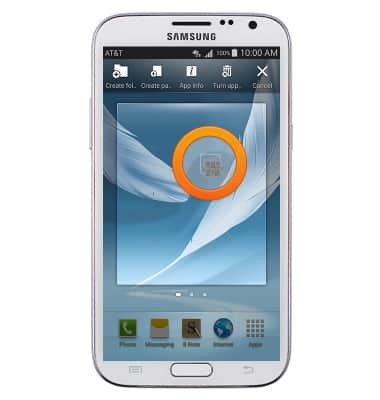
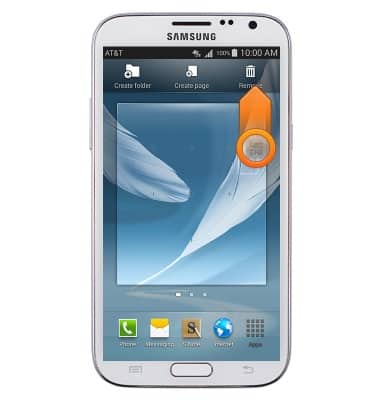
- To relocate or remove an app or widget, touch and hold the desired app or widget.
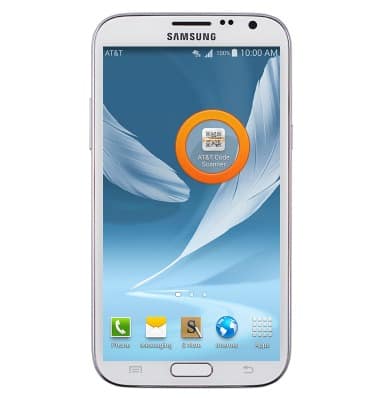
- To re-locate the app or widget, while still holding, drag the app or widget to the desired location.
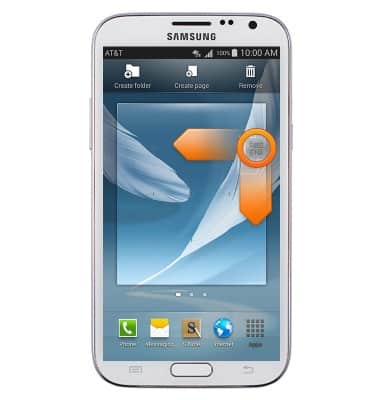
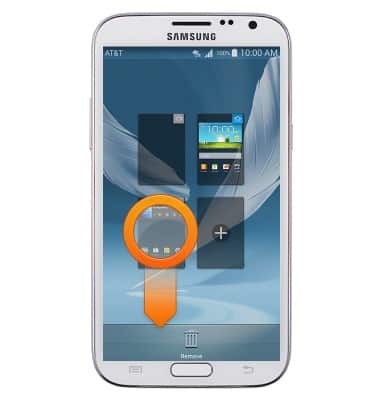
- To remove the app or widget, while still holding, drag the app or widget to Remove and release.
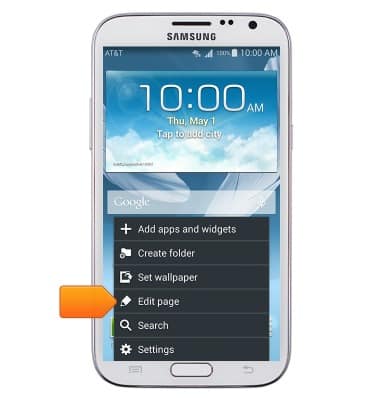
- To edit home screens, press the Menu key.
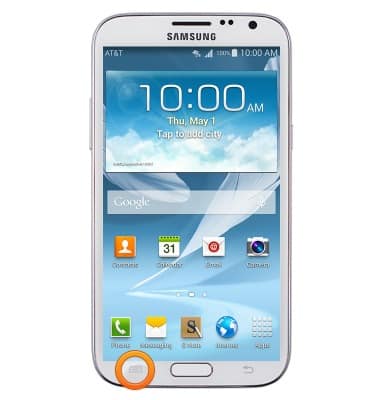
- Tap Edit page.
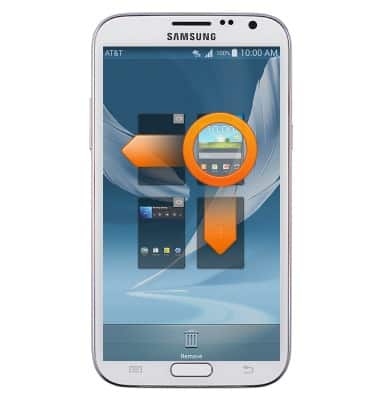
- Touch, then drag to re-order the home screens.
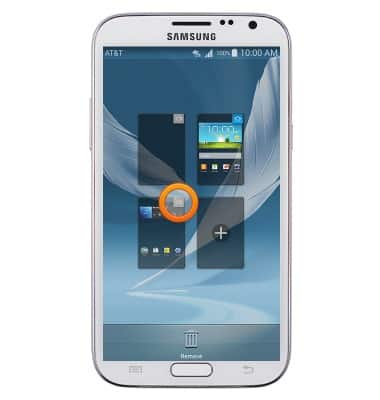
- To set a new default home screen, tap the Home icon on the desired home screen.
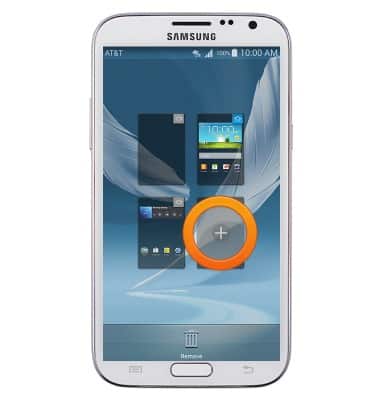
- To add a home screen, tap the Add icon.
- Touch then drag the desired home screen to Remove to remove it.
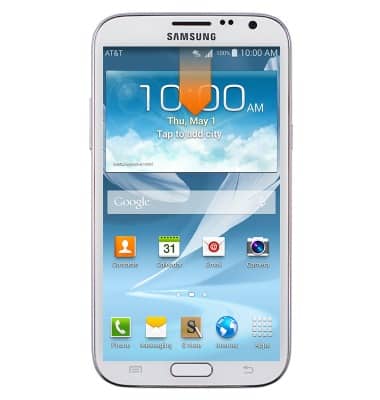
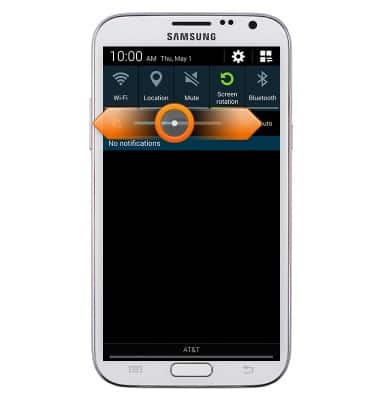
- To adjust the display brightness, swipe down from the notifications bar.
- Touch, then drag the Brightness slider to adjust the display brightness.
Learn & customize the home screen
Samsung Galaxy Note II (I317)
Learn & customize the home screen
Add shortcuts and widgets, access the notification panel, changing wallpaper, and more.
Use the Home screen
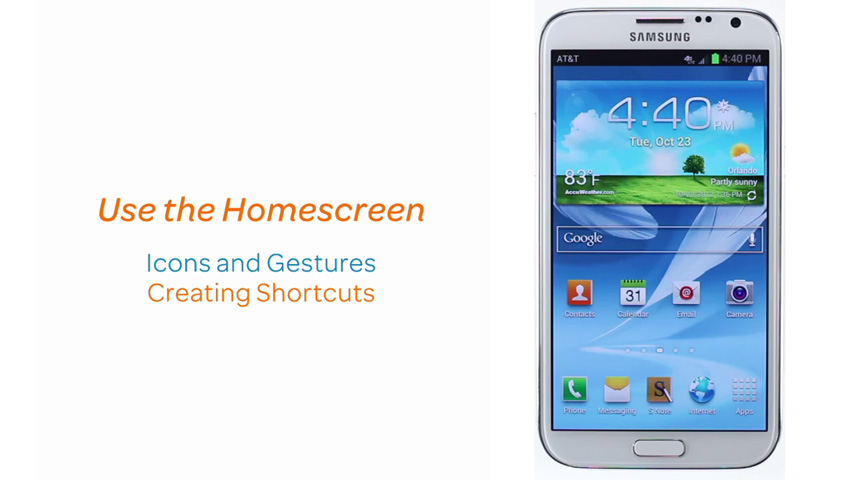
This video describes interacting with the home screen.
Use the Home screen
1:38
INSTRUCTIONS & INFO