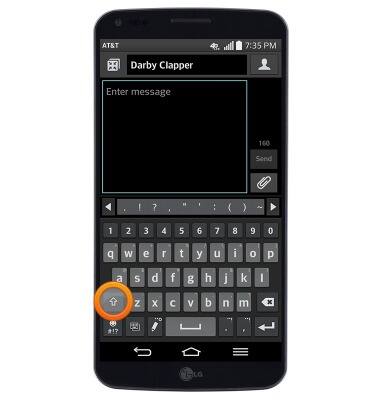
- Tap the Shift icon to capitalize the next input letter.
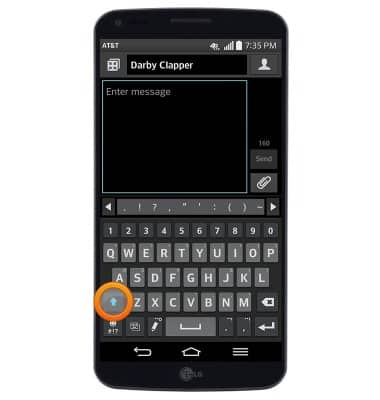
- Tap the Shift icon a second time to enable Caps lock.
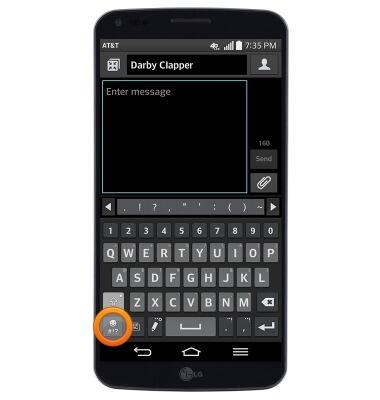
- Tap the Symbols icon to access symbols and special characters.
- Tap the Next icon to access additional symbols and special characters.
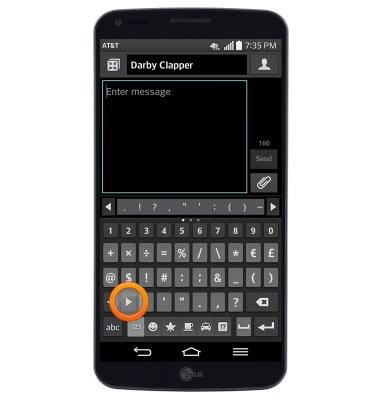
- Tap the Emoji icons along the bottom of the keyboard to access different types of emojis, icons and graphics.
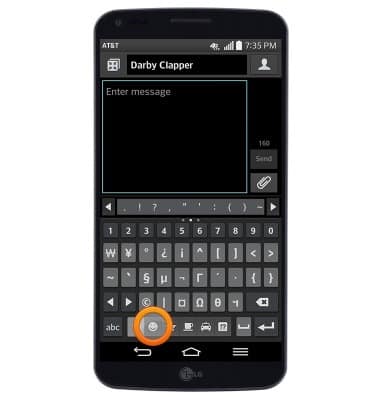
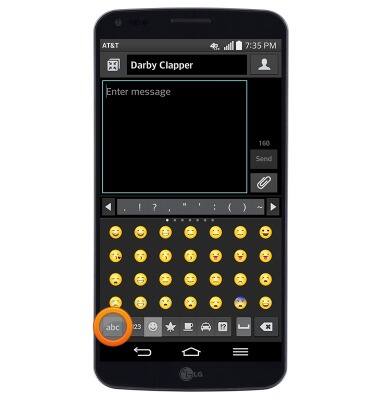
- Tap the 'abc' icon to return to the standard alphanumeric keyboard.
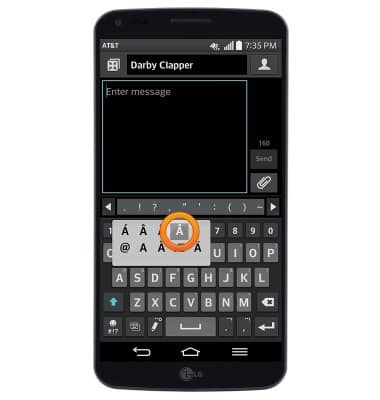
- Touch and hold an icon to access associate symbols and special characters.
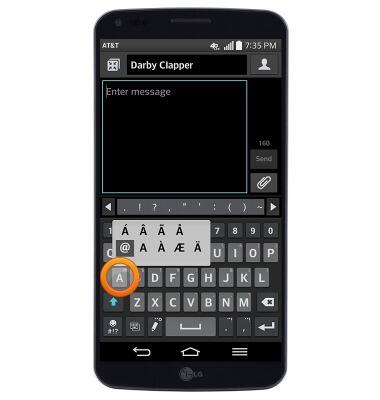
- Drag to the desired symbol then release to input.
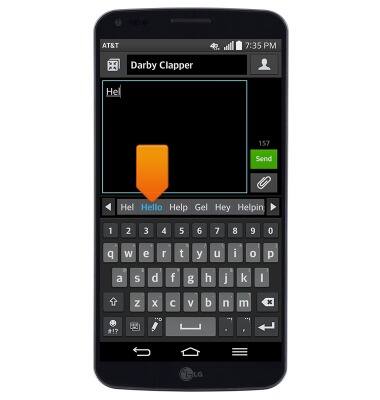
- While typing, Autocomplete suggestions will appear along the top of the keyboard. Tap the desired suggestion to input it.
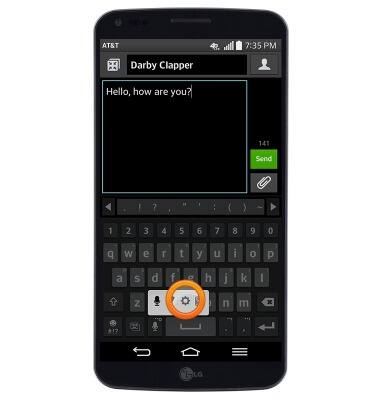
- To access speech-to-text input, touch and hold the Settings icon.
Note: To use speech-to-text input, you must activate Google voice typing. From the home screen, press the Menu key > tap 'All settings' > Under the General tab, tap 'Language and input' > tap 'Google voice typing'.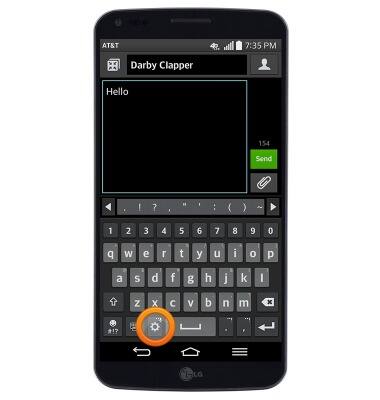
- Tap the Microphone icon.
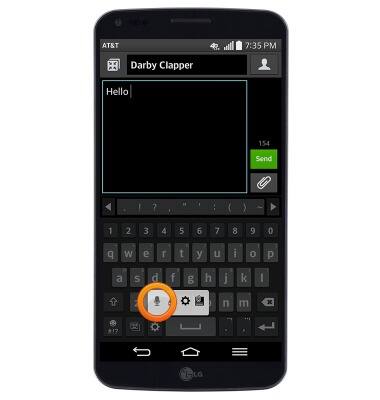
- Speak the desired message to input.
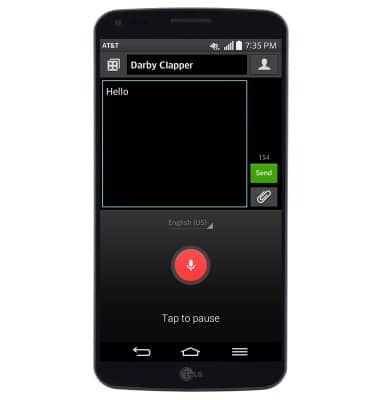
- To copy text, touch and hold the desired text.
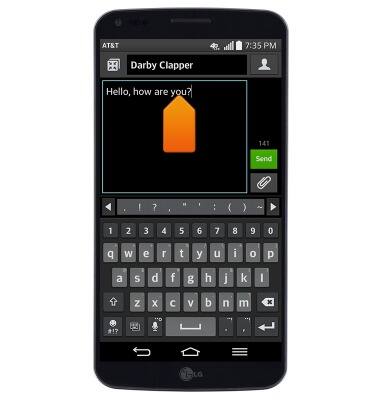
- Touch and drag the Selection icons to modify the selection.
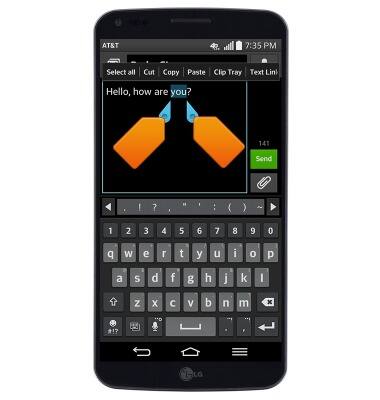
- Tap Copy.
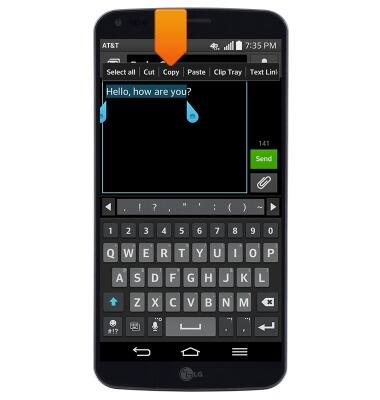
- To paste text, navigate to, then touch and hold within the desired text field.
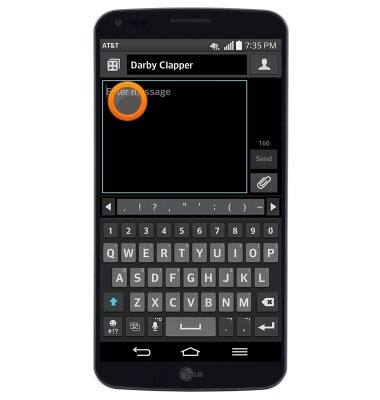
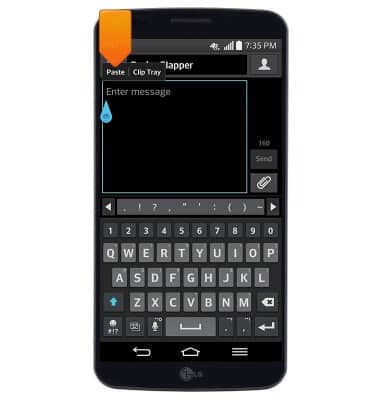
- Tap Paste.
- To access keyboard and input settings, tap the Settings icon.
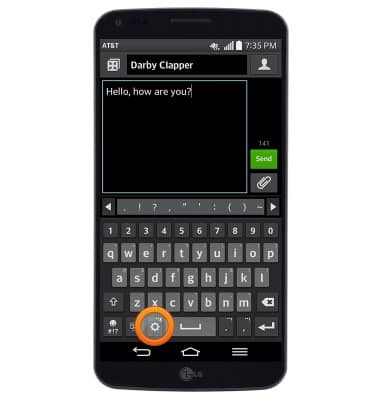
- If the settings icon is not displayed, touch and hold the indicated icon.
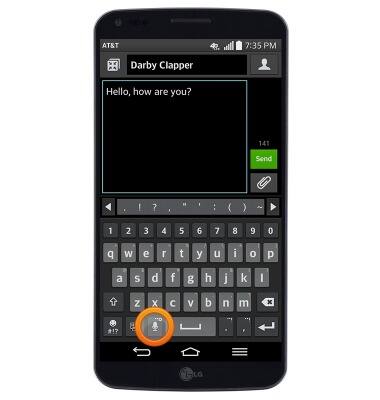
- Tap the Settings icon.
Keyboard & typing
LG G Flex (D950)
Keyboard & typing
How to use the keyboard, use speech-to-text, access keyboard settings, and more.
INSTRUCTIONS & INFO