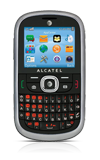
- From the home screen, press the Right soft key.
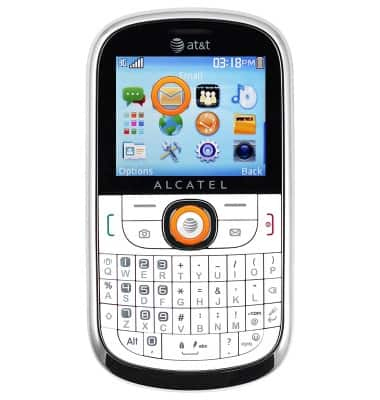
Note: Alternatively, press the Right nav key > Center nav key to access Email via the Widget bar.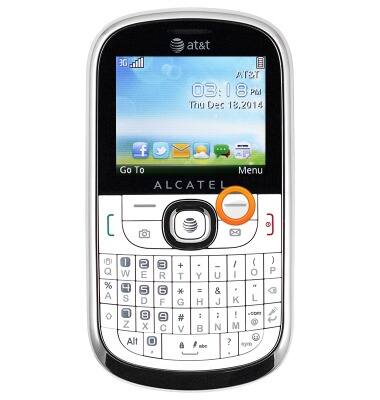
- Scroll to the 'Email' icon, then press the Center nav key.
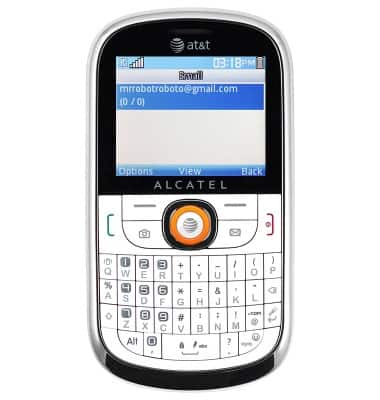
- Select the desired email account, then press the Center nav key.
- To refresh your mailbox, press the Left soft key.
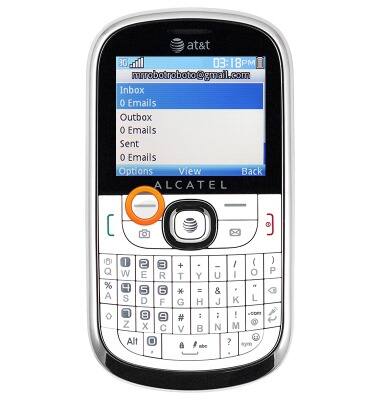
- Scroll to 'Refresh this Acct.', then press the Center nav key.
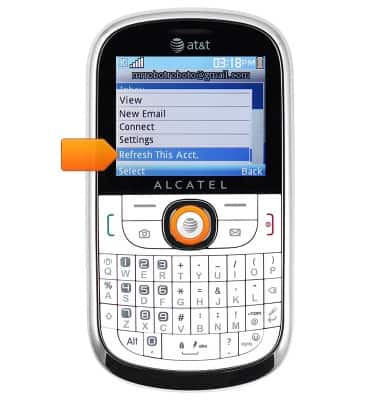
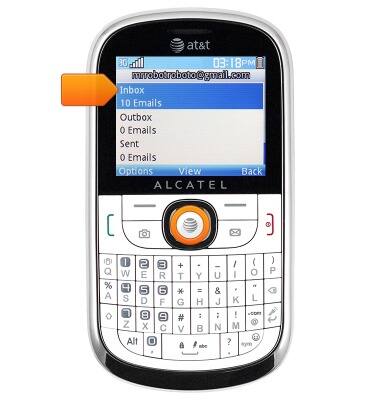
- To view your inbox, select 'Inbox', then press the Center nav key.
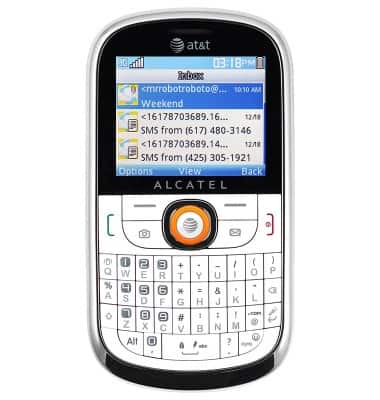
- To view an email, scroll to the desired message, then press the Center nav key.
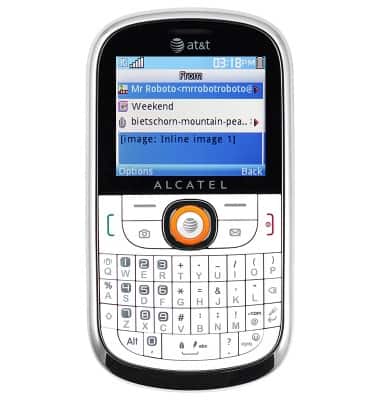
- The selected email will display. Press the Center nav key to access options.
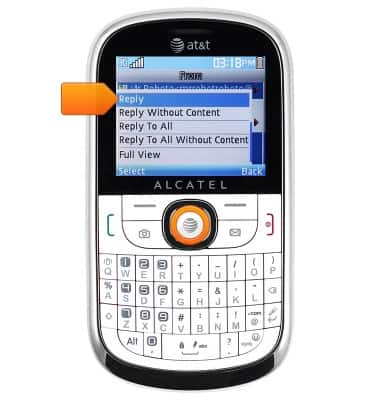
- To reply to the author of an email, select 'Reply', then press the Center nav key.
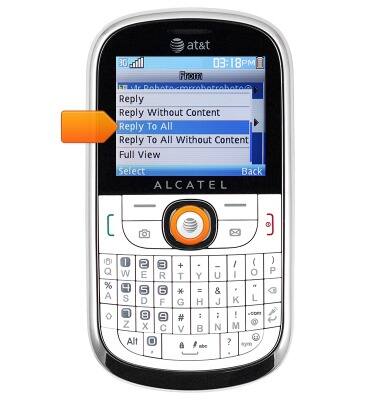
- To reply to the author and all recipients of an email, scroll to 'Reply To All', then press the Center nav key.
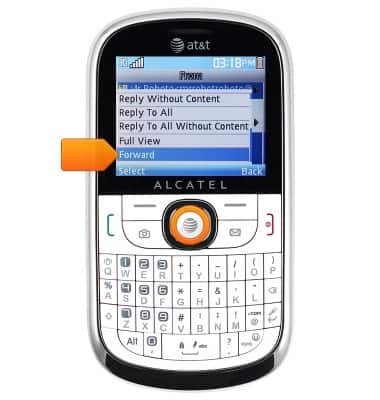
- To forward an email to new recipients, scroll to 'Forward', then press the Center nav key.
- To delete, scroll to 'Delete', then press the Center nav key.
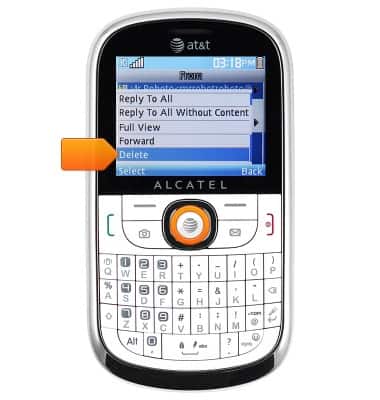
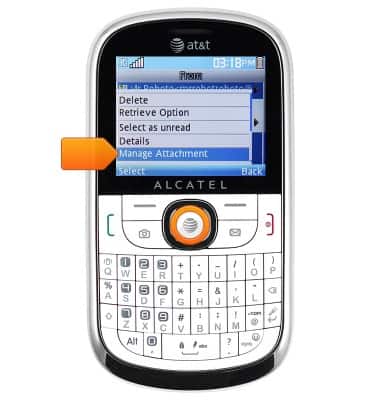
- To save an attachment, scroll to 'Manage Attachment', the press the Center nav key.
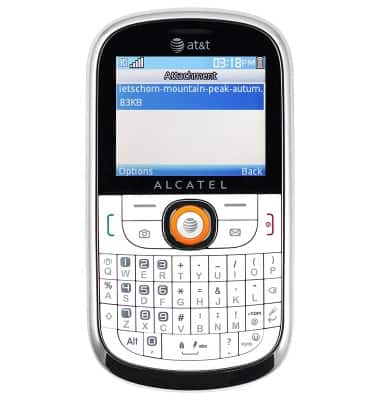
- Select the desired attachment, then press the Center nav key.
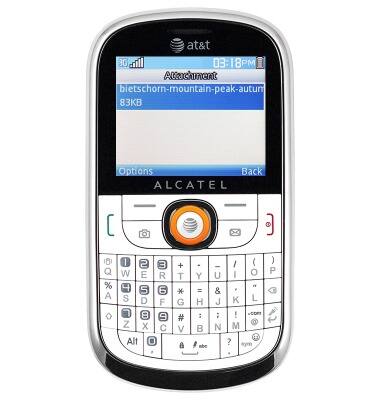
- To view a saved attachment, select the desired attachment, the press the Center nav key.
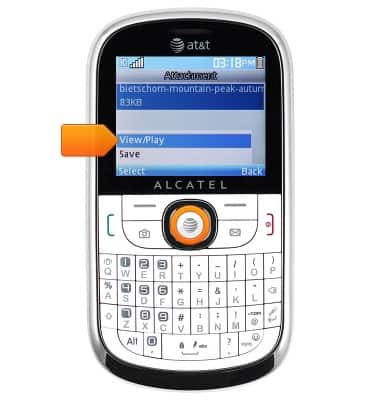
- Select 'View/Play', then press the Center nav key.
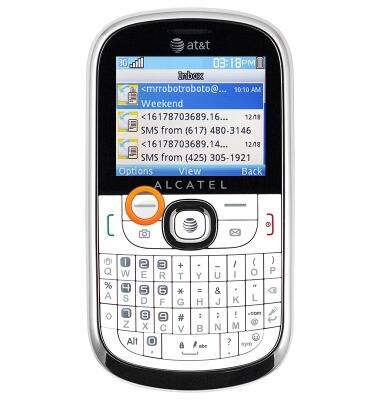
- To compose a new email, from the Inbox, press the Left soft key.
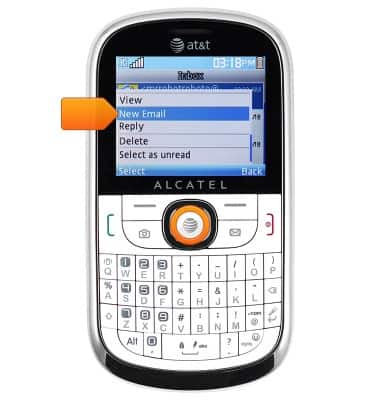
- Scroll to 'New Email', then press the Center nav key.
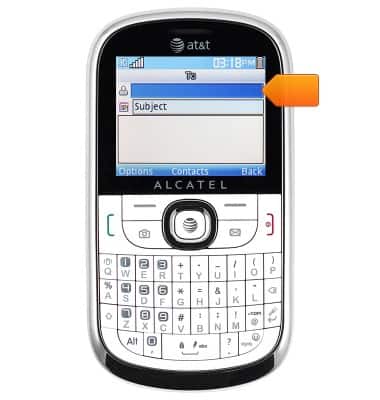
- Enter the desired recipient(s).
- Scroll to the 'Subject' field, then enter the desired subject.
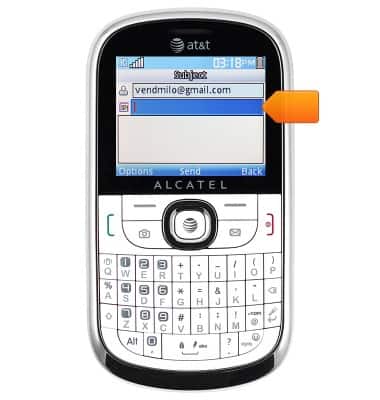
- Scroll to the Message field, then enter the desired message.
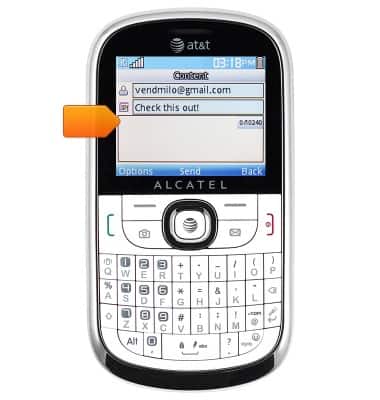
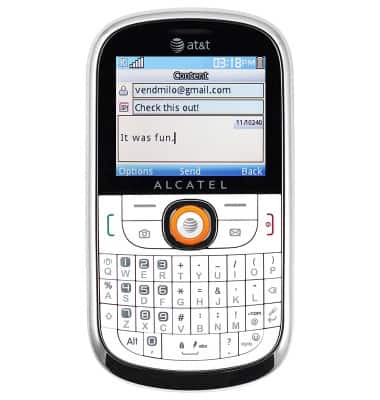
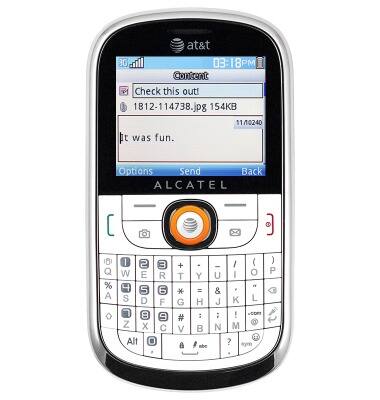
- To attach a file, press the Left soft key.
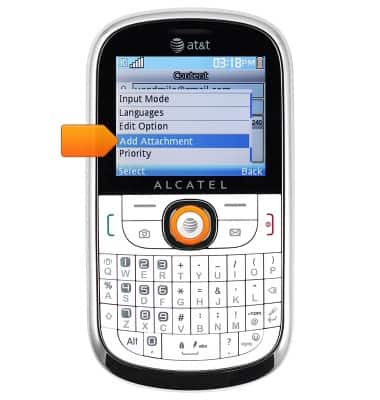
- Scroll to 'Add Attachment', then press the Center nav key.
- Press the Center nav key to send the email.
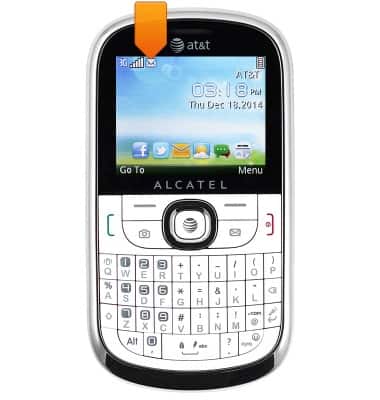
- When a new email is received, the New mail icon will display in the notification bar.
Send & receive email
Alcatel 871A
Send & receive email
Add and download email attachments, respond to an email and more.
INSTRUCTIONS & INFO