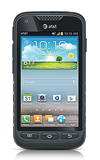
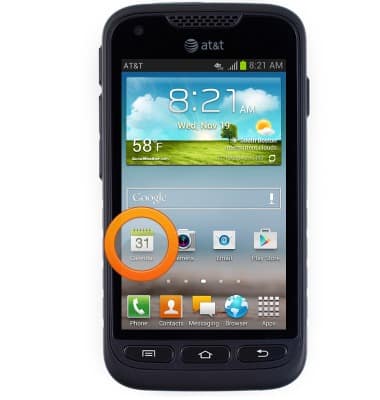
- Tap an icon on the screen to make a selection.
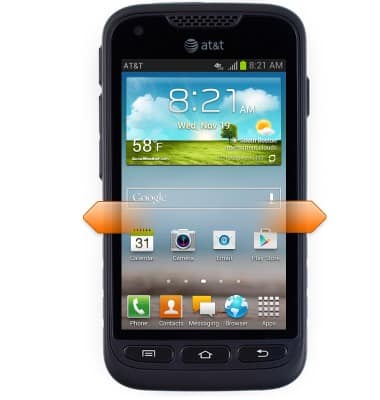
- Touch and drag horizontally to swipe between home screens.
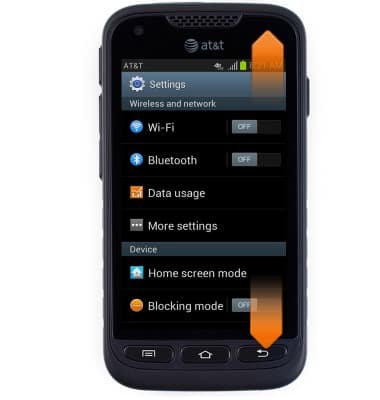
- Touch and drag vertically to scroll.
- Touch and drag down from the top of the screen to reveal the Notifications menu.
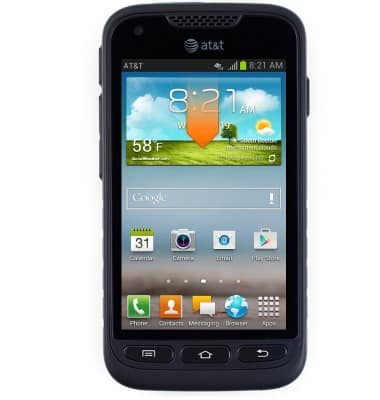
- Notifications will be displayed. Tap the desired service icon at the top of the screen to toggle on / off.
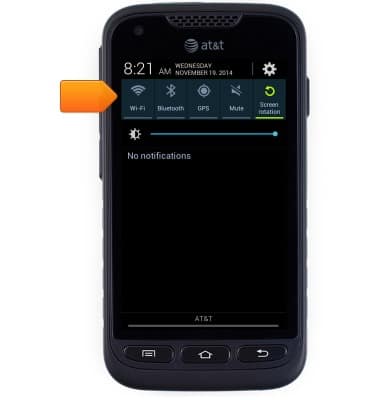
- To edit home screens, first pinch the screen with two fingers to zoom out.
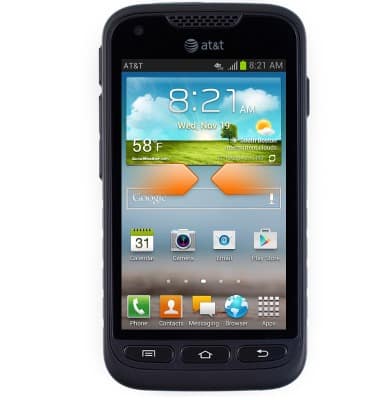
- Tap the Home icon to select the desired home screen to be displayed upon pressing the Home key.
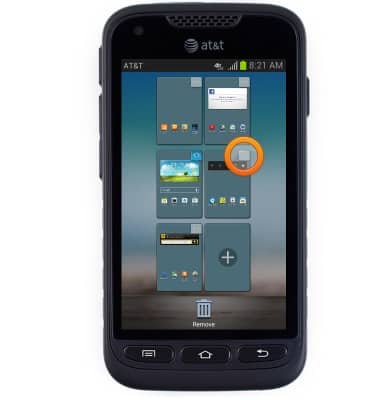
- Touch and hold, then drag the desired home screen to change order.
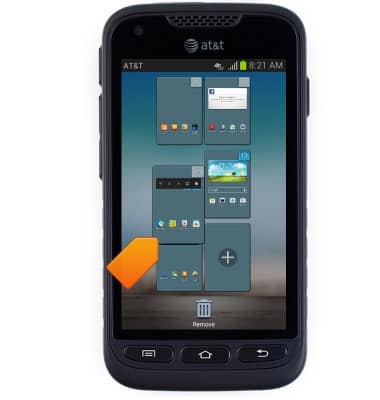
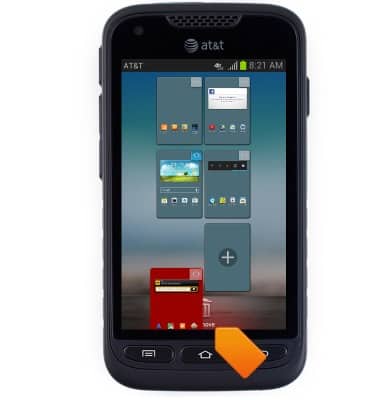
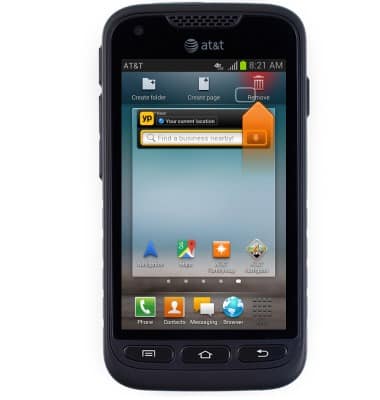
- Touch and hold, then drag to Remove to delete a home screen.
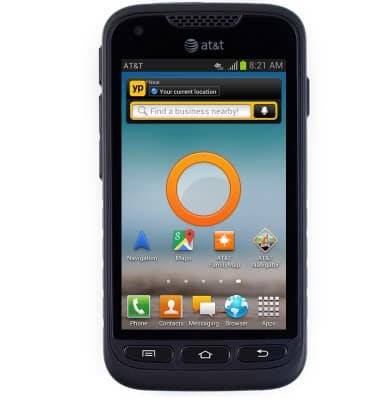
- To add a shortcut or widget to the home screen, first touch and hold an empty space on the desired home screen.
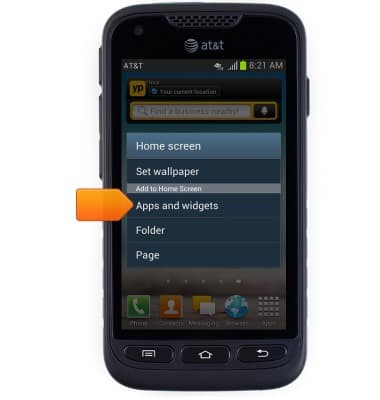
- Tap Apps and widgets.
- Navigate to, then touch and hold the desired shortcut or widget.
Note: Tap 'Widgets' to view widgets.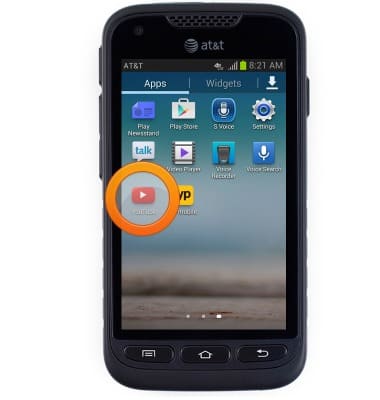
- Drag to the desired location, then release to set.
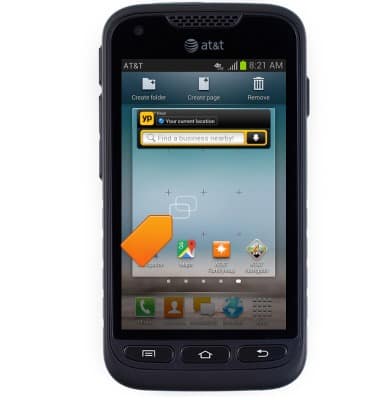
- To change location, first touch and hold the desired app.
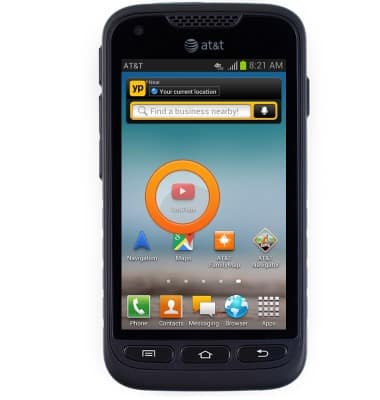
- Drag to the desired location, then release to set.
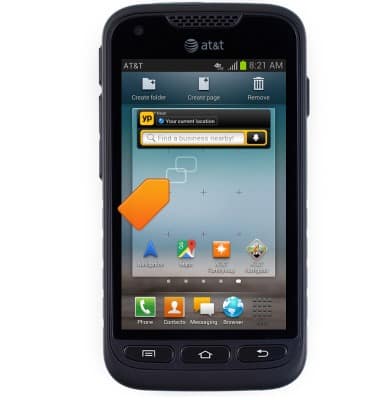
- Touch and hold, then drag to Remove to delete the icon from the home screen.
Learn & customize the home screen
Samsung Galaxy Rugby Pro (I547) OS 4.0-4.1
Learn & customize the home screen
Add shortcuts and widgets, access the notification panel, changing wallpaper, and more.
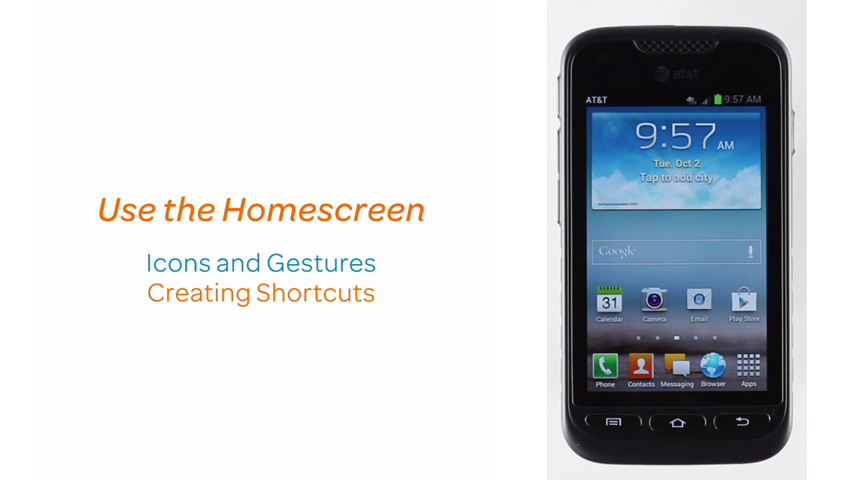
Use the Home screen
This video demonstrates using and personalizing the home screen.
Use the Home screen
1:37
INSTRUCTIONS & INFO