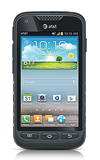
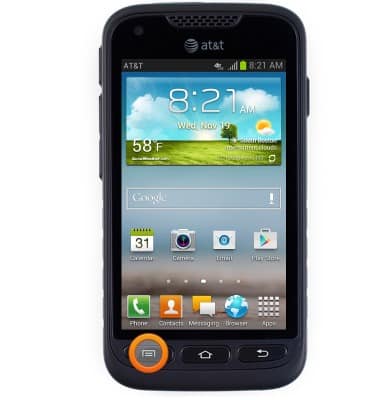
- From the home screen, press the Menu key.
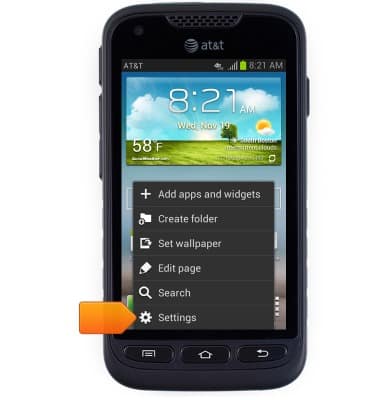
- Tap Settings.
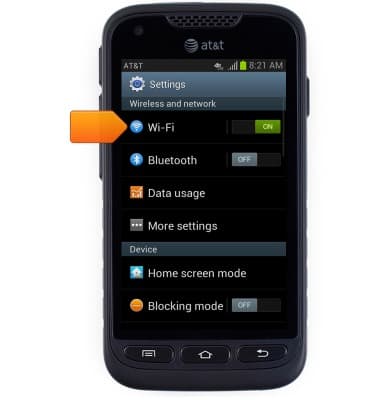
- Tap the Wi-Fi switch to toggle on / off.
Note: To optimize battery life, turn Wi-Fi off when not in use.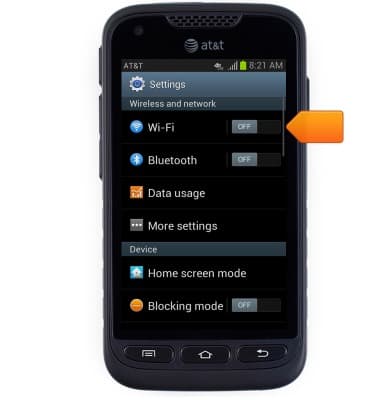
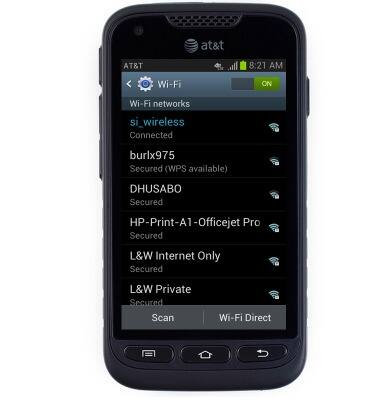
- To connect to a network, tap Wi-Fi.
- Tap Scan to scan for wireless networks.
Note: Tap Add Wi-Fi network to connect to a hidden or unbroadcasted Wi-Fi network. You will need to enter the network SSID, security type, and a password (if necessary) to continue.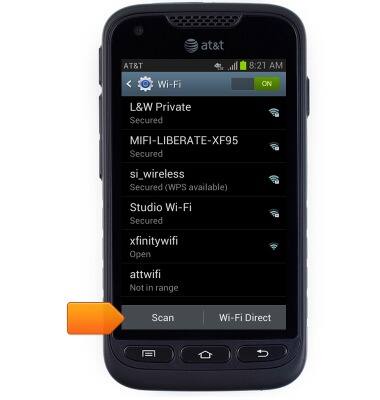
- Tap the desired wireless network.
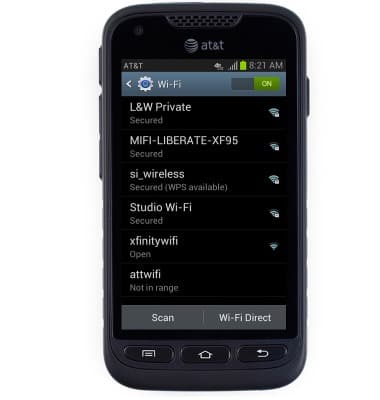
- Tap the Password field, then enter the required network password, if prompted.
Note: Secure networks will display with a Lock icon.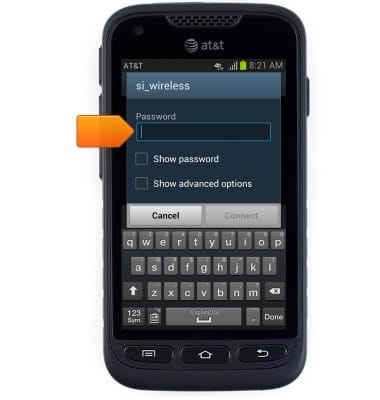
- Tap Connect.
Note: Data transmitted over a Wi-Fi network does not count toward your AT&T data plan, and will not be billed.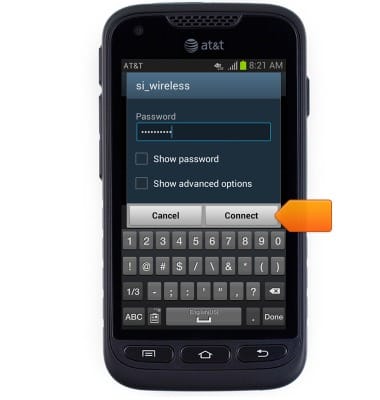
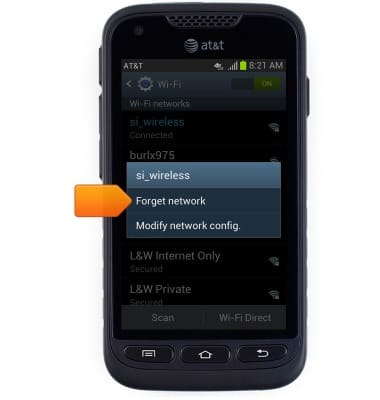
- To forget a network, touch and hold the desired network.
- Tap Forget network.
- While Wi-Fi is toggled on, a Wi-Fi icon will appear in the Notifications bar.
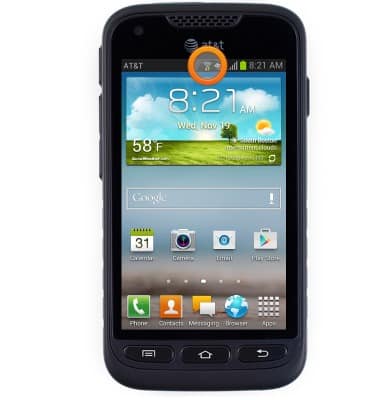
- While Mobile hotspot is toggled on, a Mobile hotspot icon will appear in the Notifications bar.
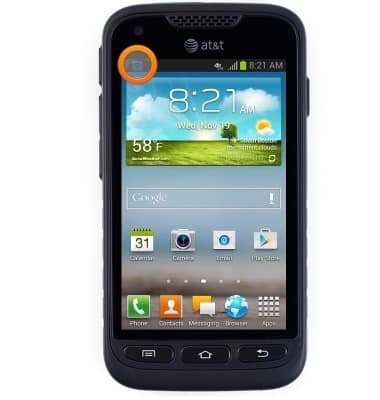
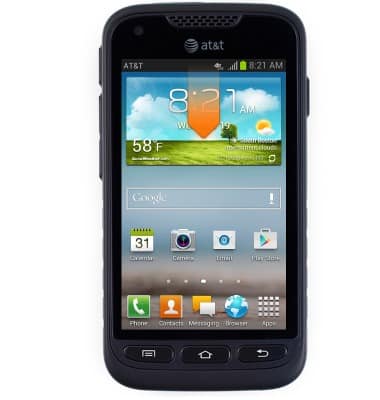
- To quickly toggle Wi-Fi on or off, touch and drag down from the Notifications bar to reveal the menu.
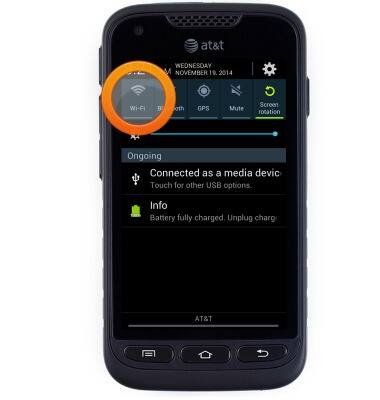
- Tap Wi-Fi to toggle on / off.
Wi-Fi
Samsung Galaxy Rugby Pro (I547) OS 4.0-4.1
Wi-Fi
How to connect your device to a Wi-Fi network.
Wi-Fi
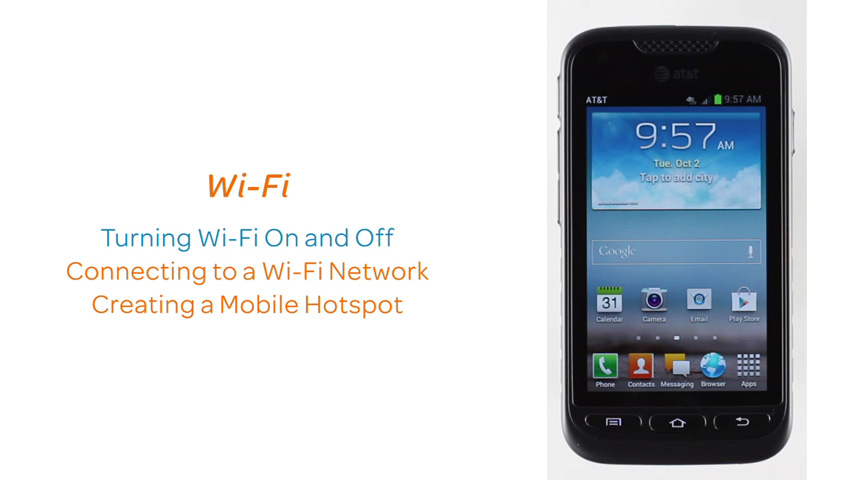
This video demonstrates enabling and managing Wi-Fi connectivity.
Wi-Fi
1:13
INSTRUCTIONS & INFO