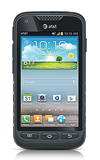
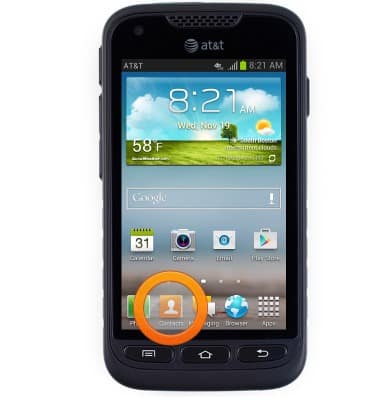
- From the home screen, tap Contacts.
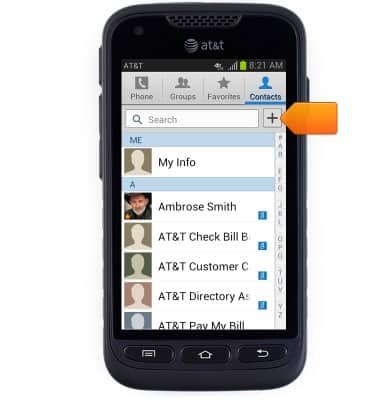
- Tap the Add contact icon.
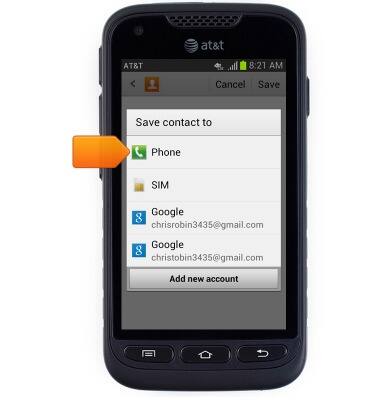
- Tap the desired storage location.
- Enter the desired contact phone number.
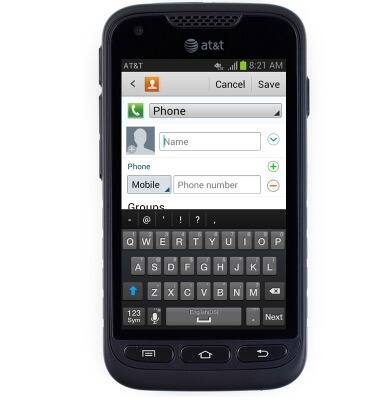
- Tap the Phone number field, then enter the desired contact phone number.
Note: Tap the Phone field to the left of the Phone number field to adjust the phone number type.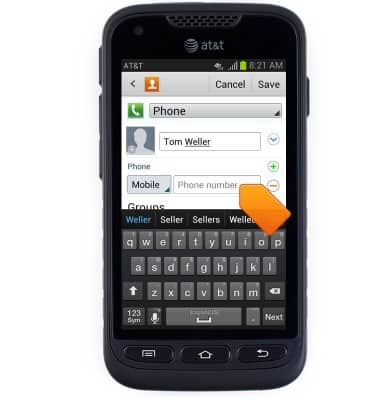
- Tap Save.
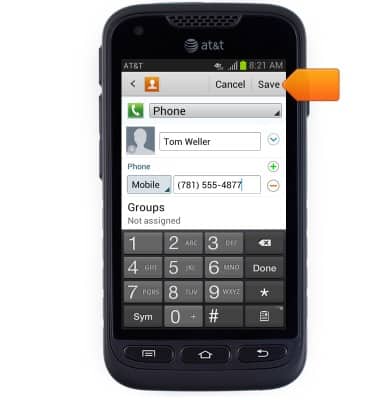
- To change the contact photo, tap the Contact photo icon.
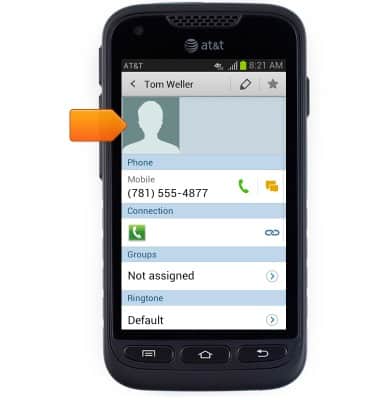
- Tap the desired option.
Note: This tutorial selects 'Image'.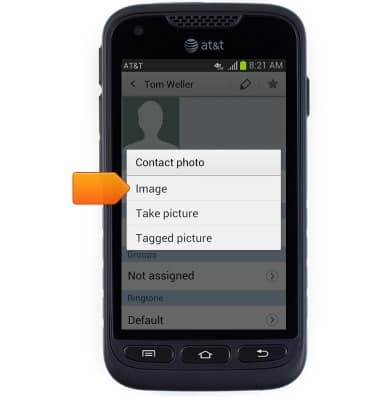
- Tap the desired album.
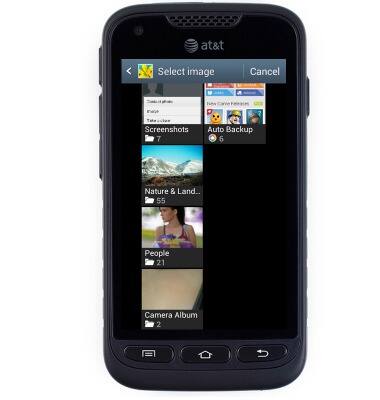
- Tap the desired photo.
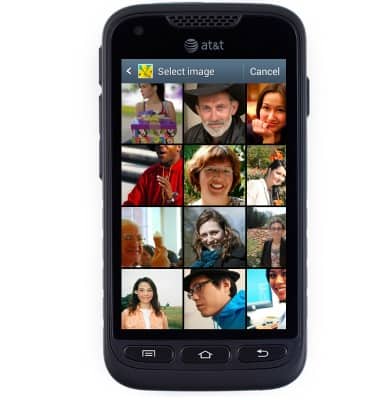
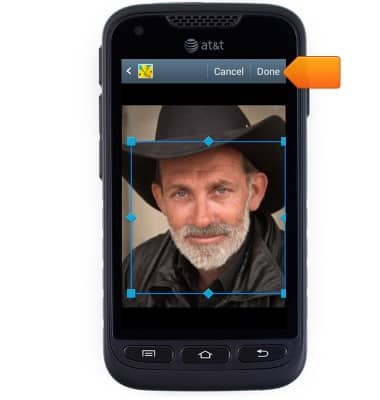
- Touch and drag the Blue indicator box to adjust picture framing.
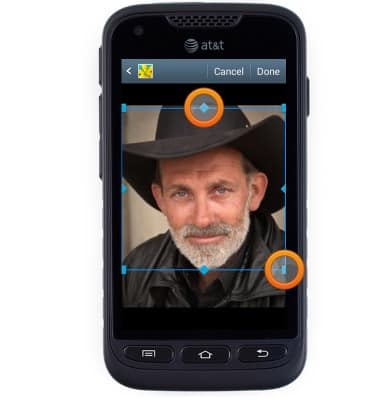
- Tap Done.
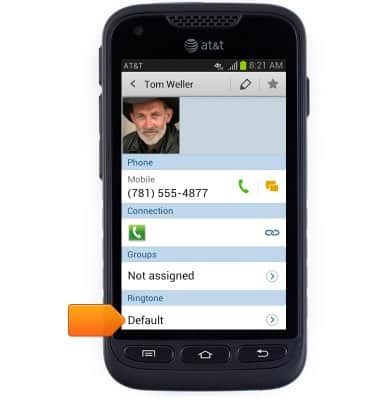
- To set the contact ringtone, tap the Ringtone field.
- Tap the desired option.
Note: This tutorial selects 'Ringtones'.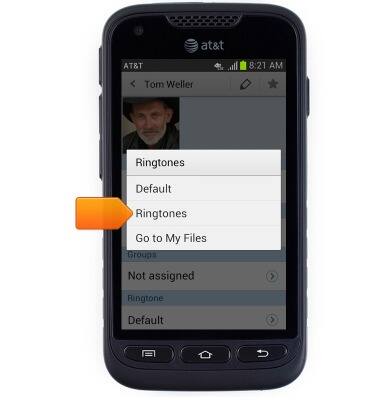
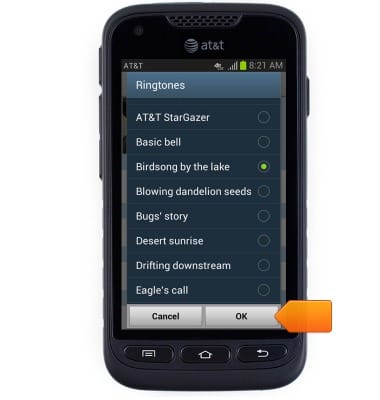
- Scroll to, then tap the desired option.
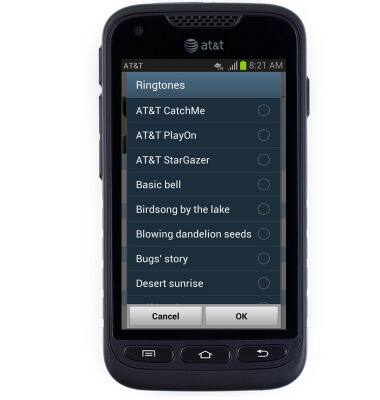
- Tap OK.
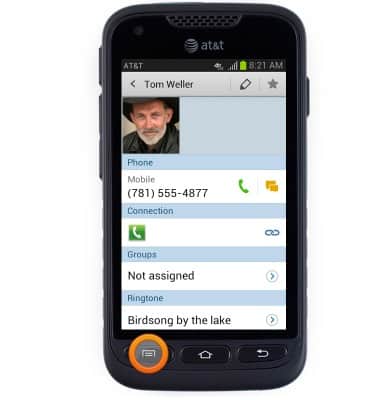
- To edit a contact, tap the Menu icon.
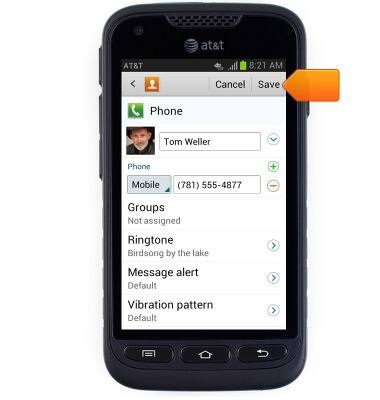
- Edit contact details as desired, then tap Save.
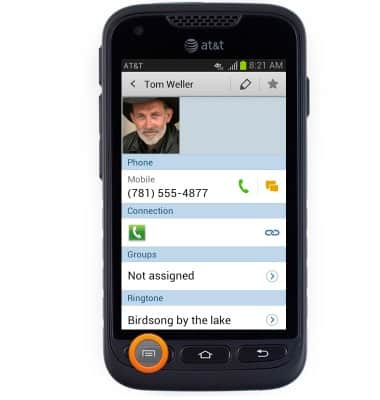
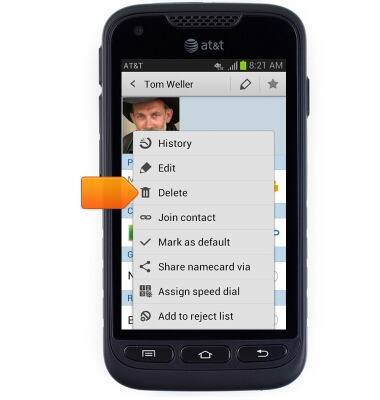
- To delete a contact, first press the Menu key.
- Tap Delete.
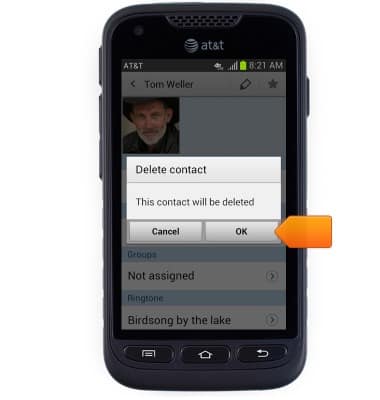
- Tap OK.
Contacts
Samsung Galaxy Rugby Pro (I547) OS 4.0-4.1
Contacts
Add, view, delete, and customize contacts by adding a picture or ringtone.
Contacts
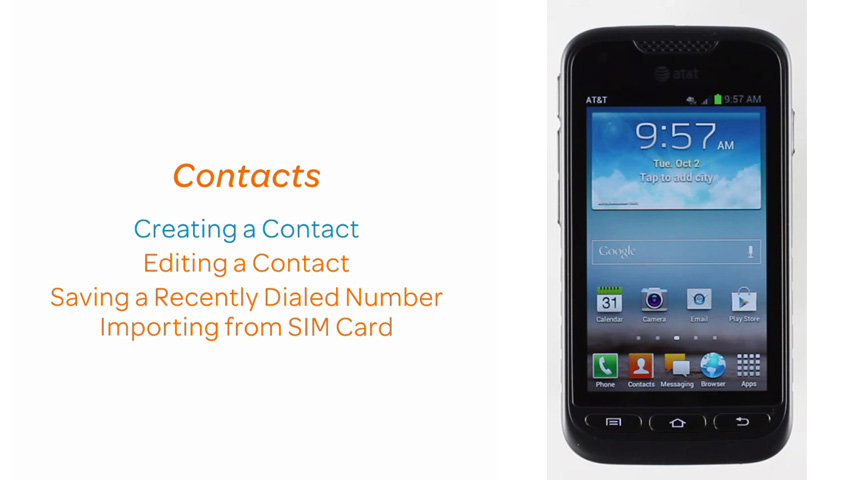
This video demonstrates creating, editing, and managing contacts.
Contacts
2:03
INSTRUCTIONS & INFO