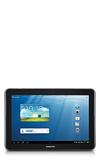
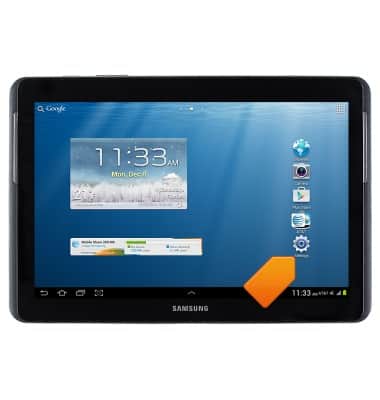
- From the home screen, tap Settings.
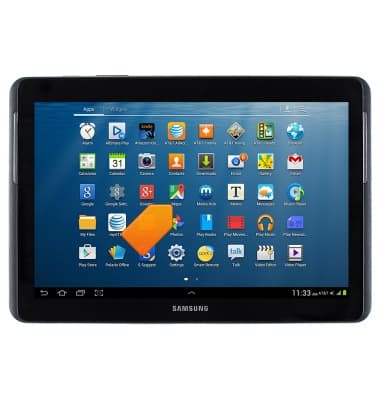
- Tap Maps.
- Tap Accept & continue.
Note: Location must be turned on to complete this tutorial. From the home screen, swipe down from the top of the screen to access the 'Notification menu' > tap 'Location'.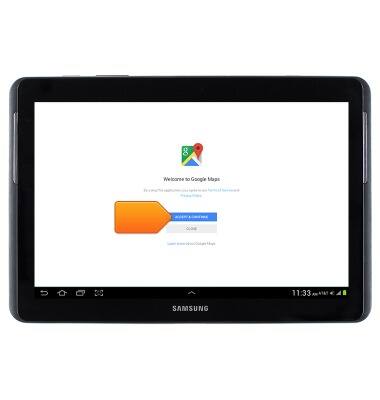
- Tap the desired option.
Note: This tutorial selects 'Skip'.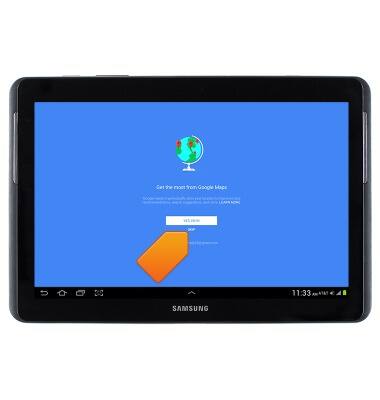
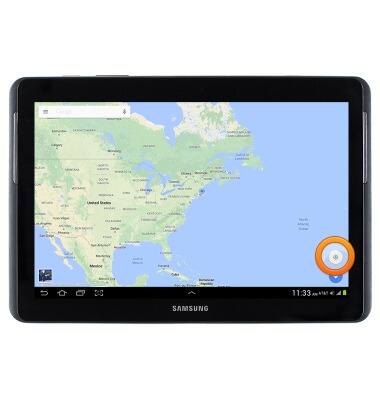
- To find the current location, tap the Location icon.
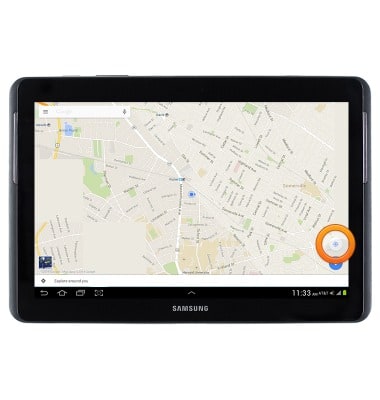
- To zoom more on the current location, tap the Location icon.
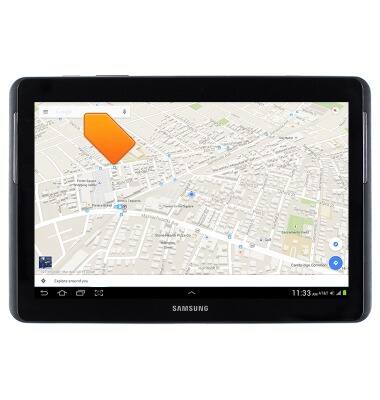
- To get directions, tap the Search field.
- Enter the desired destination, then tap the Search icon.
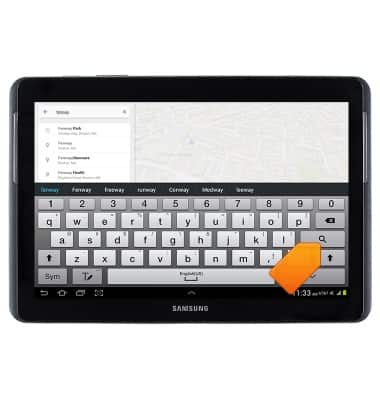
- Tap the desired result.
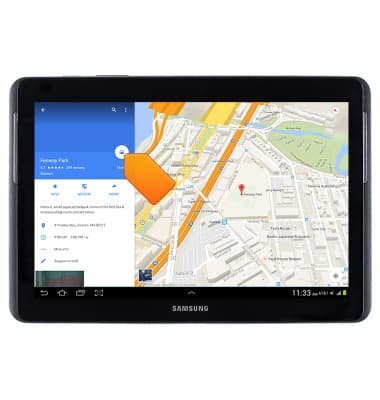
- Select the desired mode of transportation, then tap the desired route.
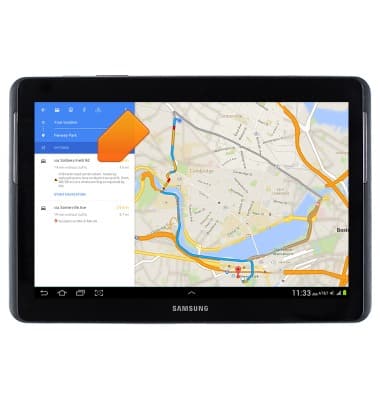
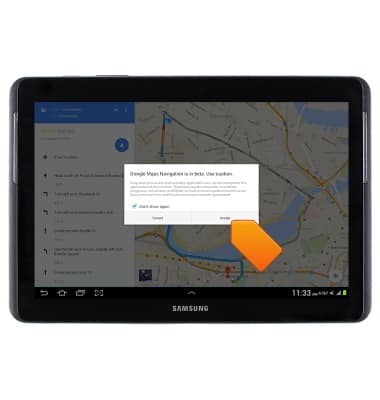
- Tap the Start icon.
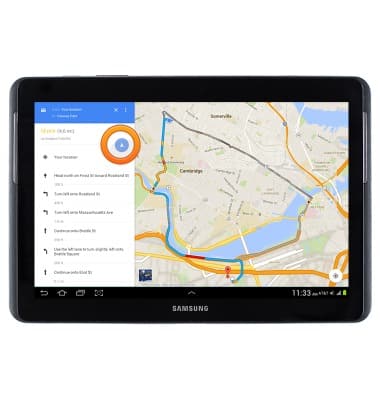
- Tap Accept.
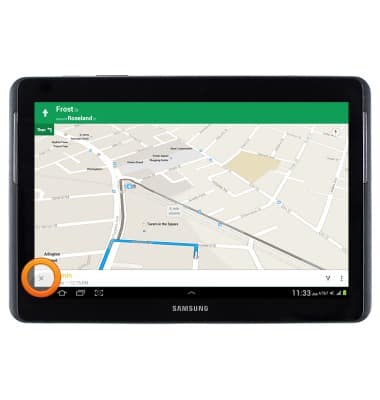
- Step by step navigation will begin. Tap the X icon to exit.
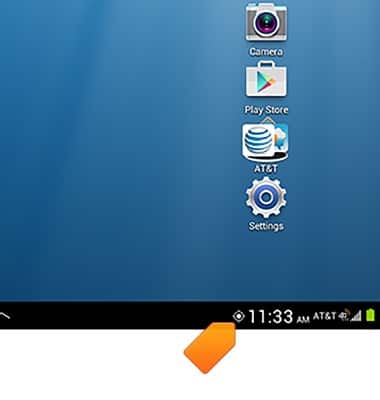
- When GPS is used, the GPS icon will be displayed in the Notification bar.
Maps
Samsung Galaxy Tab 2 10.1 (I497) OS 4.0-4.1
Maps
This tutorial shows how to access the Maps application, enter an address to get directions, and then how to exit the directions.
INSTRUCTIONS & INFO