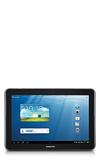
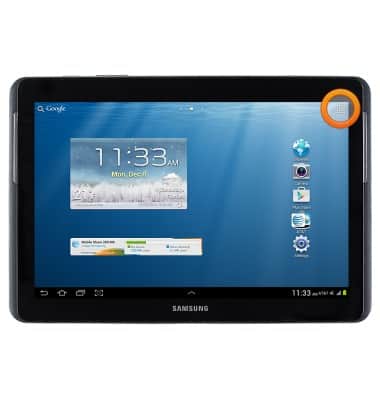
- To send an email, tap the Apps icon from the home screen.
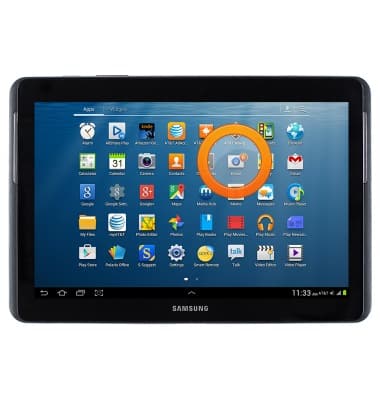
- Tap Email.
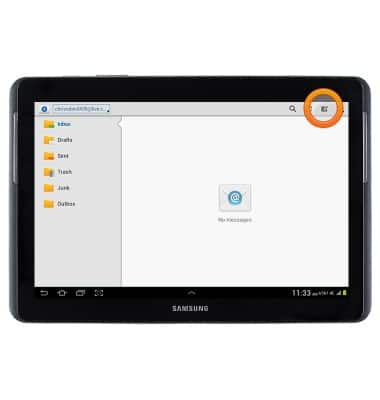
- Tap the Compose icon.
- Enter the desired email address or contact name.
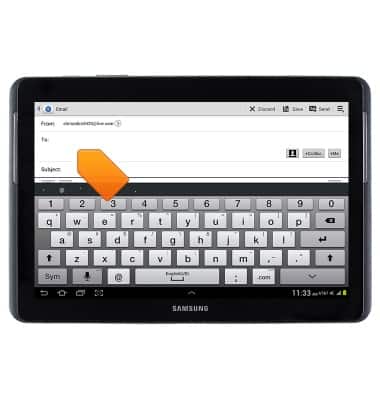
- Tap the Subject field, and then enter the desired subject.
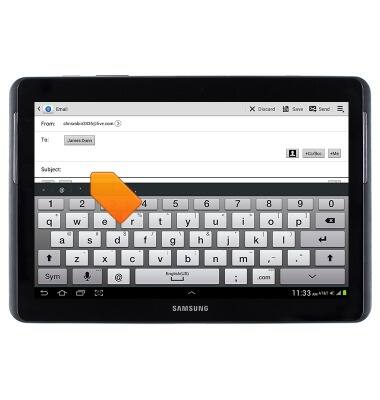
- Tap the Message field, and then enter the desired text.
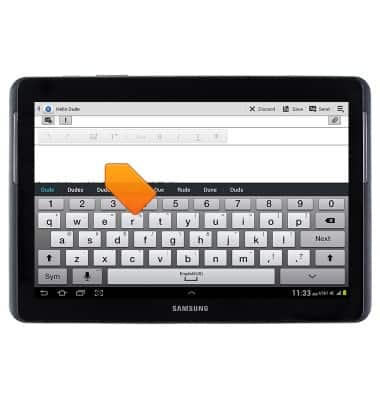
- Tap the Paperclip icon at the top bar to add an attachment, such as a picture or document.
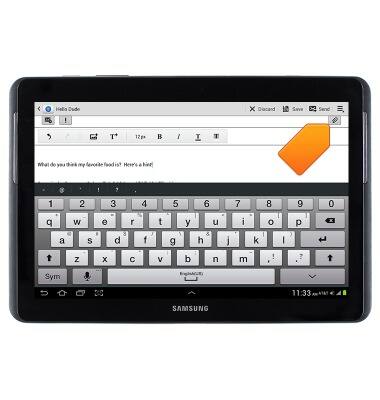
- Press the Menu key to adjust the message priority, tracking, and security options.
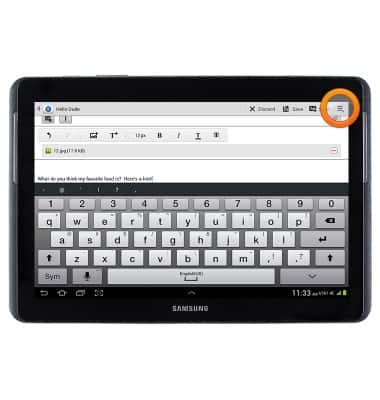
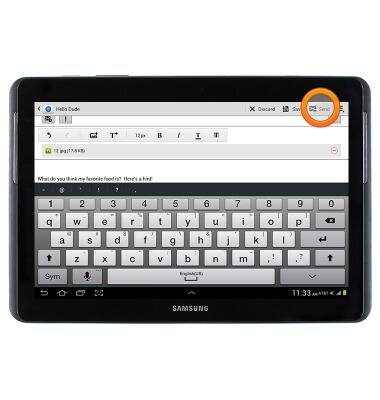
- Tap Send.
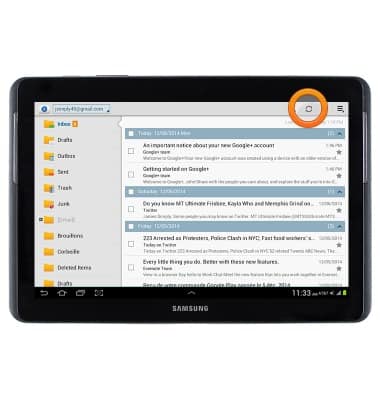
- Tap the Refresh icon to refresh the inbox.
- To view a received email, tap the desired message.
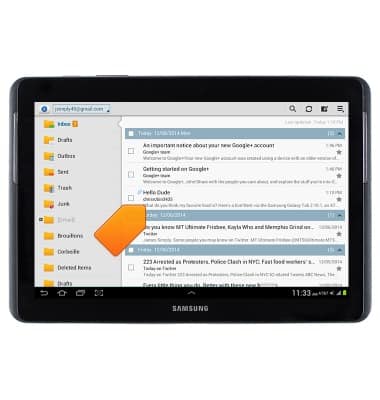
- The selected message will be displayed.
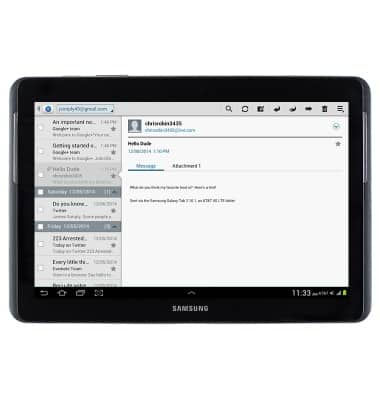
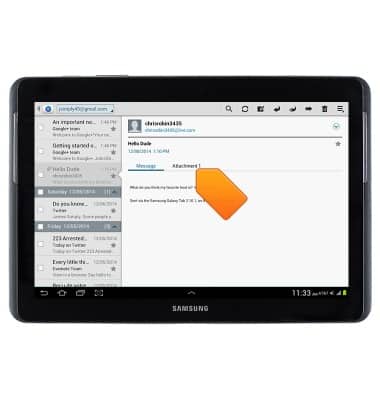
- If the email includes an attachment (indicated with a Paperclip icon), tap Attachment.
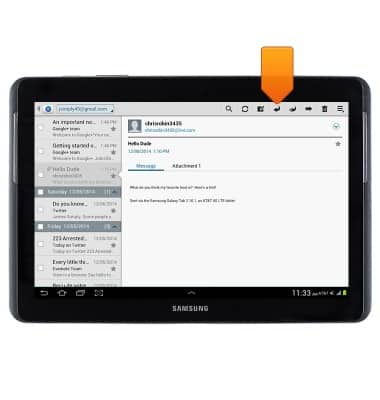
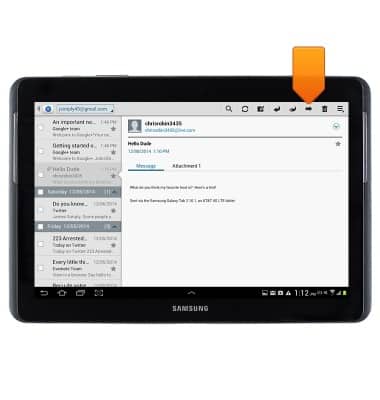
- To reply to an email, tap the Reply icon.
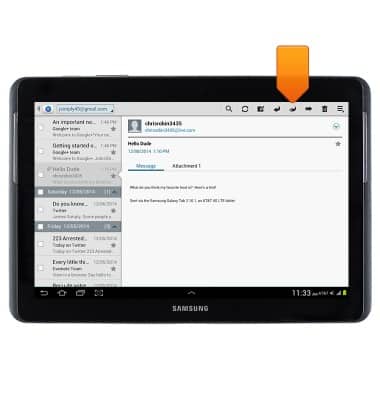
- To reply to all recipients, tap the Reply all icon.
- To forward an email, tap the Forward icon.
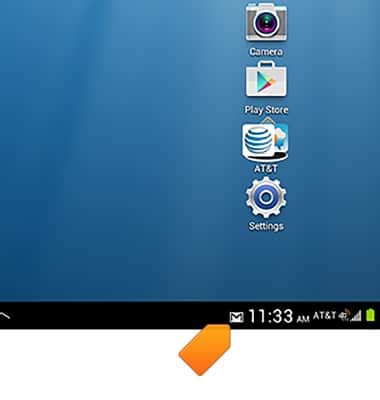
- When a new email is received, the New email icon will be displayed in the Notification bar.
Send & receive email
Samsung Galaxy Tab 2 10.1 (I497) OS 4.0-4.1
Send & receive email
This article describes how to send and receive email messages.
This video demonstrates how to set up and use email on your device.
Email
1:34
INSTRUCTIONS & INFO