
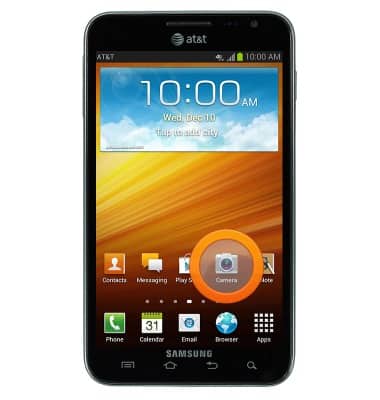
- From the home screen, tap Camera.
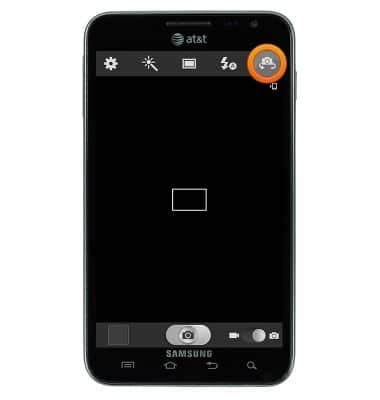
- Tap the Swap camera icon to swap between the front and rear cameras.
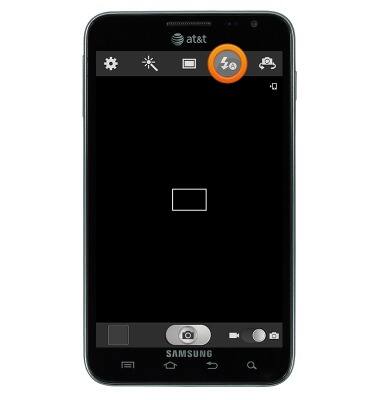
- Tap the Flash icon to turn the flash on and off.
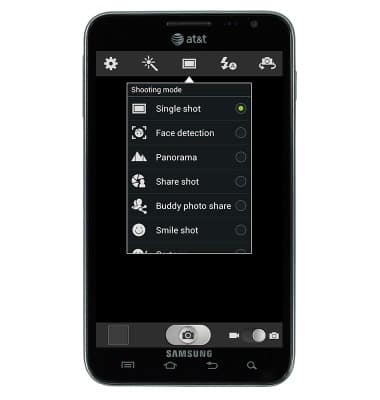
- To change shooting modes, tap the Shooting modes icon.
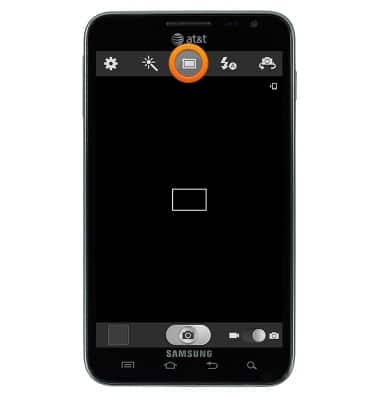
- Tap the desired shooting mode.
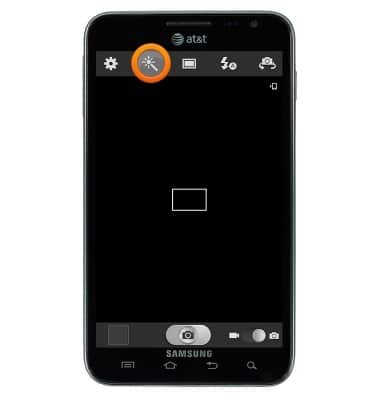
- Tap the Effects icon to add effects to the photo.
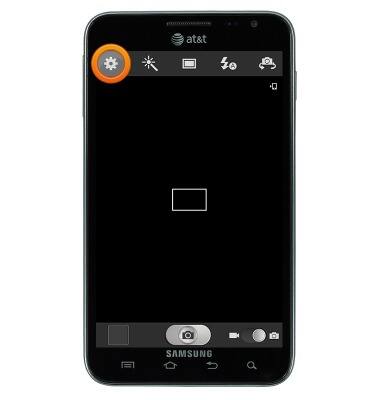
- Tap the Settings icon to access more settings.
- Scroll to, then tap Timer, then tap the desired duration to set a picture timer.
Note: To learn more about your camera settings and features, download the user manual.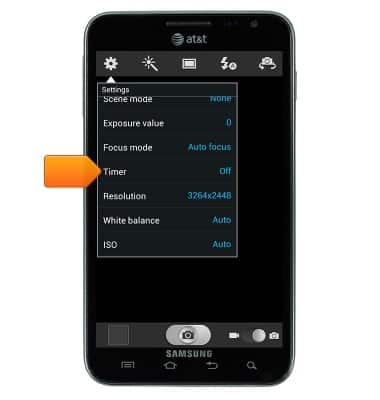
- Scroll to, then tap Resolution, then tap the desired resolution to set it.

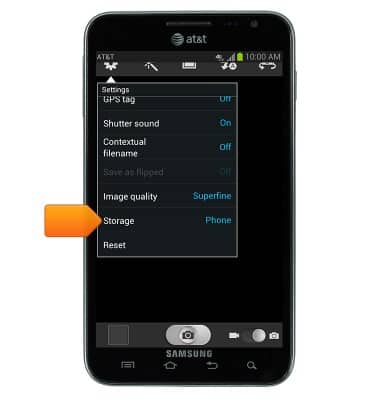
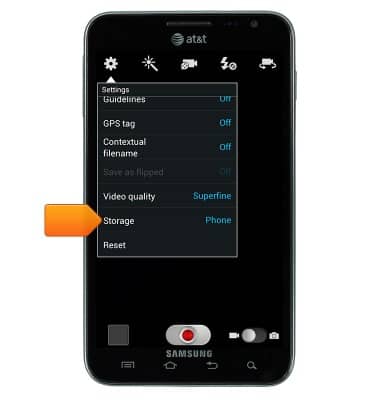
- Scroll to, then tap Storage to set the desired storage location.
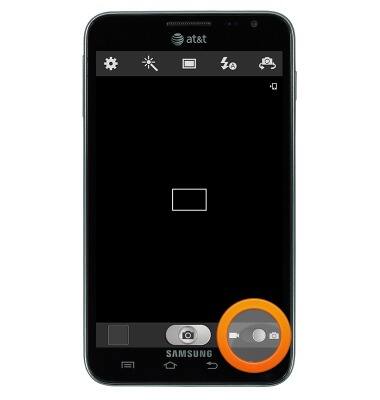
- Tap the Camera mode switch to switch to the camcorder.
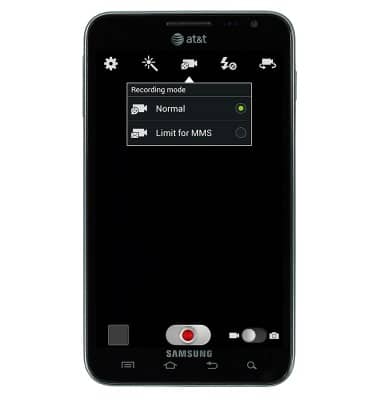
- Tap the desired recording mode.
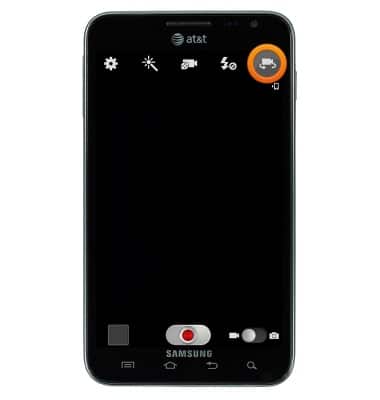
- Tap the Swap camera icon to swap between the front and rear facing camera.
- Tap the Recording light icon to enable and disable the recording light.

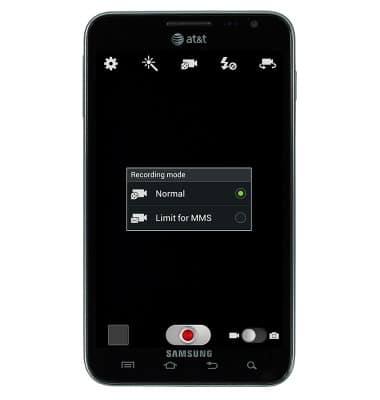
- Tap the Recording mode icon to change recording modes.
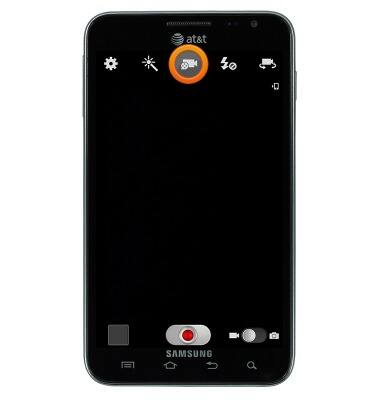
- Tap the desired recording mode.
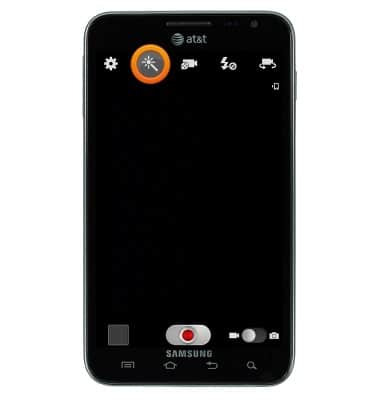
- Tap the Effects icon to add effects to the video.
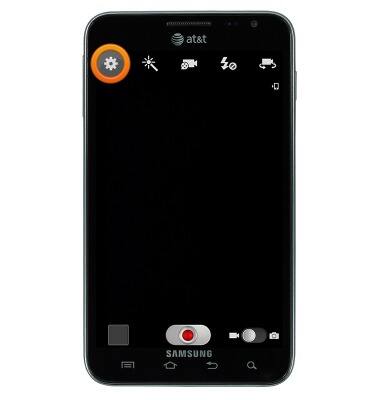
- Tap the Settings icon to adjust more settings.
- Scroll to, then tap Timer, then tap the desired duration, to set a video timer.

- Scroll to, then tap Resolution then tap the desired resolution to set the video resolution.

- Scroll to, then tap Storage to adjust the storage location.
Camera & video settings
Samsung Galaxy Note (I717)
Camera & video settings
Manage camera and video settings including flash, timer, voice control, recording mode, storage location, and more.
INSTRUCTIONS & INFO