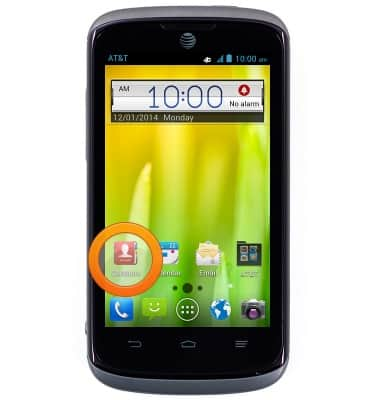
- From the home screen, tap Contacts.
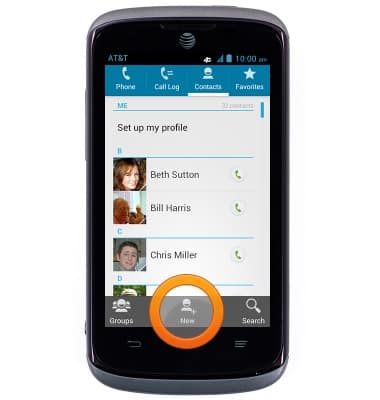
- To add a contact, tap New.
- Enter the desired contact name.
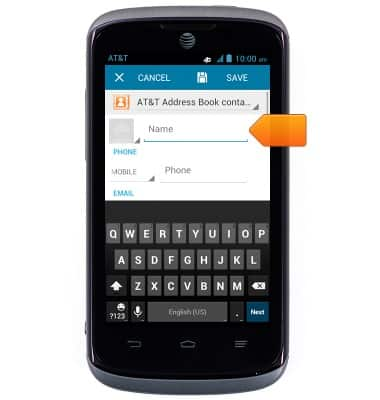
- Tap the Contacts stored field.
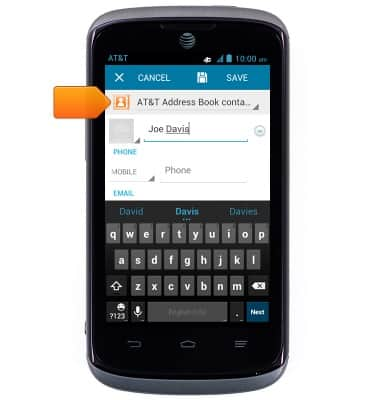
- Tap the desired location to save the contact.
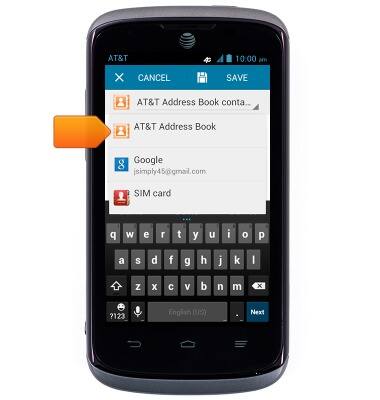
- Scroll to, then tap the Phone field, then enter the desired number.
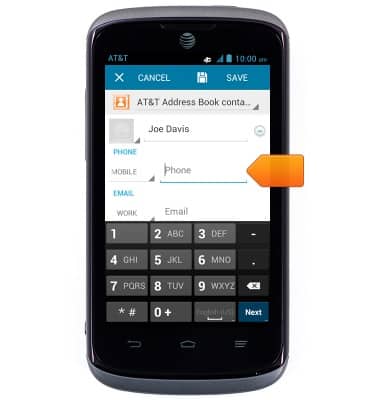
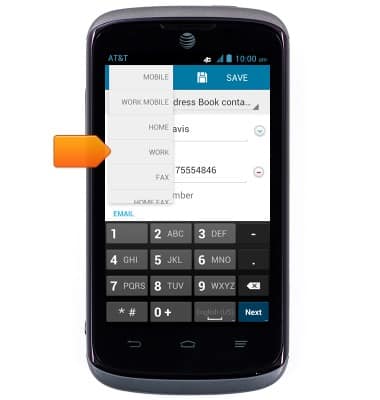
- Tap the Phone type field.
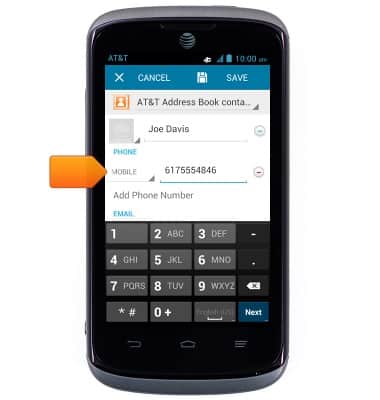
- Tap the desired phone type.
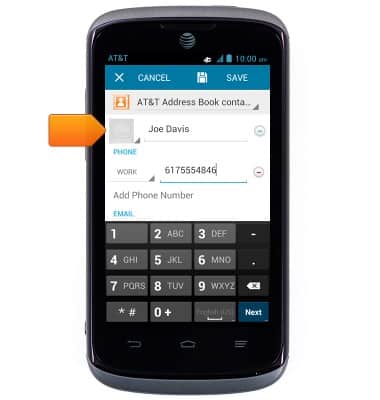
- To add a photo, tap the Photo icon.
- Tap the desired option.
Note: This tutorial selects 'Choose photo from Gallery'.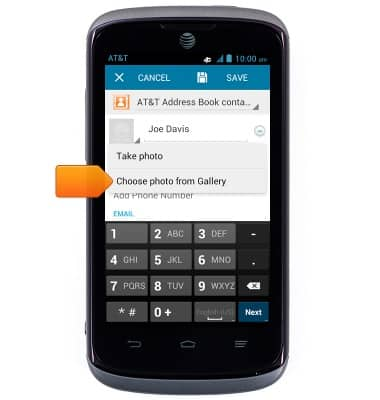
- Tap the desired album.
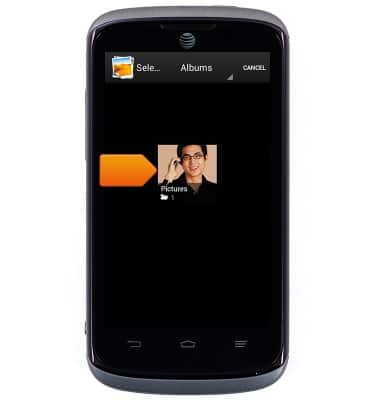
- Tap the desired photo.
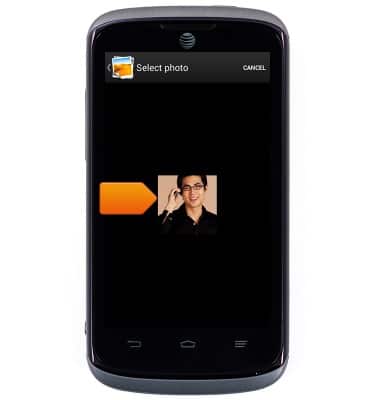
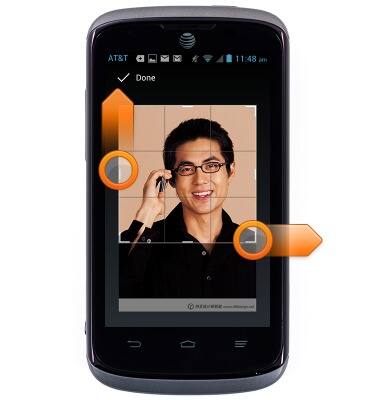
- Touch and drag the White box to re-frame.
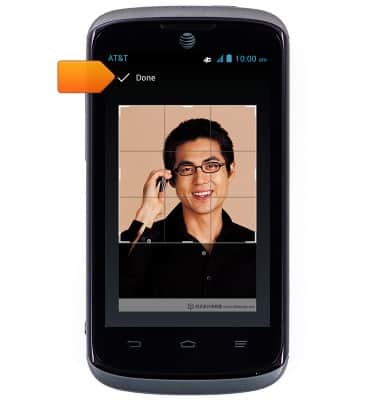
- Tap Done.
- To add a ringtone, scroll to, then tap the RINGTONE field.
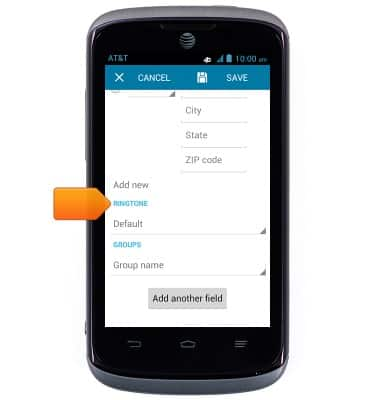
- Tap the desired option.
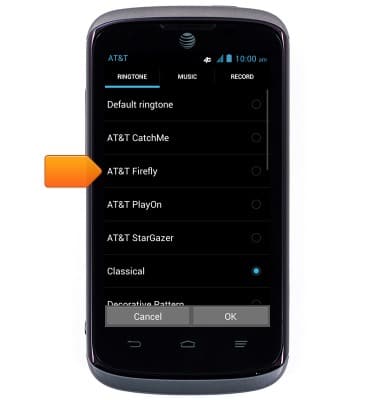
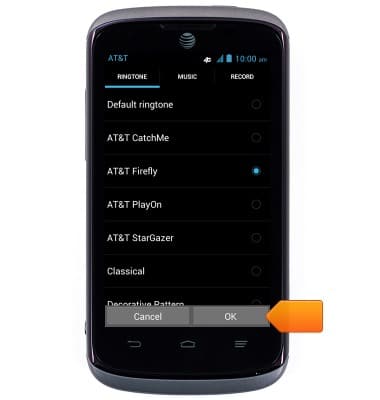
- Tap OK.
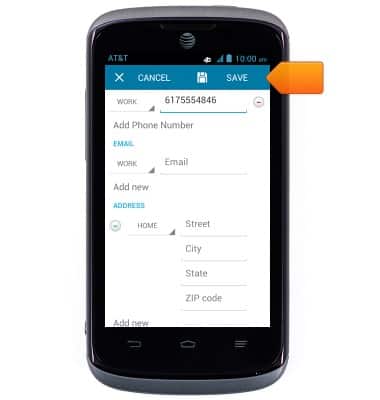
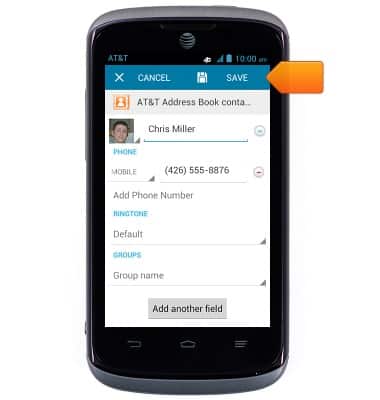
- Tap SAVE to save the contact.
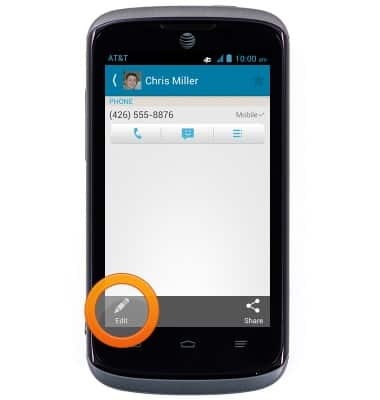
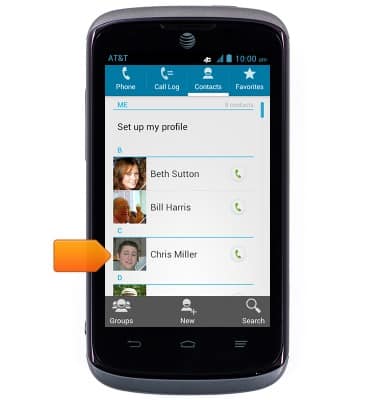
- To edit a contact, tap the desired contact.
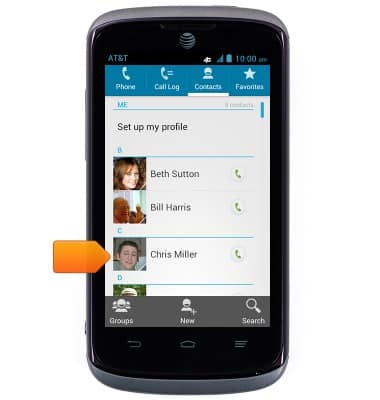
- Tap Edit.
- Make the desired changes, then tap SAVE.
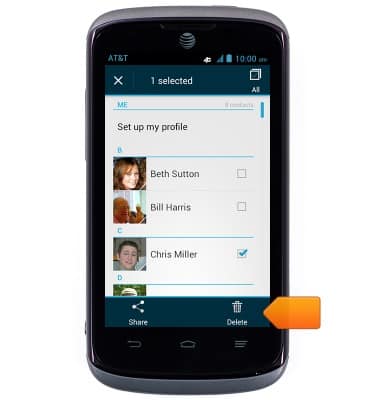
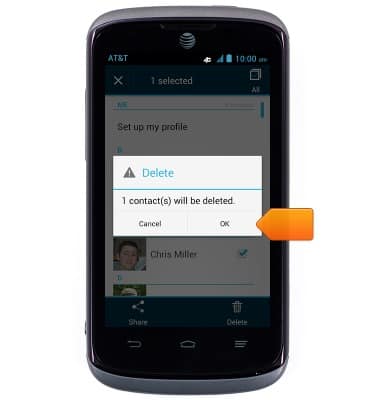
- To delete a contact, touch and hold the desired contact.
- Tap Delete.
- Tap OK.
Contacts
ZTE Radiant (Z740)
Contacts
Add, view, delete, and customize contacts by adding a picture or ringtone.
INSTRUCTIONS & INFO