
In this tutorial, you will learn how to:
• Access accessibility features
• Turn on/off TalkBack
• Turn on/off flash notifications
• Enable/disable accessibility shortcuts
• Enable and use Select to Speak
Access accessibility features
1. Swipe down from the Notification bar, then select the  Settings icon.
2. Scroll to and select Accessibility.
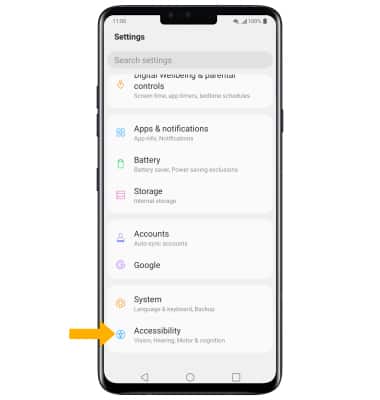
Settings icon. 2. Scroll to and select Accessibility.
Turn on/off TalkBack
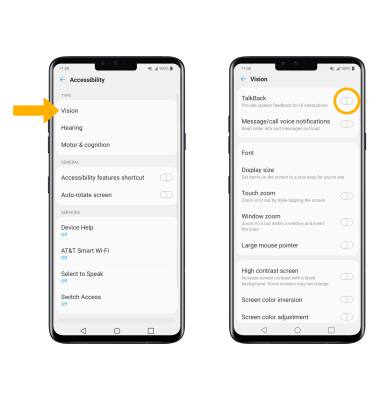
Select Vision, then select the TalkBack switch.
Note: Select Turn on. To disable voice assistant, press and hold both volume buttons for at least 3 seconds.
Note: Select Turn on. To disable voice assistant, press and hold both volume buttons for at least 3 seconds.
Turn on/off flash notifications
From the Accessibility screen, select Hearing then select the Flash alerts switch.
Note: Select Turn on to confirm.
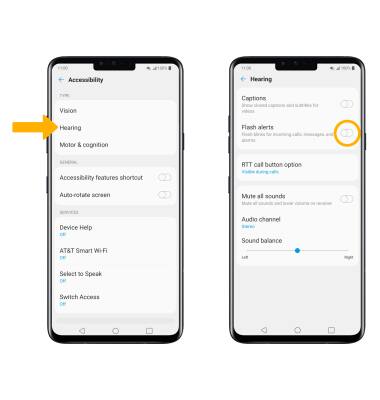
Note: Select Turn on to confirm.
Enable/disable accessibility shortcuts
From the Accessibility screen, select Accessibility features shortcut. Select the Accessibility features shortcut switch to enable, then select the desired Accessibility feature shortcut switch.
Note: When Accessibility shortcut is on, press the Power/Lock and Volume Up buttons simultaneously to start the selected service. To change the shortcut service, select the desired switch.
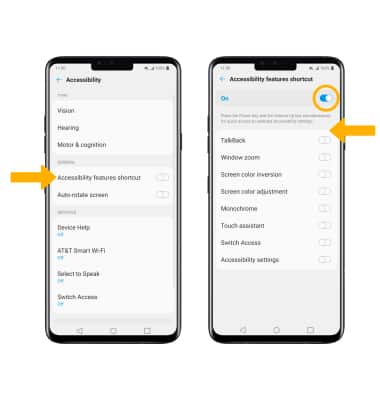
Note: When Accessibility shortcut is on, press the Power/Lock and Volume Up buttons simultaneously to start the selected service. To change the shortcut service, select the desired switch.
Enable and use Select to Speak
From the Accessibility screen, select Select to Speak then select the Select to Speak switch to place it in the on position.
Note: Select Turn on to confirm.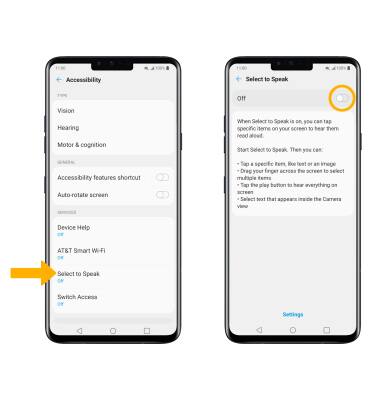
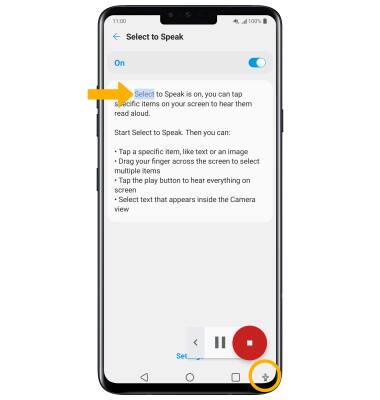
To use Select to Speak, select the Accessibility icon then select the area of the screen you would like to hear read aloud.
Note: To pause screen reading select the Pause icon. To resume, select the Play icon. To stop using Select to Speak, select the Stop icon. If the Accessibility icon is not visible, select the gray dot in the lower right corner to access the Accessibility icon.