- LG PC Sync allows you to sync your device to a PC via the included microUSB cable.
Note: For more information, please see the LG website.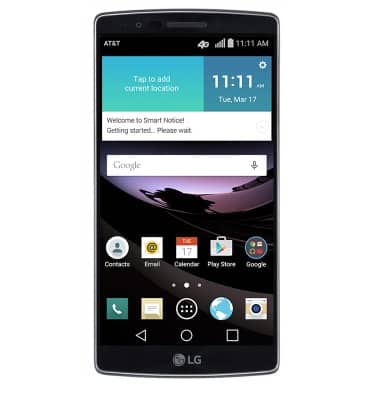
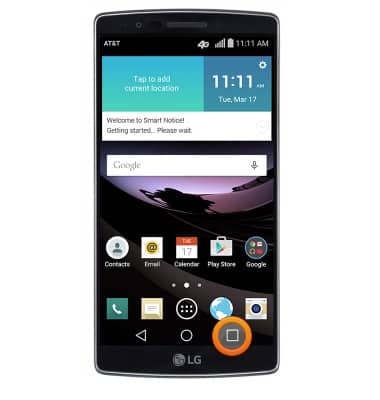
- From the home screen, press and hold the Recent Apps key.
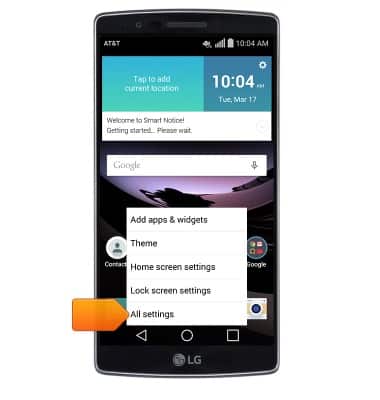
- Tap All settings.
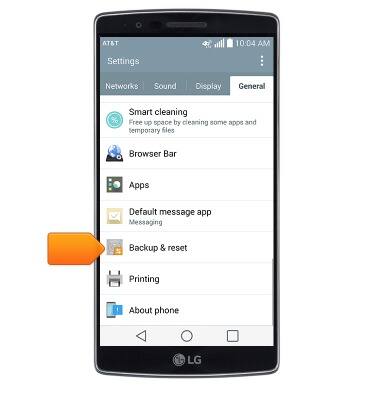
- Under the General tab, scroll to, then tap Backup & reset.
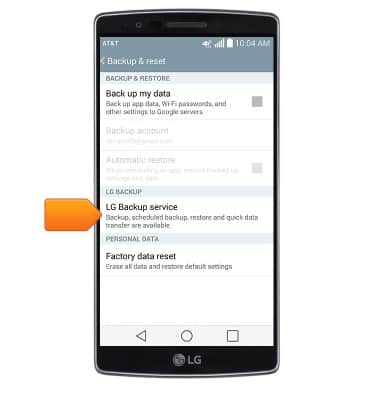
- Tap LG Backup service.
- Tap Backup and restore.
Note: To backup between devices via hotspot, tap Copy & receive data.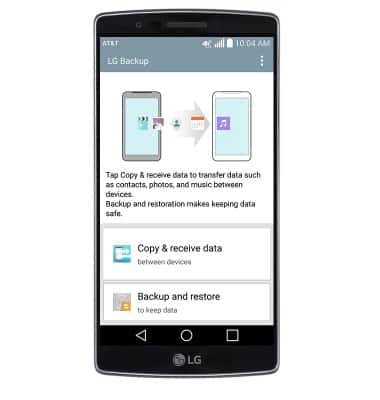
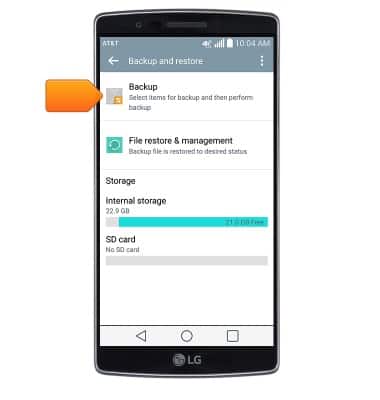
- Tap Backup.
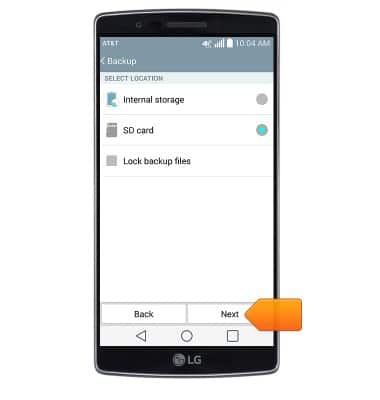
- Select the desired backup location, then tap Next.
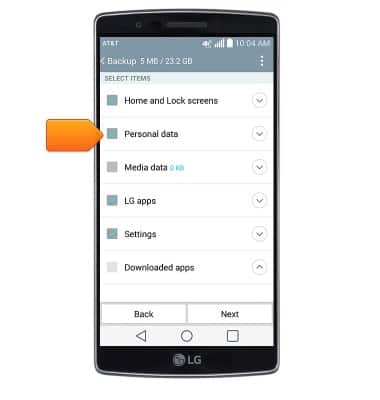
- Tap the desired items for backup.
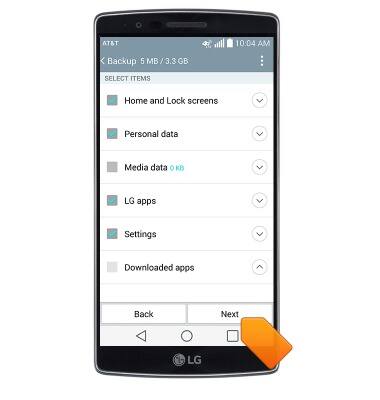
- Tap Next.
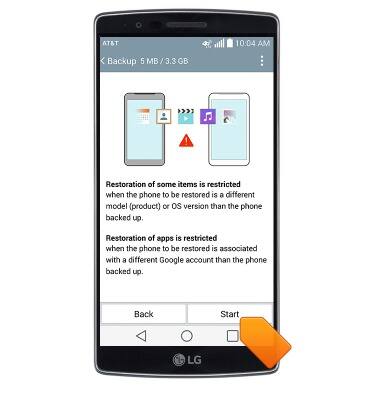
- Tap Start.
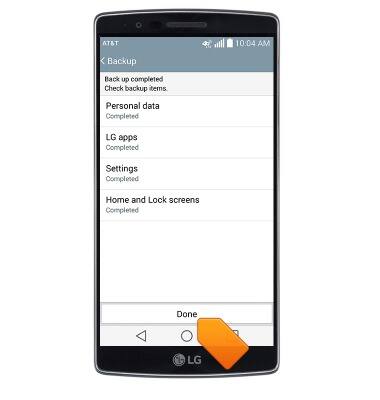
- Once the backup is complete, tap Done.
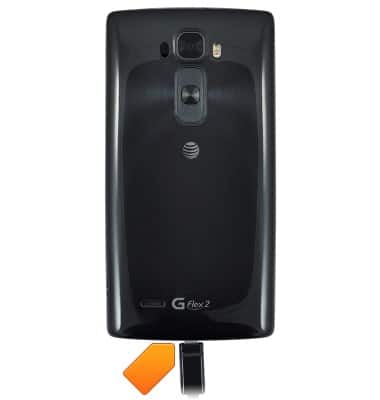
- Insert the microUSB end of the microUSB cable into the port on the device.
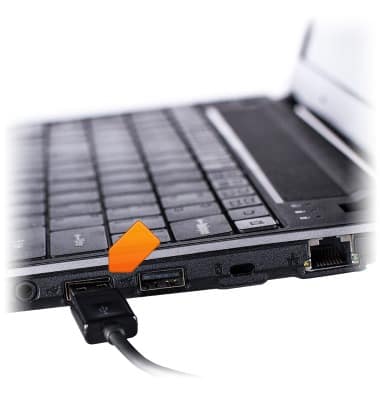
- Insert the USB end of the microUSB cable into an available USB port on a PC.
- On the PC, navigate to the LG Backup folder.
Note: Start icon > Computer > Device > Internal memory > LG Backup folder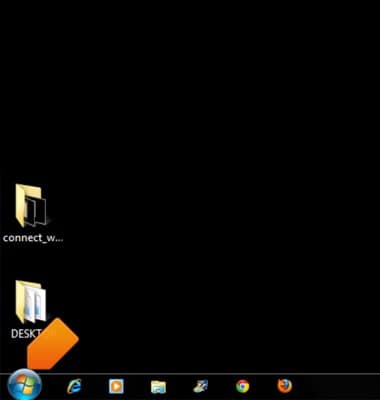
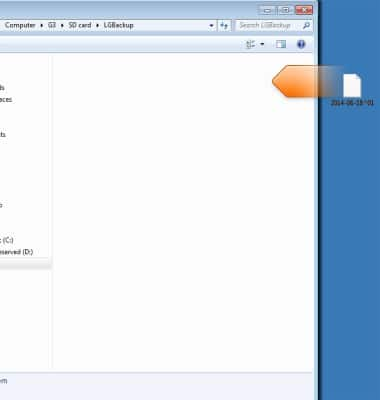
- Drag the backup to the computer.
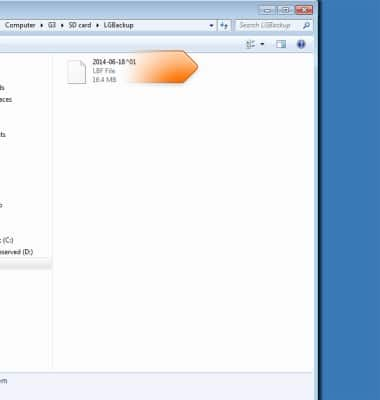
- To restore, drag the desired backup file from your PC into the LGBackup folder on your phone.
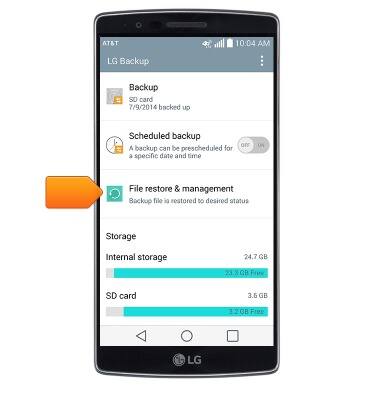
- Follow steps 1-4, then tap File restore & management.
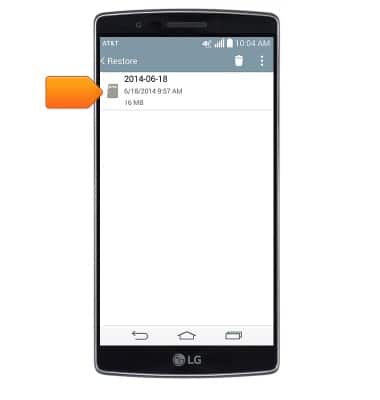
- Tap the desired backup.
- Tap Next.
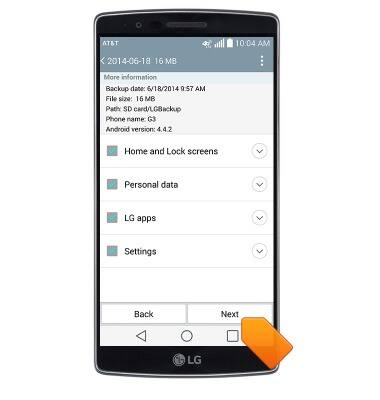
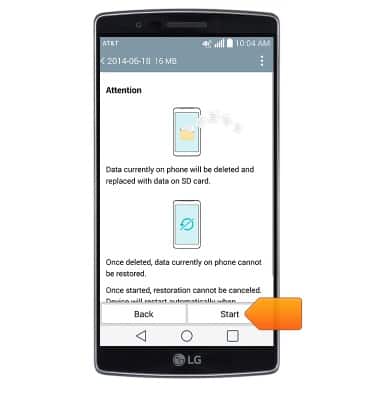
- Tap Start.
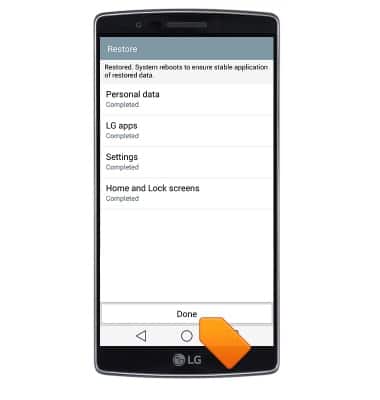
- Tap Done.
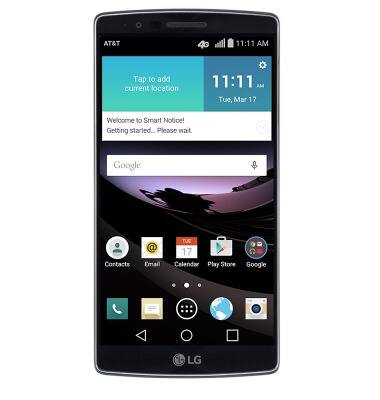
- After the device restarts, it will be ready for use.
Backup & restore with computer
LG G Flex 2 (H950)
Backup & restore with computer
Learn how to backup and restore contacts & data on the device with a computer.
INSTRUCTIONS & INFO