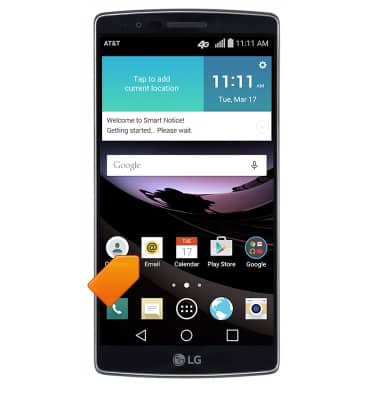
- To send an email, from the home screen, tap Email.
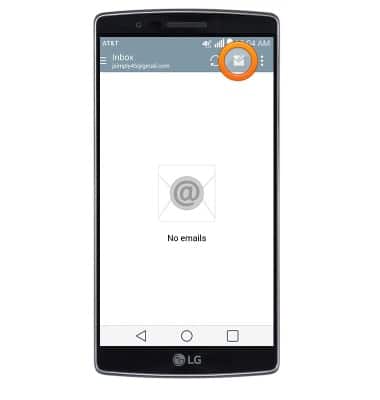
- Tap the Compose icon.
- Enter the desired email address, then tap the Subject field.
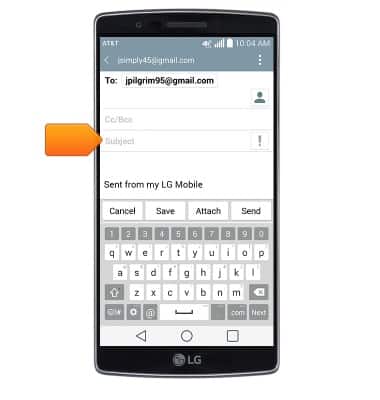
- Enter the desired subject, then tap the Message field.
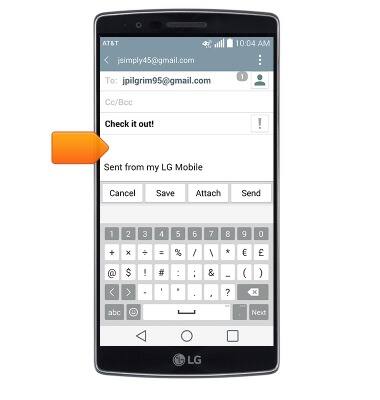
- Enter the desired message. To add an attachment, tap Attach.
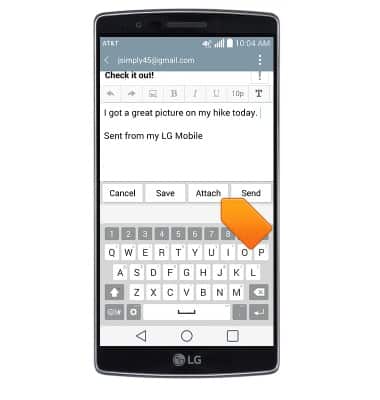
- Tap the desired attachment option.
Note: For this demonstration, 'Image' was chosen.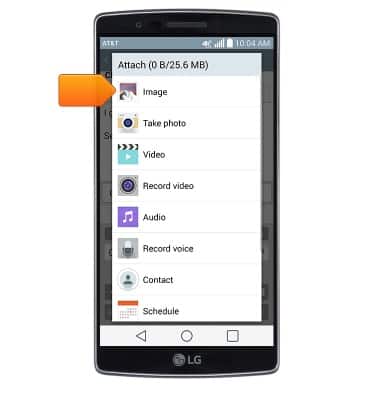
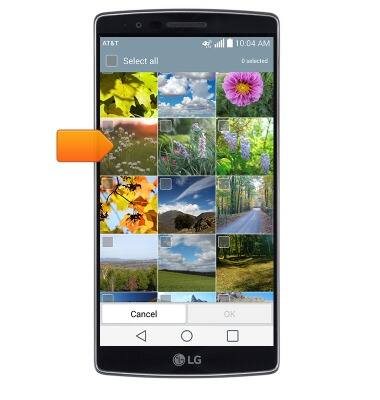
- Tap the desired album.
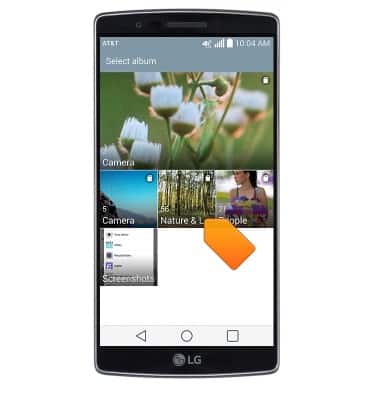
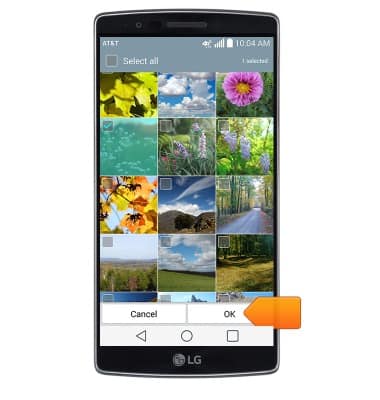
- Tap the desired image.
- Tap OK.
- Select the desired size, then tap the desired option.
Note: For this demonstration, 'Just once' was chosen.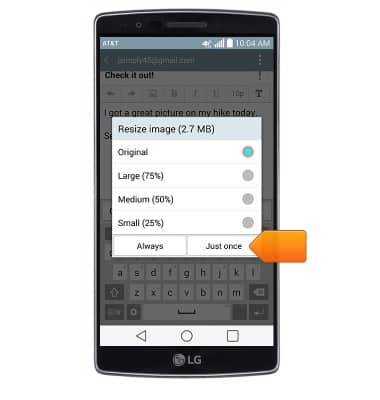
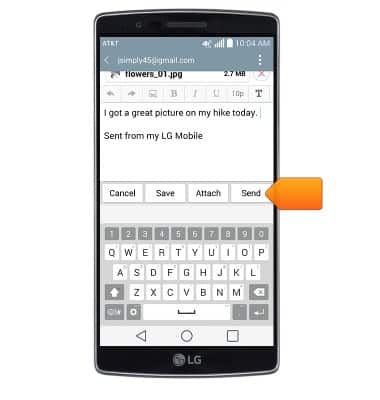
- Tap Send.
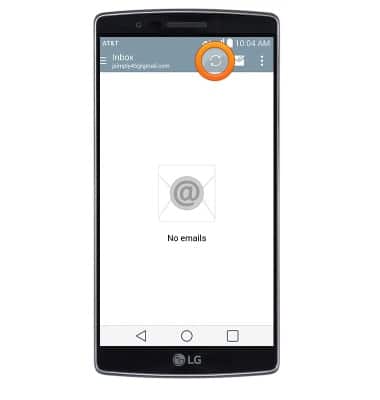
- To receive email, tap the Refresh icon.
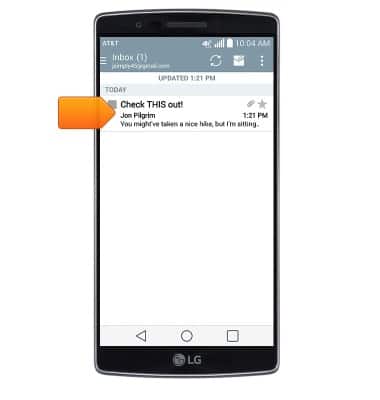
- Tap the desired email.
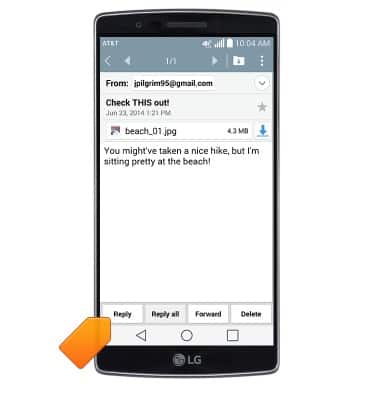
- To respond to an email, tap Reply.
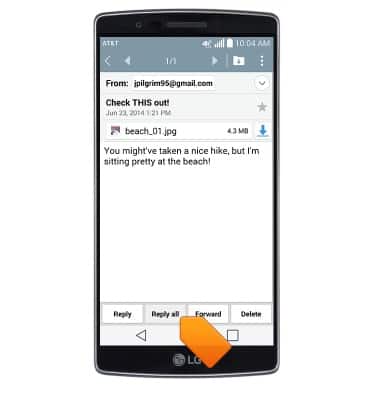
- To respond to all email addresses that the message was sent to as well as the sender, tap Reply all.
- To send the email to another email address, tap Forward.
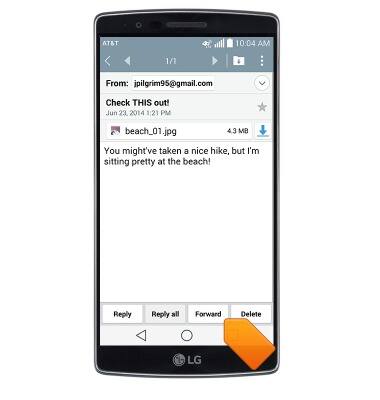
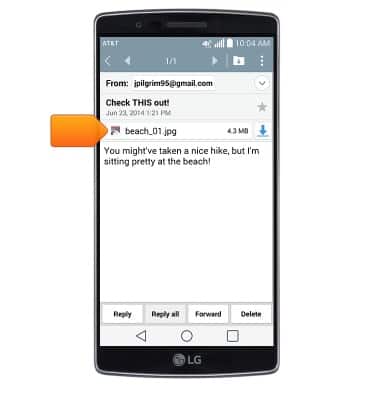
- To view an attachment, tap the file name.
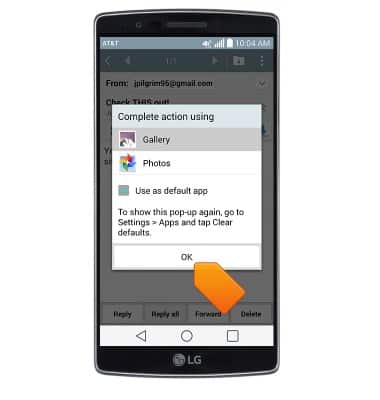
- Tap OK.
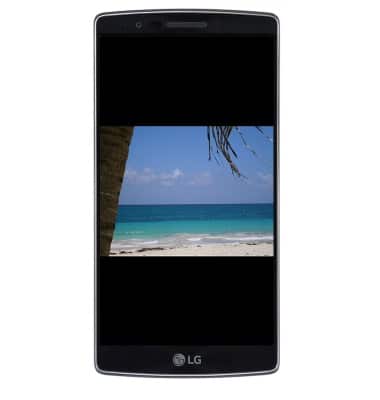
- The image will be displayed.
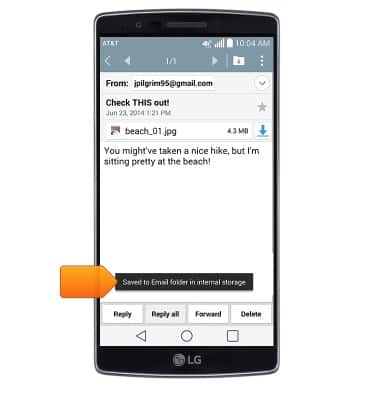
- To save an attachment, tap the Download icon.
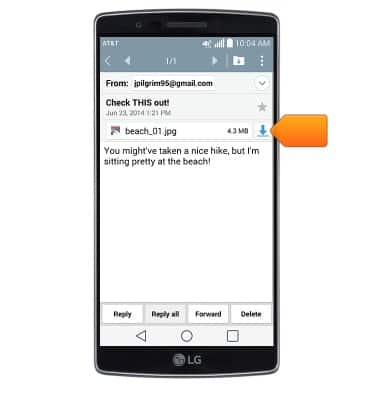
- The attachment will be saved to the indicated storage location.
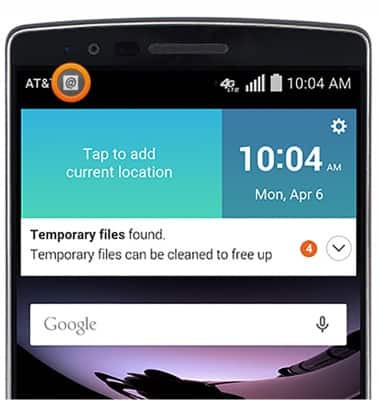
- When a new email is received, the New Email icon will display in the Notifications bar.
Send & receive email
LG G Flex 2 (H950)
Send & receive email
Add and download email attachments, respond to an email and more.
INSTRUCTIONS & INFO