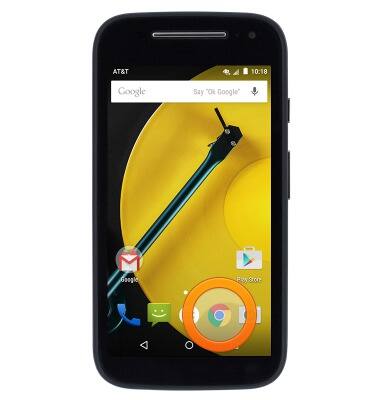
- From the home screen, tap the Chrome icon.
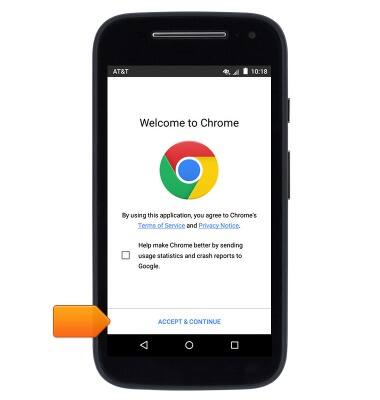
- Tap ACCEPT & CONTINUE, then proceed through any additional introductory prompts.
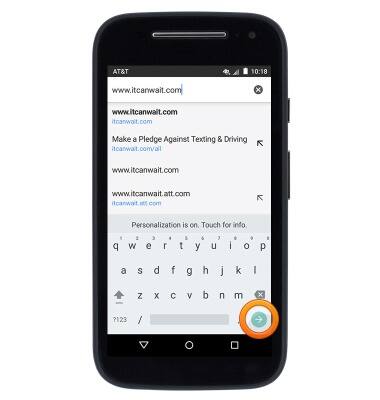
- Tap the URL field.
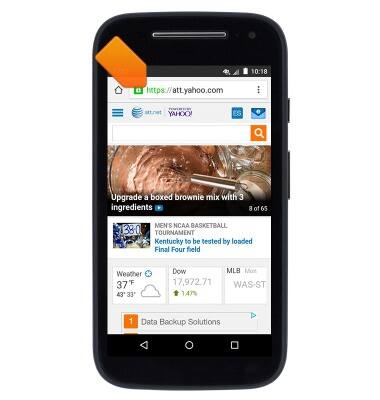
- Enter the desired URL, then tap the Go icon.
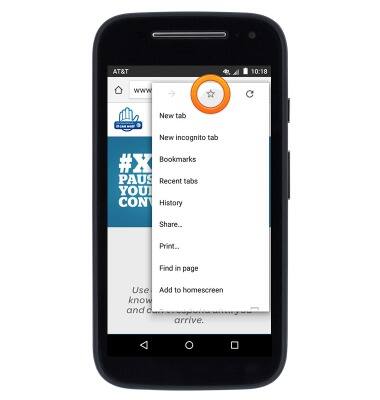
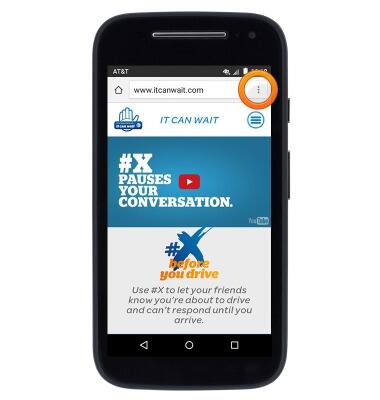
- To add the current web page to your bookmarks, tap the Menu icon.

- Tap the Favorite icon.
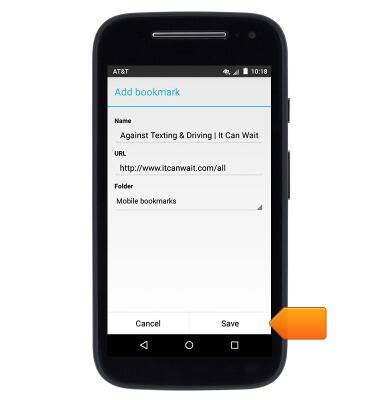
- Edit bookmark settings if desired, then tap Save.
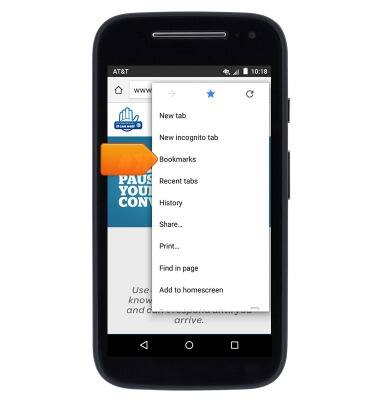
- To access saved bookmarks, tap the Menu icon.
- Tap Bookmarks.
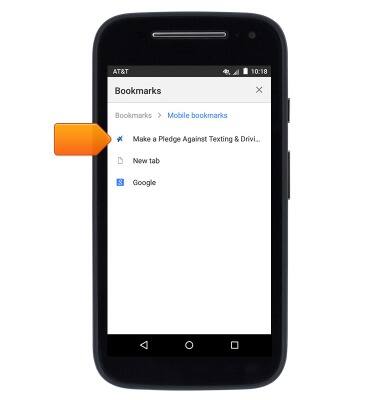
- Tap to visit the desired bookmark.
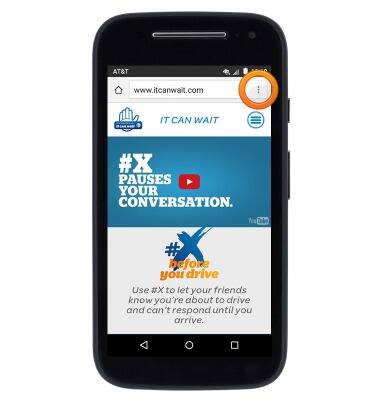
- To create a new browser tab, tap the Menu icon.
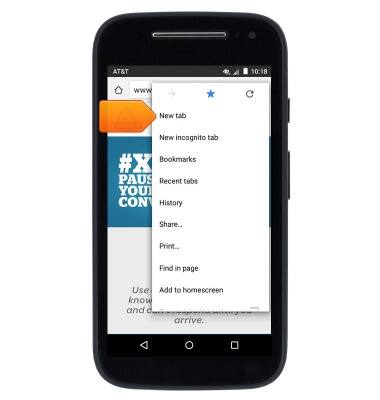
- Tap New tab.
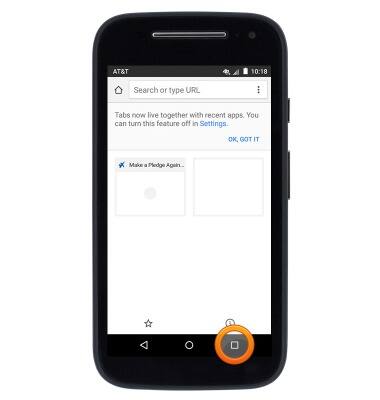
- To manage browser tabs, press the Recent apps key.
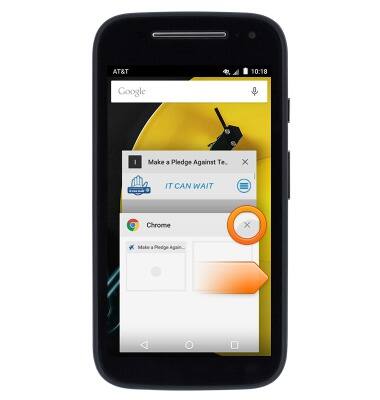
- Swipe right over a tab or tap the X icon to close a tab.
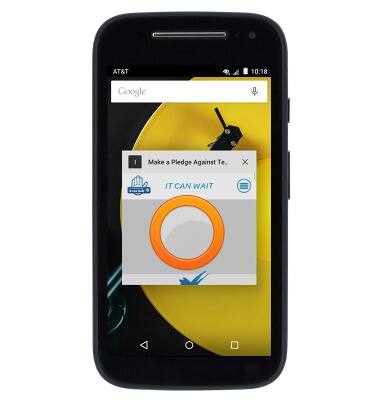
- Tap to a tab to open it.
Browse the web
Motorola Moto e (XT1527)
Browse the web
Learn to browse the web and manage tabs and bookmarks.
Browse the Web
This video explains the features of the device's web browser.
Browse the Web
1:55
INSTRUCTIONS & INFO