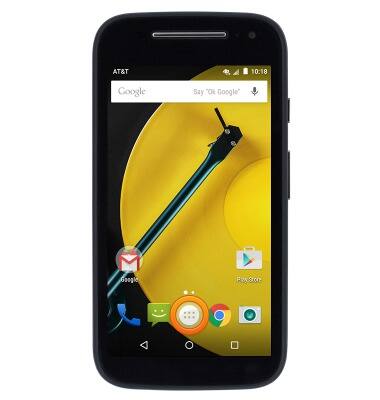
- From the home screen, tap the Apps icon.
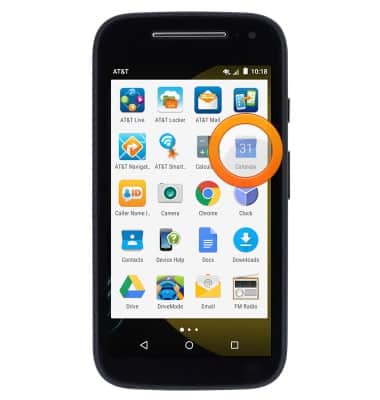
- Tap Calendar.
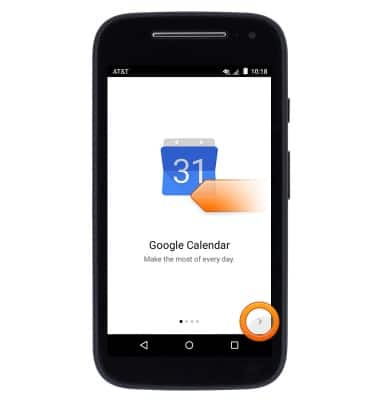
- Tap the Next icon or swipe left, then proceed through any further introductory prompts.
- To change the calendar view, tap the Menu icon.
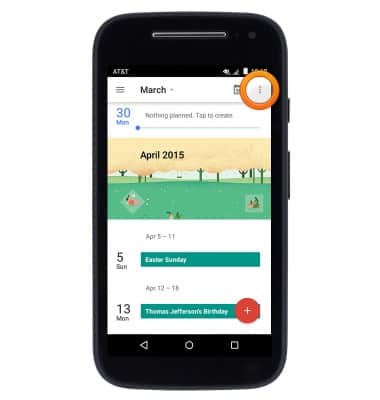
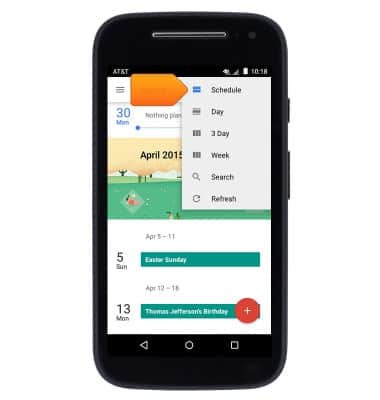
- Tap the desired view.
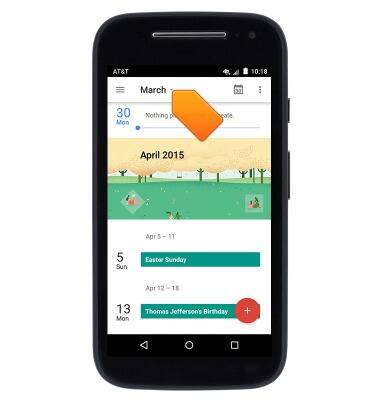
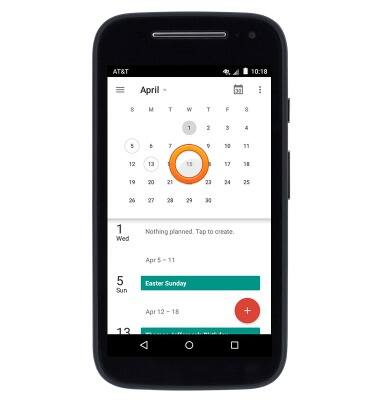
- To quickly navigate to a particular date, tap the Month drop-down.
- Swipe left or right to the desired month.
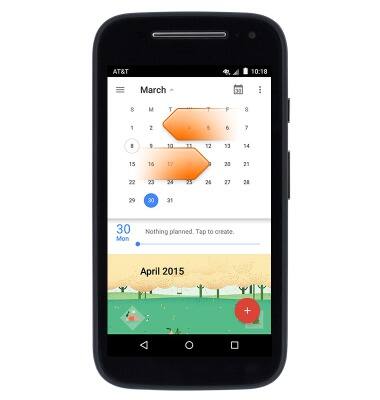
- Tap the desired date.
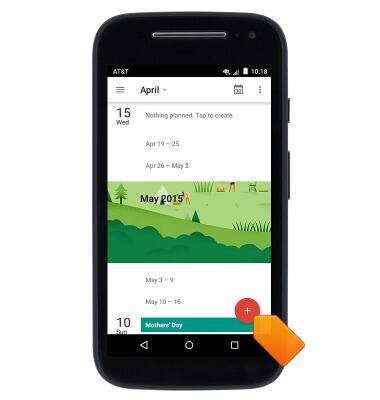
- To create a new event, tap the Add icon.
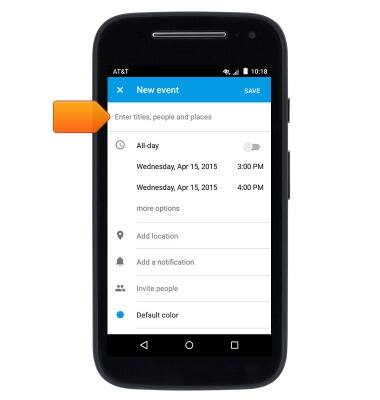
- Tap the Title field then enter the desired event name.
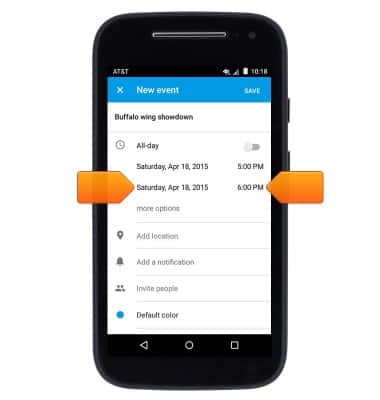
- Tap to edit the Start date and Start time.
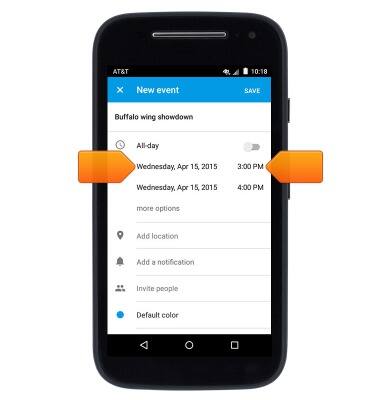
- Tap to edit the End date and End time.
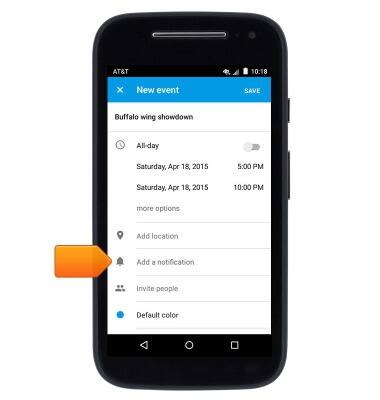
- To set up an event reminder, tap Add a notification.
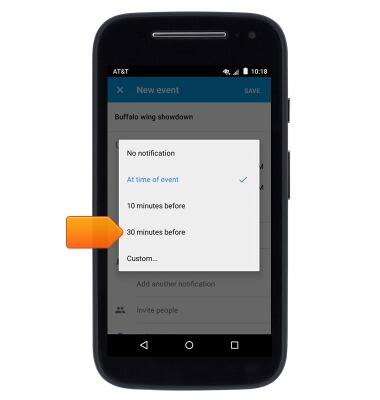
- Tap the desired option.
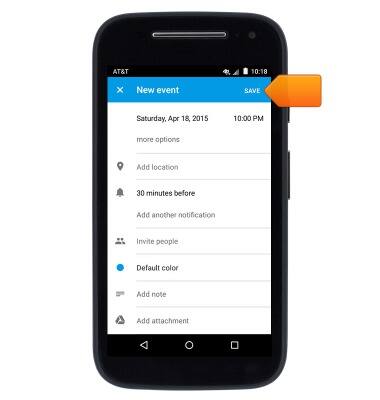
- Edit additional event details as desired, then tap SAVE.
- To edit or delete an existing event, first navigate to the desired date.
Note: You can only edit events which you have created.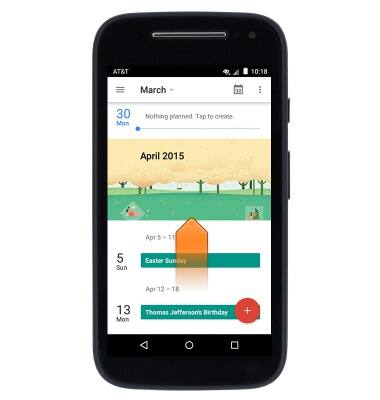
- Tap the desired event.
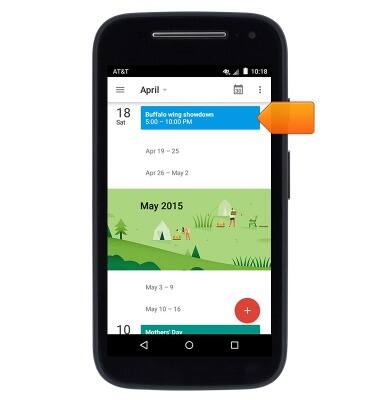
- Tap the Edit icon.

- Tap to edit the desired details and settings.
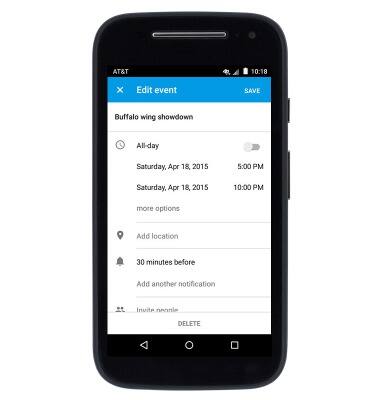
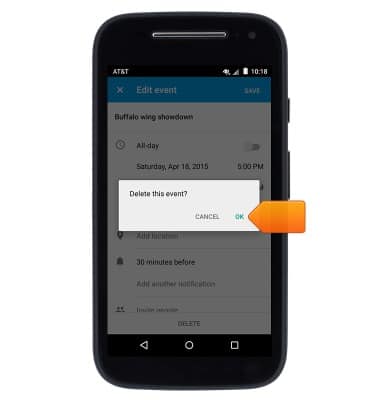
- To delete the event, tap DELETE.
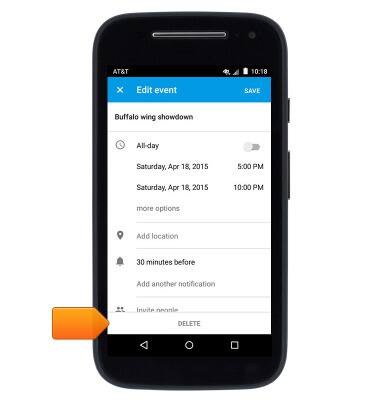
- Tap OK.
- When a calendar event is approaching, the Event icon will display in the notification bar.

Calendar
Motorola Moto e (XT1527)
Calendar
Learn how to access the calendar and manage events.
INSTRUCTIONS & INFO