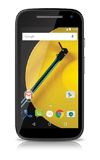
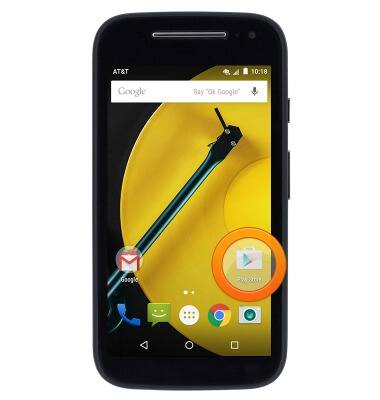
- Tap to open an app or make a selection.
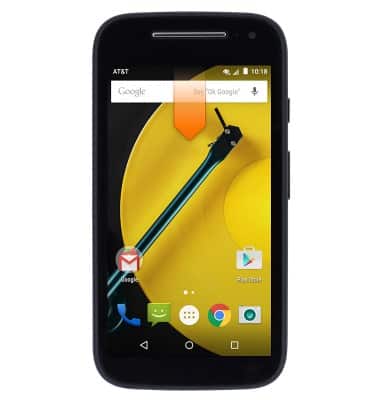
- Swipe down from the Notification bar to view notification alerts.
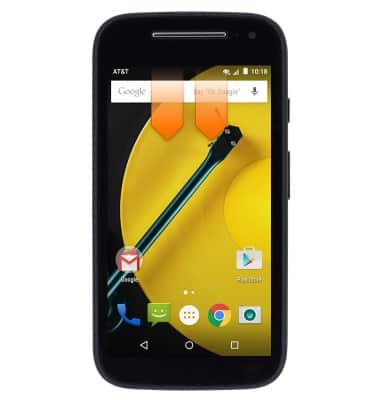
- Swipe down from the Notification bar with two fingers to access Quick Settings.
- Swipe left or right to access additional home screen pages.

- Touch and hold a blank area of the home screen to access customization options.
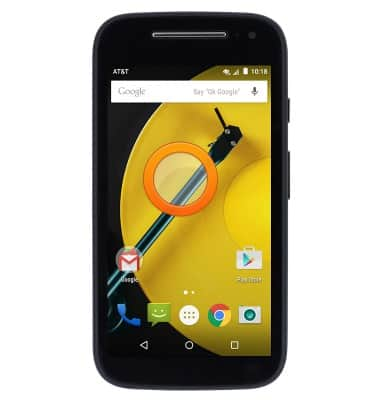
- To reorder home screen pages, touch and hold the desired home screen page.
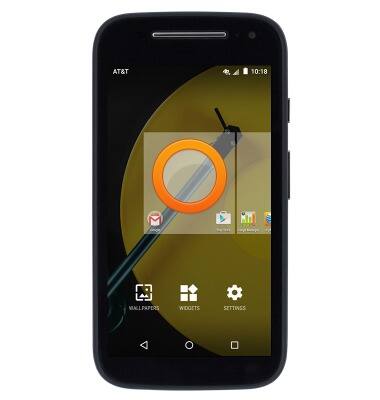
- Drag to the desired position, then release.
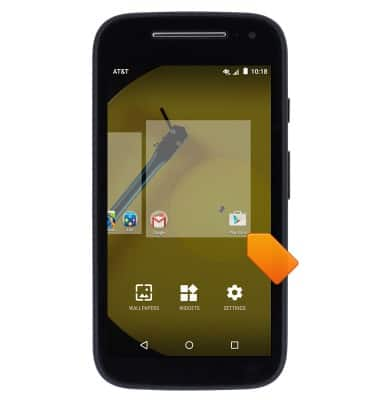
- To add a widget to the home screen, tap WIDGETS.
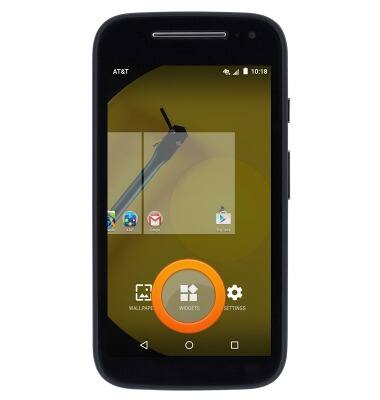
- Swipe to then touch and hold the desired widget.

- Drag to the desired location on the home screen, then release.
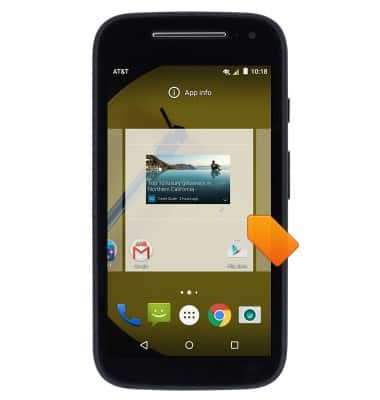
- To resize a widget, touch and hold the desired widget, then release.
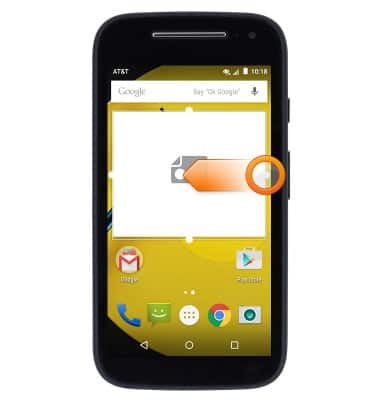
Note: Not all widgets are resizable.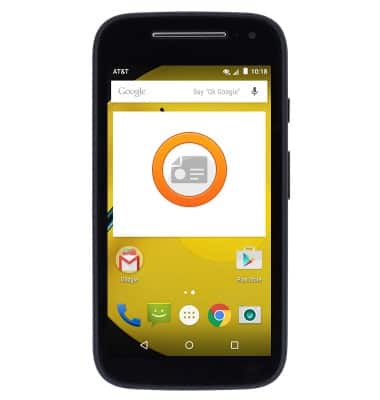
- Touch and hold the Widget border, then drag to the desired size.
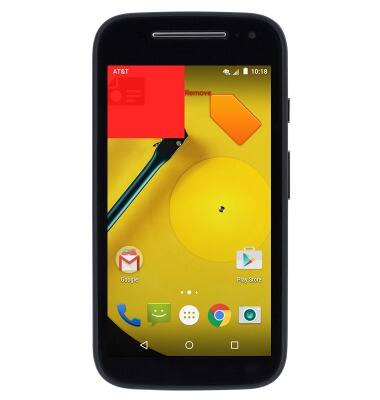
- To move or delete a widget, touch and hold the desired widget.
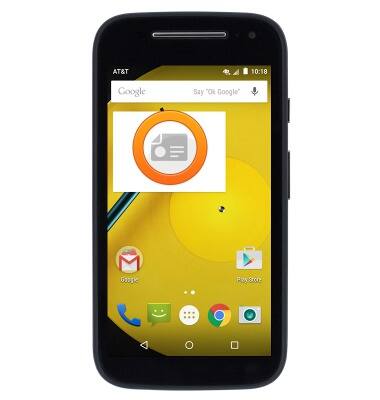
- To move, drag to the desired location then release.
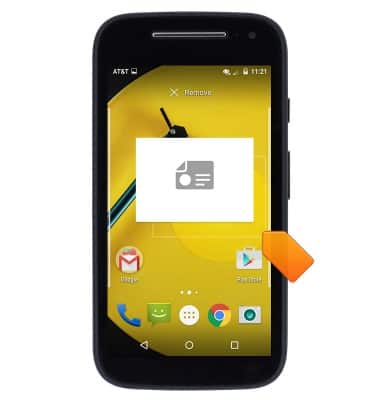
- To delete, drag to Remove, then release.
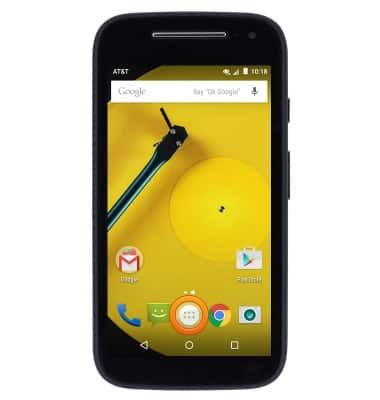
- To add an app shortcut to the home screen, tap the Apps icon.
- Swipe to then touch and hold the desired app.
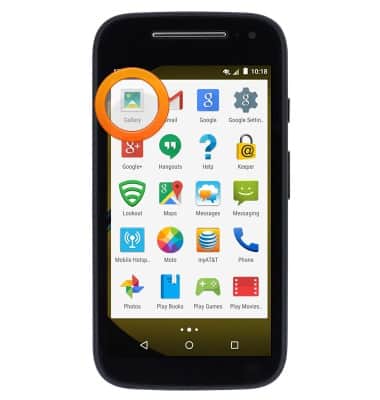
- Drag to the desired location on the home screen, then release.
Note: Apps can be repositioned or removed from the home screen in the same manner as widgets.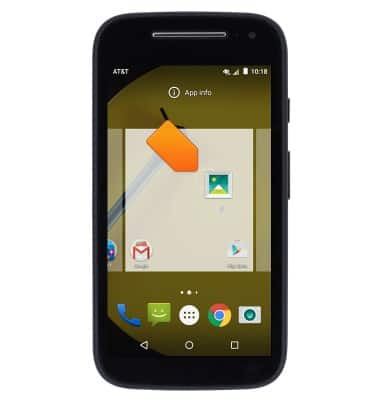
- To add a new home screen page, drag an app icon or widget to the far right edge of the home screen.
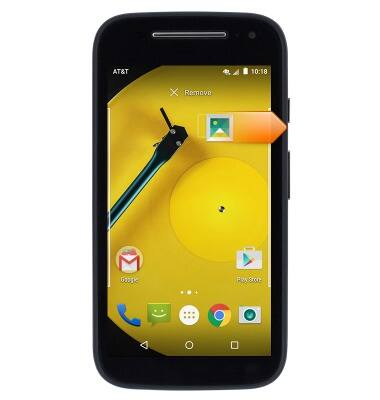
- A new home screen page will be added. Release the app or widget to place it on the new page.
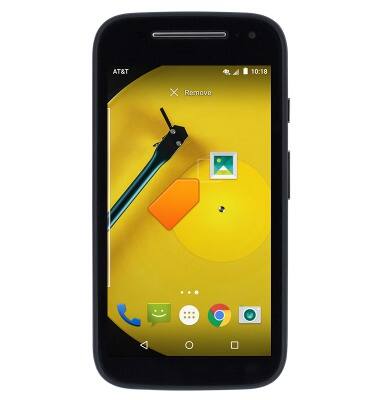
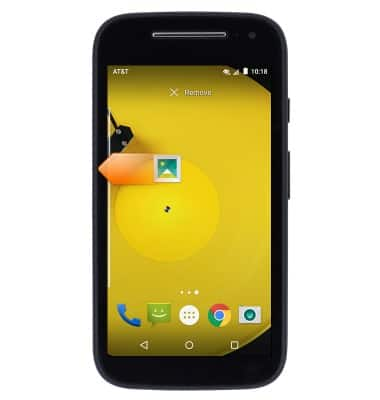
- To delete a home screen page, delete or move all icons and widgets from the page.
Learn & customize the home screen
Motorola Moto e (XT1527)
Learn & customize the home screen
Add shortcuts and widgets, access the notification panel, changing wallpaper, and more.
Learn and Customize the Home Screen
This video shows how to use the home screen.
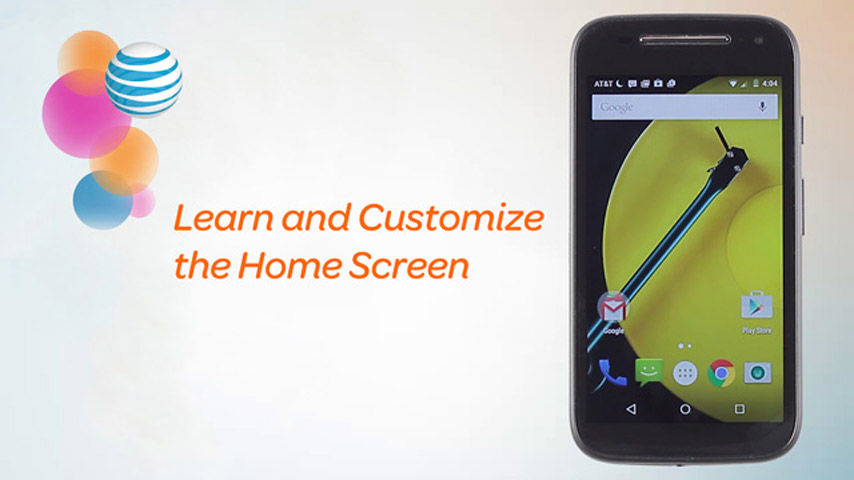
Learn and Customize the Home Screen
2:06
INSTRUCTIONS & INFO