- The Google Play Store provides access to the latest music, apps, games, videos, and more to all Google account holders.
Note: For more information or support, please see the Google Play Help site.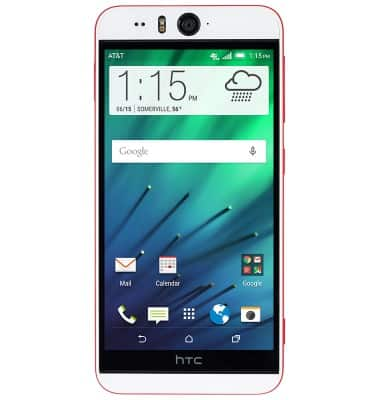
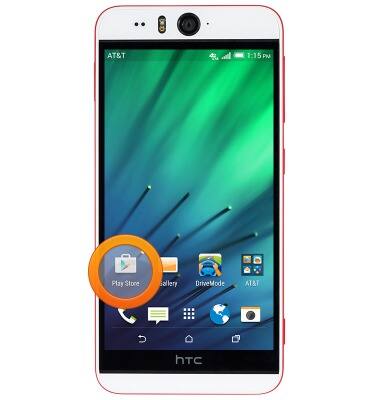
- From the home screen, swipe to, then tap Play Store.
- Browse for content by tapping the displayed categories, To search for a specific item, tap the Search field.
Note: For this demonstration, tap the Search field.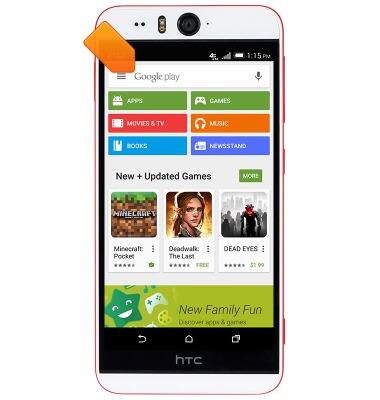
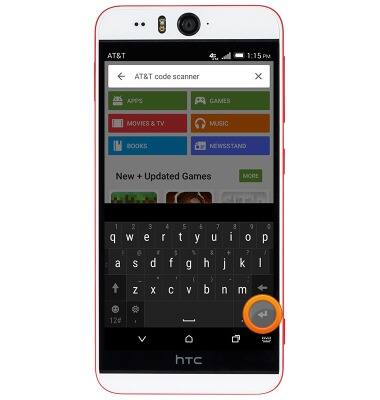
- Enter the desired search term(s), then tap the Return icon.
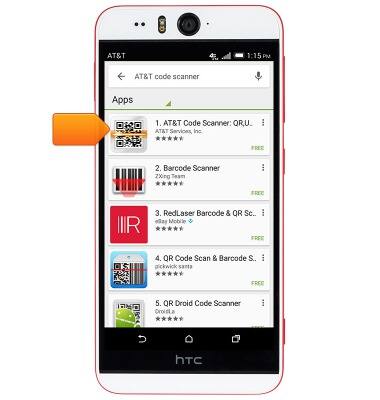
- Tap the desired result.
- Tap INSTALL.
Note: For paid apps and content, tap 'BUY'. You must have a payment method linked to your Google account to purchase content.
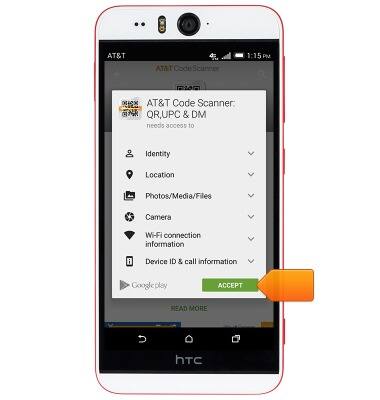
- Tap ACCEPT.
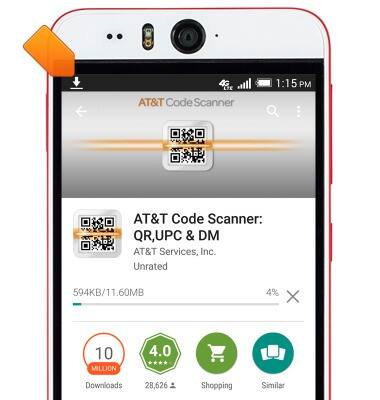
- The application will download and install. While downloading, the Download icon will display in the Notification bar.
- Tap OPEN to launch the app.
Note: For a paid app, a refund can be made within 2 hours of purchase. To return a paid app, go to Play Store > Tap the 'Play Store tab' > Tap 'My apps' > Tap the desired app > Tap 'Refund'.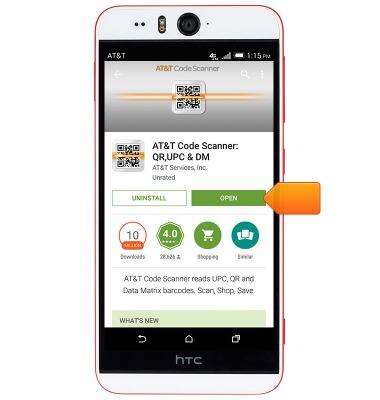
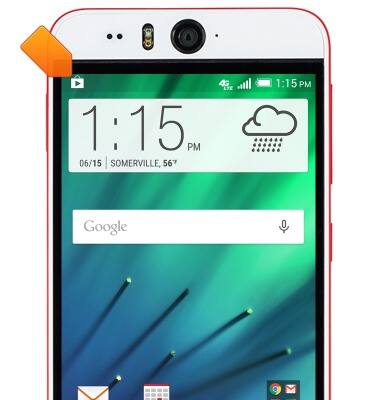
- When app updates are available, the Play Store Update icon will display in the Notification bar.
Download apps & games
HTC Desire EYE (0PFH100)
Download apps & games
Download apps, games, movies, music, books, magazine, newspapers and more.
INSTRUCTIONS & INFO