- From any screen, press and hold the Camera key.
Note: Alternatively, from the Home screen, tap the Camera icon.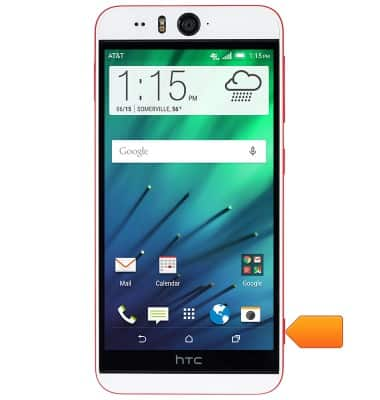
- If this is your first time launching the Camera app, choose the default camera mode to be activated by the Camera key.
Note: For this demonstration, choose 'Main camera'.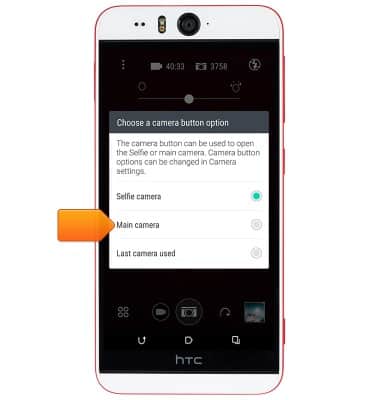
- To switch between Camera modes, tap the Camera mode icon.
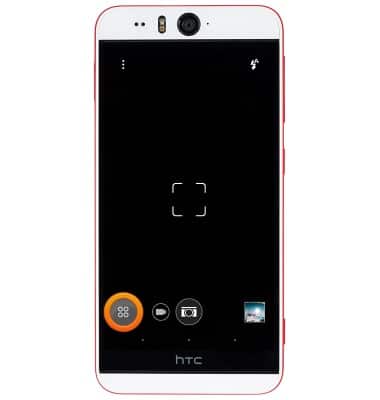
- Tap the desired Camera mode.
Note: For this demonstration, tap 'Selfie'.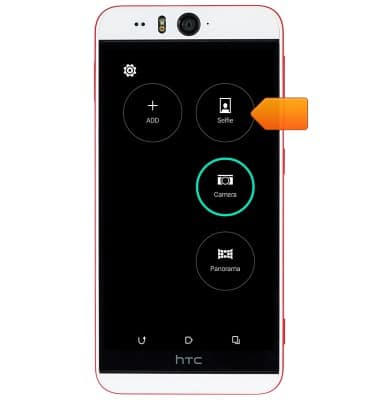
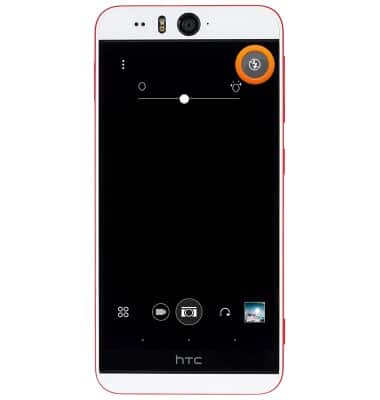
- To toggle between flash modes, tap the Flash icon.
- To adjust shooting options, tap the Menu icon.
Note: Different camera modes may display different sets of options.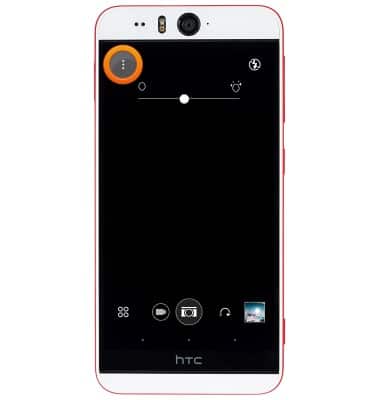
- Tap the Timer icon to set the self timer.
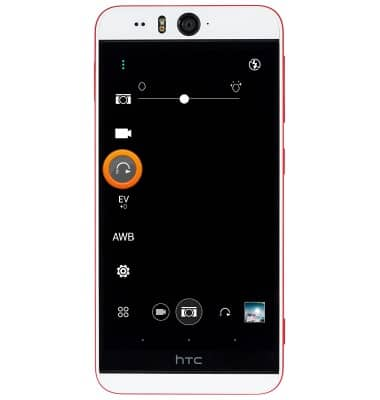
- To change settings for the selected Camera mode, tap the Settings icon.
Note: Different Camera modes may display different Settings menus.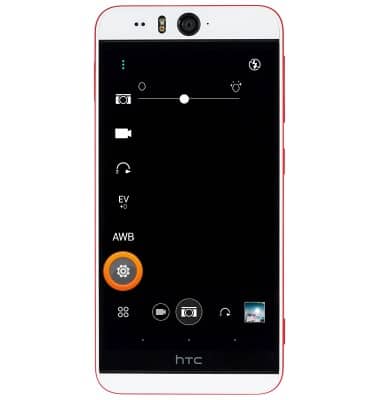
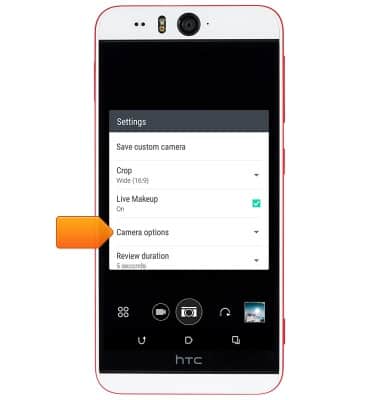
- To enable or disable special shooting features, tap Camera options.
- To enable Automatic selfie mode, tap Auto Selfie.
Note: When enabled, keep the camera still or smile at the camera to take an automatic selfie.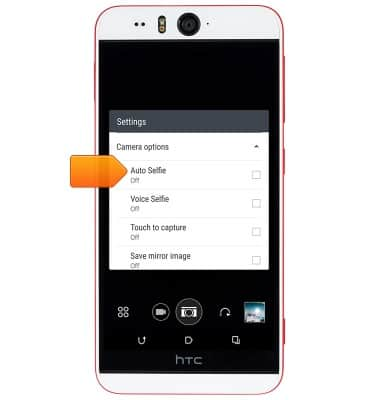
- To enable voice-controlled shooting, tap Voice Selfie.
Note: When enabled, say 'Cheese' to take a selfie.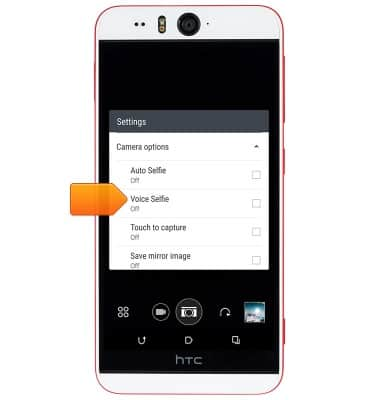
- To change the photo size, tap Resolution.
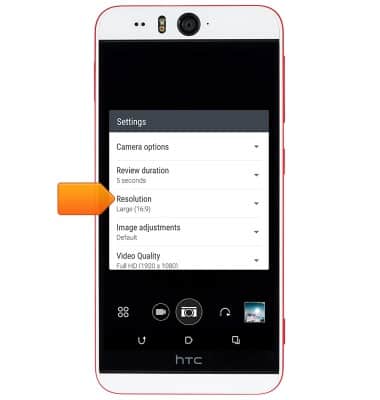
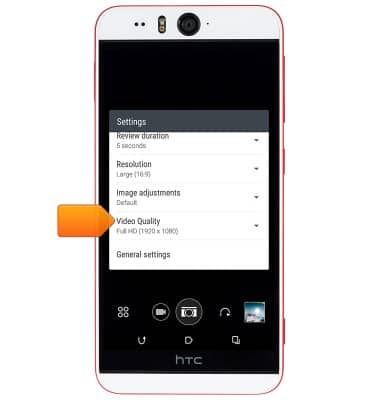
- To change the video size, tap Video Quality.
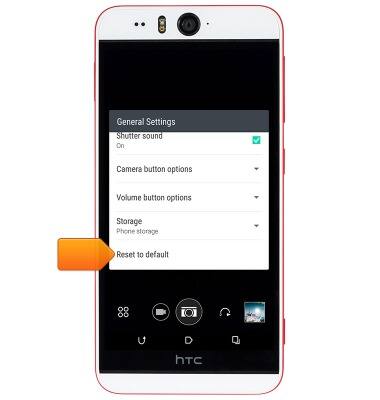
- To edit general settings for all Camera modes, tap General settings.
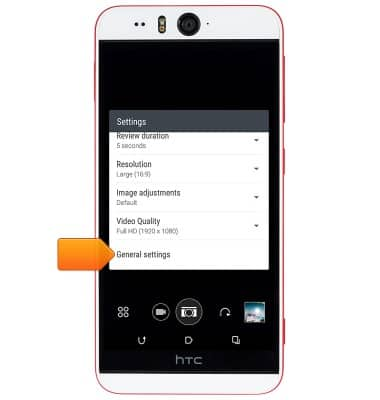
- Tap Camera button options to change the functionality of the phone's Camera key.

- Scroll to, then tap Storage to set the storage location for captured photos and videos.
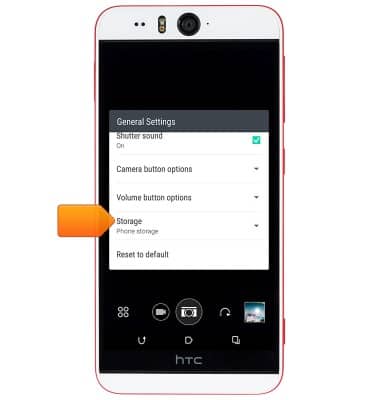
- Tap Reset to default to restore default camera and video settings.
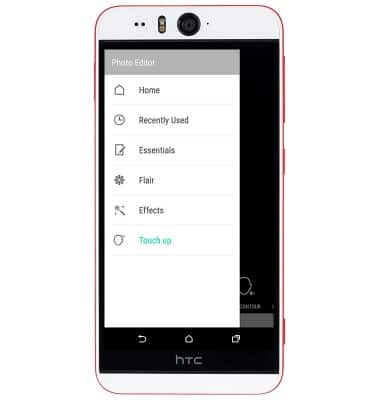
- After taking a photo, tap the Fx icon to edit the photo with special effects.
Note: Alternately, from the Home screen, swipe to, then tap 'Gallery' > Navigate to the desired photo > Tap the desired photo to open it > Tap the photo again > Tap 'EDITOR'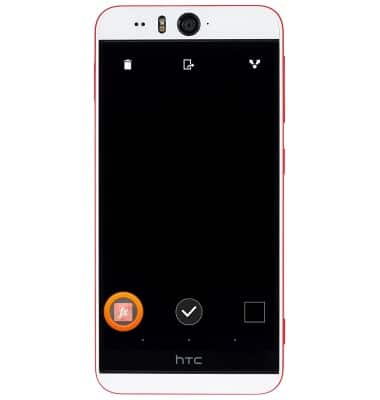
- To use Touch up effects, swipe to, then tap the desired effect.
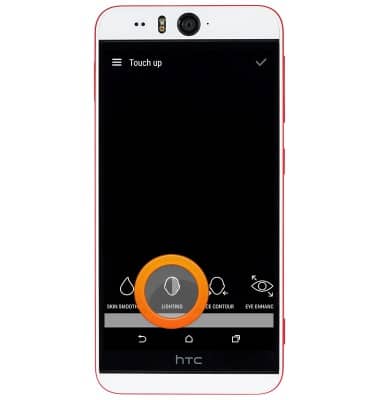
- Tap the Editor tab to access additional Editing options.
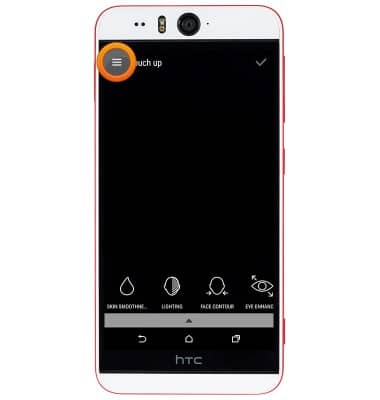
- Tap to view Editing options.
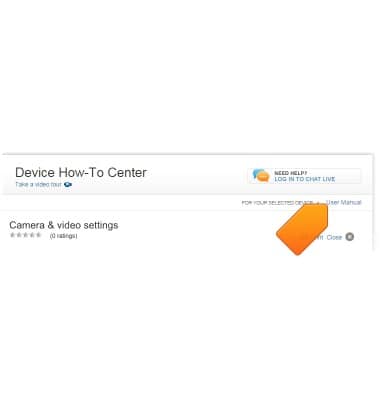
- To learn more about your camera & video settings, download the user manual from your computer at www.att.com/devicehowto.
Camera & video settings
HTC Desire EYE (0PFH100)
Camera & video settings
Manage camera and video settings including flash, timer, voice control, recording mode, storage location, and more.
INSTRUCTIONS & INFO