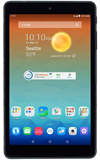
- Tap an app to open.
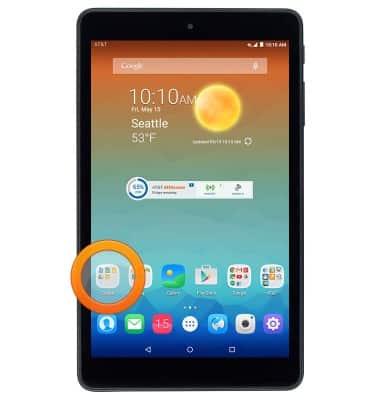
- Swipe to access other home screens.
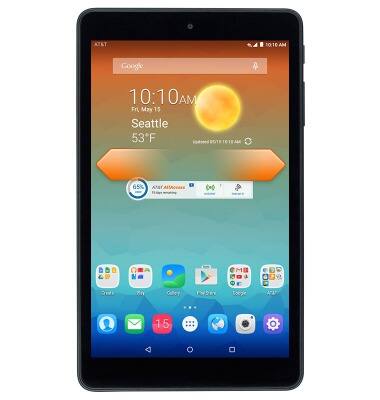
- Scroll to access additional content on a screen.
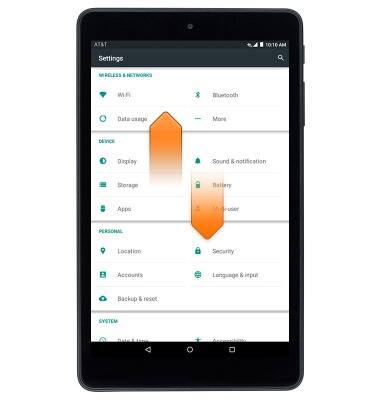
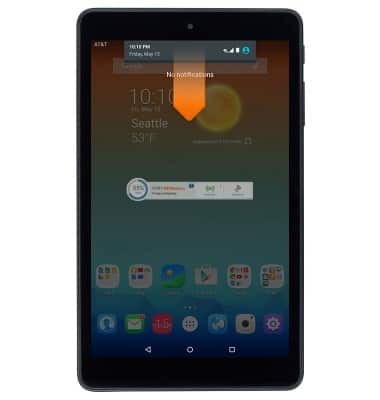
- Swipe down the Notifications bar to access a list of pending notifications.
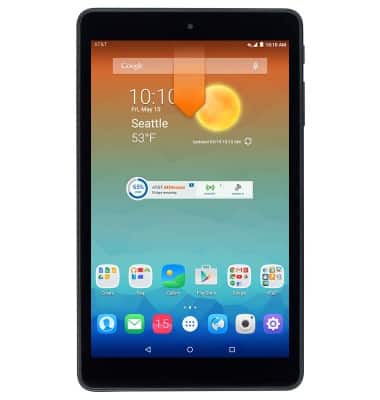
- Swipe down again to access quick settings.
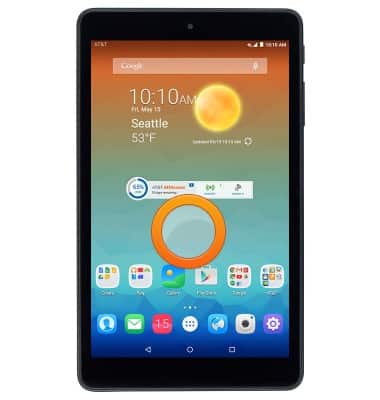
- To customize the home screen, touch and hold an empty space on the screen.
- To change the home screen order, touch and hold the desired home screen.
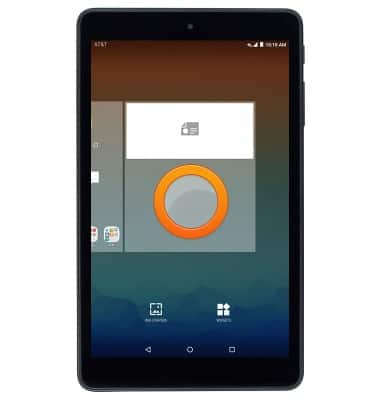
- Drag the home screen to the desired location, then release.
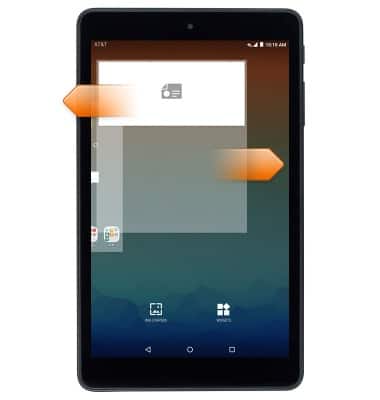
- To add a home screen, touch and hold an app and drag to the edge of the screen. Release to set the app on the new home screen.
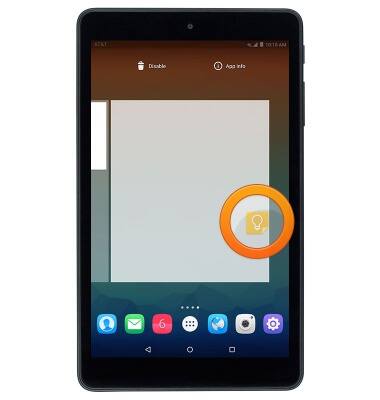
- To delete a home screen, remove all apps & widgets from the page.
- To add a widget, tap WIDGETS.
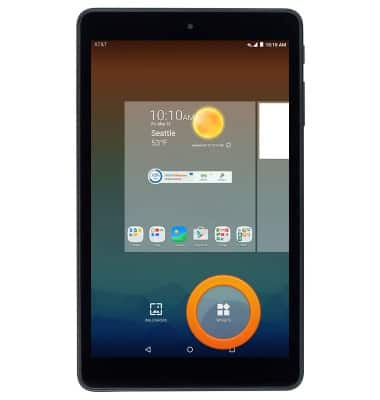
- Swipe to, then touch and hold the desired widget.
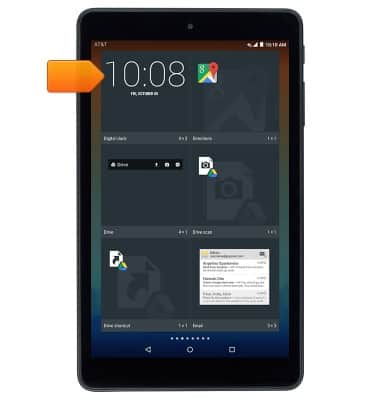
- Drag the widget to the desired location, then release.
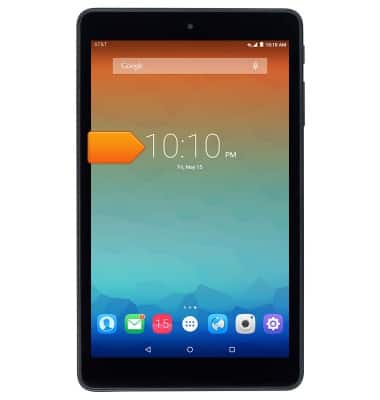
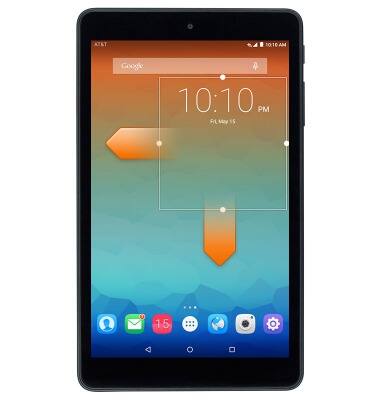
- To resize a resizable widget, touch and hold, then release the widget.
- Drag the white outline to the desired size.
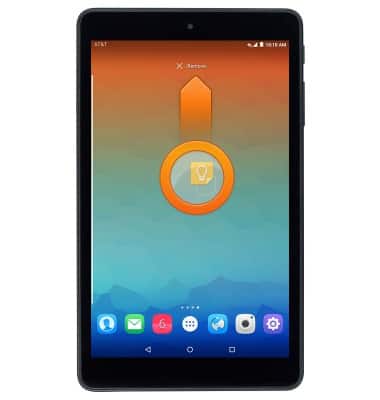
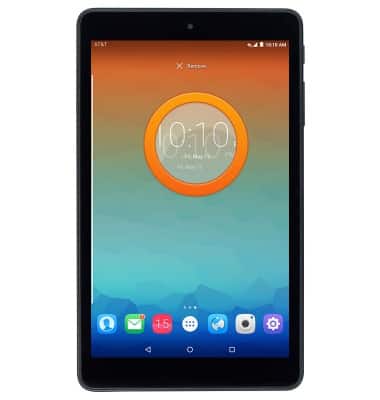
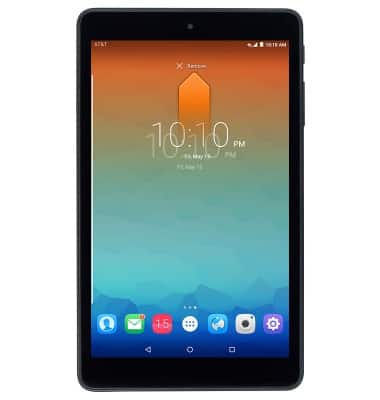
- To remove a widget, touch and hold the desired widget.
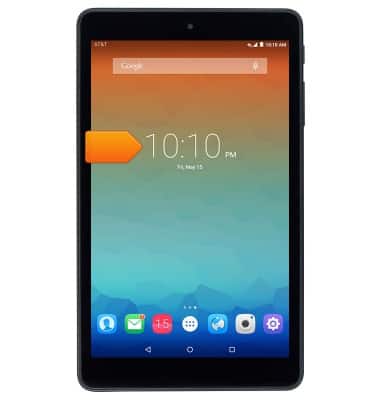
- Drag the selected widget to Remove, then release.
Learn & customize the home screen
AT&T Trek HD (9020A)
Learn & customize the home screen
This tutorial walks through how to learn and customize the home screen.
Learn and Customize the Home Screen
This video shows how to use the home screen.
Learn and Customize the Home Screen
2:07
INSTRUCTIONS & INFO