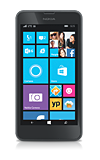
- To add a contact, tap People from the home screen.
Note: 'transfer my data' can be used to quickly transfer contacts from one device to another.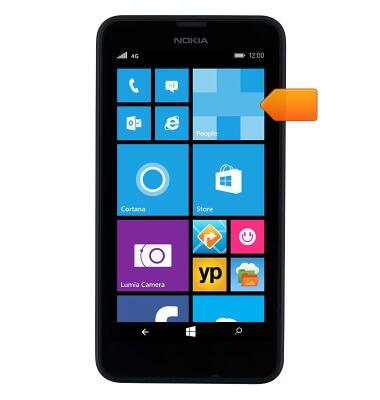
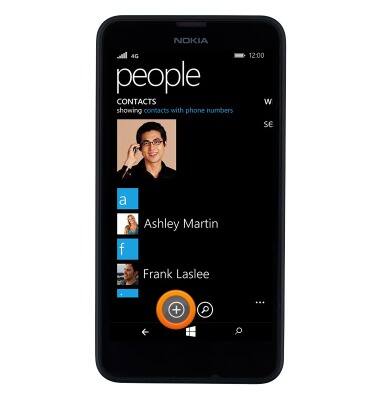
- Tap the Add Contact icon.
- Tap the desired option.
Note: For this demonstration, 'Outlook' was selected.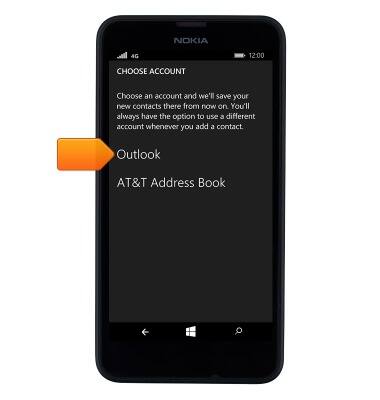
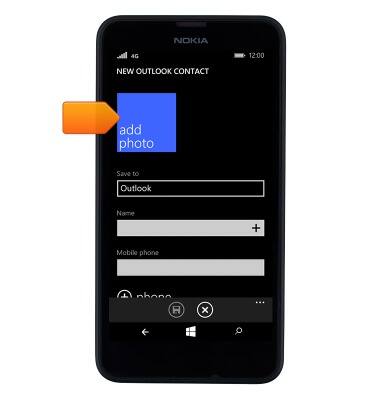
- To add a contact photo, tap add photo.
- Swipe to albums.
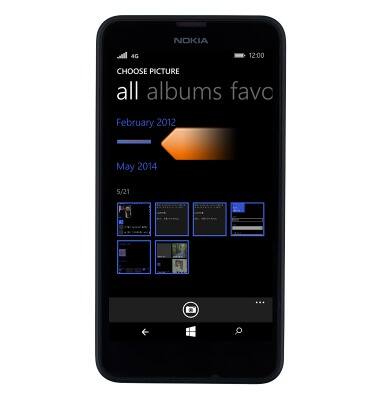
- Scroll to, then tap the desired album.
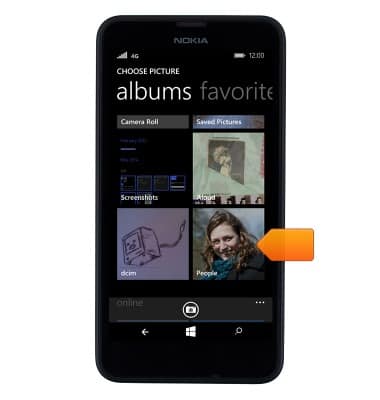
- Tap the desired image.

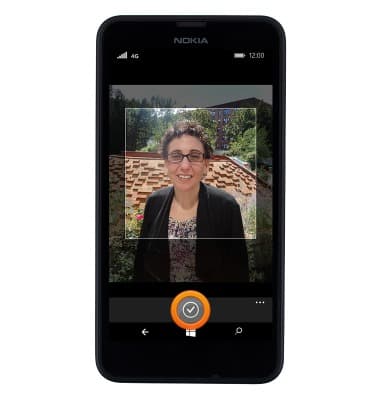
- Touch and drag the image to change its positioning. To zoom in or out, use two fingers in a reverse pinching or pinching motion, respectively.
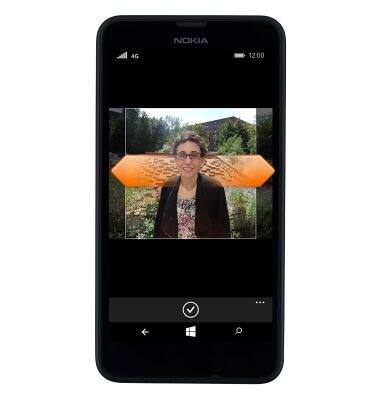
- Tap the Save icon.
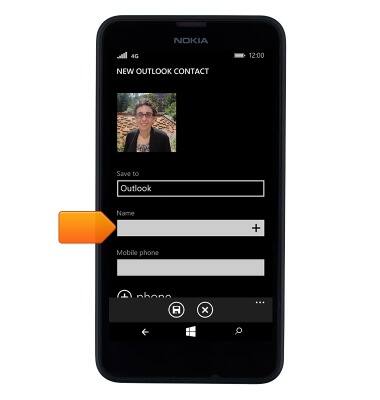
- Tap the Name field.
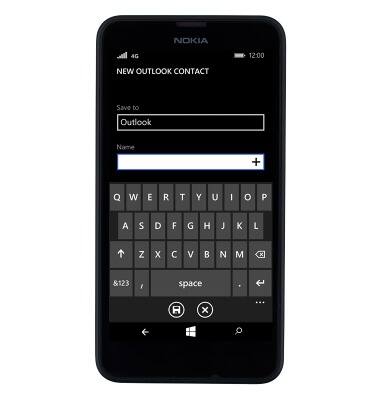
- Enter the desired name.
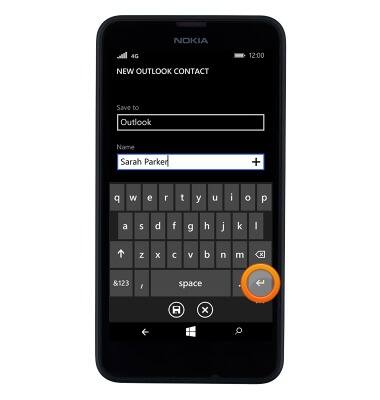
- Tap the Return icon.
- Enter the contact phone number.
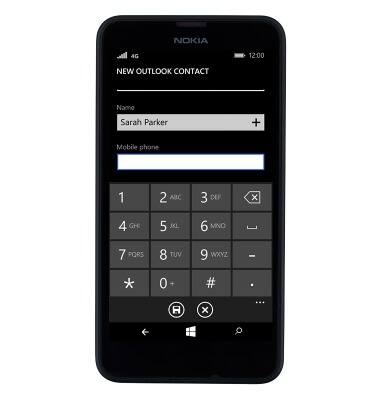
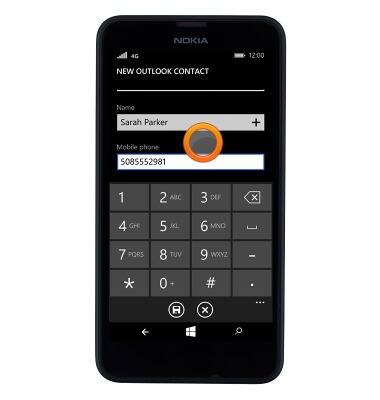
- Tap an empty space to stop editing the field.
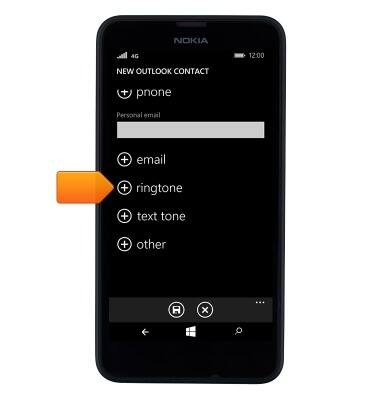
- To add a ringtone for the contact, scroll to and then tap ringtone.
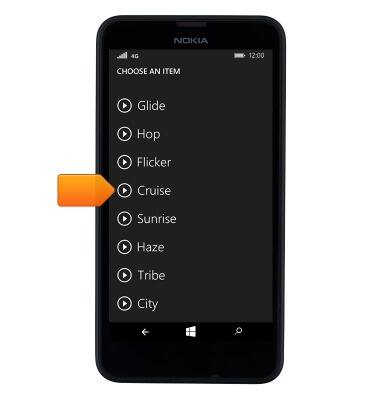
- Scroll to, then tap the desired ringtone. Tap the Play icon to sample a ringtone.
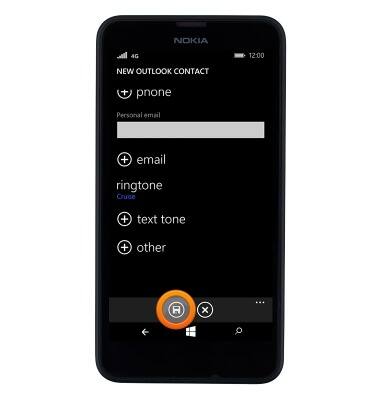
- Tap the Save icon.
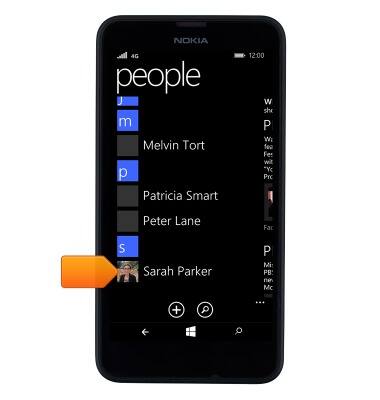
- To edit a contact, scroll to and then tap the desired contact in people.
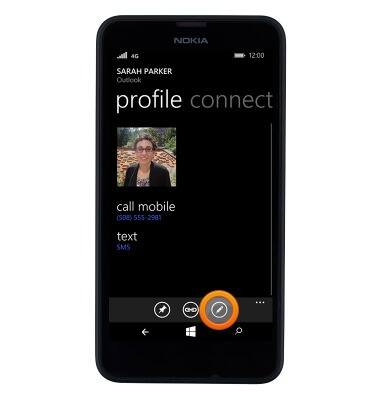
- Tap the Edit icon.
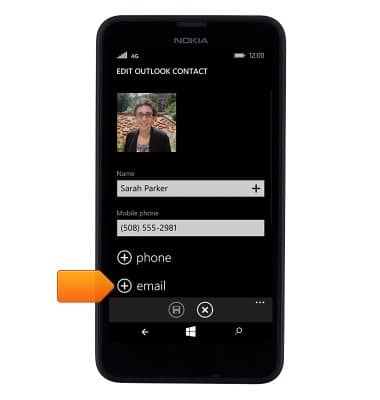
- To add an email field, tap email.
- Tap the desired email type.
Note: For this demonstration, 'personal' was selected.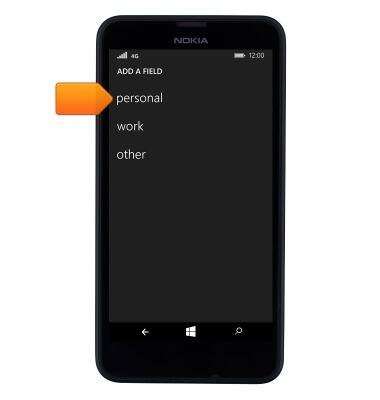
- Enter the contact email address.
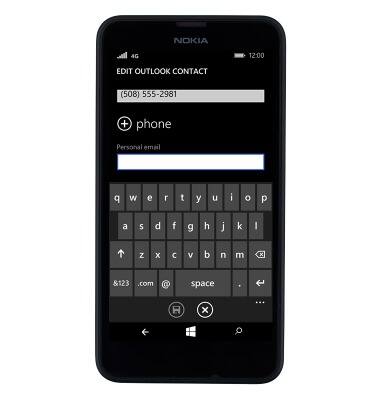
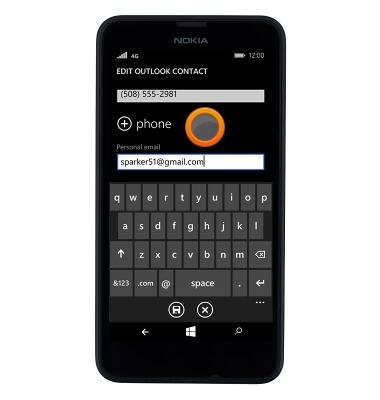
- Tap an empty space to stop editing the field.
- To add an additional field, tap other.
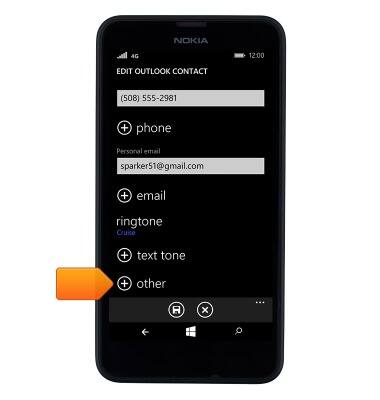
- Tap the desired field type.
Note: For this demonstration, 'birthday' was selected.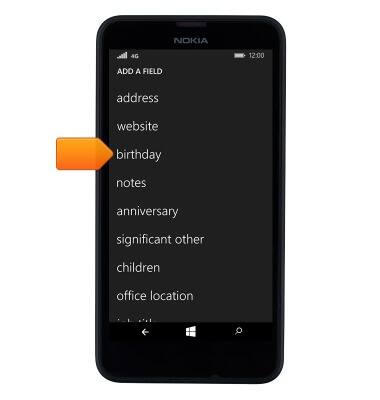
- Tap the EDIT BIRTHDAY field.
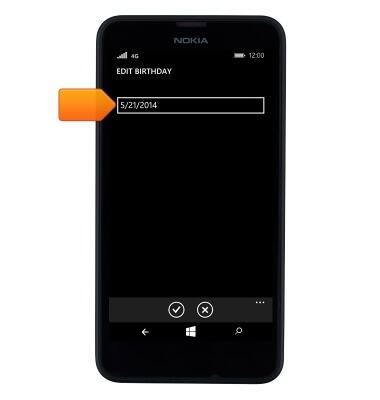
- Swipe the Month field to set the desired month.
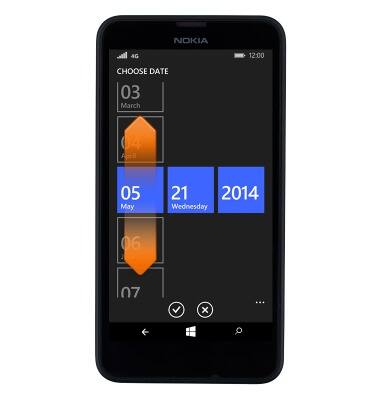
- Swipe the Day field to set the desired day.
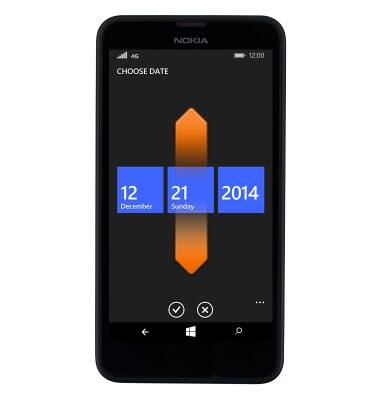
- Swipe the Year field to set the desired year.
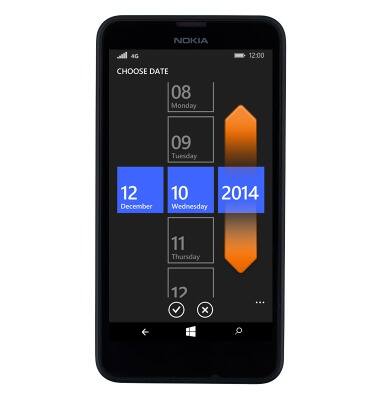
- Tap the Save icon.
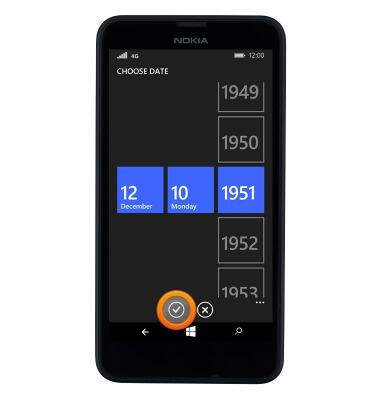
- Tap the Save icon.
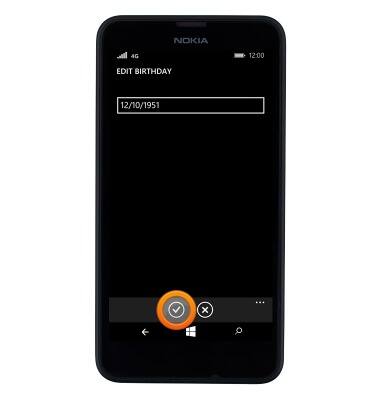
- Tap the Save icon.
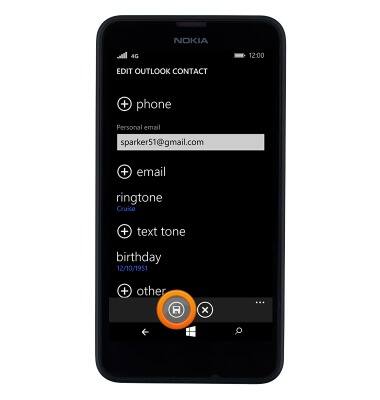
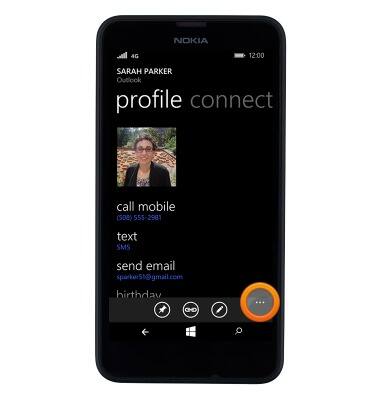
- To delete a contact, navigate to the desired contact and then tap the Menu icon.
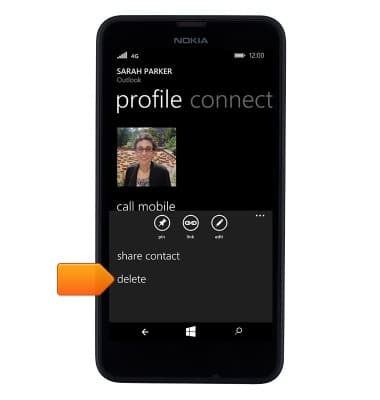
- Tap delete.
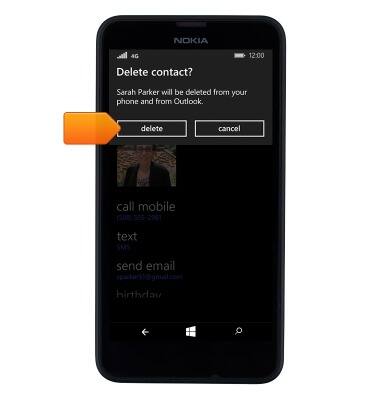
- Tap delete.
Contacts
Nokia Lumia 635
Contacts
Add, view, delete, and customize contacts by adding a picture or ringtone.
Contacts
This video explains how to add and edit contacts.
Contacts
2:09
INSTRUCTIONS & INFO