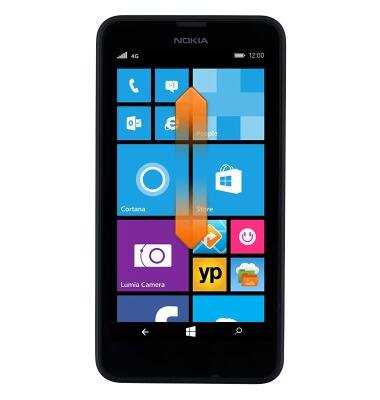
- Scroll up or down to access more content on the currently displayed screen.
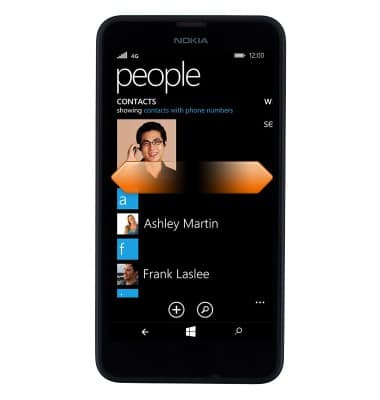
- Swipe left or right to change tabs in a menu or to access the Apps list from the home screen.
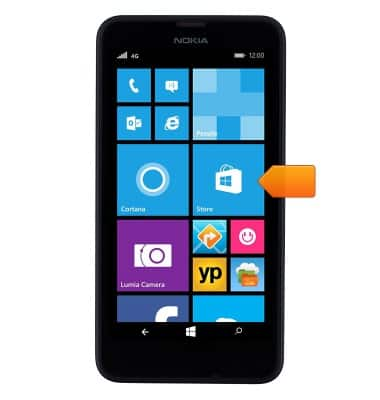
- To use an app pinned to the home screen, tap the desired tile.
- To add an app to the home screen, swipe left to access the Apps list.
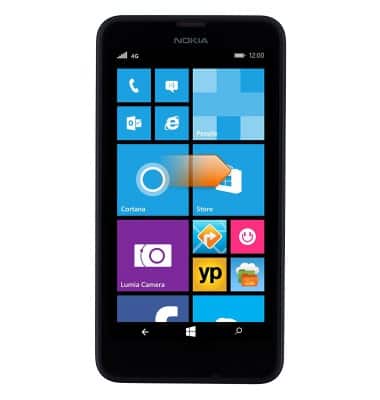
- Scroll to, then touch and hold the desired app.
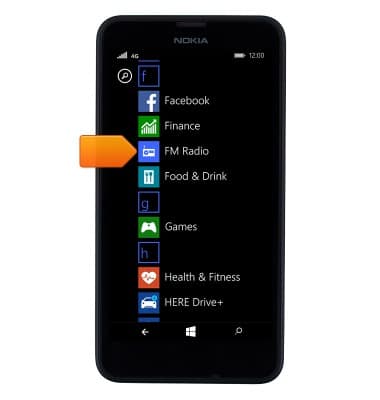
- Tap pin to start.
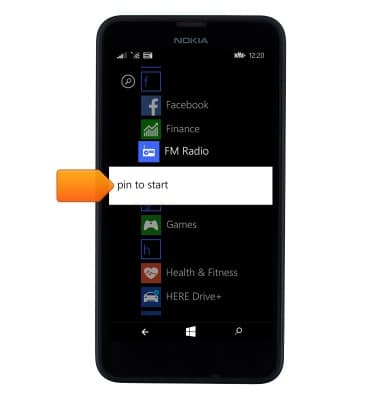
- To move a tile on the home screen, touch and hold the desired tile.
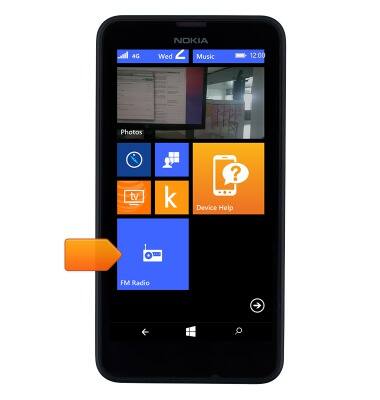
- Drag the tile to the desired location.
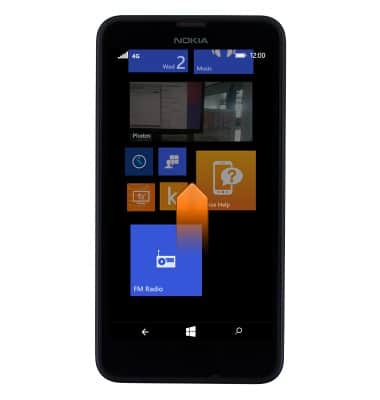
- Once in the desired location, release the tile to place it.
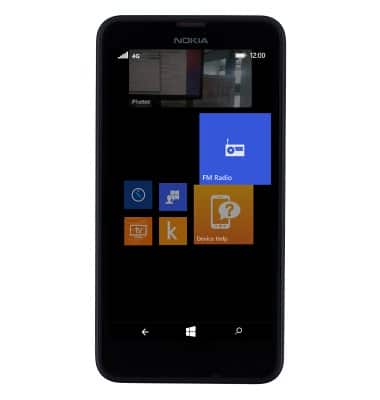
- To change the size of a tile on the home screen, tap the Size icon.
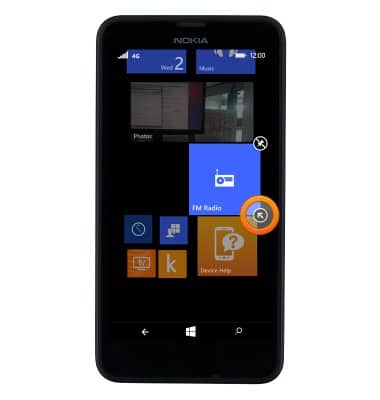
- To remove a tile from the home screen, tap the Unpin icon.
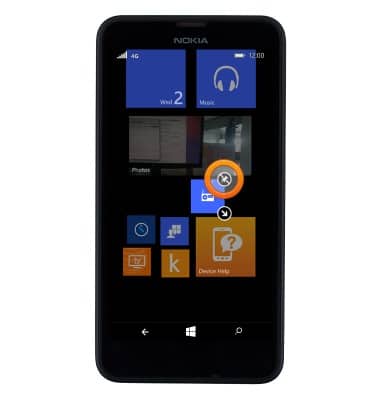
- To create a folder on the home screen, touch and hold the desired tile, then drag over another tile.
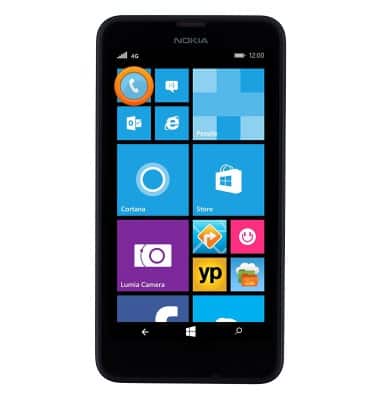
- Release to create a folder containing the desired tiles.
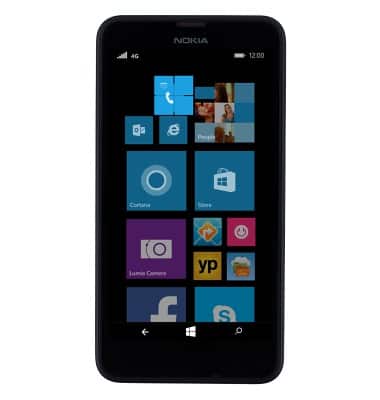
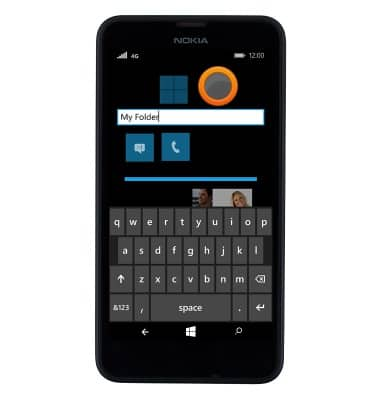
- Tap the Name folder to edit the folder name.

- Enter the desired folder name.
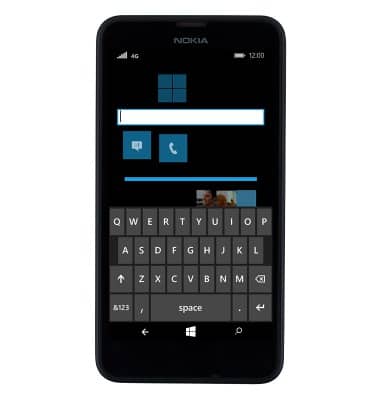
- Tap an empty space on the screen to return to the home screen.
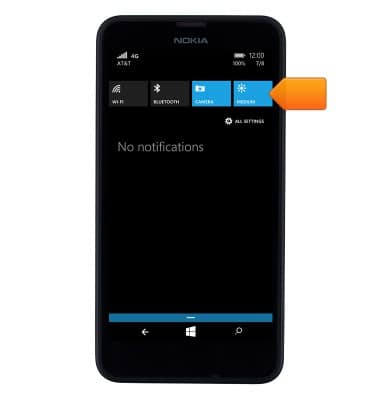
- To quickly adjust the brightness level, swipe down from the top of the screen to reveal the Action center.

- Tap the Brightness icon to toggle between the preset brightness levels.
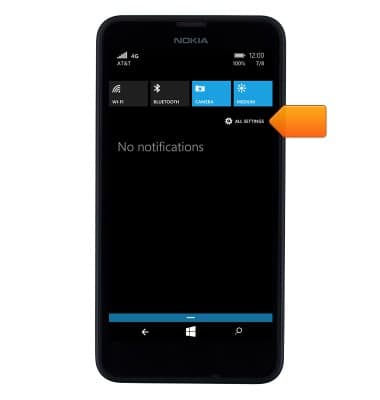
- To change the home screen wallpaper, tap ALL SETTINGS.
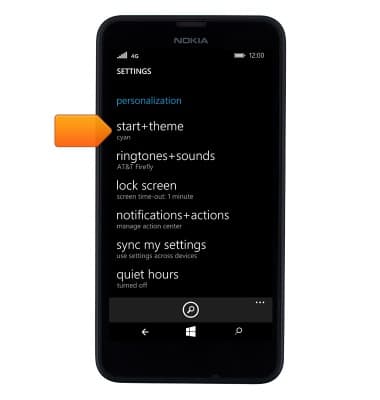
- Tap start+theme.
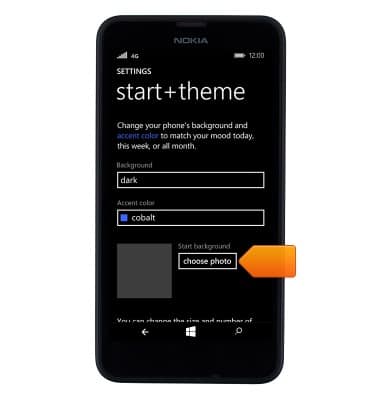
- Tap choose photo.
- Tap the desired album.
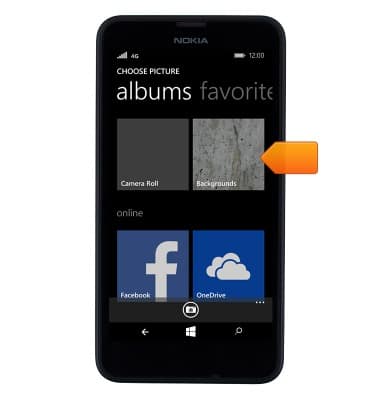
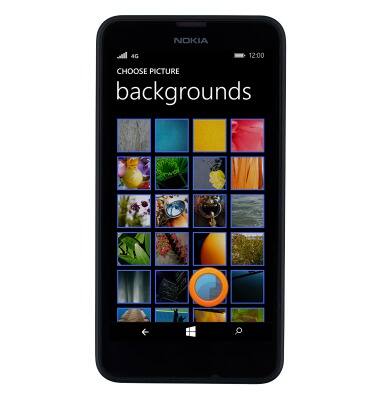
- Tap the desired image.
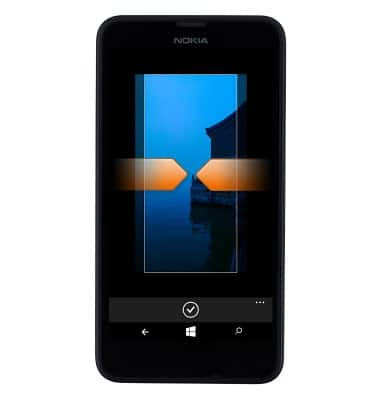
- Touch and drag to position the image. Use two fingers in a pinching or reverse pinching motion to zoom out or in, respectively.
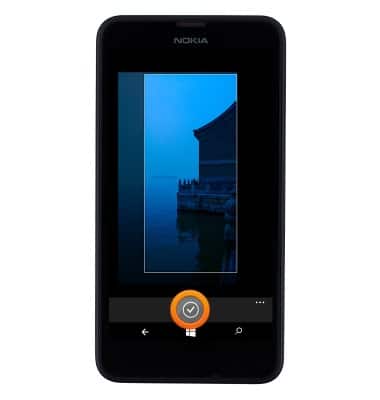
- Tap the Save icon.
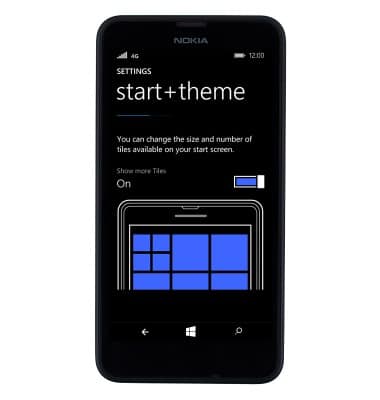
- To change the home screen from a 2-column to a 3-column layout, scroll to and then tap the Show more Tiles toggle.
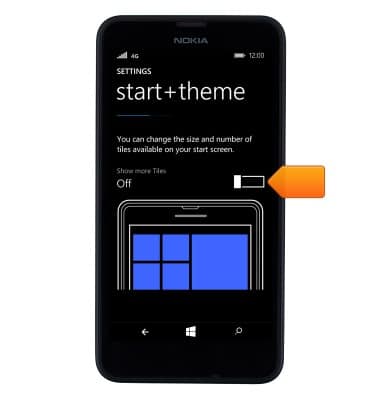
- The 3-column layout is now enabled.
Learn & customize the home screen
Nokia Lumia 635
Learn & customize the home screen
Add shortcuts and widgets, access the notification panel, changing wallpaper, and more.
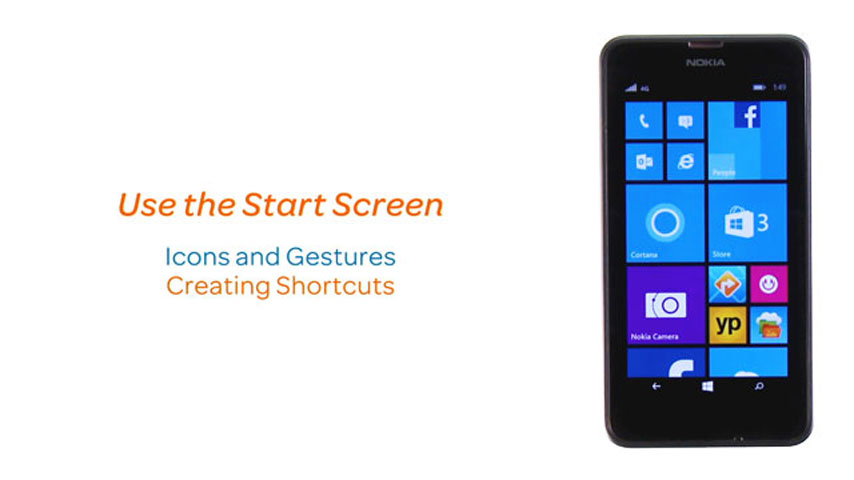
Use the Start Screen
This video explains the features of the Start Screen on Windows devices.
Use the Start Screen
1:31
INSTRUCTIONS & INFO