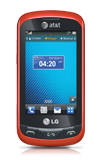
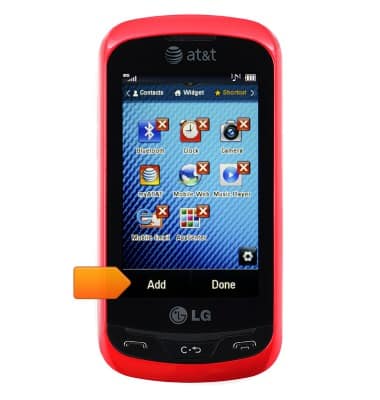
- To add and remove a shortcut , from the home screen, swipe left to access the shortcut screen.
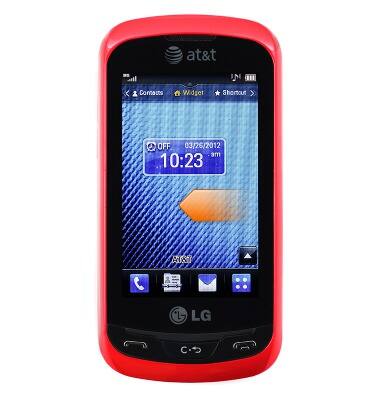
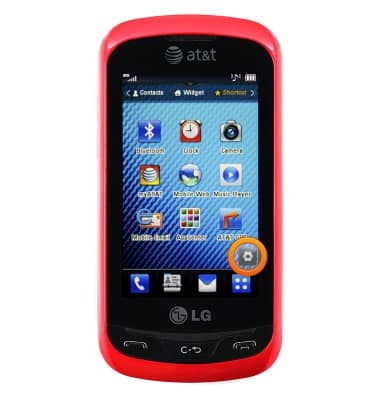
- Tap the Settings icon.
- Tap the × icon to remove a shortcut.
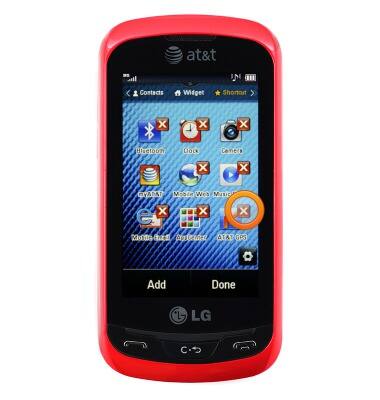
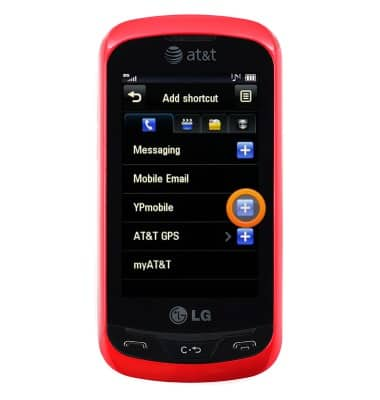
- To add a shortcut, tap Add.
- Scroll to, then tap the desired option.
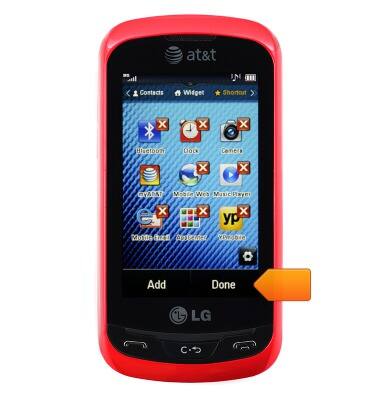
- When finished, tap Done.
- To add a widget, from the home screen, tap the Up arrow icon.
Note: A widget is a mini app that runs on your home screen.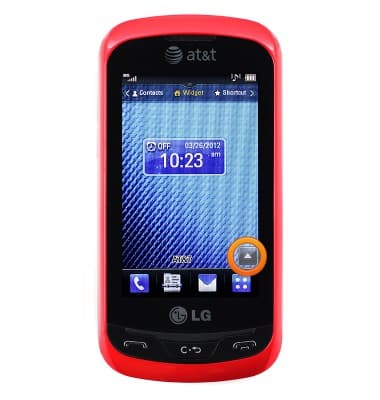
- Swipe to, then touch and hold the desired widget.
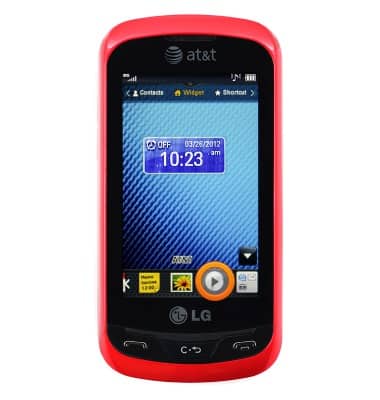
- Drag it to the desired location.
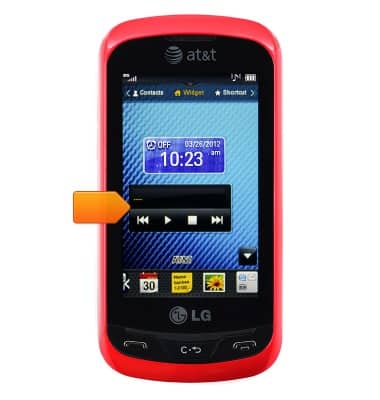
- To remove a widget from the home screen, tap the Up arrow icon.
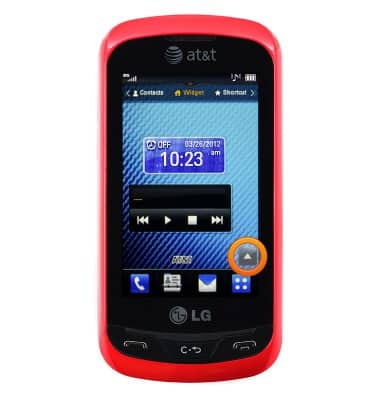
- Touch and hold the desired widget.
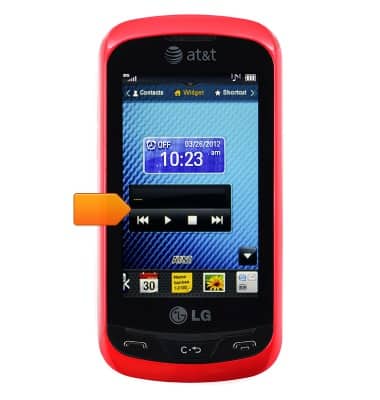
- Drag it down to the Widget bar.
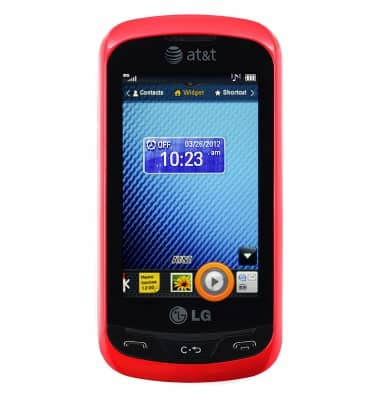
- To change your wallpaper, from the home screen, tap the Menu icon.
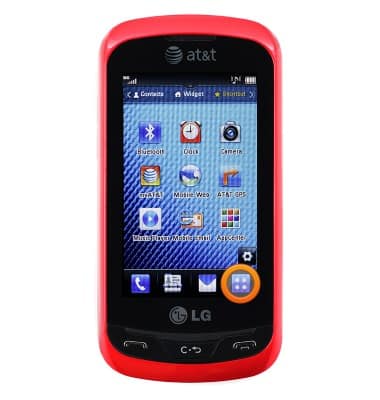
- Tap the Settings tab.
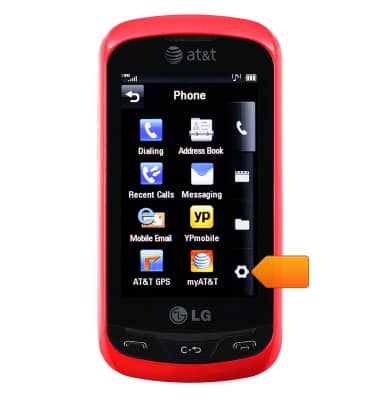
- Tap Display.
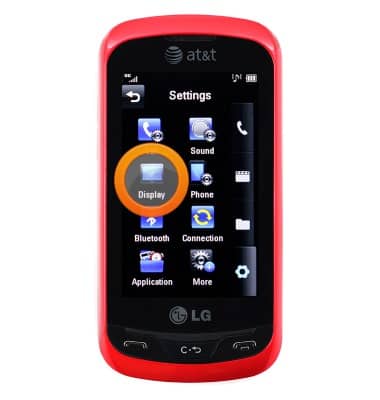
- Tap Wallpapers.
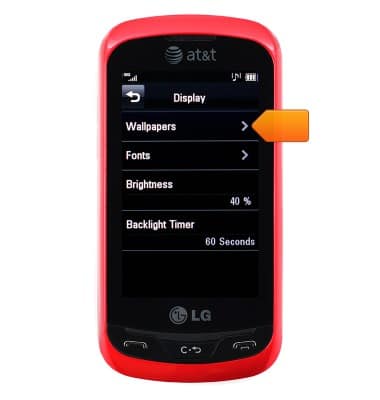
- Tap Pictures.
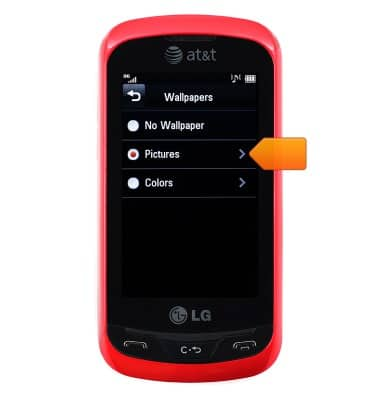
- Scroll to, then tap the desired wallpaper.
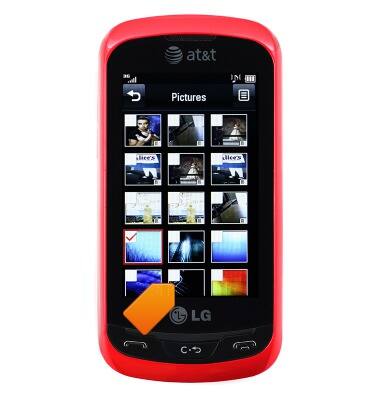
- Use the + and - icons to zoom in or out.
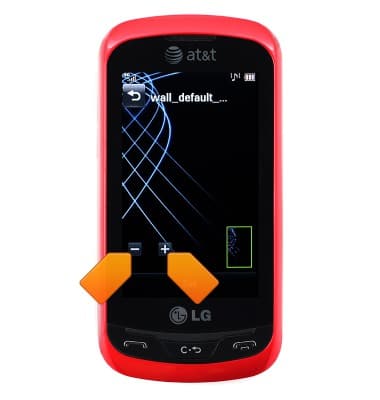
- Touch and drag to change the positioning of the wallpaper.
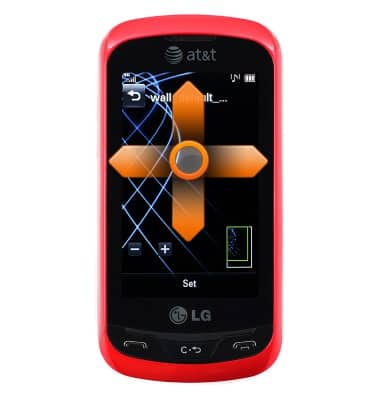
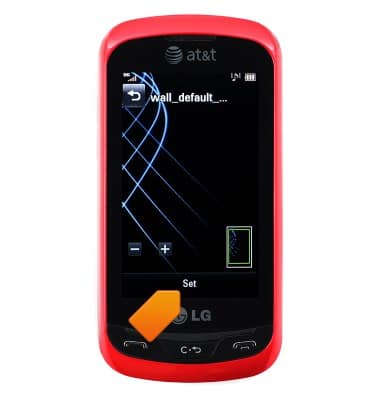
- Once satisfied, tap Set to set the desired wallpaper.
Learn & customize the home screen
LG Xpression (C395)
Learn & customize the home screen
Add shortcuts and widgets, access the notification panel, changing wallpaper, and more.
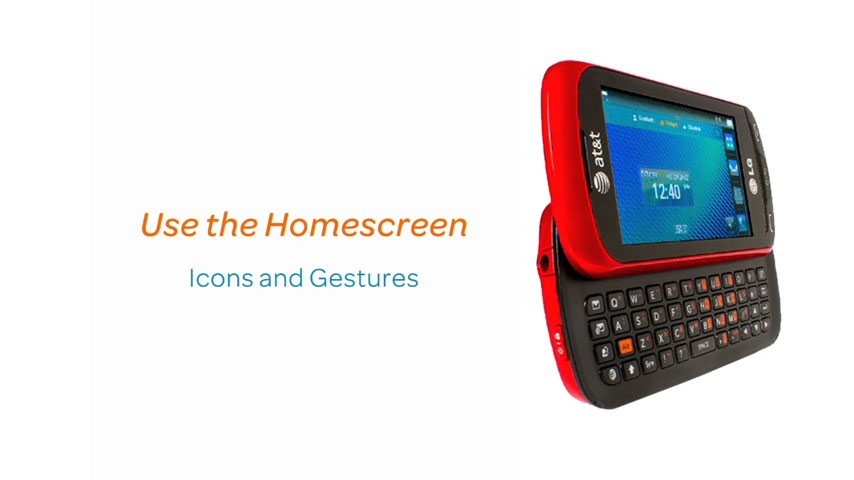
Use the Home screen
This video demonstrates how to interact with and customize the home screen.
Use the Home screen
0:38
INSTRUCTIONS & INFO