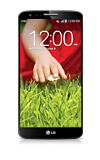
- QSlide allows maximum on-screen multitasking with the simultaneous use of up to three apps.
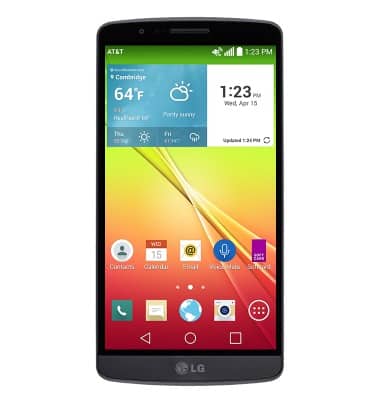
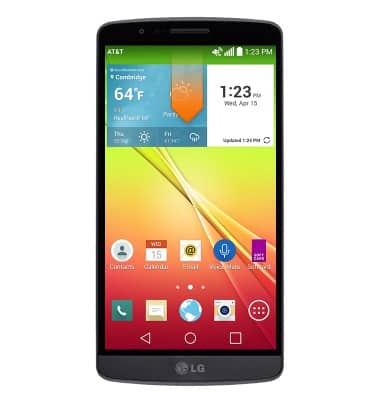
- To turn on QSlide, drag down from the Notifications bar.
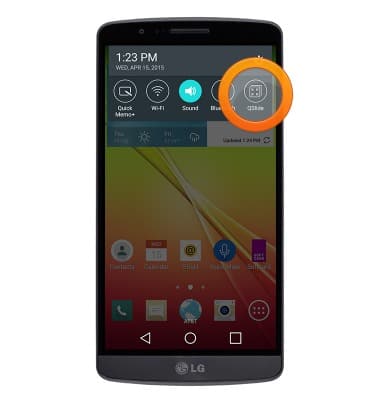
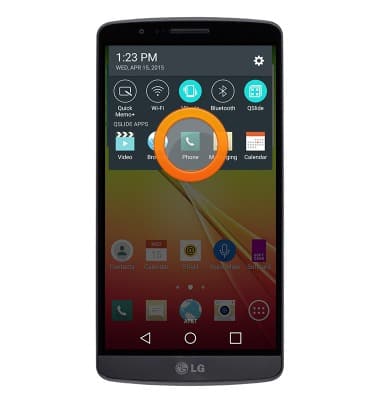
- Tap QSlide.
- Tap the desired QSlide app.
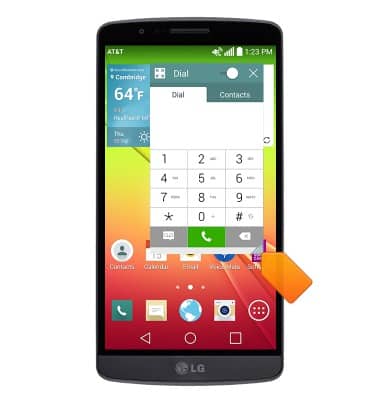
- To resize the app window, touch and drag the lower right corner of the window to the desired size.
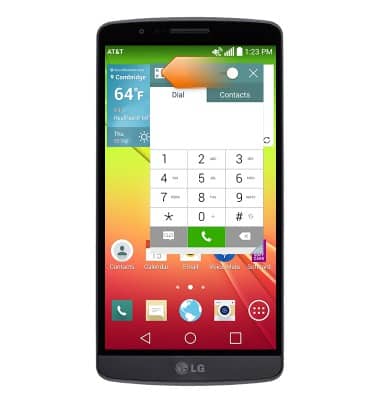
- To adjust transparency, touch and drag the Transparency slider to the desired level.
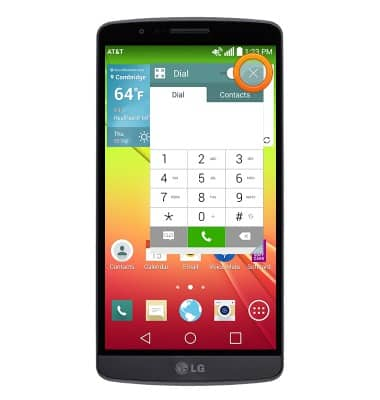
- To close an app window, tap the Close icon.
QSlide
LG G2 (D800)
QSlide
Add an overlay on your phone's display for easy multitasking
INSTRUCTIONS & INFO