
- From the home screen, tap Calendar.
Note: When in 'Easy' mode, the calendar only displays in month view, you can't access settings or add a task, and when adding an event, only a limited amount of fields will be displayed.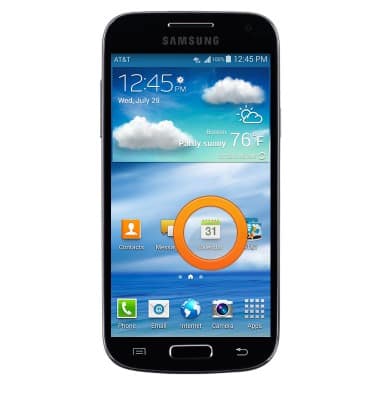
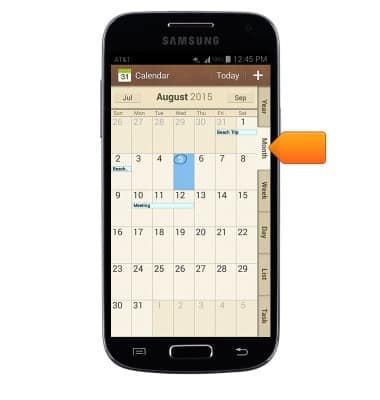
- To change the calendar view, tap the desired tab.
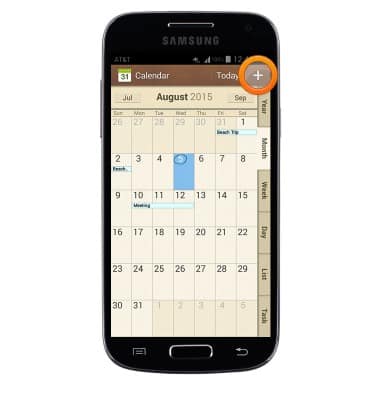
- To create a new event, tap the Add icon.
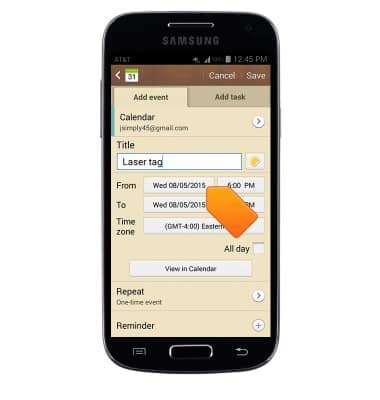
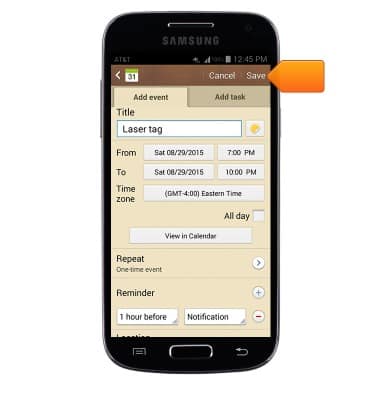
- Enter the desired event name in the Title field.
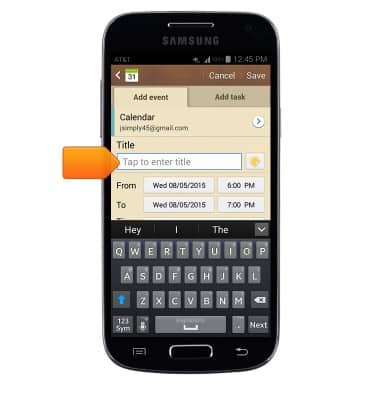
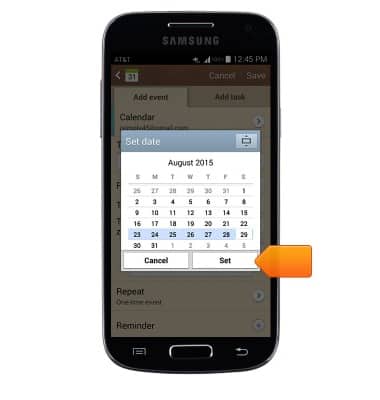
- To set the event start date, tap the From date field.
- Select the desired date, then tap Set.
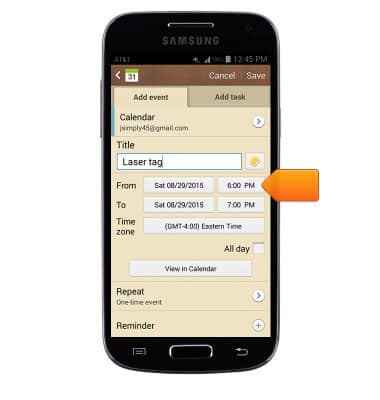
- To set the event start time, tap the From time field.
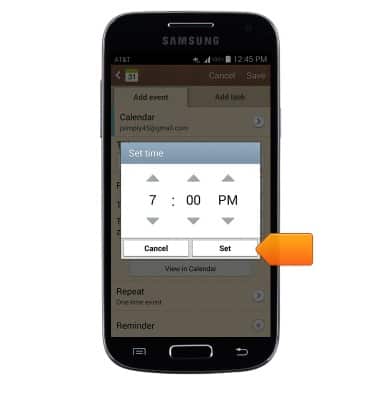
- Set the desired time, then tap Set.
- Tap the To date and To time fields to set the event end date and time.
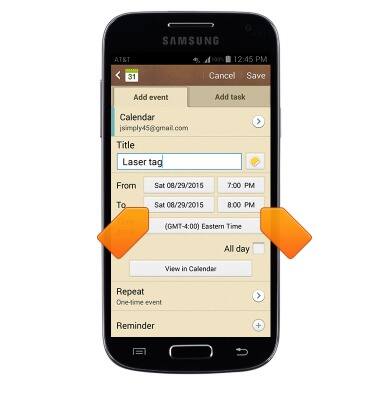
- xx
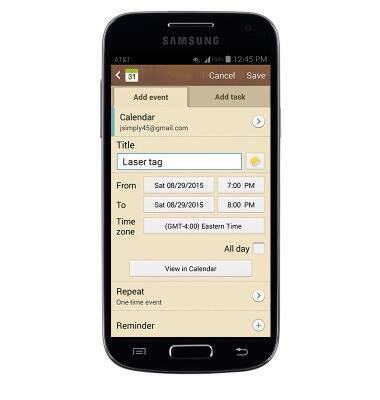
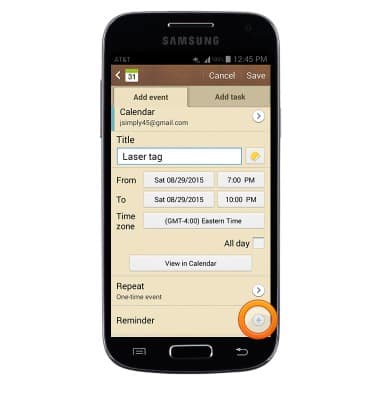
- To set a reminder, tap the Add Reminder icon.
- Tap the Reminder time drop-down to select a reminder time.
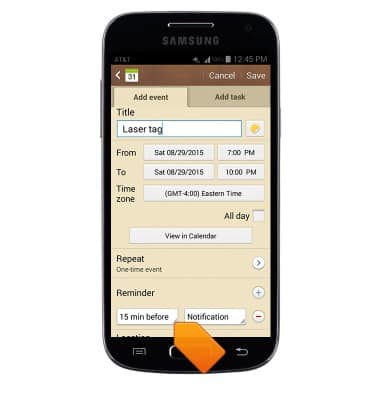
- Edit additional settings as desired, then tap Save.
- To edit or delete a calendar event, navigate to then tap the desired event date.
Note: You can only edit or delete events that you have created.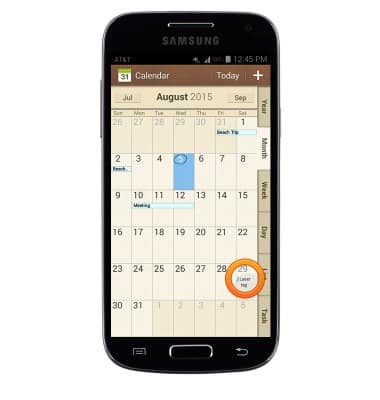
- Tap the desired event.
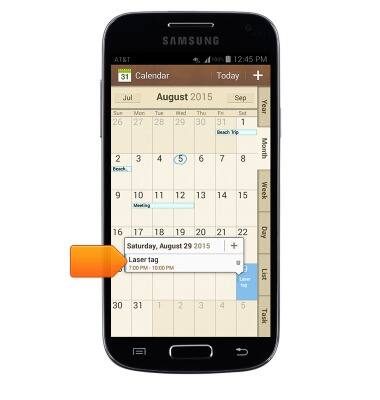
- Tap the Event title to edit event details.
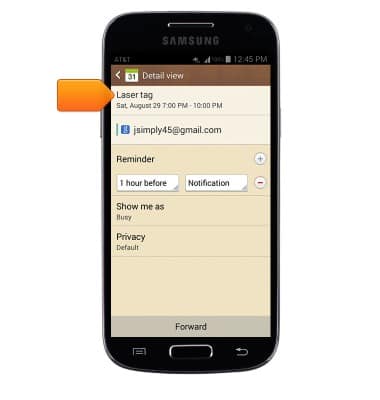
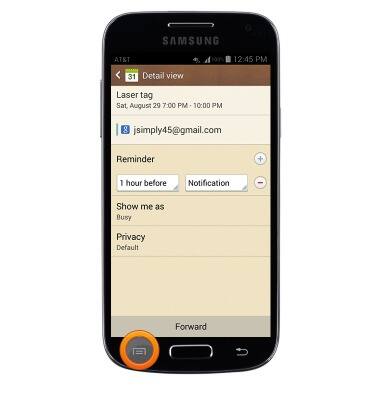
- To delete the event, press the Menu key.
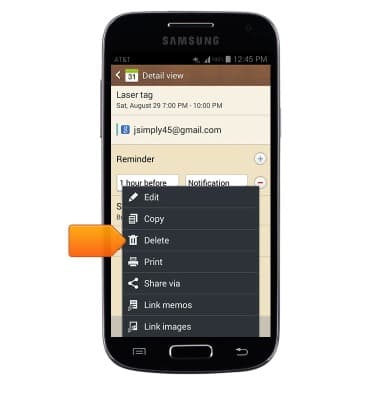
- Tap Delete.
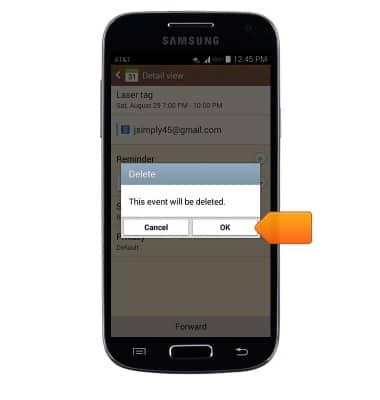
- Tap OK.
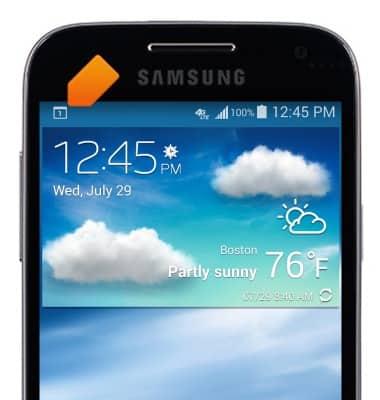
- When a calendar event is approaching, the Event icon will display in the notification bar.
Calendar
Samsung Galaxy S4 mini (I257)
Calendar
Learn how to access the calendar and manage events.
INSTRUCTIONS & INFO