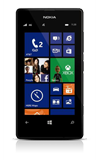
- From the home screen, swipe down from the top of the screen to reveal the Action Center.
Note: The device will automatically attempt to set the date and time from the network. This tutorial demonstrates how to manually set the date and time on your device.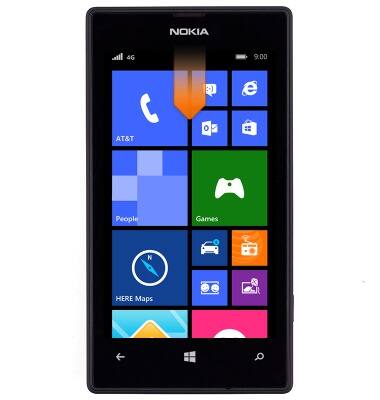
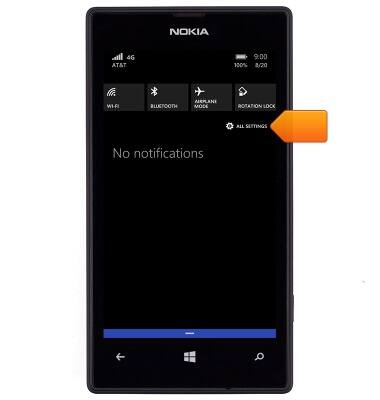
- Tap ALL SETTINGS.
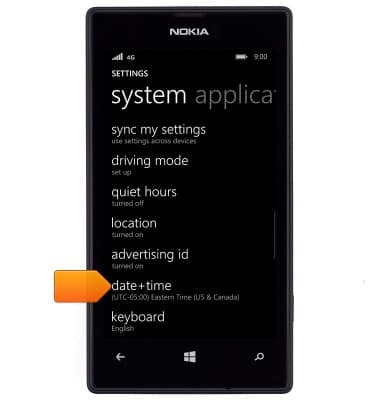
- Scroll to, then tap date+time.
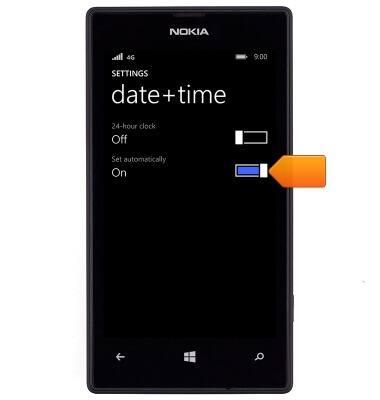
- To set the date and time manually, ensure the Set automatically switch is set to off.
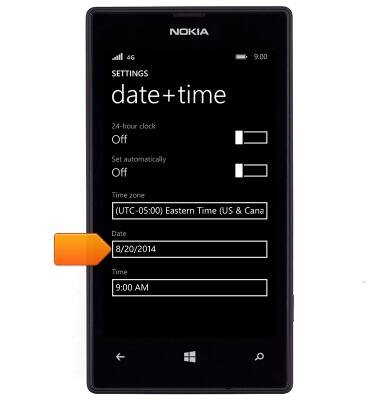
- To set the date, tap the Date field.
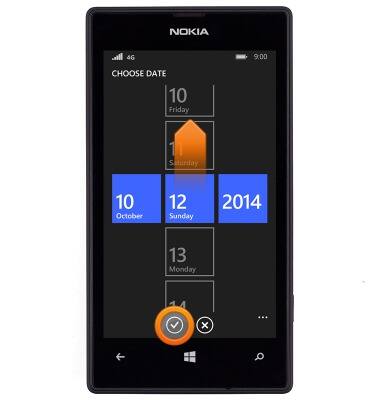
- To set the date, swipe the fields up or down to the desired values, then tap the Save icon.
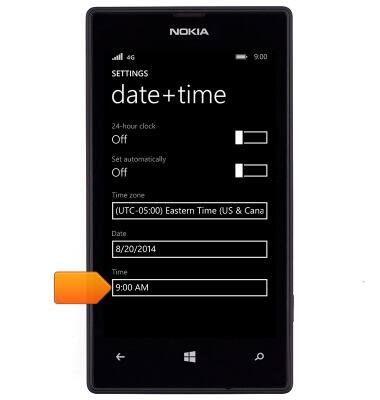
- To set the time, tap the Time field.
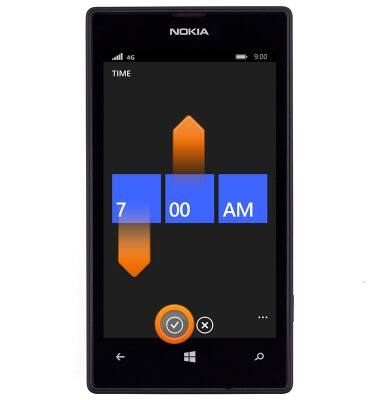
- To set the time, swipe the fields up or down to the desired values, then tap the Save icon.
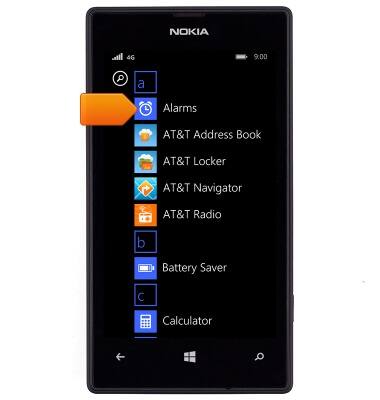
- To set an alarm, swipe left to access the Apps tray, then tap Alarms.
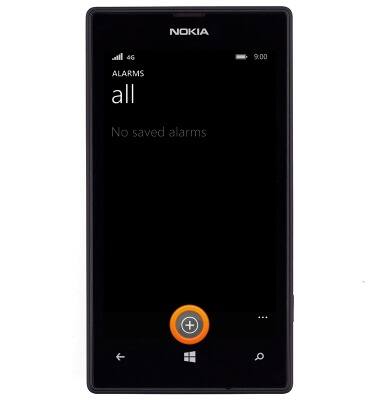
- Tap the Add icon to add an alarm.
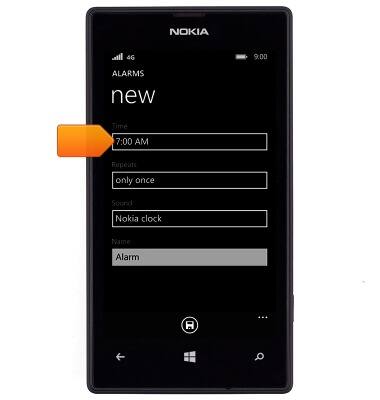
- Tap the Time field.
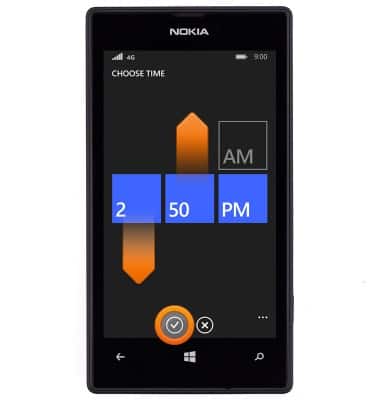
- Scroll to the desired time, then tap the Done icon.
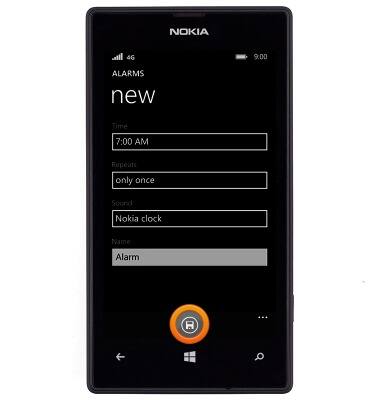
- Adjust any additional details, then tap the Save icon.
- Tap the Alarm switch to toggle the alarm on or off.

Date & time
Nokia Lumia 520
Date & time
Set the date & time.
INSTRUCTIONS & INFO