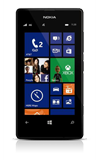
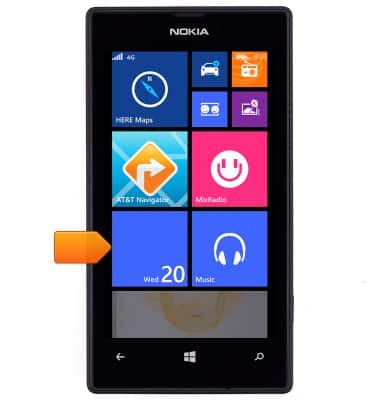
- From the home screen, scroll to and then tap the Calendar tile.
- Tap the desired option.
Note: For this demonstration, 'allow' was selected.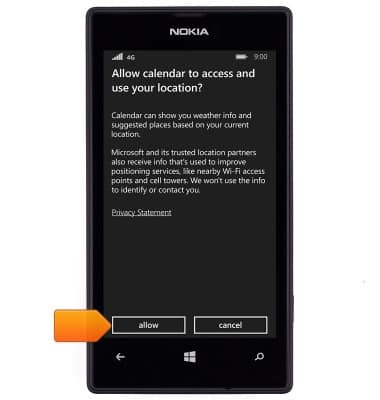
- To change the calendar view, tap the Calendar view icon.
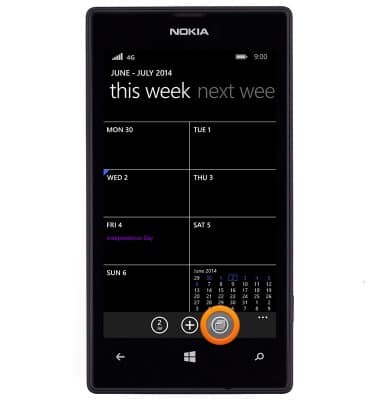
- Tap the desired option.
Note: For this demonstration, 'month' was selected.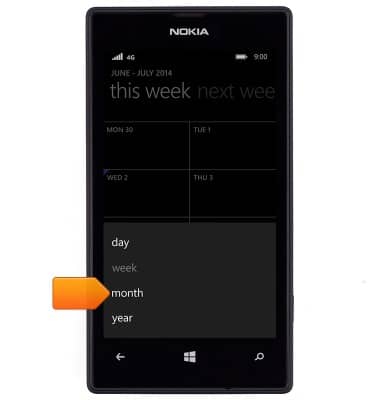
- To add an event, swipe to the desired month.
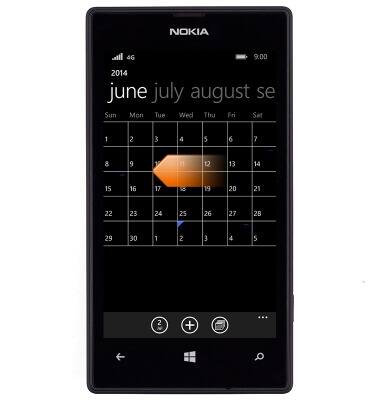
- Tap the desired day.
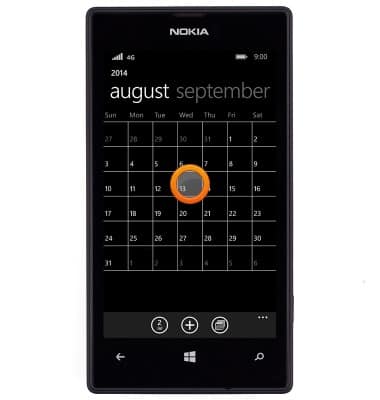
- Tap the Add Event icon
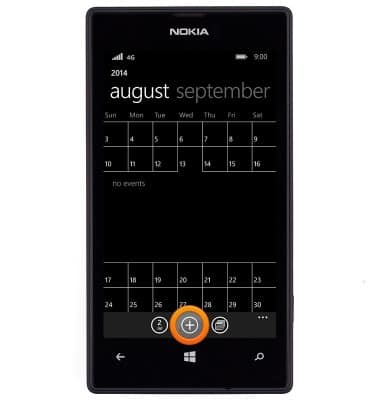
- Tap the Subject field.
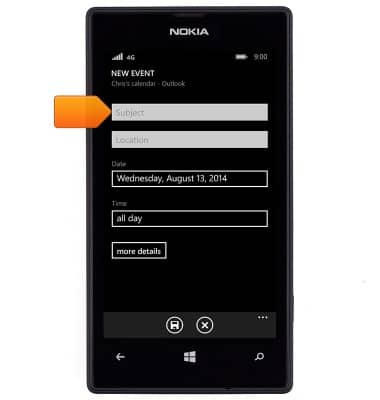
- Enter the desired event subject.
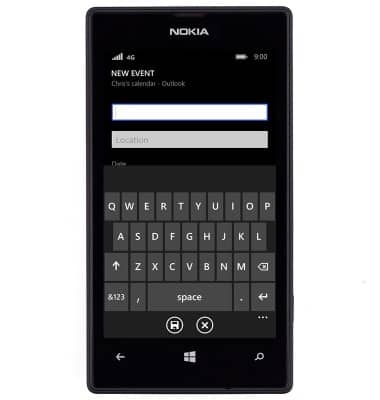
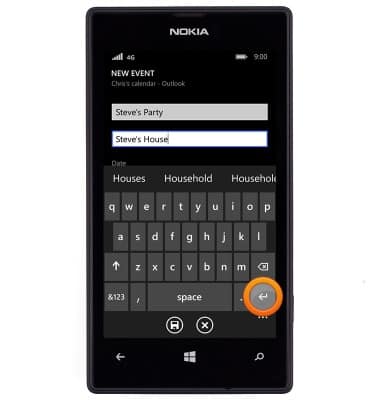
- Tap the Location field.
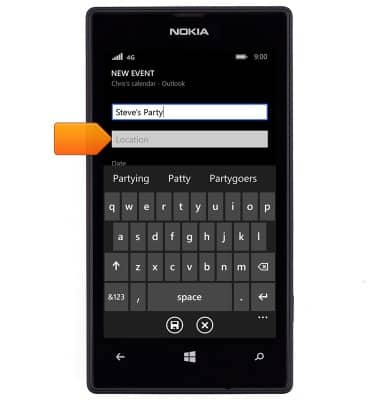
- Enter the event location.
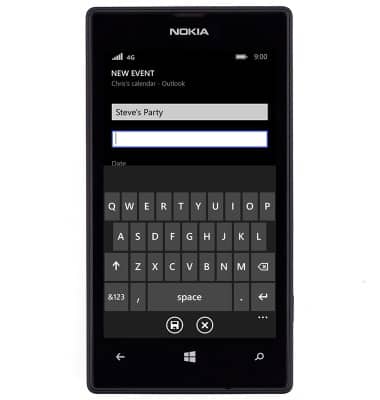
- Tap the Return icon.
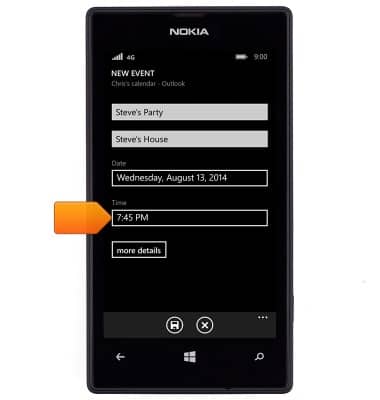
- Tap the Time field.
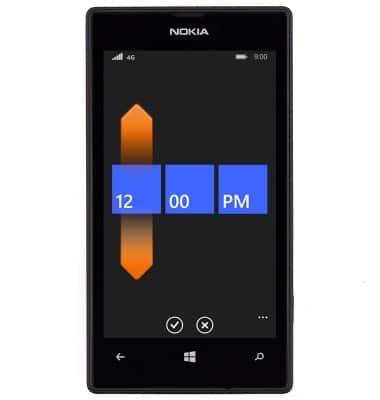
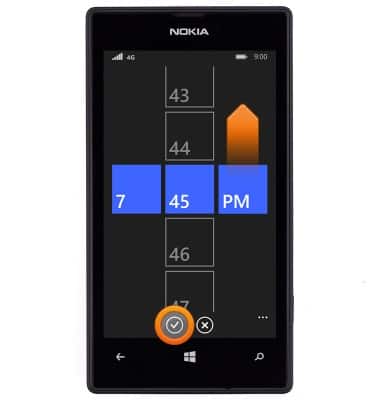
- Swipe the Hour field up or down to set the desired hour.
- Swipe the Minutes field up or down.
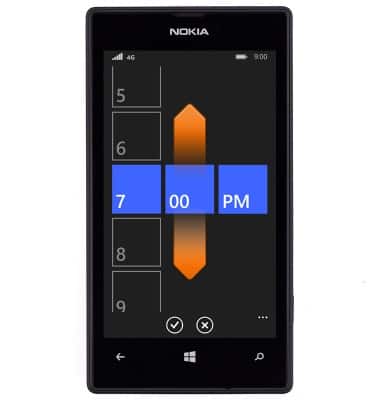
- Swipe the Meridian field to set AM or PM, then tap the Save icon.
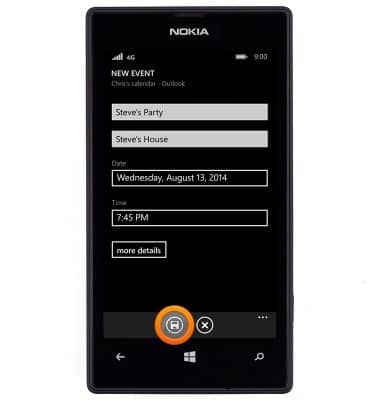
- Edit additional details as desired, then tap the Save icon.
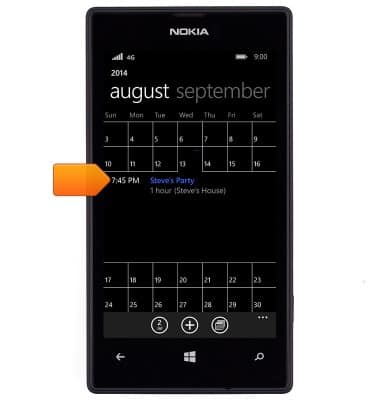
- To edit an event, navigate to and then tap the desired event.
- Tap the Edit icon.
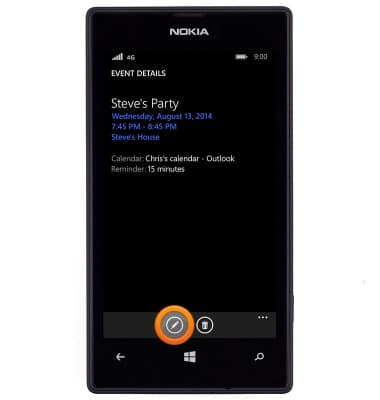
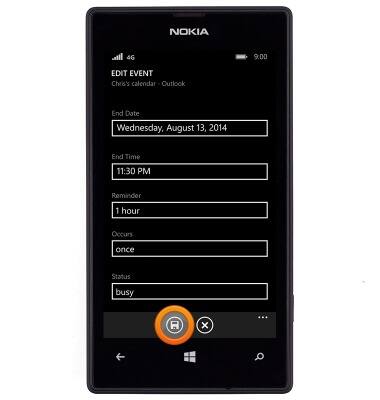
- Edit the details as desired, then tap the Save icon.
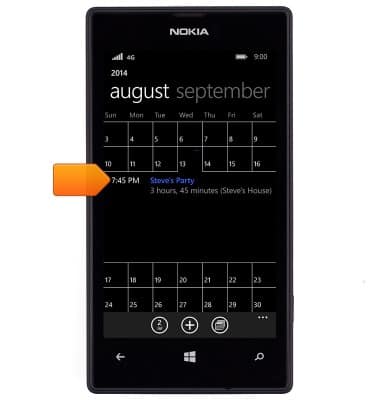
- To delete an event, navigate to and then tap the desired event.
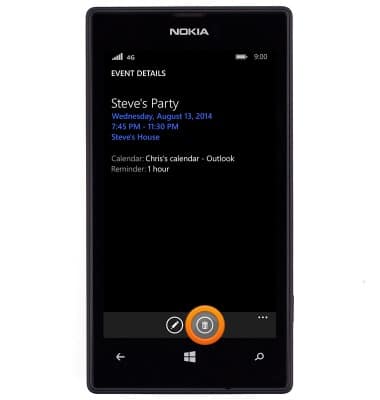
- Tap the Delete icon.
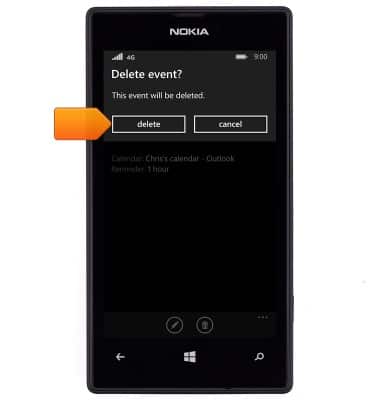
- Tap delete.
Calendar
Nokia Lumia 520
Calendar
Learn how to access the calendar and manage events.
INSTRUCTIONS & INFO