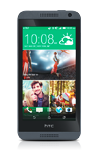
- Tap an App or Folder icon to open the app or folder.
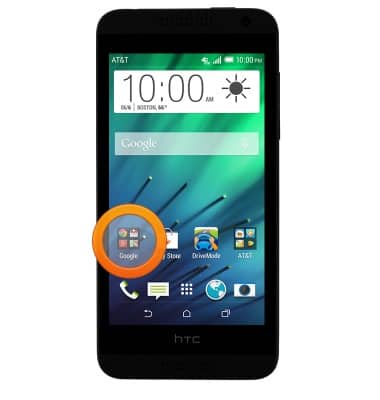
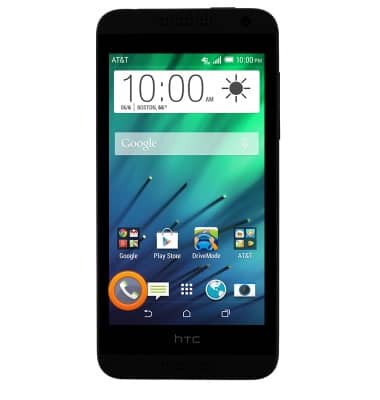
- Tap the Phone icon to access the phone and contacts.
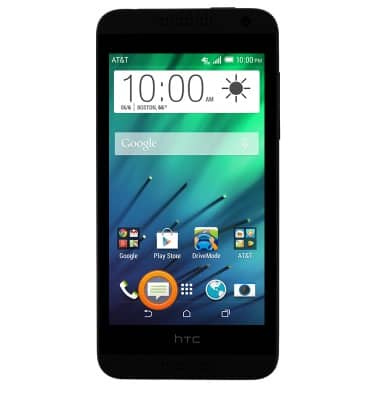
- Tap the Message icon to access the messaging app.
- Tap the Apps icon to access the app drawer.
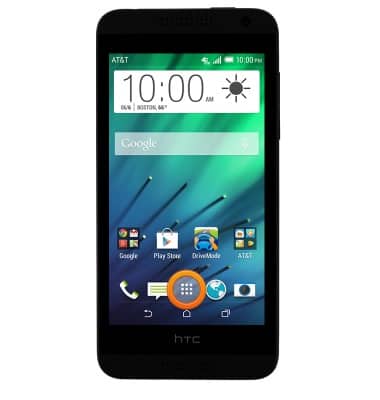
- Tap the Browser icon to access the web browser.
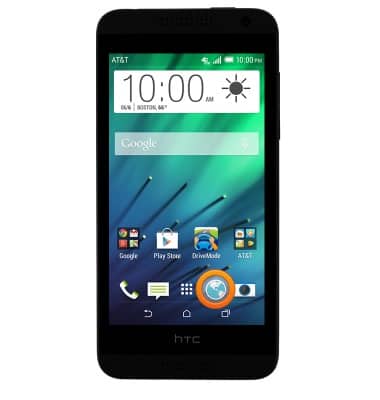
- Tap the Camera icon to access the camera.
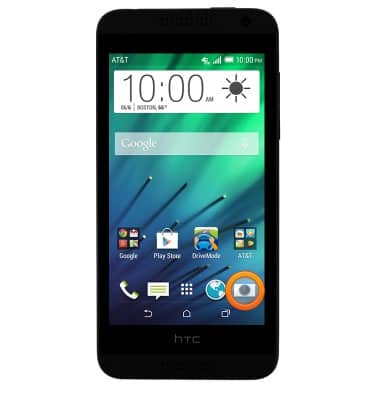
- Swipe left or right to access additional home screens.
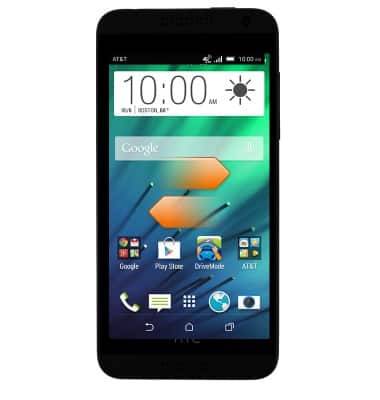
- To add an app or widget, touch and hold an empty space on the home screen.
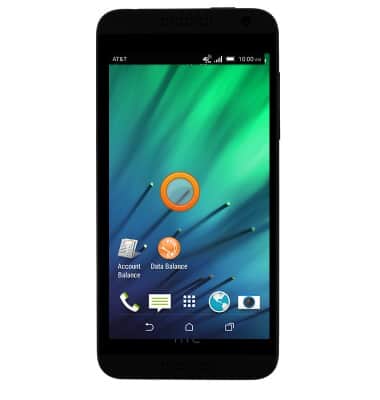
- Tap Add apps and widgets.
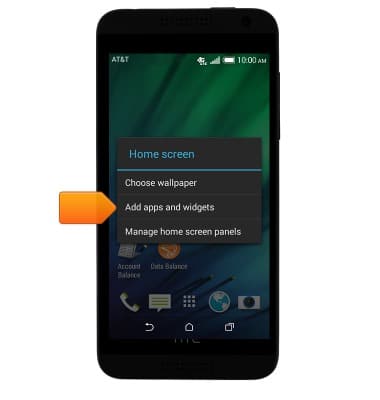
- Tap the Apps/Widgets/Shortcuts drop-down menu.
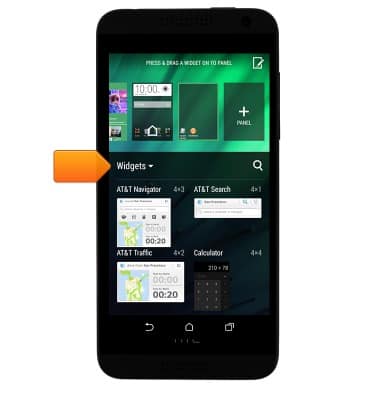
- Tap Apps.
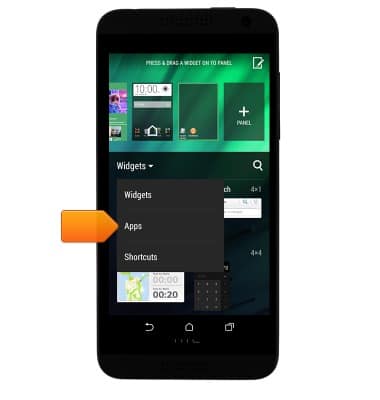
- Scroll to, then tap the desired app.
Note: For this demonstration, 'Gallery' was selected.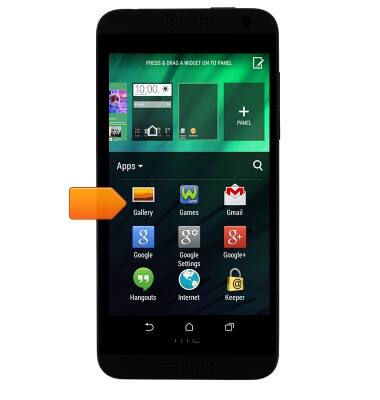
- Press the Home key.
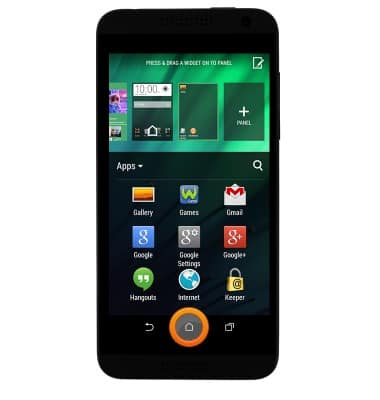
- To move an icon, touch and hold the desired icon.
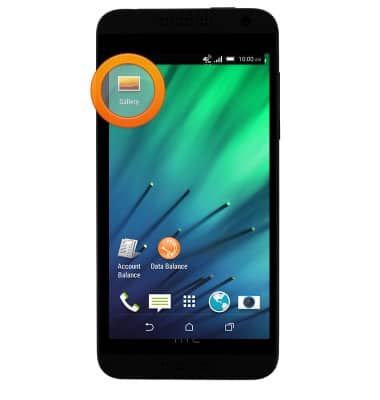
- Drag the icon to the desired location, then release.
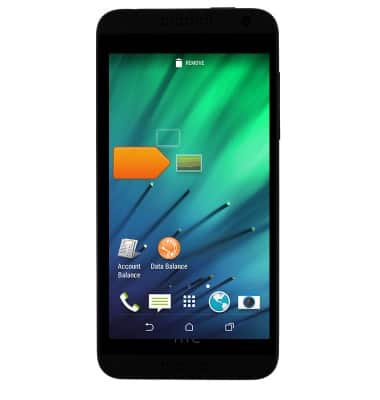
- To remove an icon from a home screen, touch and hold the desired icon.
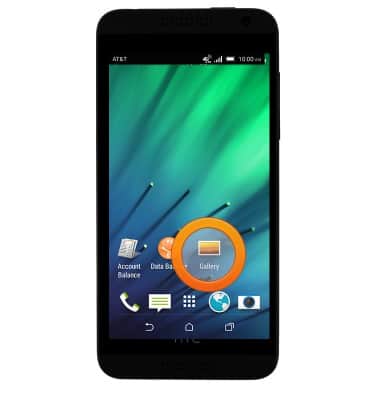
- Drag the icon to REMOVE, then release.
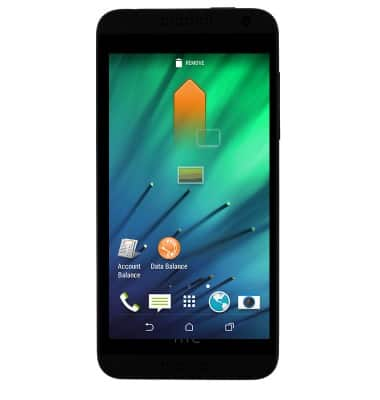
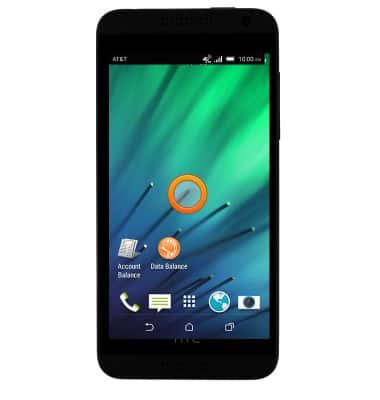
- To add or remove a home screen, touch and hold an empty space on a home screen.
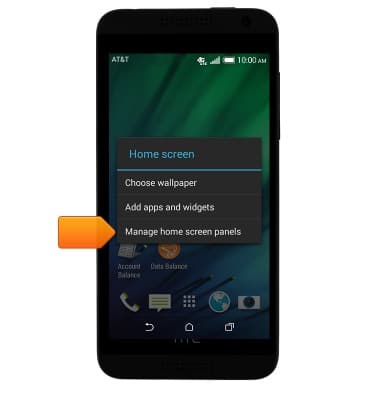
- Tap Manage home screen panels.
- Tap PANEL to add a new home screen.
Note: If 'PANEL' is not present, swipe left until it appears as shown in the image.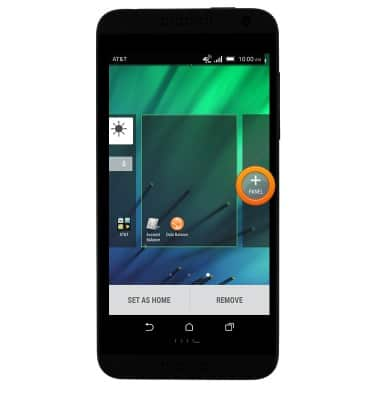
- Tap REMOVE to remove a home screen.
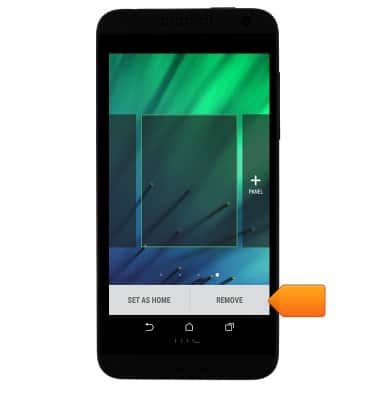
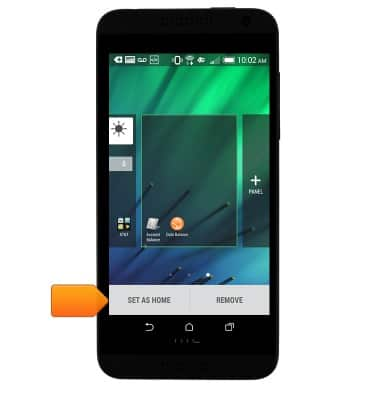
- Tap SET AS HOME to set the highlighted home screen as the main home screen.
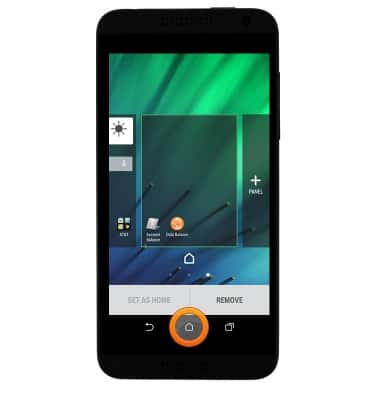
- Press the Home key.
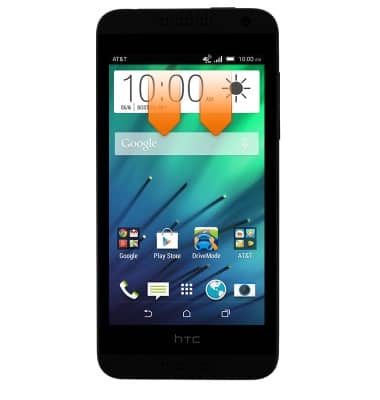
- To change the wallpaper, swipe down with two fingers from the top of the screen to reveal the Quick settings menu.
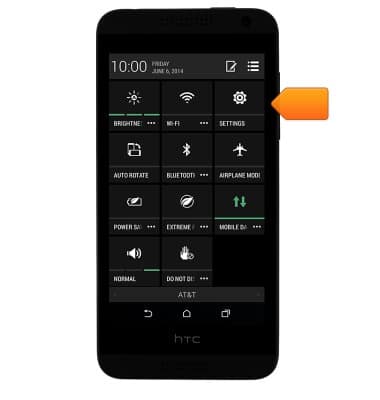
- Tap SETTINGS.
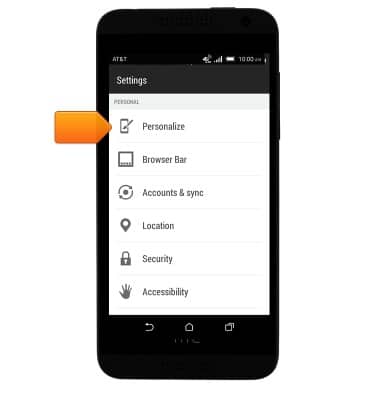
- Scroll to, then tap Personalize.
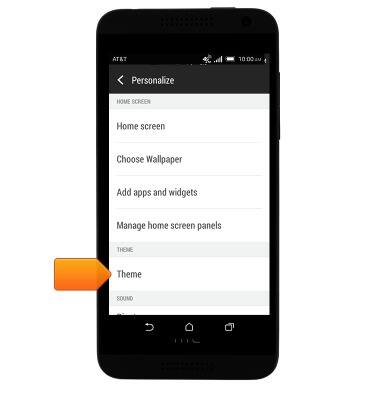
- Tap Theme.
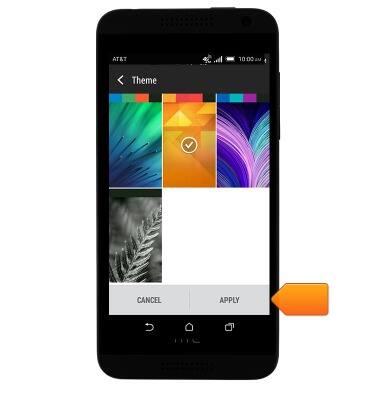
- Tap the desired theme.
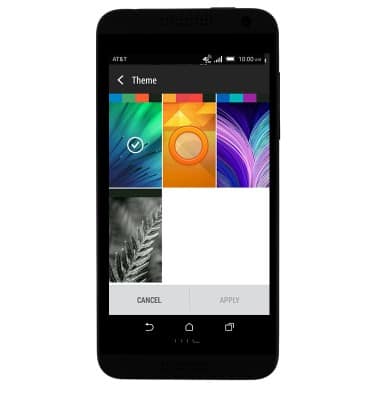
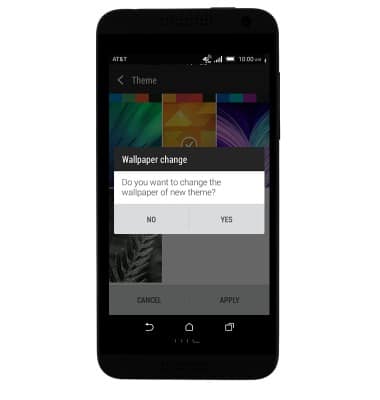
- Tap APPLY.
- Tap the desired option.
Learn & customize the home screen
HTC Desire 610 (0P9O110)
Learn & customize the home screen
Add shortcuts and widgets, access the notification panel, changing wallpaper, and more.
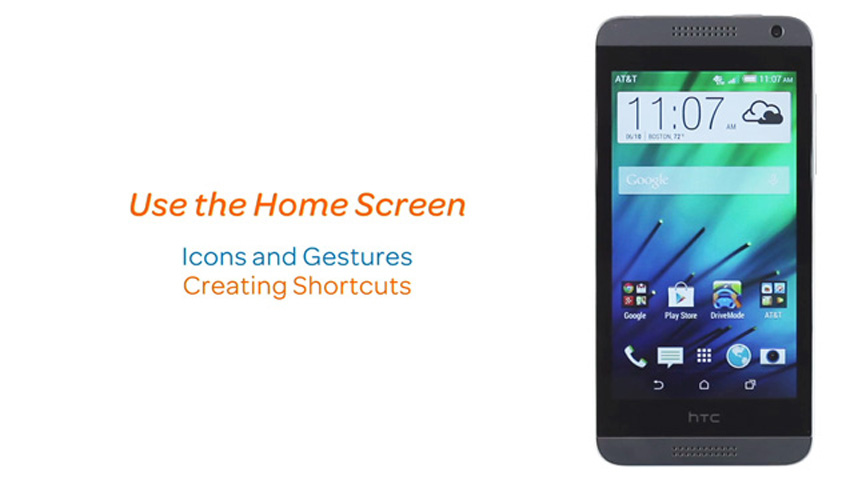
Use the home screen
This video explains how to navigate and customize the home screen on your device.
Use the home screen
1:16
INSTRUCTIONS & INFO