- Swipe down from the Notification bar, then tap the Settings icon.
Note: The device will automatically attempt to set the date and time from the network. This tutorial demonstrates how to manually set the date and time on your device.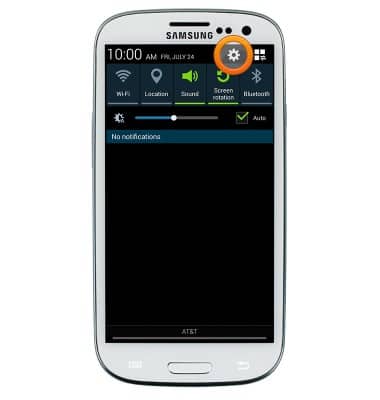
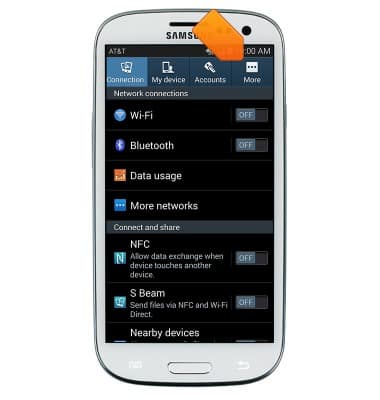
- Tap More.
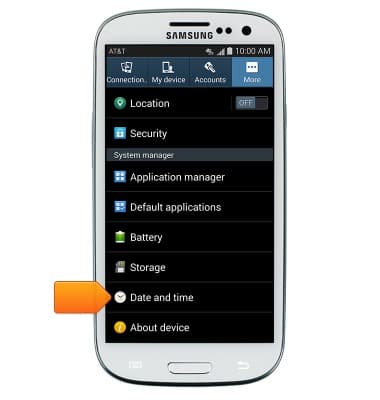
- Tap Date and time.
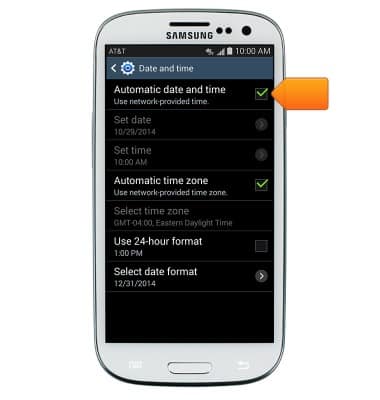
- To set manually, tap Automatic date & time to turn off.
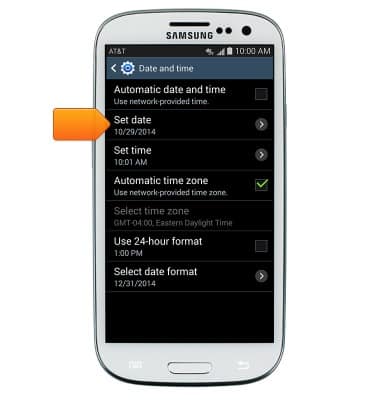
- Tap Set date.
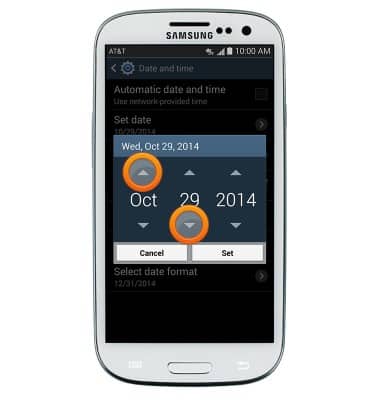
- Adjust the date by tapping the Arrow icons.
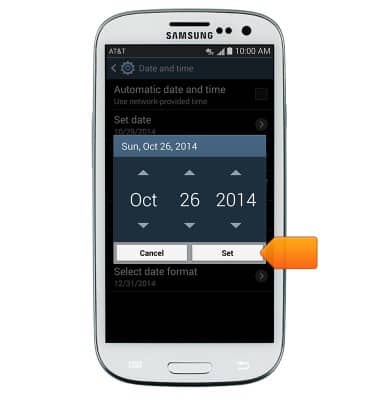
- Tap Set.
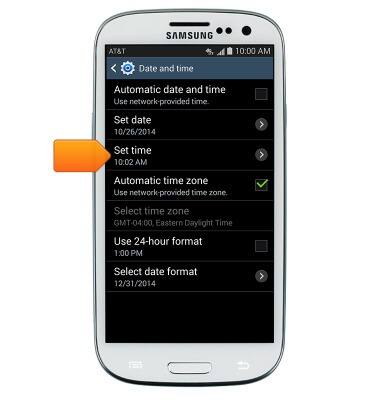
- Tap Set time.
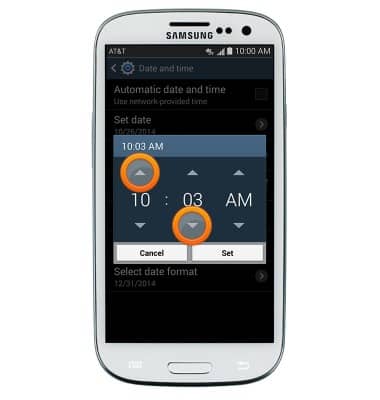
- Adjust the time by tapping the Arrow icons.
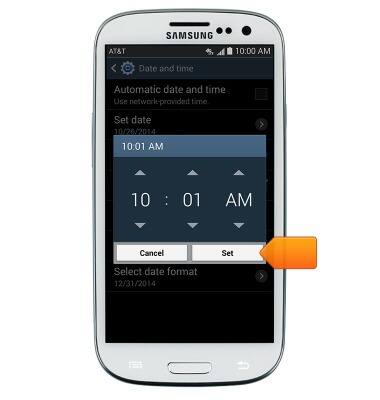
- Tap Set.
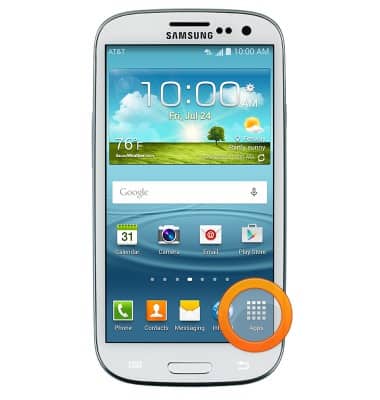
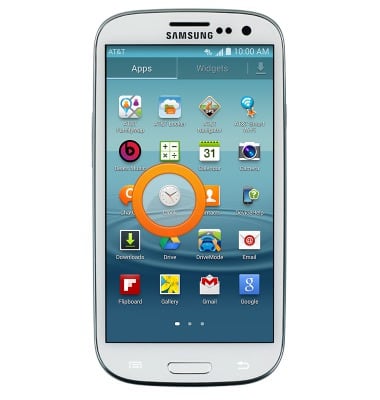
- To set an alarm or timer, from the home screen, tap Apps.
- Swipe to then tap Clock.
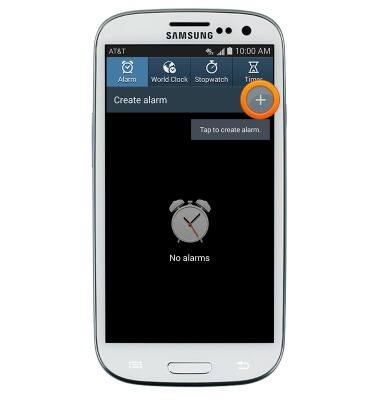
- To set an alarm, from the Alarm tab, tap the Add icon.
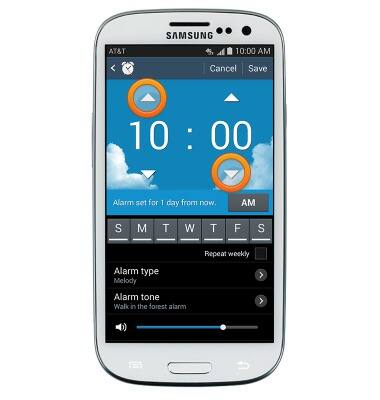
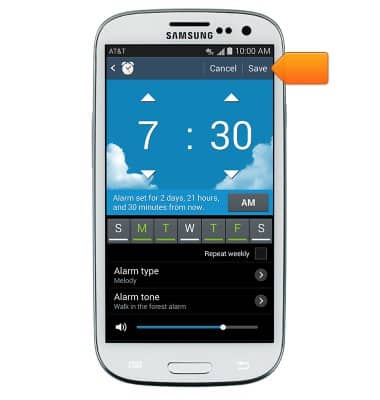
- Set the desired alarm time.
- Tap to select the days on which the alarm will be active.
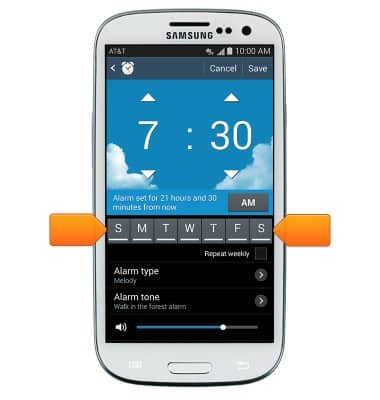
- Edit additional settings as desired, then tap Save.
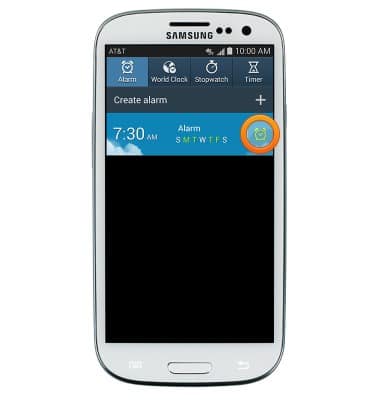
- Tap the Alarm icon to toggle an alarm on/off.
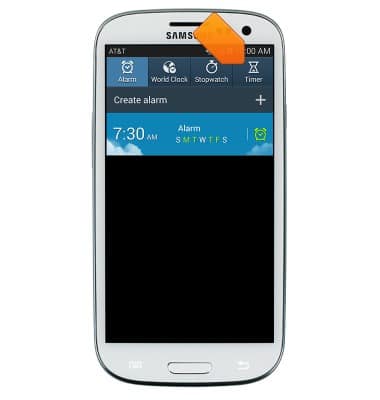
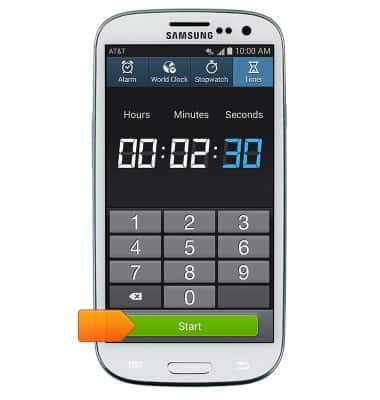
- To set a timer, tap the Timer tab.
- Tap each field, then enter the desired time using the keypad.
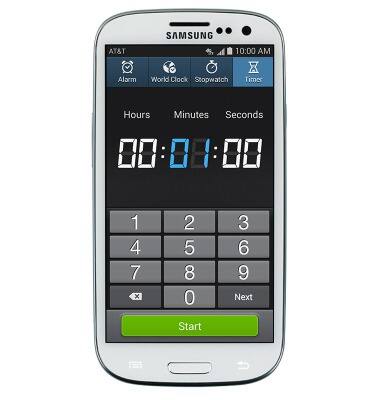
- Tap Start to start the timer.
Date & time
Samsung Galaxy S III (I747)
Date & time
Set the date & time.
INSTRUCTIONS & INFO