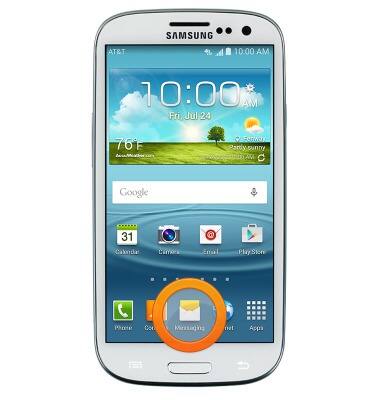
- From the home screen, tap Messages.
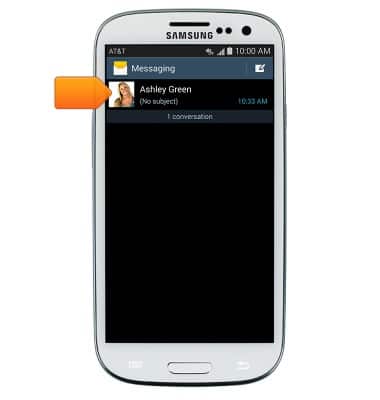
- Tap to view the desired message.
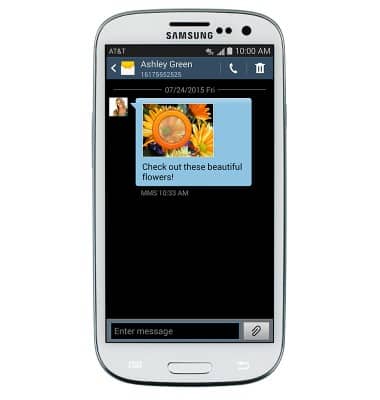
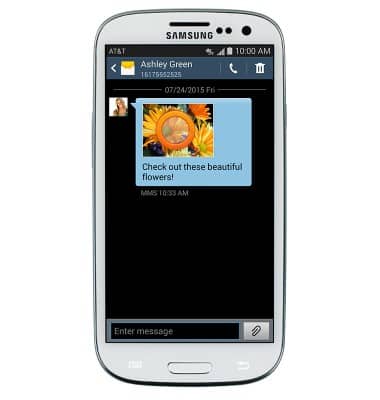
- Tap an attachment to view it.
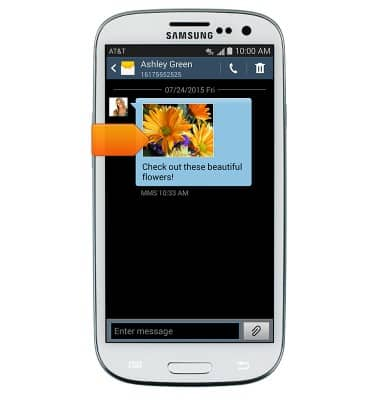
- To save, touch and hold the desired attachment.
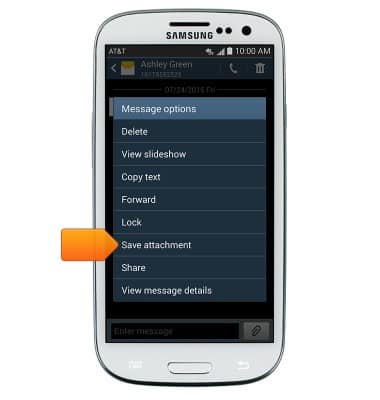
- Tap Save attachment.
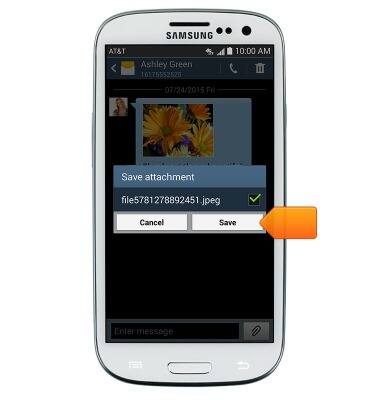
- Select the desired attachment, then tap Save.
- The attachment will be saved to the indicated location.
Note: By default, downloaded attachments will save to the Download folder (Apps > My Files > Device Storage > Download). Saved pictures can be viewed in the Gallery.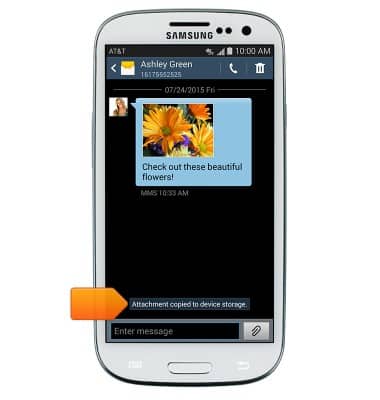
- To forward a message, touch and hold the desired message.
- Tap Forward.

- To reply to a message, tap the Message field, then enter the desired message.
Note: To add/remove recipients from a group message, tap the Menu icon > Tap 'Add recipient'.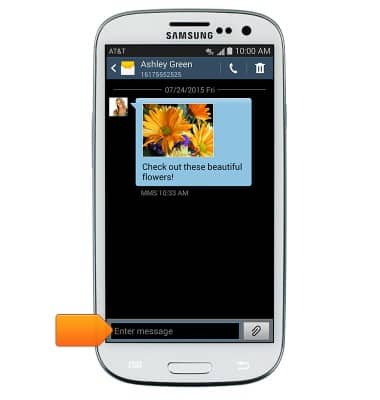
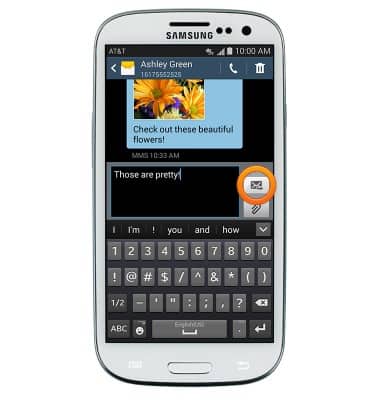
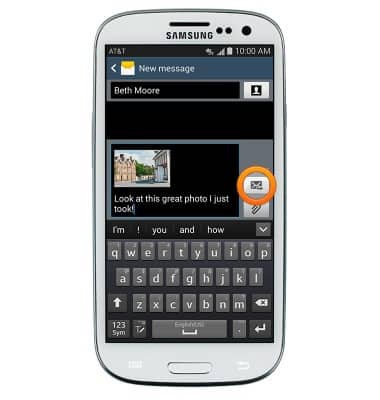
- Tap the Send icon to send.
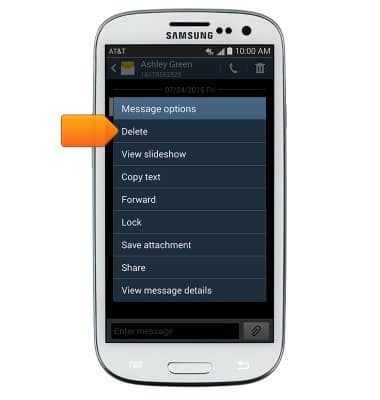
- To delete a single message from a conversation, touch and hold the desired message.
- Tap Delete.
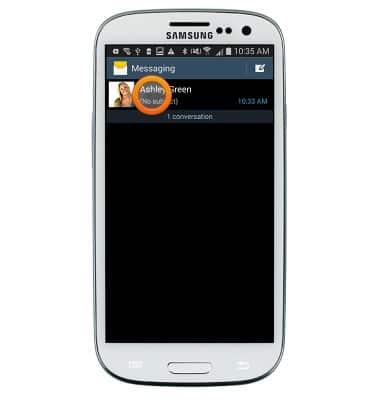
- To delete an entire conversation, from the Messages inbox, touch and hold the desired message thread.
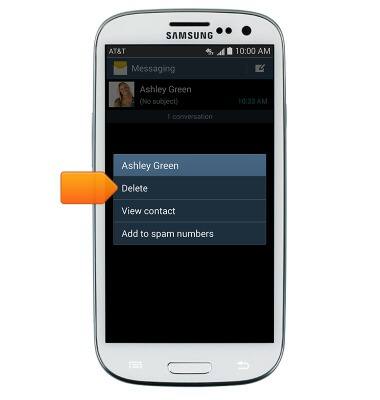
- Tap Delete.
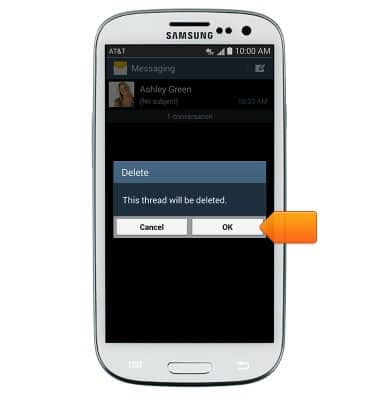
- Tap OK.
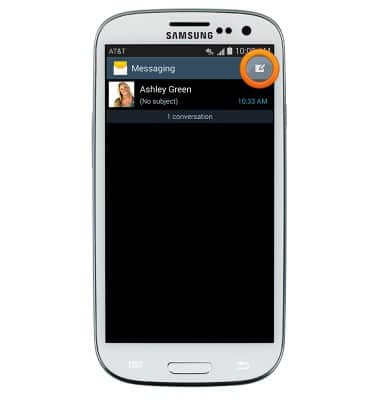
- To compose a new message, tap the Compose icon.
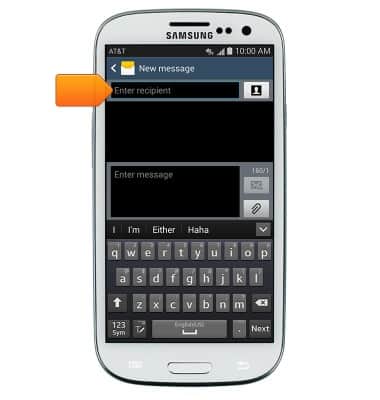
- Enter the desired recipients in the Recipient field.
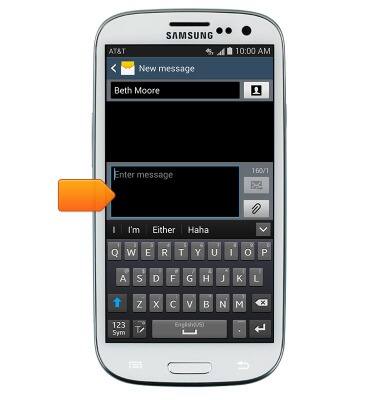
- Tap the Message field then enter the desired message.
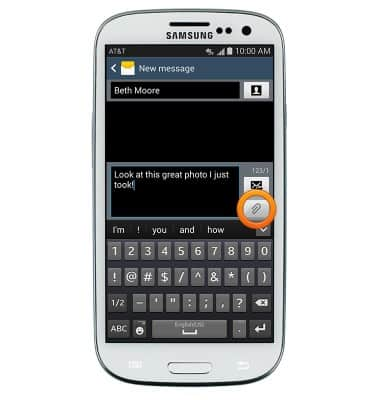
- To attach a file, tap the Attachment icon then follow the on-screen prompts.
- Tap the Send icon to send.
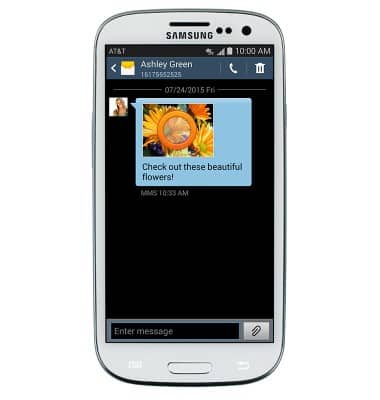
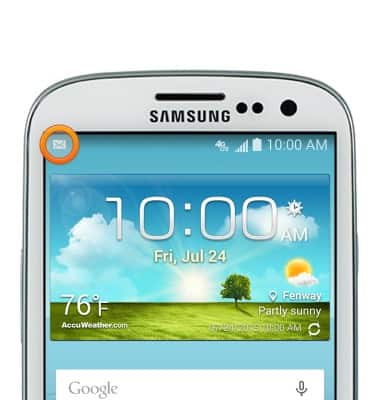
- When a new message is received, the Message icon will display in the notification bar.
Send & receive messages
Samsung Galaxy S III (I747)
Send & receive messages
How to send, receive, and delete picture (MMS) and text (SMS) messages.
Text messaging
Send and read text messages, send a photo via text.
Text messaging
1:15
INSTRUCTIONS & INFO