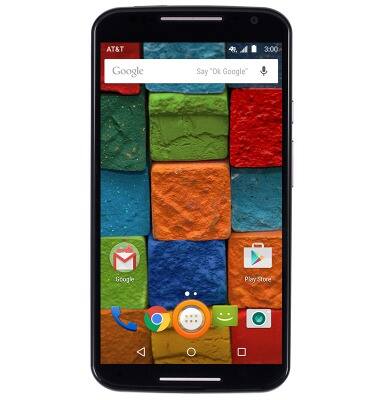
- From the home screen, tap the Apps icon.
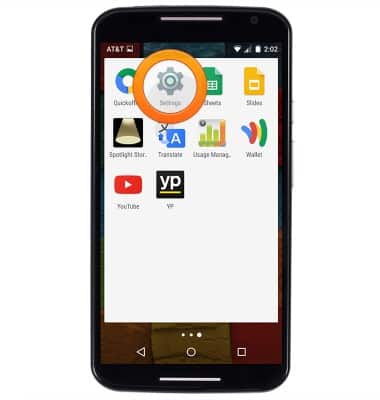
- Swipe to, then tap Settings.
- Scroll to "Device", then tap Battery.
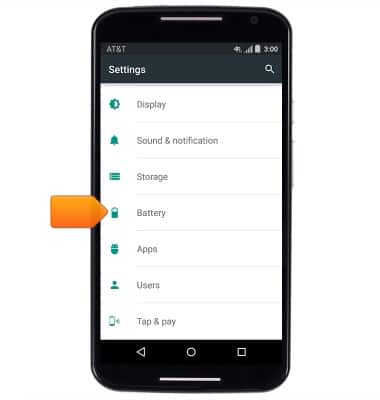
- Battery usage data will be displayed. To enable and disable Battery Saving mode, tap the Menu icon.
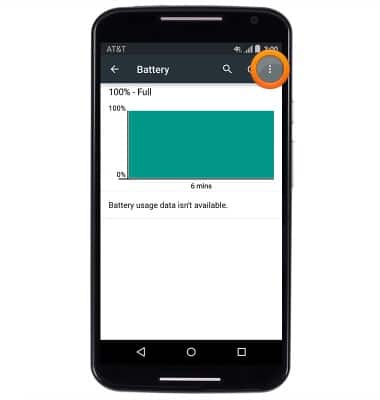
- Tap Battery saver.
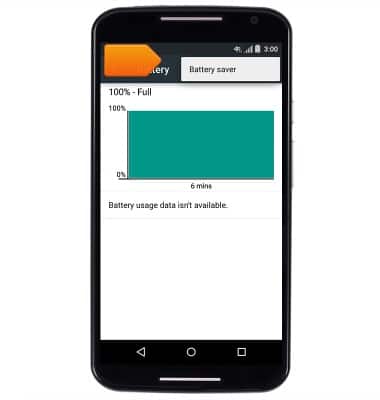
- Tap the Battery saver switch to enable and disable Battery Saver mode.
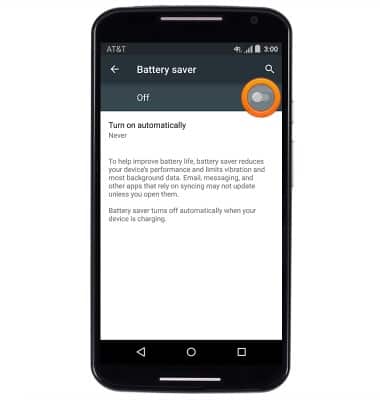
- While Battery saver mode is enabled, the notifications and navigations bars will be Orange and the Battery Saver icon will be displayed in the notifications bar.
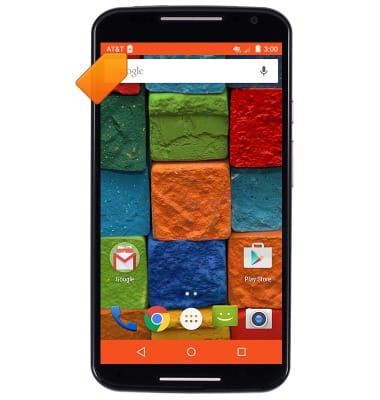
- Enable adaptive brightness, or set the brightness to the lowest setting to prolong battery life.
Note: To adjust brightness, from the home screen, tap the Apps icon > Swipe to, then tap Settings > Scroll to "Device", then tap Display > Tap Brightness Level to adjust brightness, or tap the Adaptive Brightness switch to enable automatic brightness.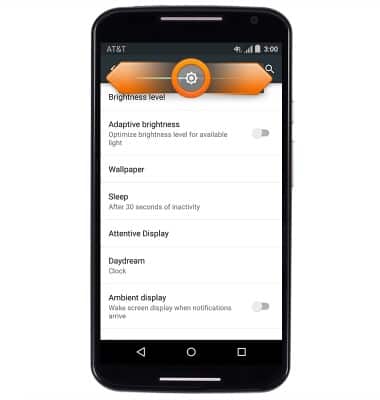
- Avoid Live Wallpapers to prolong battery life.
Note: Touch and hold any empty space on the home screen, then tap WALLPAPERS, to set the desired wallpaper.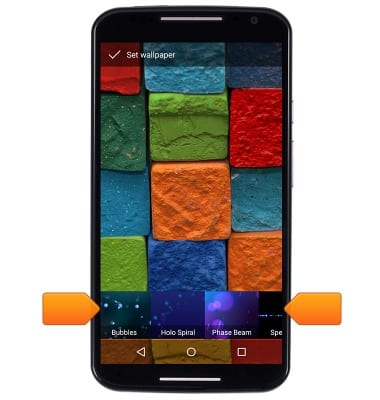
- When not in use, turn off Bluetooth and Wi-Fi.
Note: To quickly enable and disable Bluetooth or Wi-Fi, from the home screen, swipe down from the notifications bar with two fingers.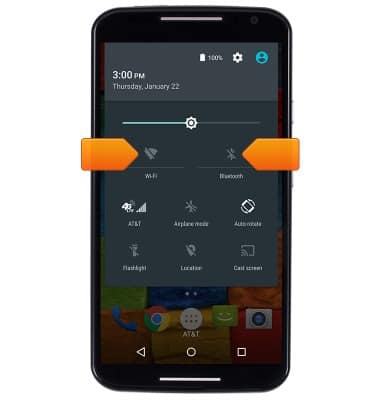
- Turn off location services to prolong battery life.
Note: To disable Location services, from the home screen, tap the Apps icon > Swipe to then tap Settings > Scroll to "Personal", then tap Location > Tap the location switch to disable Location services.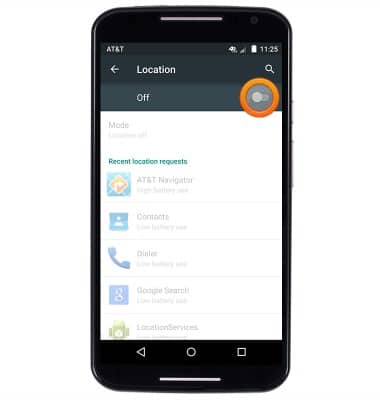
- Disable Auto-update apps to prolong battery life.
Note: To disable Auto-updating of apps, from the home screen, tap Play Store > Tap the Play Store Menu icon > Tap Settings > Tap Auto-Update apps.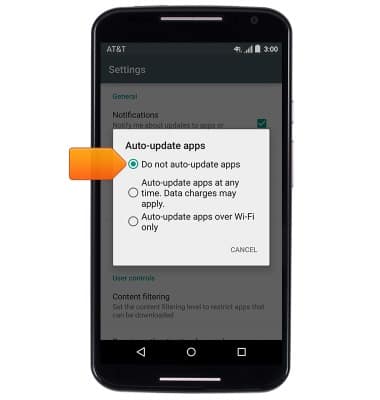
- Enable Airplane mode to prolong battery life.
Note: To enable and disable airplane mode, from the home screen, swipe down from the notifications bar with two fingers.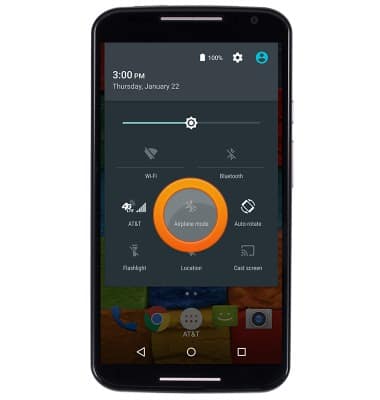
- For information about charging your battery, search tutorials for ‘Charge battery'.
Note: Shop at http://www.att.com/shop/wireless/accessories/chargers.html for additional chargers and battery accessories.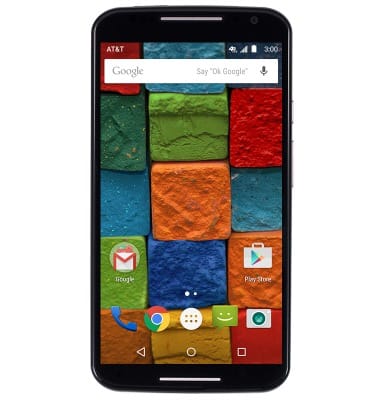
Battery life
Motorola Moto X (XT1097)
Battery life
Tips & tricks to extend your battery performance.
INSTRUCTIONS & INFO