- Before setting up an Exchange email account, you will need your account's server settings. If you don't know this information, please contact your IT team or email provider for assistance.
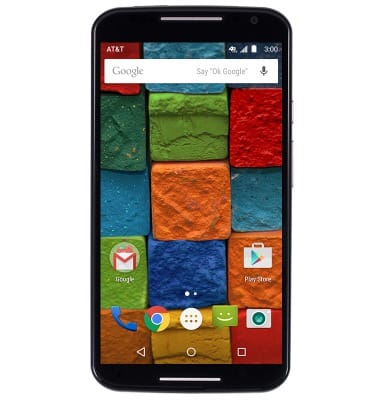
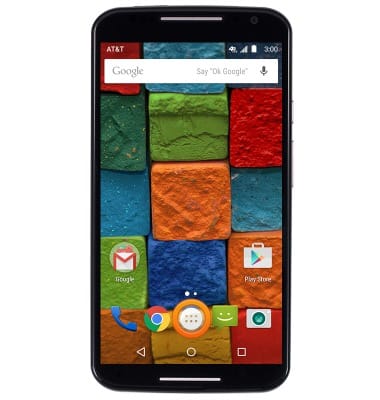
- From the home screen, tap the Apps icon.
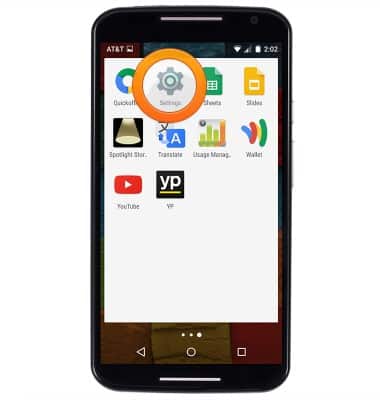
- Swipe to, then tap Settings.
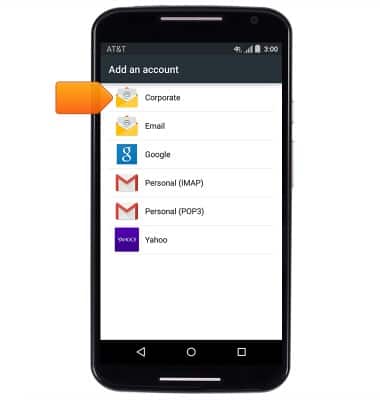
- Scroll to "Personal" then tap Accounts > tap Add account > tap Corporate.
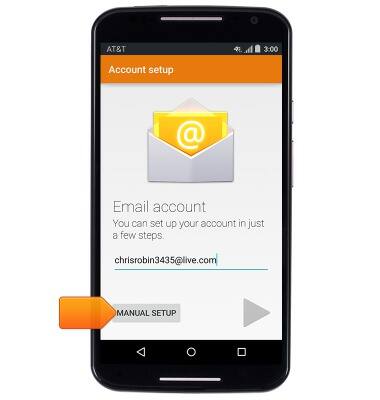
- Enter your email address, then tap the MANUAL SETUP.
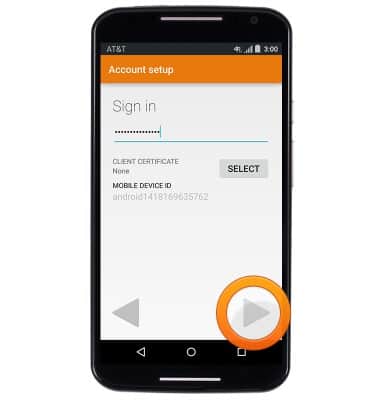
- Tap EXCHANGE > Enter your account password, then tap the Next icon.
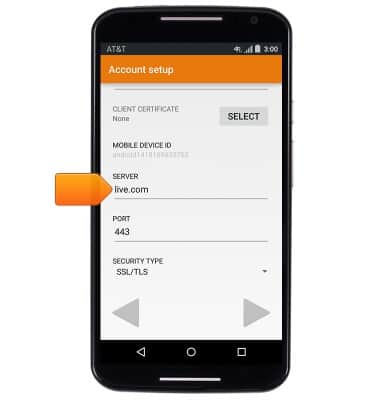
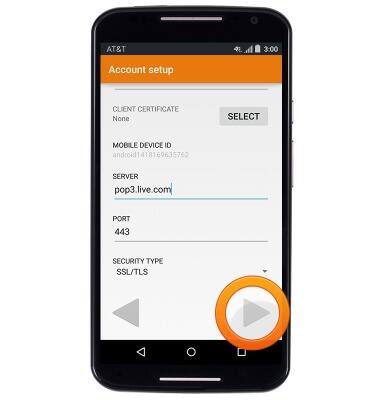
- Scroll to, then tap the Server field to edit the server address.
- Tap the Next icon.
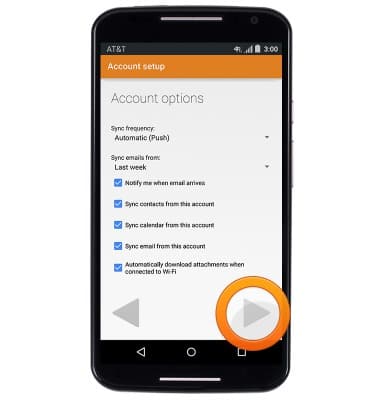
- Tap the desired account options, then tap the Next icon.
- If desired, give the account a name, then tap the Next icon to complete the setup.
Note: To remove an email account, from the home screen, tap the Apps icon > Settings > Accounts > Email or the Email account type > Account settings > email address > Menu icon > Remove account.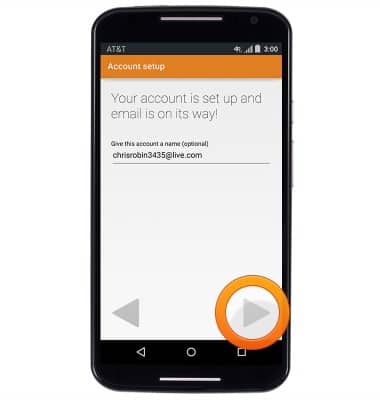
Set up corporate email
Motorola Moto X (XT1097)
Set up corporate email
Add your Exchange email account to sync email, contacts, calendar, and notes to your device.
INSTRUCTIONS & INFO