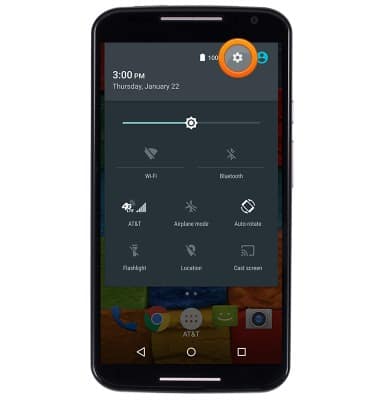
- From the home screen: swipe down with two fingers from the notifications bar > tap the Settings icon.
- Tap Wi-Fi > Tap the Wi-Fi switch to enable and disable Wi-Fi.
Note: Turn of Wi-Fi when not in use to prolong battery life.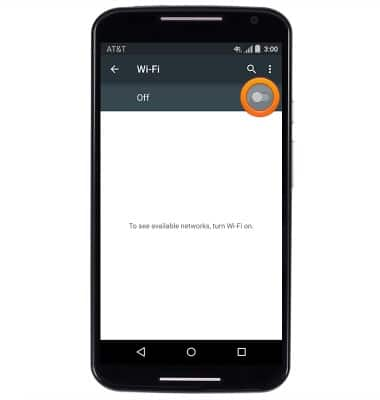
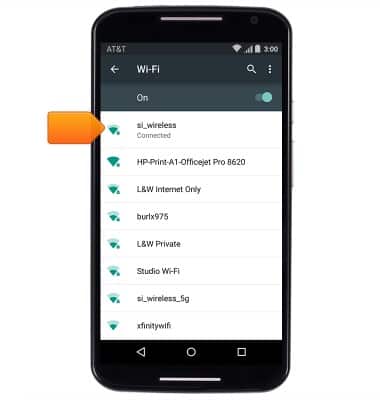
- To connect to a network, tap the desired network.
Note: Tap Add Wi-Fi network to connect to a hidden or unbroadcasted Wi-Fi network. You will need to enter the network SSID, security type, and a password (if necessary) to continue.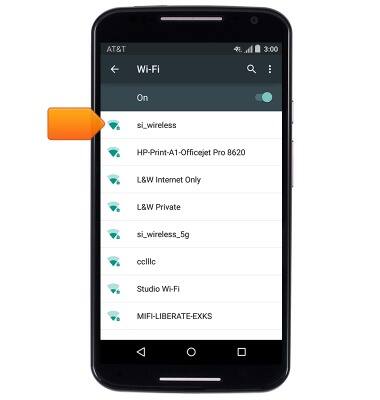
- If prompted, enter the network password, then tap CONNECT. Secured networks will display with a Lock icon.
Note: Data transmitted over a Wi-Fi network does not count toward your AT&T data plan, and will not be billed. To manage whether your device automatically switches from a poor or unstable Wi-Fi network to the AT&T network to maintain a consistent data connection, Tap 'Wi-Fi' > Tap 'Menu icon' > Tap 'Advanced' > Tap 'Auto-Connect'. When using the AT&T network, data rates apply.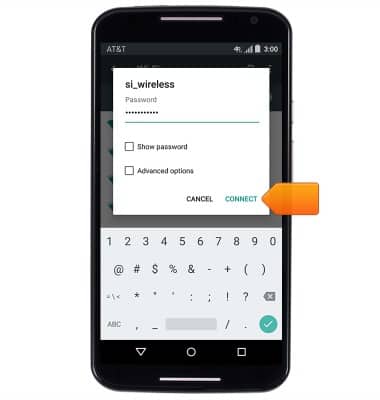
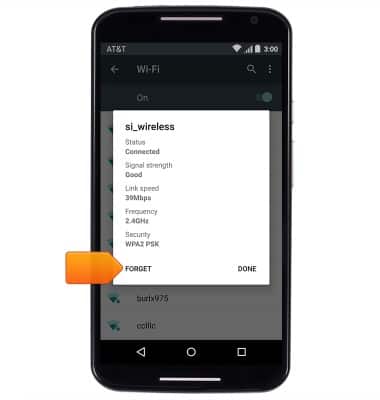
- To forget a Wi-Fi network, tap the desired Wi-Fi network.
- Tap Forget.
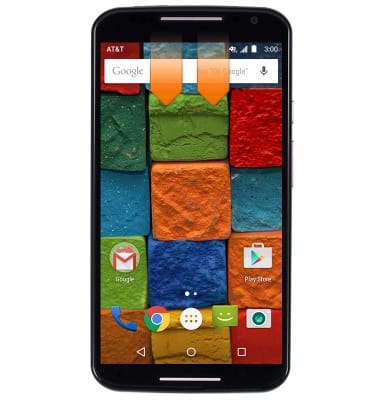
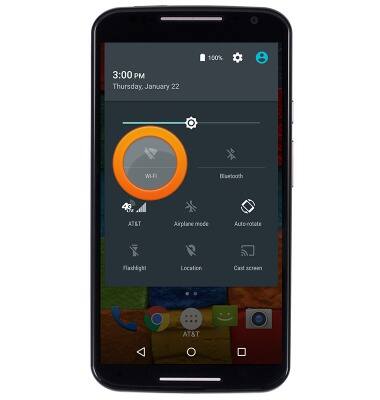
- To quickly enable and disable Wi-Fi, with two fingers, swipe down from the notifications bar.
- Tap Wi-Fi to enable and disable Wi-Fi.
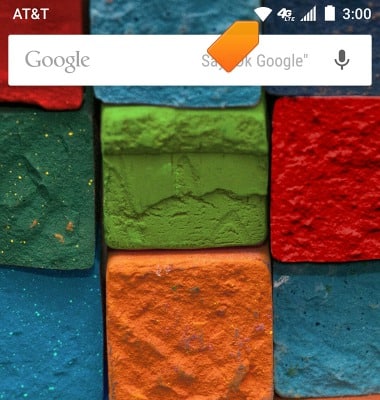
- While Wi-Fi is enabled, and connected to a network, the Wi-Fi icon will be displayed in the notifications bar.
Wi-Fi
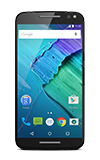
Motorola Moto X (XT1097)
Wi-Fi
How to connect your device to a Wi-Fi network.
Wi-Fi
This video explains how to turn on and manage WiFi.
Wi-Fi
1:37
INSTRUCTIONS & INFO