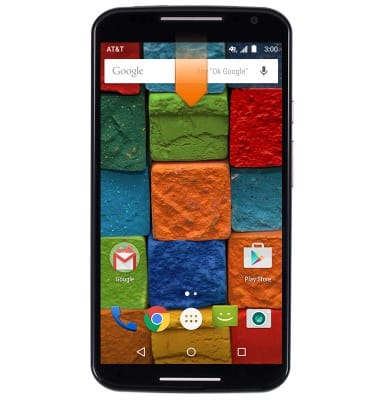
- Swipe down from the notifications bar, to access the notifications menu.
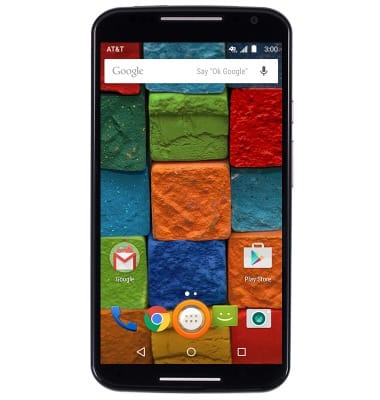
- Tap the Apps icon to view the app drawer.
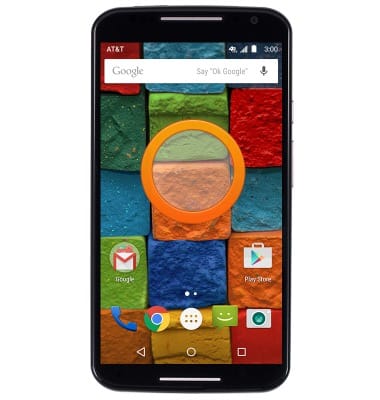
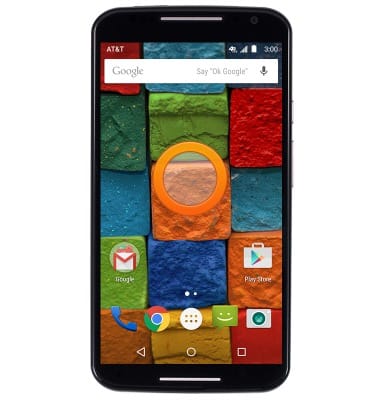
- To add a widget to the home screen, touch and hold an empty portion of the home screen.
- Tap WIDGETS.
Note: A widget is a smaller version of an application, displayed directly on your home screen with live updates.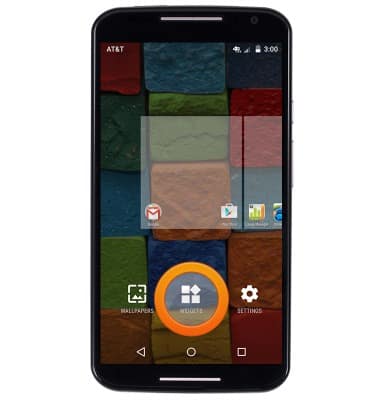
- Swipe to, then touch and hold a widget to add it to a home screen.
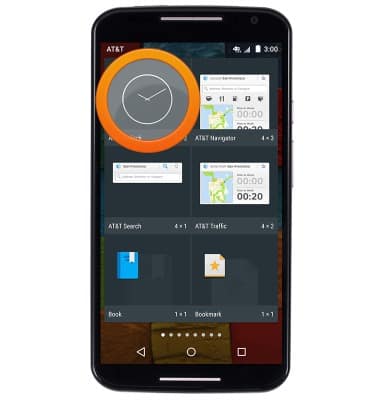
- Drag the widget to the desired location, then release to place it.
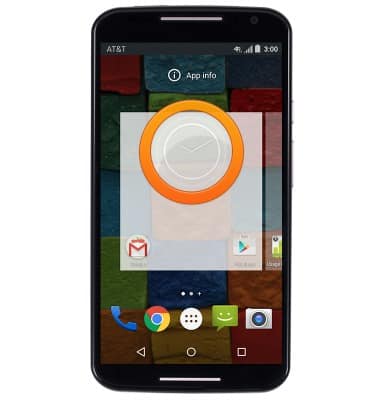
- To re-locate or to delete an app or widget from the home screen, touch and hold the desired app or widget.
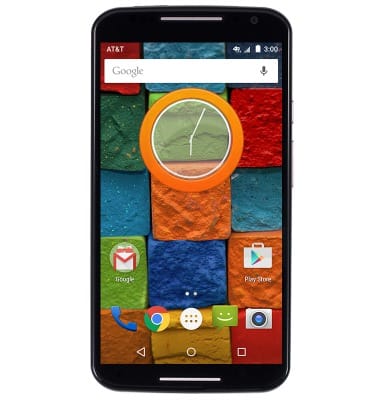
- While still holding the app or widget, drag it to the desired location and release to relocate it.
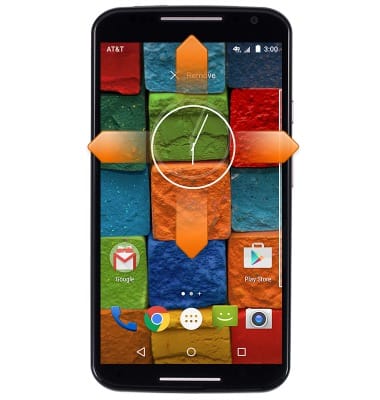
- While still holding, drag the app or widget to Remove and release to remove the app or widget.
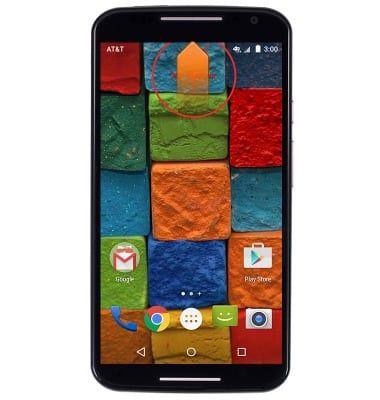
- To change the wallpaper, touch and hold an empty space on the home screen.
- Tap WALLPAPERS.
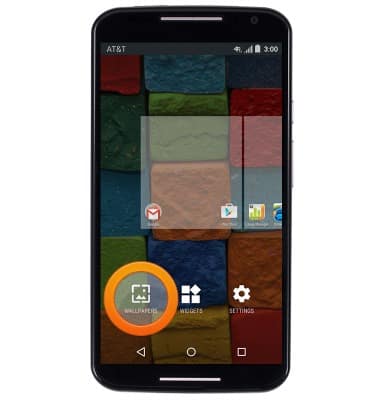
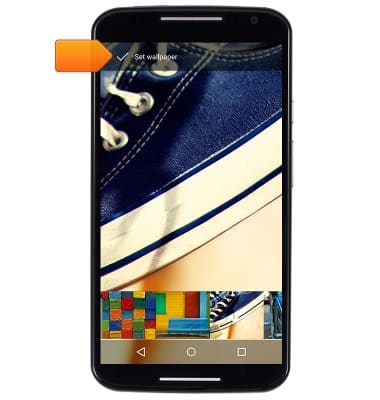
- Swipe to, then tap the desired wallpaper image.
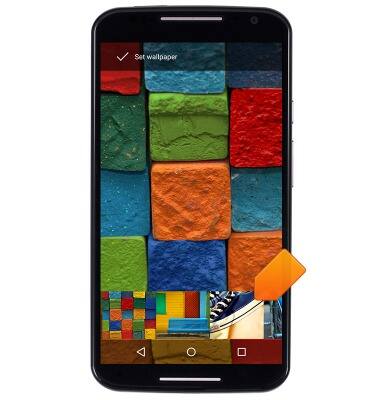
- Tap Set wallpaper.
Learn & customize the home screen
Motorola Moto X (XT1097)
Learn & customize the home screen
Add shortcuts and widgets, access the notification panel, changing wallpaper, and more.
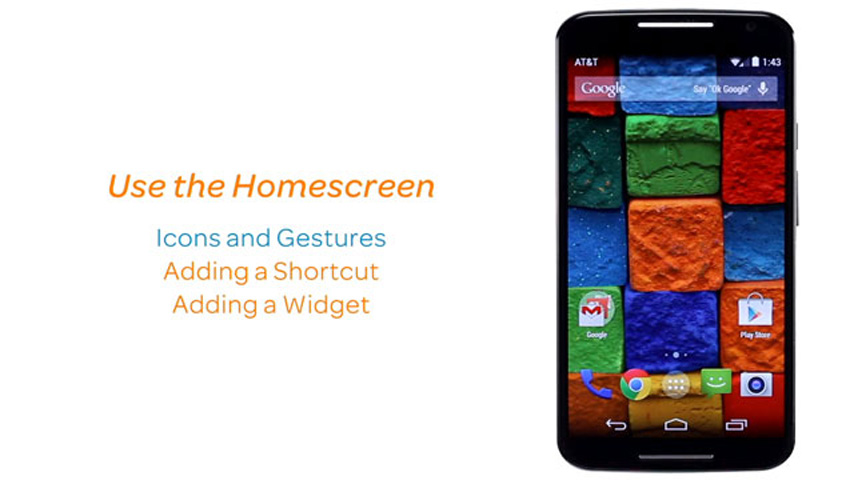
Use the home screen
This video explains how to navigate and customize the home screen on your device.
Use the home screen
1:55
INSTRUCTIONS & INFO